
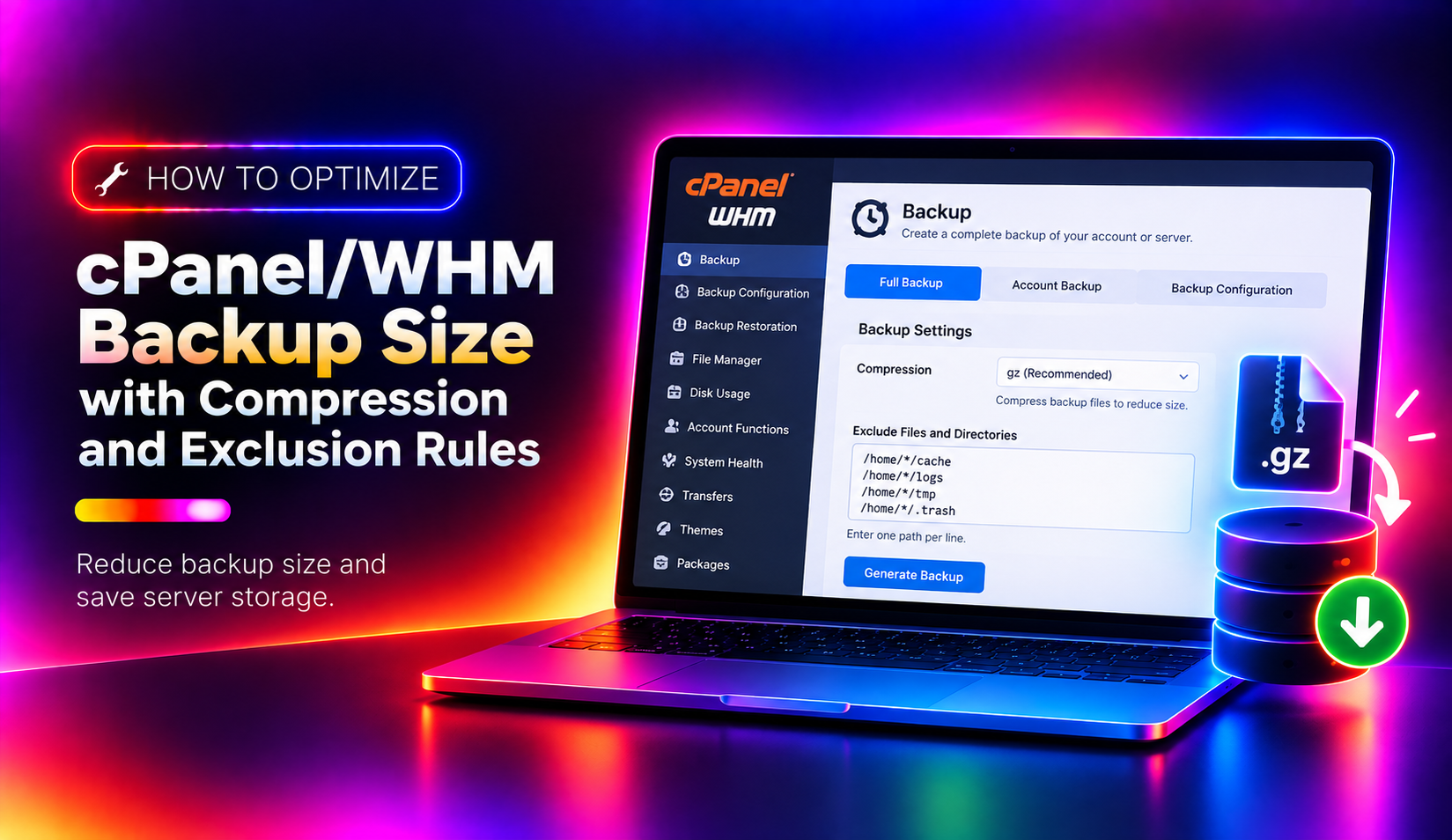
If your cPanel/WHM server is running out of disk space, there is a good chance your backups are the culprit. Unoptimised backups routinely consume two to three times more storage than necessary — and on a server with dozens of accounts, that adds up fast. This guide walks you through the exact compression settings and exclusion rules that reduce cPanel backup size by 50–80% without sacrificing restorability.
Why cPanel Backups Grow Too Large (and Cost You Money)
Most administrators enable cPanel backups and leave the defaults untouched. The problem is that the defaults are designed for broad compatibility, not efficiency. Three patterns are responsible for the majority of oversized backups:
- Log file accumulation. Apache, PHP, Exim, and MySQL error logs grow silently. A single busy account can generate gigabytes of access logs in a week. Because cPanel backs up the entire home directory by default, these logs are archived every night — even though they have no restore value.
- Reinstallable dependencies. WordPress cache directories,
node_modules, and Composervendorfolders are large and completely regenerable. Backing them up wastes time and space. - Compression mismatches. Using maximum compression on a server with limited CPU resources makes backups slower without delivering proportional size savings. Using no compression at all doubles your storage requirement.
Fixing these three issues typically reduces total backup size by 50–75% and cuts backup duration by 30–50%.
💡 None of these worked? Skip the guesswork.
Get Expert Help →Understanding Compression Levels in WHM Backups
WHM exposes compression controls under Home > Backup > Backup Configuration. Scroll to the Backup Type and compression settings section.
WHM offers three modes:
- Compressed — Creates gzip archives. Slowest to create, smallest on disk. Best for storage-constrained environments.
- Uncompressed — Fastest to create, largest on disk. Useful only when disk is cheap and restore speed matters most.
- Incremental — Only backs up files changed since the last run. The most storage-efficient option for daily cycles. Restore requires the full chain of incremental archives.
WHM uses pigz, a multi-threaded gzip implementation. The compression level runs from 0 (no compression, fastest) to 9 (maximum compression, slowest). The default is level 6.
Compression level  | Space saved vs. level 0 | Speed (relative)
0 (none)           | 0%                      | Fastest
3                  | ~45%                    | Fast
6 (default)        | ~60%                    | Moderate
9 (maximum)        | ~65%                    | Slowest
For most servers, level 3 or 4 delivers the best tradeoff: roughly 45–50% size reduction at two to three times the speed of level 9. Only push to level 9 if your server sits idle during the backup window.
In WHM Backup Configuration, look for Number of Pigz Processes. Set this equal to your CPU core count. On a 4-core server, entering 4 enables parallel compression — one pigz process per core. This is the single most impactful CPU-level tuning you can make for backup speed.
In WHM, go to JetBackup > Backup Jobs and open the job you want to modify.
JetBackup uses a slightly different path syntax:
- Paths starting with
/reference the filesystem root (e.g.,/root/my.cnf). - Paths without a leading slash are relative to the account's home directory (e.g.,
public_html/cache).
JetBackup automatically excludes common patterns: *.gz, *.log, *.jpa, *.sql, *.bkup, *.tar, Softaculous backups, and several cache directories. Review these defaults before adding duplicates.
JetBackup lets you include or exclude entire data types per backup job — databases, email, DNS zones, SSL certificates, cron jobs. For a dedicated email backup job, you can exclude home directory files entirely, keeping the job fast and focused.
In WHM Backup Configuration, configure how many daily, weekly, and monthly backups to retain. For most hosting accounts, 7 daily + 4 weekly + 1 monthly is sufficient. Keeping 30 daily backups of a 10 GB account means 300 GB of backup storage — for a single account.
WHM supports backup destinations including FTP, SFTP, S3-compatible storage, and Google Drive. Configure a remote destination under WHM > Backup > Backup Configuration > Additional Destinations. Keep recent backups local for fast restores; move older archives offsite to reduce local disk pressure.
A backup you have never tested is a hypothesis, not a guarantee. Restore a non-critical account to a staging environment quarterly. This also confirms that exclusion rules have not accidentally removed something important.
In WHM Backup Configuration, set the Backup Time to run at 2–4 AM local time. This minimises the impact of CPU-intensive compression on live site performance.
Optimising cPanel/WHM backups is one of the highest-ROI server maintenance tasks available. A few hours of configuration work eliminates gigabytes of wasted storage and makes backup jobs run faster every single night. If you need help auditing your current backup setup or configuring remote destinations, the team at CloudHouse Technologies provides managed cPanel server support with backup optimisation included.