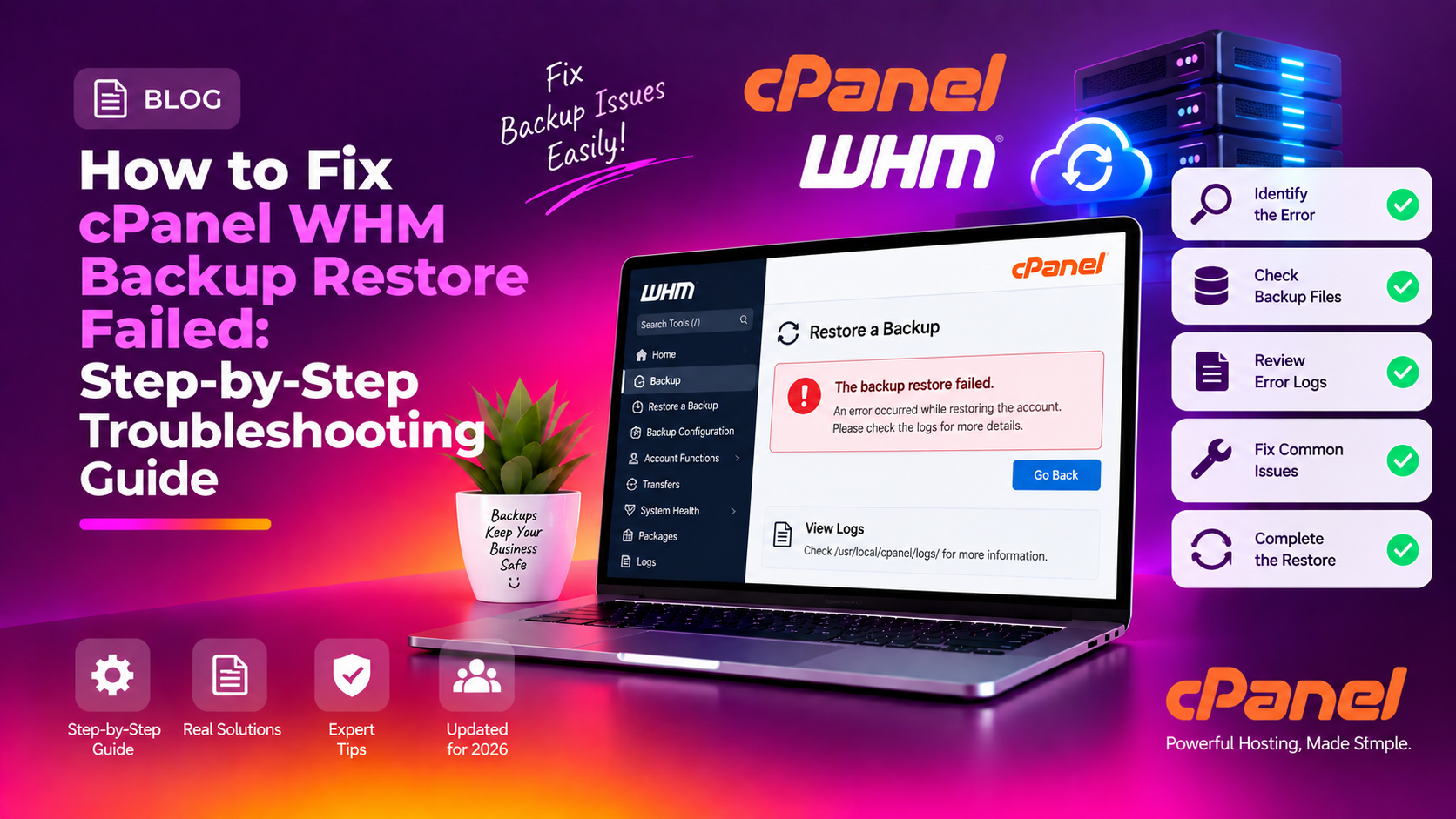
Few things cause more panic for a cPanel server administrator than a backup restore that refuses to complete. Whether you're recovering from a crash, migrating an account, or simply rolling back a botched update, a failed restore can leave critical websites offline and data inaccessible. The good news: cPanel WHM backup restore failures almost always follow predictable patterns with clear fixes.
This guide walks you through every common reason a cPanel or WHM backup restore fails — and exactly how to resolve each one using real commands and WHM settings.
💡 None of these worked? Skip the guesswork.
Get Expert Help →Step 1: Read the Restore Log First
Before touching anything, read the log output. WHM displays restore progress in real time and records detailed errors that point you directly to the root cause.
Navigate to WHM → Backup → Restore a Full Backup/cpmove File. During and after the restore attempt, WHM shows a scrollable output window. Copy the last 50 lines.
Restore operations write to the cPanel log directory:
tail -200 /usr/local/cpanel/logs/cpbackup_transport.log
grep -i "error\|fail\|warn" /usr/local/cpanel/logs/cpbackup.log | tail -50disk quota exceeded— insufficient space on destinationpermission denied— file or directory ownership issueA database owner with the name already exists— duplicate MySQL user conflictAccount is suspended— account must be unsuspended before restoreRequire a username prefix— WHM Tweak Settings conflictNo such file or directory— backup file not found or renamed
df -h /home
df -h /tmp
The /home partition needs free space equal to at least 2–3x the compressed backup size. The /tmp directory also needs working space for extraction.
# Clear old cPanel backups
ls -lh /backup/
rm -f /backup/cpbackup/daily/*.tar.gz   # remove old daily backups

# Clear WHM transfer temp files
rm -rf /home/cpmove-*.tar.gz

# Check for large files eating space
du -sh /home/* | sort -rh | head -20WHM's restore interface only reads backup files from the /home directory. If you uploaded to a subdirectory, move it:
mv /root/cpmove-username.tar.gz /home/
# Never rename the file — cPanel parses the filename for account metadatacd /var/cpanel/databases/
ls -la | grep USERNAMEMove any matching .json and .json.lock files out of the way:
mkdir -p /root/db_cache_backup
mv /var/cpanel/databases/USERNAME*.json* /root/db_cache_backup/mysql -u root -p
DROP USER 'cpanel_username'@'localhost';
FLUSH PRIVILEGES;
exit;Step 4: Fix the "Require Username Prefix" Database Setting
WHM has a Tweak Setting that enforces a username prefix on new MySQL databases and users. When restoring an account that was created without this setting, the restore fails because the incoming database names don't match the expected prefix format.
1. Disable the prefix requirement before restoring
Go to WHM → Server Configuration → Tweak Settings → MySQL and uncheck "Require a username prefix on names of new MySQL databases and users."
Step 5: Unsuspend Accounts Before Restoring
cPanel will not restore to or create a suspended account. If the log shows Account is suspended or Failed to parse adminbin request, the account exists but is suspended.
Via WHM: Go to WHM → Account Functions → Manage Account Suspension, find the account, and click Unsuspend.
Via SSH:
/scripts/unsuspendacct USERNAMEAfter unsuspending, delete the account and then run a clean restore — restoring over an existing account leads to partial overwrites and data corruption.
ls -la / | grep homeIt should show drwxr-xr-x root root (755). If different:
chmod 755 /home
chown root:root /home/scripts/fixacct USERNAMEThis corrects file ownership, permissions, and quota settings for the account.
/scripts/fixquotas# Copy the backup to /home first, then:
/scripts/restorepkg /home/cpmove-USERNAME.tar.gzSSH-based restores don't have browser timeout limitations and give real-time output.
For live-server migrations, WHM → Transfers → Transfer or Restore a cPanel Account is more reliable than manual file uploads because it streams directly between servers.
mysql -u root -e "SHOW VARIABLES LIKE 'wait_timeout';"If lower than 600, increase it temporarily in /etc/my.cnf:
[mysqld]
wait_timeout = 600
interactive_timeout = 600
Restart MySQL: systemctl restart mysql
Step 8: Fix Backup File Not Appearing in WHM
If you've uploaded the backup but don't see it in WHM → Restore a Full Backup, the file is in the wrong location or has the wrong name format.
- The file must be in
/home/— not a subdirectory of home, not/root/ - The filename must match the pattern
cpmove-USERNAME.tar.gzorbackup-DATE_USERNAME.tar.gz - Do not rename or extract the archive before restoring
- Ensure the file is owned by root:
chown root:root /home/cpmove-USERNAME.tar.gz
Step 9: Verify the Restore Completed Successfully
After a successful restore, always run verification checks before telling the client their site is live:
# Check account exists
/scripts/whoowns DOMAIN.COM

# Check DNS zone is loaded
/scripts/ensure_vhost_includes --all-users

# Rebuild Apache/Nginx config
/scripts/rebuildhttpdconf && systemctl restart httpd

# Rebuild DNS zone
/scripts/rebuilddnsconf && rndc reload

# Fix email forwarders
/scripts/updateuserdomains
Also verify from WHM → List Accounts that the account shows the correct disk usage, bandwidth allocation, and package assignment.
FAQs
See below for answers to the most common questions about cPanel WHM backup restore failures.
Prevent Future Restore Failures
The most reliable way to prevent restore failures is to test your backups before you need them. At least once per month, restore a non-critical account to a staging environment and walk through the verification steps above. This surfaces configuration conflicts — like the username prefix setting or disk space shortfalls — before they become emergencies.
For mission-critical servers, consider supplementing cPanel's built-in backup system with managed server backup monitoring to catch failures automatically and maintain tested, verified restore points at all times.