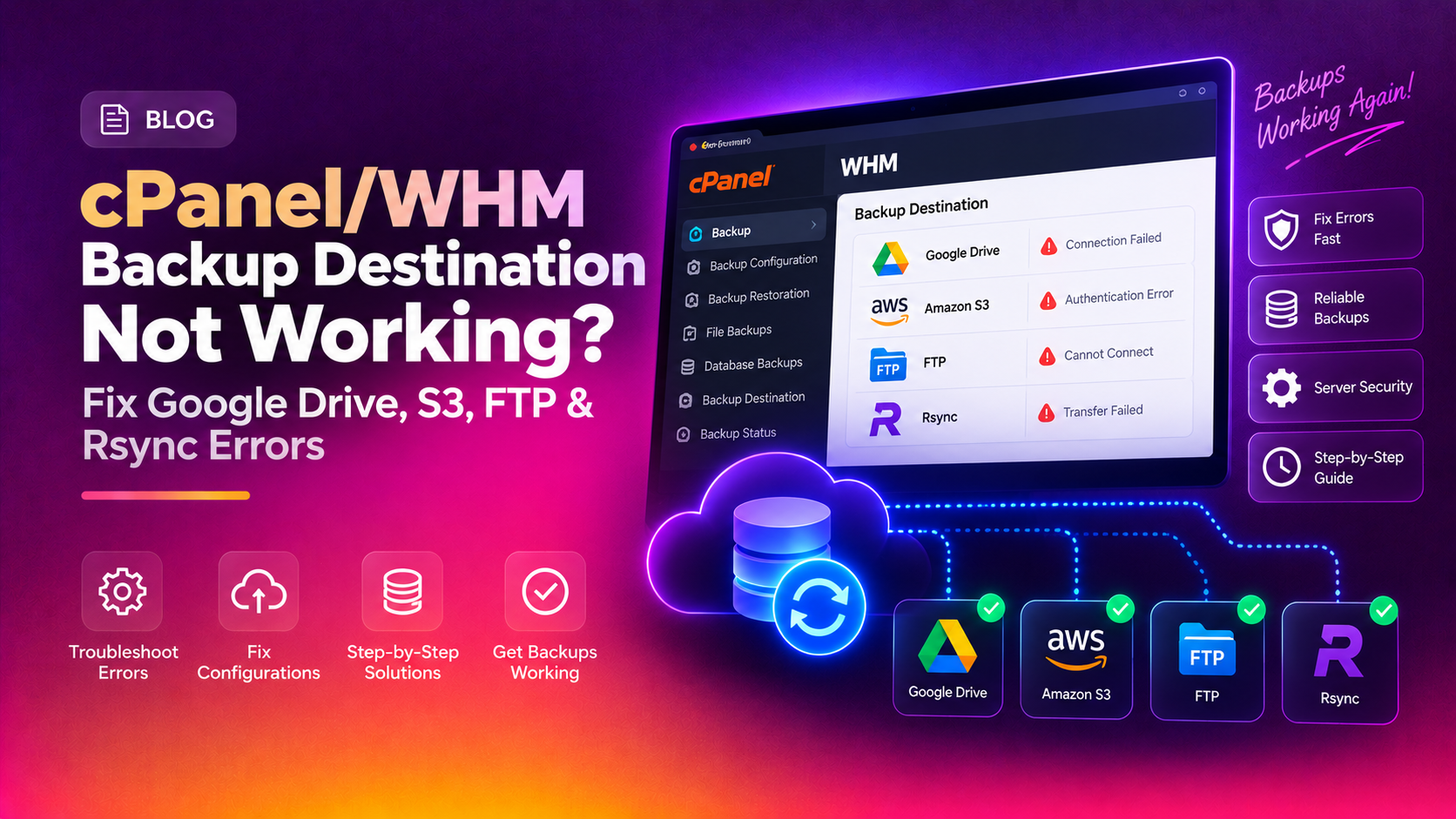
You set up WHM's Backup Configuration, picked an additional destination — Google Drive, Amazon S3, FTP, or rsync — clicked Save and Validate Destination, and got a failure. Or worse: it says "Success," but no files actually arrive. cPanel/WHM backup destinations are one of the most misunderstood areas of server management, and broken backups are a silent catastrophe waiting to happen.
This guide walks through every common failure mode for WHM additional backup destinations and the exact commands to diagnose and fix each one.
How WHM Additional Backup Destinations Work
WHM's built-in backup system (WHM → Backup → Backup Configuration) supports two layers: local backups stored on the same server, and additional destinations that transport those backups offsite. The destinations include:
- Google Drive — via OAuth2 credentials
- Amazon S3 (and S3-compatible stores like Wasabi, Backblaze B2, Linode Object Storage)
- FTP / SFTP — plain file transfer to a remote host
- rsync — SSH-based incremental sync
- WebDAV and custom destinations
When a destination fails, WHM logs errors to:
/usr/local/cpanel/logs/cpbackup_transporter.logAlways start there. Run this to tail the log during a test:
tail -f /usr/local/cpanel/logs/cpbackup_transporter.log💡 None of these worked? Skip the guesswork.
Get Expert Help →Step 1: Run a Manual Backup Test and Read the Log
In WHM, go to Backup → Backup Configuration → Additional Destinations, locate your destination, and click Save and Validate Destination. This writes and removes a test file.
From the command line, you can also trigger the full backup transport manually:
/usr/local/cpanel/bin/backup --force 2>&1 | tee /tmp/backup_test.loggrep -i "error\|fail\|warn\|timeout" /usr/local/cpanel/logs/cpbackup_transporter.log | tail -50Common error patterns and what they mean:
Connection timed out— firewall blocking the port, or timeout value too lowAuthentication failed— wrong credentials, expired token, or IAM permission missingNo space left on device— destination storage is fullSSL certificate verify failed— TLS mismatch on custom S3 endpointsPermission denied— the remote user lacks write access to the target directory
In WHM → Backup Configuration → Additional Destinations, click Edit on your Google Drive destination. Click Generate Credentials — a new browser tab opens to re-authorize. Complete the OAuth flow and save.
Go to Google Cloud Console → APIs & Services → Credentials. Confirm the OAuth 2.0 Client ID you used still exists and the Google Drive API is enabled for that project.
The folder name you specified in WHM must exist inside the Google Drive of the authorized account. If the folder was renamed or deleted, WHM cannot write to it.
# Google Drive storage — check available space
# WHM does not pre-check destination quota; it fails mid-transfer if full
# Use the Google account's Storage page to verify free space
The IAM user needs at minimum:
{
  "Effect": "Allow",
  "Action": ["s3:PutObject","s3:GetObject","s3:DeleteObject","s3:ListBucket"],
  "Resource": ["arn:aws:s3:::your-bucket-name","arn:aws:s3:::your-bucket-name/*"]
}
Test from the server command line with the AWS CLI:
aws s3 ls s3://your-bucket-name --region us-east-1If this fails, the problem is IAM — not WHM.
AWS signatures are time-sensitive. A clock drift >5 minutes causes authentication failures:
timedatectl status
# If not synchronized:
systemctl restart chronyd # or: ntpdate -u pool.ntp.orgA bucket name containing a dot (e.g. my.backup.bucket) breaks path-style S3 requests and causes SSL errors. Rename the bucket using only lowercase letters, numbers, and hyphens.
For non-AWS S3 providers, set the S3 URL field in WHM to the custom endpoint. Example for Wasabi:
s3.wasabisys.comFor Backblaze B2:
s3.us-west-004.backblazeb2.comLeave the region field matching the bucket's actual region. Test SSL:
openssl s_client -connect s3.wasabisys.com:443 -servername s3.wasabisys.com < /dev/nullftp -n <<EOF
open YOUR_FTP_HOST 21
user YOUR_FTP_USER YOUR_FTP_PASS
pwd
bye
EOFIf this fails, the problem is network connectivity or credentials — not WHM.
Active FTP (PORT mode) is blocked by most firewalls. In WHM → Backup Configuration → your FTP destination, ensure Passive FTP is checked.
WHM uses an SSH key pair for SFTP destinations. Generate the key and copy it to the remote server:
# Generate key on the cPanel server (as root)
ssh-keygen -t rsa -b 4096 -f /root/.ssh/cpanel_backup_key -N ""

# Copy public key to remote server
ssh-copy-id -i /root/.ssh/cpanel_backup_key.pub user@remote-host

# Test the connection
ssh -i /root/.ssh/cpanel_backup_key user@remote-host "echo OK"
In WHM's SFTP destination config, enter the full path to the private key file.
ssh user@remote-host "ls -la /path/to/backup/dir"
# The FTP/SFTP user must own or have write access to the target directoryssh -i /root/.ssh/id_rsa root@REMOTE_HOST "echo SSH OK"If this fails, check:
- SSH port (default 22 — confirm in WHM destination config)
- Remote server firewall allows connections from this server's IP
- The public key is in
~/.ssh/authorized_keyson the remote
# On the cPanel server
which rsync && rsync --version

# On the remote server
ssh root@REMOTE_HOST "which rsync && rsync --version"In WHM → Backup Configuration → your rsync destination, increase the Timeout value. For servers with 50+ cPanel accounts, set it to at least 7200 seconds (2 hours).
If WHM logs show unable to prune transport, the remote directory has permission issues. Fix:
ssh root@REMOTE_HOST "chown -R cpanel_backup_user:cpanel_backup_user /backup/path && chmod -R 755 /backup/path"Step 6: Verify Backups Are Actually Arriving
The validation test only writes and deletes a small test file — it doesn't confirm a full backup transfer. After your next scheduled backup window, verify manually:
For S3:
aws s3 ls s3://your-bucket-name/ --recursive | sort -k1,2 | tail -20For rsync/SFTP remote:
ssh root@REMOTE_HOST "ls -lht /backup/path/ | head -20"For Google Drive: Log into the Google account and check the target folder directly.
Also verify the backup log shows "Transport complete" for each destination:
grep -i "transport complete\|destination" /usr/local/cpanel/logs/cpbackup_transporter.log | tail -30FAQs
Conclusion
WHM backup destinations fail silently more often than they loudly error — and that silence is dangerous. By reading /usr/local/cpanel/logs/cpbackup_transporter.log, testing each connectivity layer independently, and verifying backups actually land in the destination after the transfer window, you can be confident your offsite copies are real. If you're managing multiple cPanel servers and need reliable backup architecture built and monitored end-to-end, CloudHouse's server management team can set it up and keep it working.