
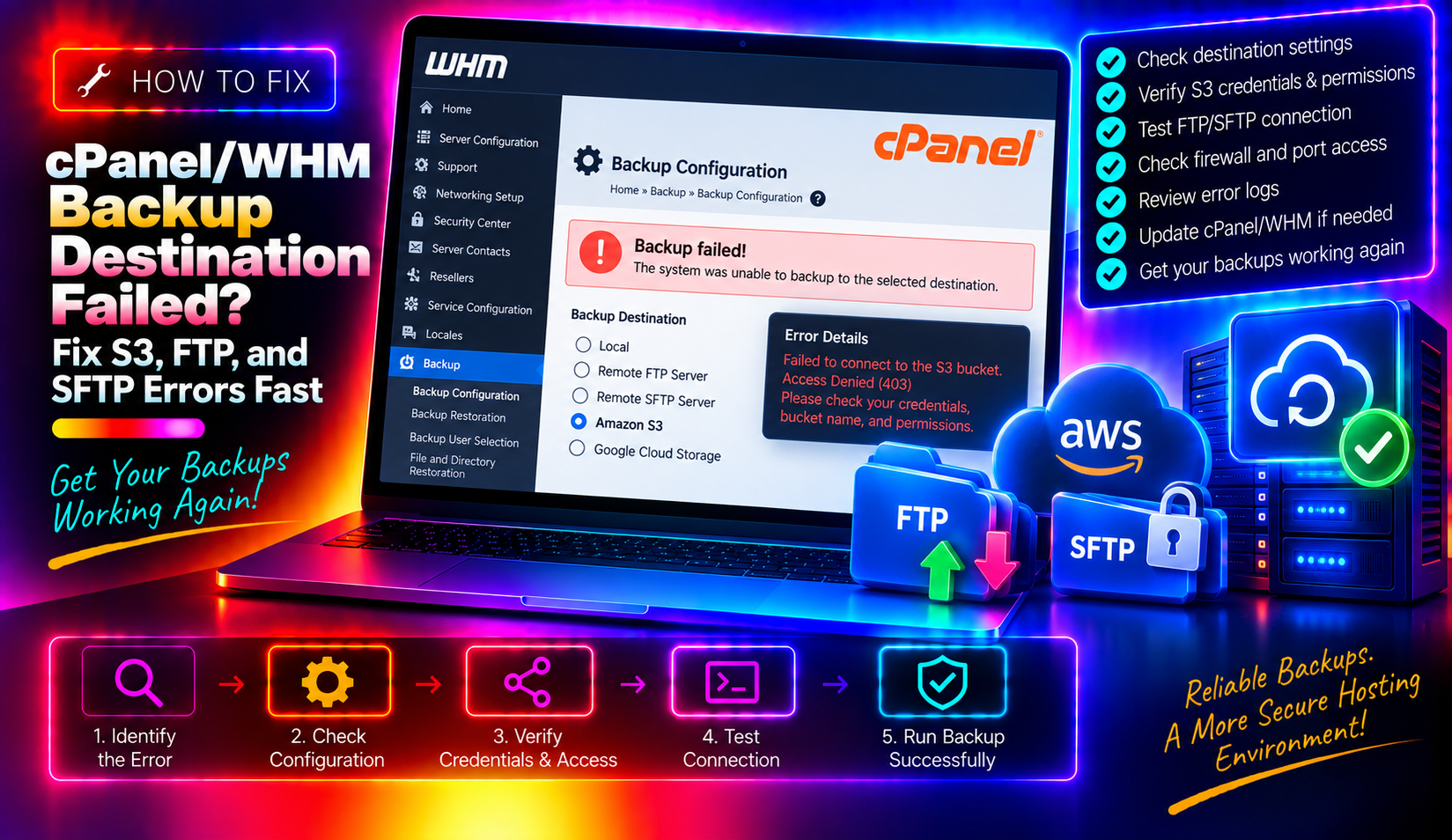
Your WHM server ran a scheduled backup last night and everything looked fine — until you checked the destination bucket this morning and found nothing. Or you clicked "Save and Validate Destination" in WHM Backup Configuration and got a cryptic timeout error with no further explanation. Remote backup destinations are one of the most important parts of a hosting server's disaster-recovery setup, yet when they fail, the WHM interface gives you almost nothing to work with.
This guide walks you through exactly how to diagnose a failed cPanel/WHM backup destination — whether it's Amazon S3, a generic S3-compatible object store, FTP, or SFTP — and fix it step by step.
Why WHM Backup Destinations Fail: The Real Causes
Before reaching for random fixes, understand the five root causes that cover almost every remote destination failure:
- Incorrect or expired credentials — Wrong access key, bucket name, FTP password, or an IAM policy that was updated without updating WHM.
- Network or firewall blocks — The server cannot reach the destination endpoint on the required port (FTP: 21, SFTP: 22, HTTPS: 443).
- Timeout limits — Large accounts exceed WHM's default transfer timeout, causing the upload to stall mid-way.
- Wrong region or endpoint — S3-compatible destinations require the exact regional endpoint. A mismatched region causes silent authentication failures.
- Destination storage full — The remote bucket or FTP server has no free space. WHM does not warn you about this — it simply fails.
💡 None of these worked? Skip the guesswork.
Get Expert Help →Step 1: Read the Right Log Files
The WHM Backup Configuration screen shows minimal error detail. All the real diagnostic information is in these two log files:
Navigate to WHM → Backup → Backup Log, or read it directly via SSH:
tail -200 /usr/local/cpanel/logs/cpbackup/daily.logLook for lines containing ERROR, failed, or Transport. A common entry looks like:
Transport failed: Could not upload test file: Timeout
Upload attempt failed: Connection to remote server stalledThis is the most detailed log for remote destination failures:
tail -500 /usr/local/cpanel/logs/cpbackup_transporter.logThis log shows individual file transfer attempts, the exact error returned by the remote endpoint, and which account triggered the failure. If you see repeated Upload attempt failed lines for a single account, that account's backup archive may exceed your timeout limit — see Step 4.
tail -f /usr/local/cpanel/logs/cpbackup_transporter.logTrigger a manual backup from WHM → Backup → Run Backup while this command runs to see exactly where it fails in real time.
Go to WHM → Backup → Backup Configuration → Additional Destinations. Click the edit icon for your S3 destination. Confirm:
- Access Key ID and Secret Access Key are correct and have not been rotated
- Bucket name matches exactly (case-sensitive)
- For non-Amazon providers, the S3 endpoint field must contain the provider's FQDN (e.g.
s3.us-east-1.wasabisys.com)
Mismatched regions produce an AuthorizationHeaderMalformed or InvalidLocationConstraint error in the transporter log. The Region field must match the bucket's actual region exactly — for example us-east-1, not us-east.
For Wasabi and Backblaze B2, set the Region field to the value specified in their documentation for each data centre. If the provider does not use regions, leave the field blank rather than entering a guess.
The IAM user attached to the Access Key needs at minimum these S3 permissions on the target bucket:
s3:PutObject
s3:GetObject
s3:DeleteObject
s3:ListBucket
If your IAM policy was recently updated or the key was generated under a different user, regenerate the key and update WHM.
curl -v https://s3.amazonaws.com/your-bucket-name/ 2>&1 | head -40A 403 Forbidden response confirms the server can reach S3 but credentials are wrong. A Connection refused or Could not resolve host indicates a DNS or firewall issue.
Most FTP failures on dedicated servers are caused by active mode FTP being blocked by the remote server's firewall. In WHM Backup Configuration → Additional Destinations, ensure Passive FTP is enabled. Active mode requires the remote server to initiate a return connection to your server, which firewalls almost always block.
ftp -n your.ftp.host
> user your_username your_password
> pwd
> quit
If this fails, the problem is network-level — not WHM configuration. Check that port 21 (FTP) or port 22 (SFTP) is open on the remote server and not blocked by CSF/iptables on your cPanel server.
sftp -v your_user@your.sftp.hostLook for Connection refused (port blocked), Permission denied (wrong credentials or key), or Host key verification failed (SFTP host key has changed). For WHM's SFTP destination to work, the remote host key must be accepted. SSH to your server and run:
ssh -o StrictHostKeyChecking=no your_user@your.sftp.hostThis accepts and stores the host key so WHM can connect without interactive confirmation.
WHM/cPanel does not support FTP destinations hosted on Windows servers. If your backup FTP target runs on Windows, switch to an SFTP destination or use an S3-compatible storage provider instead.
Go to WHM → Backup → Backup Configuration → Additional Destinations → edit your destination. Find the Timeout field and increase it. For large accounts, 14400 (4 hours) or 21600 (6 hours) is appropriate. Save and validate.
Review the transporter log to find which accounts always fail:
grep "Upload attempt failed" /usr/local/cpanel/logs/cpbackup_transporter.log | awk '{print $NF}' | sort | uniq -c | sort -rn | head -20For each large account, consider excluding non-critical directories (logs, caches) using the Backup Exclusions feature in WHM.
WHM Backup Configuration → Schedule: set the backup start time to 2–4 AM when server load is lowest and network congestion is minimal. This reduces the chance of timeouts caused by competing processes.
After making any change, go to WHM → Backup → Backup Configuration → Additional Destinations and click Save and Validate Destination. Wait for the result — it tests connectivity, writes a small test file, and reads it back.
After validation completes, click the Validation Results tab on the Destinations page. This shows the timestamp and full result of the last validation attempt including the exact error string if it failed.
tail -f /usr/local/cpanel/logs/cpbackup_transporter.log &Then in WHM → Backup → Backup Configuration → scroll down and click Save Configuration and Schedule Backup, or run via command line:
/usr/local/cpanel/bin/backup --forceWatch the tail output for any errors. A successful transfer prints lines like Transported account: username for each account.
If you are running managed cPanel/WHM server administration and would prefer an expert to diagnose and fix your backup destination issues, CloudHouse Technologies handles exactly this.