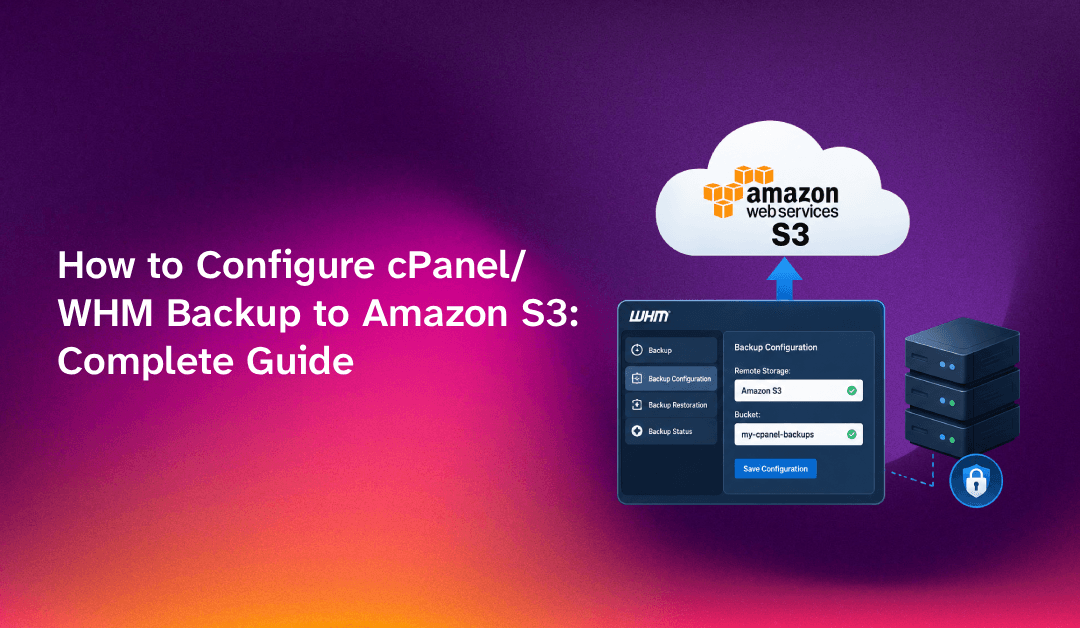
Setting up cPanel backup to S3 is one of the smartest moves a sysadmin can make for offsite data protection — but it trips up even experienced engineers if the IAM permissions, bucket policies, or WHM transport settings aren't configured precisely. This guide walks you through every step: creating the right IAM user, configuring WHM's native backup transport, hardening your setup with encryption and lifecycle rules, and resolving the most common errors that appear in /usr/local/cpanel/logs/cpbackup_transporter.log.
Why Use Amazon S3 for cPanel/WHM Backups
cPanel/WHM's built-in backup system is powerful — but storing backups on the same server they protect defeats the purpose. A disk failure, ransomware attack, or accidental rm -rf can wipe both your live data and your backups simultaneously. Offloading to Amazon S3 solves this with:
- Geographic redundancy: S3 replicates objects across multiple Availability Zones by default, giving you 99.999999999% (11 nines) durability.
- Zero local disk pressure: Backups don't consume server storage, which is critical on shared hosting servers with hundreds of accounts.
- Native WHM integration: WHM's Additional Destinations feature has built-in Amazon S3 support — no third-party plugins or cron scripts required.
- Cost efficiency: S3 Standard-IA or Glacier Instant Retrieval costs a fraction of equivalent block storage.
- Granular retention control: S3 Lifecycle policies automate expiry, so you don't manually prune old backups.
If you manage a busy shared hosting environment and need expert eyes on your backup architecture, the team at CloudHouse Technologies' server management service can audit and configure your entire backup strategy.
💡 None of these worked? Skip the guesswork.
Get Expert Help →Prerequisites: AWS Account and S3 Bucket Setup
Before touching WHM, you need three AWS components in place: an S3 bucket, an IAM user with scoped permissions, and the user's access key credentials.
Create the S3 Bucket
Go to Services → S3 → Create bucket. Choose a unique, lowercase bucket name (e.g., myhost-cpanel-backups). Bucket names must be globally unique across all AWS accounts.
Pick the region geographically closest to your server to reduce transfer latency and cost. Note the region code (e.g., us-east-1) — you'll need it in WHM.
Leave all "Block public access" settings enabled. Backup buckets should never be publicly accessible.
Versioning protects against accidental overwrites. Navigate to Bucket → Properties → Bucket Versioning → Enable.
Go to Bucket → Properties → Default encryption → Enable and select SSE-S3 (AES-256). For stricter compliance needs, use SSE-KMS with a customer-managed key.
Create a Scoped IAM User
Name the user something descriptive: cpanel-s3-backup. Select Programmatic access only — this user should never log into the console.
Skip managed policies and create a custom inline policy that grants only the minimum permissions WHM needs. Replace myhost-cpanel-backups with your actual bucket name:
{
  "Version": "2012-10-17",
  "Statement": [
    {
      "Sid": "ListBackupBucket",
      "Effect": "Allow",
      "Action": [
        "s3:ListBucket",
        "s3:GetBucketLocation"
      ],
      "Resource": "arn:aws:s3:::myhost-cpanel-backups"
    },
    {
      "Sid": "ManageBackupObjects",
      "Effect": "Allow",
      "Action": [
        "s3:PutObject",
        "s3:GetObject",
        "s3:DeleteObject",
        "s3:GetObjectVersion",
        "s3:DeleteObjectVersion"
      ],
      "Resource": "arn:aws:s3:::myhost-cpanel-backups/*"
    }
  ]
}After creating the user, download or copy the Access Key ID and Secret Access Key. You will not be able to view the secret key again after leaving this page.
Access your WHM panel at https://yourserver.com:2087 and log in with root credentials.
In the WHM search bar, type Backup Configuration and click the result. This opens the main backup settings page.
On the Global Settings tab, set Backup Status to Enabled. Without this, WHM will not run any backups — including S3 transfers.
Under Scheduling and Retention, set your desired daily/weekly/monthly backup frequency. A typical production setup runs daily backups with 7-day retention.
At the bottom of the Backup Configuration page, click the Additional Destinations tab. From the Destination Type dropdown, select Amazon S3 and click Create new destination.
You will see a form with the following fields:
- Destination Name: A label for this destination, e.g.,
S3-Offsite - Transfer System Backups: Enable if you want WHM configuration files backed up too
- Bucket: Your exact S3 bucket name, e.g.,
myhost-cpanel-backups - Access Key ID: The IAM user's Access Key ID from Step 8 above
- Secret Access Key: The IAM user's Secret Access Key
- Timeout: Default 30s is fine; increase to 60s for slow connections
In the Remote Directory field, enter a folder prefix such as cpanel-backups/. This keeps the bucket organised if you store other objects there too.
Click Save and Validate Destination. WHM will attempt to write a small test file to your S3 bucket and delete it. A green success message means connectivity and permissions are correct. A red error means you need to revisit IAM permissions or bucket name.
After saving, the new destination appears in the Additional Destinations list. Tick the checkbox to include it in your backup schedule, then click Save Configuration at the top of the page.
cpanel-backups/ if you used a subdirectory, or leave blank to apply to all objects.
3. Recommended rule for typical hosting environments:
- Transition to S3 Standard-IA after 30 days (~40% cost reduction)
- Transition to S3 Glacier Instant Retrieval after 90 days (further 68% reduction)
- Expire (permanently delete) after 365 days
WHM Backup Retention Settings
WHM's own retention settings control how many backup generations are kept in the destination. In Backup Configuration → Scheduling and Retention:
- Daily backups retention: 7
- Weekly backups retention: 4
- Monthly backups retention: 3
WHM deletes older backups from S3 automatically once the retention count is exceeded — but only if the destination's Delete old backups from this destination option is enabled.
Monitoring Backup Completion
Monitor the backup transporter log in real time:
tail -f /usr/local/cpanel/logs/cpbackup_transporter.logFor the full backup process log (local backup creation before transfer):
tail -f /usr/local/cpanel/logs/cpbackup/A successful S3 transfer looks like:
[2024-01-15 03:42:11 UTC] Transferring backup to S3 destination "S3-Offsite"
[2024-01-15 03:42:12 UTC] Successfully uploaded: backup-3.15.2024_03-00-01/accounts/user1.tar.gz
[2024-01-15 03:42:55 UTC] Transport complete. 14 files transferred (2.3 GB)
Troubleshooting Common cPanel S3 Backup Errors
Most WHM S3 backup failures fall into four categories. Here's how to diagnose and fix each one:
Error: "Access Denied" / HTTP 403
Symptom: WHM test destination returns "Could not validate destination: Access Denied" or you see in cpbackup_transporter.log:
[ERROR] S3 Upload failed: Access Denied (HTTP 403) for bucket myhost-cpanel-backupsCauses and fixes:
- IAM user is missing
s3:PutObjectors3:ListBucket— re-apply the IAM policy from the Prerequisites section - The bucket name in WHM doesn't exactly match the S3 bucket (check for typos, uppercase letters)
- Bucket Policy has a
Denyrule that overrides IAM allow — check Bucket → Permissions → Bucket Policy - Object ownership settings may block uploads — set Bucket Owner Enforced under Permissions → Object Ownership
Error: "Bucket Does Not Exist" / NoSuchBucket
Symptom:
[ERROR] NoSuchBucket: The specified bucket does not existFix: The bucket name is wrong, or the bucket is in a different region than what WHM expects. Verify the exact bucket name in the AWS Console and ensure the IAM user has access to that region.
Error: "Invalid Security Token" / ExpiredToken
Symptom:
[ERROR] InvalidClientTokenId: The security token included in the request is invalidFix: The Access Key ID or Secret Access Key in WHM is entered incorrectly. Regenerate the IAM user's access keys in AWS Console (IAM → Users → cpanel-s3-backup → Security credentials → Create access key), update WHM, and re-test.
Error: Backups Complete Locally But Don't Appear in S3
Symptom: Local backups exist in /backup/ but S3 bucket remains empty or stale after scheduled runs.
Fix steps:
- Confirm the additional destination is checked/enabled in WHM Backup Configuration
- Check
/usr/local/cpanel/logs/cpbackup_transporter.logfor transport errors - Verify your server's system clock is accurate:
timedatectl— AWS signatures reject requests with clock skew >5 minutes - If clock is drifted, sync it:
chronyc makesteporntpdate -u pool.ntp.org
Error: Large Backups Time Out
Symptom: Small accounts back up fine, but large accounts (5 GB+) fail mid-transfer.
Fix: WHM uses multipart upload for large files. Check that the IAM policy includes s3:PutObject (which covers multipart uploads). Increase the Timeout field in WHM's destination settings from 30 to 120 seconds. Also check for disk space — WHM needs local temporary space to stage archives before uploading.
FAQs
Does WHM's native S3 backup support S3-compatible storage like MinIO or Wasabi?
WHM's built-in Amazon S3 transport is designed for AWS S3 endpoints. Some S3-compatible providers like Wasabi work by pointing WHM to a custom endpoint, but this is not officially supported and may cause unexpected errors. For reliable compatibility, stick to native AWS S3 or use the JetBackup plugin which has first-class support for multiple S3-compatible destinations.
Will enabling S3 backup remove local backups?
No. WHM's Additional Destinations work in addition to local backups, not instead of them. Local backups are still created first in your configured backup directory (typically /backup/), then transported to S3. You can configure WHM to skip keeping local copies only by disabling the local backup directory entirely — but this is not recommended unless you have strict disk constraints.
How long does it take for WHM to back up to S3?
Transfer time depends on your server's outbound bandwidth and the size of user accounts. A 10 GB backup set with 100 Mbps upload typically completes within 15–20 minutes. WHM runs backups sequentially per account, so servers with hundreds of accounts may take several hours. Schedule backups during the lowest-traffic window (typically 2–5 AM server time).
Can I back up multiple servers to the same S3 bucket?
Yes, and it's a common setup. Use the Remote Directory field in WHM's destination settings to give each server its own prefix — for example, server1-backups/ on server 1 and server2-backups/ on server 2. This keeps all backups in one bucket while keeping them logically separated. Make sure the IAM policy's Resource ARN includes a wildcard: arn:aws:s3:::myhost-cpanel-backups/*.
What's the cheapest S3 storage class for cPanel backups?
For backups you might need to restore within hours, S3 Standard-IA (Infrequent Access) offers the best balance: ~60% cheaper than Standard with millisecond retrieval. For long-term archives (90+ days) that can tolerate a few minutes of restore time, S3 Glacier Instant Retrieval reduces costs by another 68%. Use Lifecycle rules to automatically transition objects between classes over time — set them up as described in the Automating Backups section above.
Conclusion
Configuring cPanel backup to S3 with WHM's native transport is a robust, cost-effective offsite backup strategy that every shared hosting sysadmin should have in place. The key is getting the IAM permissions exactly right, testing the destination before relying on it, and adding lifecycle rules so your S3 costs don't creep up over time. Monitor /usr/local/cpanel/logs/cpbackup_transporter.log after the first scheduled run to catch any transfer errors early.
If you'd rather have a seasoned team configure, monitor, and maintain your entire cPanel/WHM server stack — including backup validation, security hardening, and performance tuning — explore CloudHouse Technologies' managed server management service.