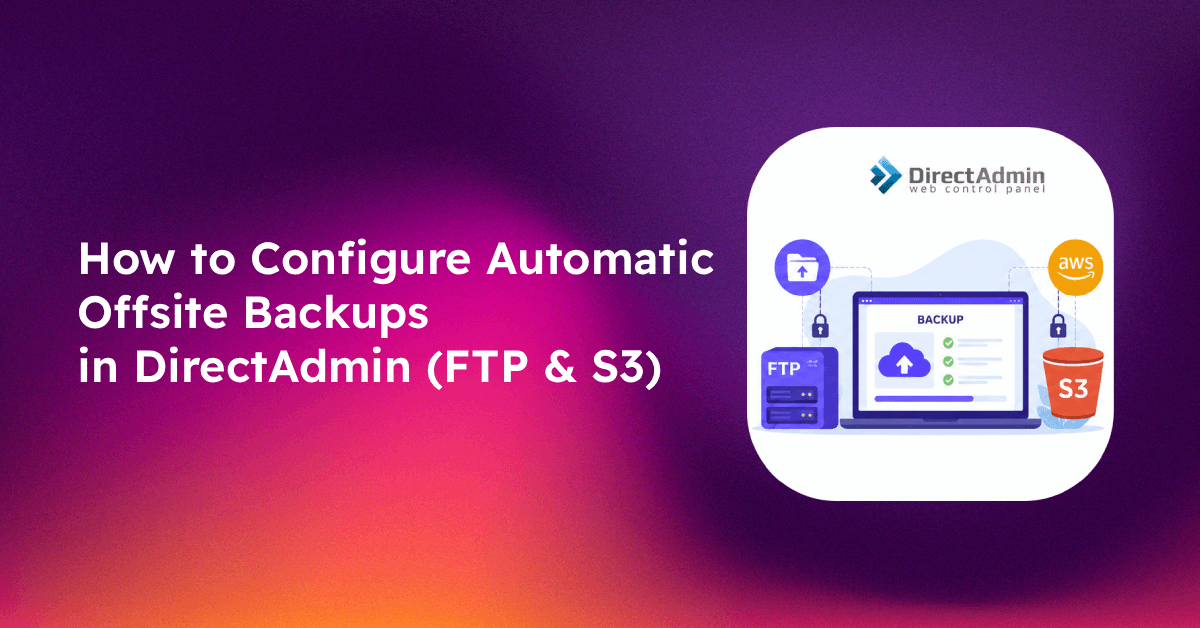
DirectAdmin is a trusted control panel for thousands of web hosting providers — but its built-in backup tools are only as good as the destination you configure. If your backups are still landing on the same disk as your websites, you're one hardware failure away from losing every client account on the server. This guide walks you through configuring directadmin backup configuration to send automated backups to a remote FTP server or S3-compatible storage like Wasabi or Backblaze B2.
Why Offsite Backups Are Non-Negotiable for Hosting Providers
Local backups give a false sense of security. When a RAID array fails, when a ransomware attack encrypts your data, or when a botched kernel update corrupts the filesystem, the local backup goes down with the production data. For hosting providers managing dozens or hundreds of client accounts, this is not a recoverable situation without offsite copies.
The rule in professional hosting is 3-2-1: three copies of your data, on two different media types, with one copy offsite. DirectAdmin's Admin Backup/Transfer tool supports this model — but only if you configure it correctly to push backups to an external destination.
- Compliance: Many clients require proof of offsite backup as part of their SLA or PCI-DSS compliance documentation
- Recovery time: Restoring from a remote FTP or S3 bucket is usually faster than rebuilding from scratch
- Separation of failure domains: A compromised server cannot delete its own offsite backup copy
Understanding DirectAdmin's Backup System: Admin vs User Level
DirectAdmin has two separate backup interfaces, and confusing them is the single most common mistake hosting admins make.
1. User-level backups (available to end users via their cPanel-style interface) create archives of a single user's home directory, databases, and email. These are limited in scope and controlled by the user themselves.
2. Admin-level backups — found at Admin Level → Admin Backup/Transfer — are what you need for automated, server-wide, offsite backups. The Admin Backup tool can:
- Back up all user accounts on the server in a single scheduled job
- Send backups to a remote FTP destination
- Compress archives with gzip or bzip2
- Retain multiple daily/weekly copies with configurable retention
For S3-compatible storage, you will use a combination of the Admin Backup tool (to generate the archives) and a cron job with the aws CLI or rclone to push those archives to your bucket.
💡 None of these worked? Skip the guesswork.
Get Expert Help →Step-by-Step: Configuring Automated Backups via Admin Backup/Transfer
Navigate to Admin Level → Admin Backup/Transfer. You will see tabs for Scheduled Backup, Restore, and Transfer.
Under Scheduled Backup, choose All Accounts or select specific resellers. For full server protection, select All Accounts.
The default local backup path is /home/admin/admin_backups. For local+offsite workflows, leave this path in place and add an FTP or S3 push step (detailed below).
Select all relevant items: Home directory, MySQL databases, Email data, and DNS records. Deselecting any of these creates incomplete backups that cannot fully restore an account.
Set the frequency to Daily and select an off-peak time (typically 02:00–04:00 server local time). Set Number of Backups to Keep to 7 for a rolling 7-day window. DirectAdmin automatically removes older archives based on this retention setting.
Click Save Scheduled Backup. DirectAdmin will create a cron entry at /etc/cron.d/directadmin_backups. Verify it was written:
cat /etc/cron.d/directadmin_backupsrclone copy da-backup:your-bucket-name/directadmin/testuser.tar.gz /tmp/restore_test/Select the archive, choose the account to restore into (use a test account, not production), and click Restore.
- Check that the website files are intact under
/home/testuser/public_html/ - Verify MySQL databases exist:
mysql -e "SHOW DATABASES;" | grep testuser - Confirm email directories are present:
ls /home/testuser/imap/
Run this restore test monthly, or whenever you make significant changes to your backup configuration. If you manage client servers under a managed server service agreement, monthly restore testing should be part of your standard SLA deliverables.
FAQs
Does DirectAdmin support incremental backups?
No — DirectAdmin creates full account archives each time. If storage is a concern, use rclone's deduplication features or switch to a specialised backup tool like JetBackup (which supports incremental backups and integrates directly with DirectAdmin).
What happens if the scheduled backup fails midway?
DirectAdmin logs backup activity to /var/log/directadmin/errortaskq.log. Check this file if a backup does not appear as expected. Partial archives are left in the backup directory with a .tmp extension and should be deleted manually.
Can I back up only specific reseller accounts, not all users?
Yes. In the Admin Backup/Transfer → Scheduled Backup interface, use the Select Resellers dropdown to target only specific reseller trees instead of All Accounts.
Is it safe to use the same S3 bucket for multiple DirectAdmin servers?
Yes, as long as you use a different remote subdirectory prefix per server (e.g. da-backup:bucket/server1/ and da-backup:bucket/server2/). Use separate IAM credentials per server for security isolation.
How much storage do typical DirectAdmin backups use?
Compressed archives typically range from 30–60% of uncompressed account size. A server hosting 100 accounts with an average of 2 GB each would generate roughly 60–100 GB of compressed backup archives per daily run.