
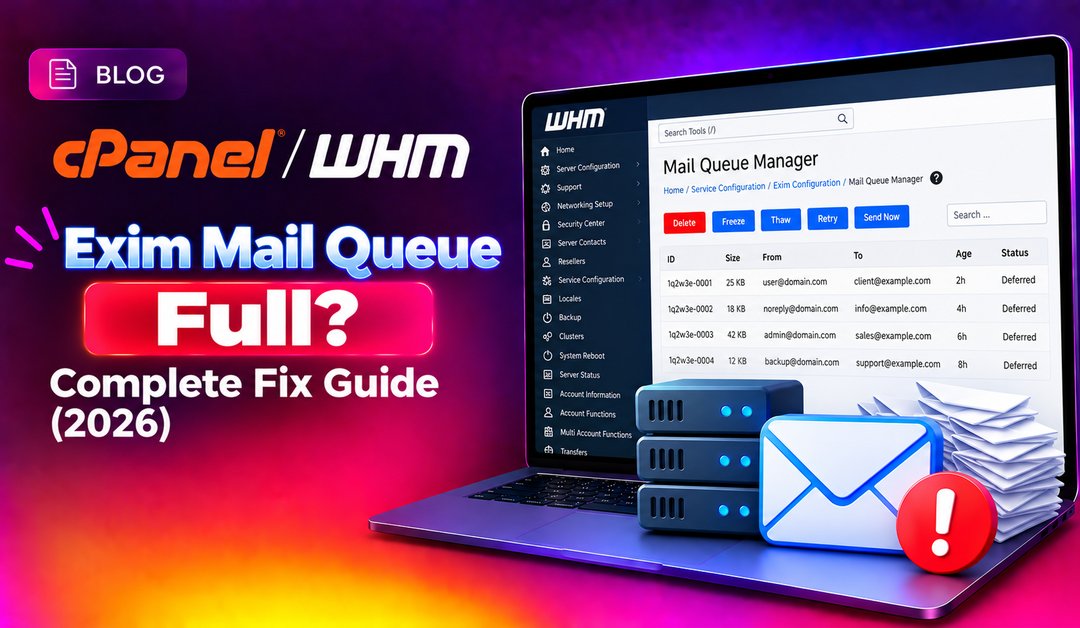
Your cPanel server's Exim mail queue fills up, and suddenly nobody's email is going out. Thousands of deferred messages pile up, your server's IP reputation takes a hit, and your clients start calling. This guide walks you through diagnosing the root cause, safely clearing the queue, and hardening Exim to prevent it from happening again.
Step 1: Check the Current Queue Size
Before touching anything, quantify the problem. Log in to your server via SSH as root and run:
exim -bpcThis returns a single number — the total messages currently sitting in the queue. A healthy server running a modest shared hosting environment typically stays under 100. Anything over 1,000 needs immediate attention.
For a full breakdown with sender, recipient, and age of each message:
exim -bp | head -100You can also check via WHM: go to Email > Mail Queue Manager to view, search, and delete messages from a GUI.
💡 None of these worked? Skip the guesswork.
Get Expert Help →Step 2: Identify the Account Flooding the Queue
A bloated queue almost always traces back to one compromised account or script sending bulk mail. Find it before you clear anything, or the queue will fill right back up.
exim -bp | awk '{print $4}' | sort | uniq -c | sort -rn | head -20grep "cwd=" /var/log/exim_mainlog | awk -F'cwd=' '{print $2}' | awk '{print $1}' | sort | uniq -c | sort -rn | head -20The cwd= field shows the working directory of the process that injected the mail — this almost always points directly to the compromised WordPress plugin, contact form, or PHP script.
Step 3: Remove Frozen Messages
Frozen messages are emails Exim has given up on after repeated delivery failures. They sit in the queue consuming disk space and memory but never delivering. Remove them first.
1. Count frozen messages:
exim -bp | grep frozen | wc -lexim -bp | grep frozen | awk {'print $3'} | xargs exim -MrmOr use the faster one-liner that handles large queues without hitting shell argument limits:
exiqgrep -z -i | xargs exim -MrmMax Defers Per Hour to a reasonable limit (e.g., 500) and enable Max Defers Per Hour Percentage to auto-suspend accounts that exceed it.
2. Enable BoxTrapper and SpamAssassin globally for all accounts under WHM > Email > Exim Configuration Manager.
3. Set up email authentication records: Use WHM's Email Deliverability tool to verify SPF, DKIM, and DMARC are correctly configured for every domain. Missing or broken records cause remote servers to bounce mail back into the queue.
4. Schedule regular queue monitoring:
# Add to root's crontab — alerts if queue exceeds 500
*/15 * * * * count=$(exim -bpc); if [ "$count" -gt 500 ]; then echo "Exim queue at $count" | mail -s "ALERT: Exim queue spike" admin@yourdomain.com; fi5. Install CSF/LFD (ConfigServer Security & Firewall) — it includes email-specific rate limiting that auto-suspends accounts blasting outbound mail beyond configurable thresholds.
Step 8: Verify Exim Service Health After Cleanup
# Check Exim is running
systemctl status exim

# Restart Exim if needed
systemctl restart exim

# Check Exim logs for errors
tail -f /var/log/exim_mainlog
After a cleanup, watch the mainlog for a few minutes to confirm legitimate mail is flowing and no new spam injection is occurring. If the queue spikes again within hours, the compromised script is still active — revisit Step 2 and audit the account's file modification timestamps:
find /home/username/public_html -mtime -7 -name "*.php" | head -30WHM GUI Alternative
If you prefer not to use the command line, WHM provides a Mail Queue Manager at Email > Mail Queue Manager. You can search by sender, recipient, or message ID, and delete individual messages or batches. However, the GUI is impractical when the queue holds tens of thousands of messages — SSH commands are orders of magnitude faster at that scale.