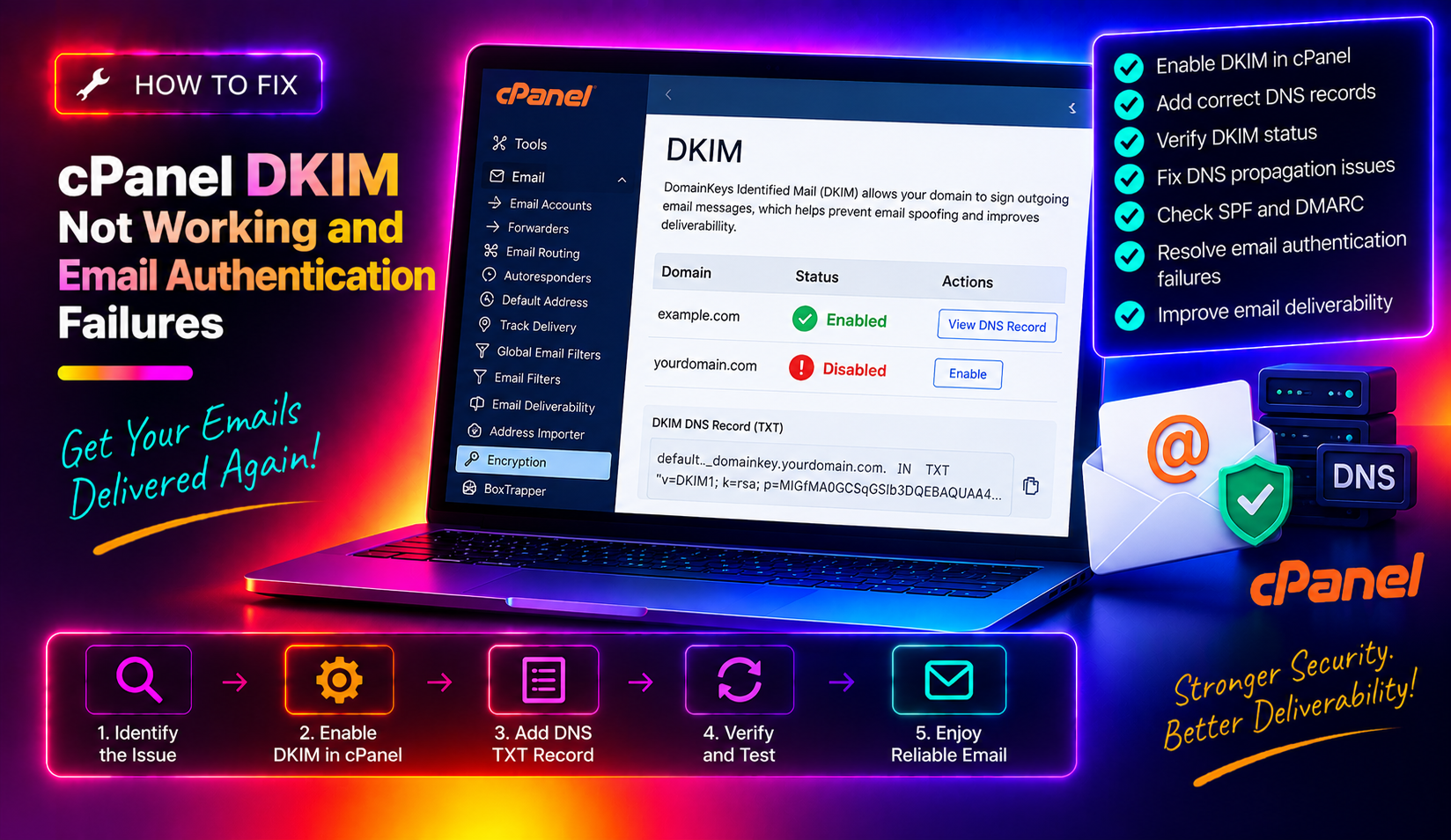
If you've set up email on a cPanel server and your messages are landing in spam — or getting rejected outright — a broken DKIM configuration is one of the most common culprits. DKIM (DomainKeys Identified Mail) adds a cryptographic signature to every outgoing email so that receiving mail servers can verify it wasn't tampered with in transit. When cPanel DKIM is not working, that verification fails silently and your emails suffer deliverability penalties or outright rejection.
This guide walks you through every step to diagnose and fix cPanel DKIM not working, from checking the cPanel Email Deliverability tool through to verifying Exim is actually signing your outbound mail.
What Is DKIM and Why It Matters in cPanel
DKIM works by generating a public/private key pair. cPanel stores the private key on the server and inserts the matching public key as a DNS TXT record under default._domainkey.yourdomain.com. When Exim sends an email, it signs the message headers and body with the private key. The receiving server looks up the public key in DNS, verifies the signature, and decides whether to trust the message.
Without a valid DKIM signature:
- Gmail, Outlook, and Yahoo apply spam penalties to your domain
- DMARC policies set to
p=rejectwill drop your mail entirely - Email marketing and transactional messages see open rate collapse
- Your server IP reputation degrades over time
In WHM-managed environments, DKIM should be enabled globally and per-domain automatically — but several failure points exist that cause it to break silently.
Common Reasons cPanel DKIM Is Not Working
Before diving into the fix, it helps to understand why DKIM breaks in cPanel:
- DKIM key not enabled in WHM's Exim Configuration Manager — the global toggle may be off
- Domain DNS is hosted externally — cPanel installs the key in its own zone but the live zone is at Cloudflare, Route 53, or another provider and was never updated
- DKIM TXT record is truncated or split incorrectly — some DNS providers break long TXT records across lines incorrectly
- Outdated or corrupted DKIM keys — keys can become invalid after server migrations or hostname changes
- PHP mail via
mail()not signed — scripts using PHP's built-in mail function bypass Exim's DKIM signing unless DSO/ITK is configured correctly - DNS propagation lag — a newly generated key hasn't propagated fully yet
💡 None of these worked? Skip the guesswork.
Get Expert Help →Step 1 — Check DKIM Status in the cPanel Email Deliverability Tool
Start by auditing the current state of your email authentication records. cPanel includes a built-in tool that shows you exactly what is wrong.
https://yourdomain.com:2083
2. Navigate to Email → Email Deliverability
- Green checkmark: record exists and is valid
- Yellow warning: record exists but has issues
- Red X: record is missing or invalid
If DKIM shows a red X or a warning, click Repair next to it. cPanel will attempt to install the correct record automatically. If it succeeds, skip to Step 5 to verify. If the repair button fails or the issue persists, continue to Step 2.
Important: if your domain's DNS is managed externally (Cloudflare, AWS Route 53, GoDaddy DNS, etc.), the Repair button cannot update that zone. You'll need to copy the record value and add it manually — covered in Step 3.
Step 2 — Regenerate the DKIM Key in WHM
If the cPanel-level fix didn't resolve the issue, regenerate the DKIM key from WHM as root. This ensures the private key on the server and the public key you'll publish in DNS are a fresh, matched pair.
1. Log in to WHM at https://yourserver.com:2087 as root
2. Go to Home → Email → Email Deliverability
4. Under DKIM, click Install the suggested record (or Regenerate if available). WHM creates a new 2048-bit RSA key pair and stores the private key at /etc/opendkim/keys/ (or internally in Exim's configuration depending on cPanel version).
You can also regenerate from the command line as root:
/usr/local/cpanel/bin/dkim_keys_install --allThis regenerates and installs DKIM keys for all domains hosted on the server. Useful after a server migration or hostname change.
To verify the private key exists for a specific domain:
ls -la /etc/exim.conf.d/ 2>/dev/null
# or check the Exim private key location
grep -r "dkim_private_key" /etc/exim.conf 2>/dev/null | head -5
Step 3 — Fix the DNS TXT Record
After generating the key, the public key must be in DNS exactly as cPanel specifies. This is where most DKIM failures live — the key is generated correctly, but the DNS record is wrong, truncated, or in the wrong zone.
If DNS is hosted in cPanel (same server)
WHM should have auto-installed the record. Verify it by running:
dig TXT default._domainkey.yourdomain.com +shortYou should see output starting with "v=DKIM1; k=rsa; p=MII...". If the record is missing, force a DNS zone rebuild:
/scripts/rebuilddnszone yourdomain.comIf DNS is hosted externally (Cloudflare, Route 53, etc.)
1. In WHM's Email Deliverability page, copy the full suggested DKIM TXT record value. It looks like:
v=DKIM1; k=rsa; p=MIIBIjANBgkqhkiG9w0BAQEFAAOCAQ8AMIIBCgKCAQEA...2. Log in to your DNS provider and add (or update) a TXT record:
- Name/Host:
default._domainkey - Type: TXT
- Value: paste the full key value (keep it as a single string — do not split across multiple records)
- TTL: 300 (low during testing; raise to 3600 once confirmed working)
Common mistake: Cloudflare automatically "proxies" some records. For DKIM TXT records, ensure the record is set to DNS only (grey cloud), not proxied.
Wait 5–15 minutes and check propagation:
dig TXT default._domainkey.yourdomain.com @8.8.8.8 +shortFix truncated TXT records
DKIM public keys for 2048-bit RSA are long (300+ characters). Some DNS control panels split long TXT values into multiple quoted strings. Most modern mail servers handle this correctly, but some older implementations do not. The safe format is a single quoted string:
"v=DKIM1; k=rsa; p=MIIBIjAN...full-key-here..."If your provider forces multiple strings, format them like:
"v=DKIM1; k=rsa; p=MIIBIjAN" "BgkqhkiG9w0B...rest-of-key..."Step 4 — Verify Exim Is Actually Signing Outbound Mail
The DNS record can be perfect, but if Exim isn't applying the DKIM signature to outbound messages, delivery checks will still fail. Verify Exim is signing mail from the command line.
Check global DKIM signing is enabled in WHM
1. Go to WHM → Service Configuration → Exim Configuration Manager
2. Click the Advanced Editor tab
3. Search for dkim — confirm dkim_sign_headers entries exist and are not commented out
Alternatively, from the command line:
grep -i dkim /etc/exim.conf | grep -v "^#" | head -20Send a test email and check the raw headers
Send a test email from the server using sendmail or via the cPanel webmail to a Gmail or Outlook address, then view the raw message headers. Look for a header line like:
DKIM-Signature: v=1; a=rsa-sha256; c=relaxed/relaxed; d=yourdomain.com;
  s=default; h=from:to:subject:date:message-id;
  bh=abc123...; b=XYZ...
If this header is absent, Exim is not signing — the issue is server-side configuration, not DNS.
Check the Exim log for signing errors
grep -i dkim /var/log/exim_mainlog | tail -20Common error messages and their meanings:
DKIM: signing failed— private key file is missing or unreadableDKIM: no private key found for domain— run/usr/local/cpanel/bin/dkim_keys_install --allagainDKIM: selector default not found— key was generated with a different selector; check WHM for the correct selector name
Fix PHP mail() DKIM signing
PHP scripts using mail() with the Apache DSO handler send as the Apache user rather than the domain user, which means Exim can't determine which DKIM key to use. To fix this:
1. In WHM → Exim Configuration Manager → Advanced Editor, enable:
Add X-PHP-Originating-Script headers to mail sent from PHP scriptsAllow PHP to use the sendmail binary directly
2. Or switch the PHP handler to suPHP or FastCGI/PHP-FPM so that scripts run as the domain user — Exim can then sign correctly.
Step 5 — Test and Confirm DKIM Is Working
After making all changes, run a thorough verification before closing the ticket.
Use mail-tester.com
Send a test email to the unique address provided by mail-tester.com (or any inbox you control), then check the score. A properly configured server should score 9/10 or 10/10 with DKIM, SPF, and DMARC all passing.
Use MXToolbox DKIM Lookup
# From command line — verify the record resolves correctly
dig TXT default._domainkey.yourdomain.com +short

# Send a test message through Exim directly
echo "Test DKIM email" | mail -s "DKIM Test" testaddress@gmail.com
In Gmail, open the received message, click the three-dot menu → Show original. Under Authentication Results you should see:
dkim=pass header.i=@yourdomain.com header.s=default header.b=ABCD1234Verify DMARC alignment
Once DKIM is passing, confirm your DMARC record is in place. A minimal DMARC record for monitoring:
_dmarc.yourdomain.com TXT "v=DMARC1; p=none; rua=mailto:dmarc@yourdomain.com"Once you've confirmed DKIM and SPF are consistently passing, upgrade to p=quarantine or p=reject to actively protect your domain from spoofing.
Quick Reference: cPanel DKIM Fix Checklist
- ☑ DKIM enabled in WHM → Exim Configuration Manager
- ☑ DKIM key regenerated via WHM Email Deliverability or
dkim_keys_install --all - ☑ TXT record
default._domainkey.yourdomain.compublished in live DNS (external DNS providers updated manually) - ☑ Record resolves correctly:
dig TXT default._domainkey.yourdomain.com @8.8.8.8 +short - ☑ Exim log shows no DKIM signing errors:
grep -i dkim /var/log/exim_mainlog | tail -20 - ☑ Outbound email headers contain
DKIM-Signature:line - ☑ External test (Gmail raw headers, mail-tester.com) shows
dkim=pass - ☑ DMARC record in place for monitoring
If you're managing multiple cPanel servers or dealing with recurring email deliverability issues across a hosting fleet, the fastest path to resolution is working with a team that specialises in server-level email configuration. CloudHouse Technologies' server management service covers full email authentication stack setup — DKIM, SPF, DMARC, rDNS — and ongoing deliverability monitoring so your clients' mail never lands in spam.