
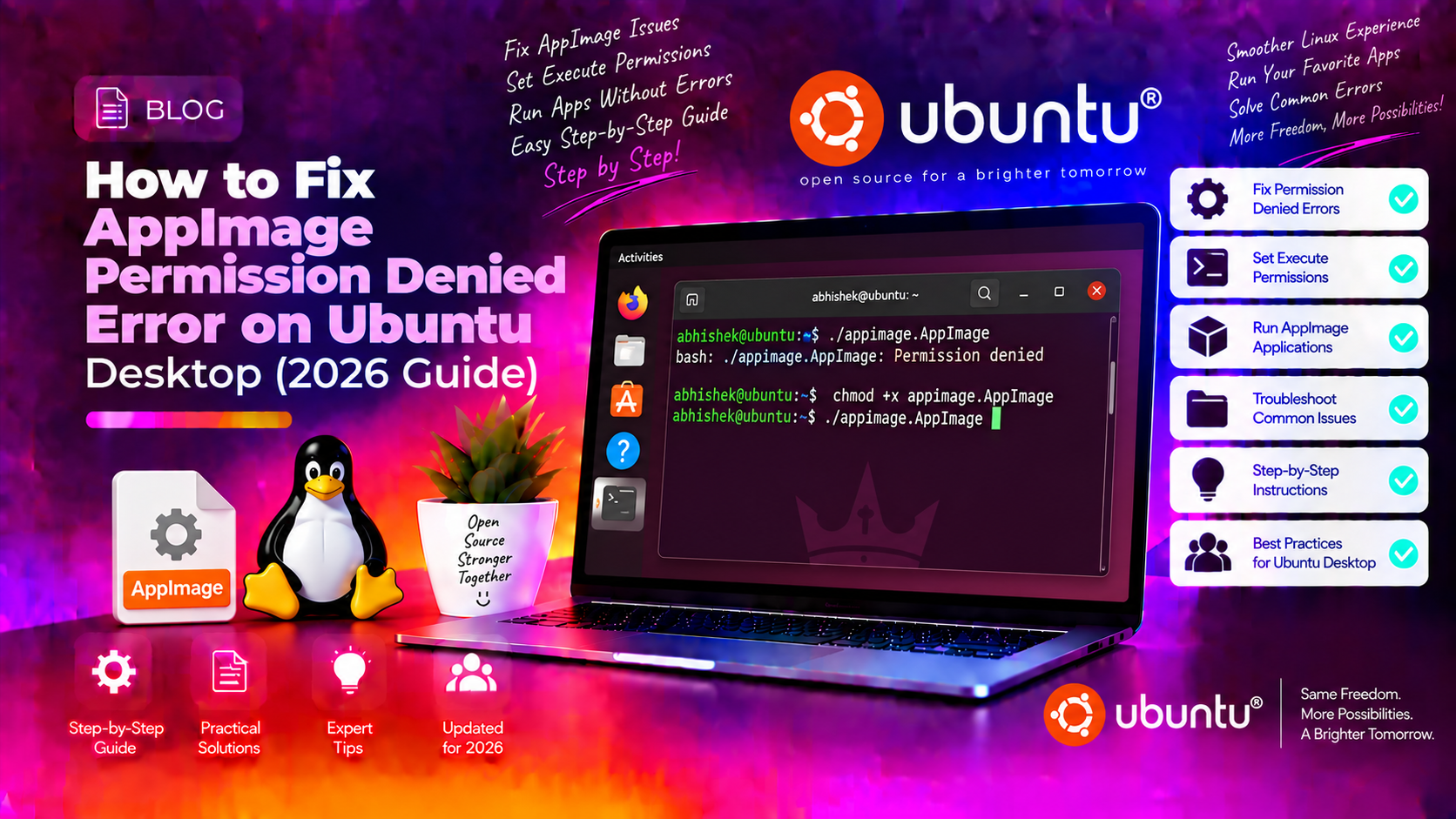
What is an AppImage and Why Does Permission Denied Happen?
An AppImage is a portable application format for Linux that bundles everything an application needs — libraries, assets, and binaries — into a single self-contained file. Unlike .deb packages or Snap apps, AppImages do not require installation. You simply download the file and run it. This makes them incredibly convenient for distributing software across different Linux distributions, including Ubuntu Desktop.
However, one of the first roadblocks new Ubuntu users hit is the dreaded Permission Denied error when trying to launch an AppImage. This happens because Linux filesystems follow strict permission rules. When you download a file — whether through a browser, wget, or curl — it arrives without executable permission by default. The system sees it as a data file, not a runnable program.
Here is what the error typically looks like in the terminal:
bash: ./MyApp-x86_64.AppImage: Permission deniedOr when double-clicking in the file manager, you might see a dialog saying the application cannot be executed. The root cause is always the same: the file lacks the execute bit in its Unix permissions. Linux uses a three-tier permission model — read (r), write (w), and execute (x) — for the owner, group, and others. A freshly downloaded AppImage typically has permissions like -rw-r--r--, meaning nobody can execute it.
There are three reliable methods to fix this. We cover all of them below — from the beginner-friendly GUI approach to terminal commands that power users prefer.
Method 1: Fix with File Manager Properties
If you are new to Ubuntu Desktop or prefer a graphical interface, the Files (Nautilus) file manager makes it easy to grant execute permission without touching the terminal.
- Open the Files application and navigate to where you saved the AppImage (usually the
Downloadsfolder). - Right-click on the AppImage file and select Properties from the context menu.
- Click the Permissions tab at the top of the Properties dialog.
- Look for the checkbox labelled "Allow executing file as program" and tick it.
- Close the Properties window.
- Double-click the AppImage to run it. If prompted, choose Run instead of Open in Text Editor.
That is all there is to it. The file now has the execute bit set for the file owner, which is sufficient to launch AppImages under your own user account.
Note for Ubuntu 22.04 and later users: Some AppImages also require FUSE 2 (Filesystem in Userspace) to mount their internal filesystem at runtime. If the file now has execute permission but still will not open, install FUSE 2:
sudo apt install libfuse2On Ubuntu 24.04, the package name changed to libfuse2t64:
sudo apt install libfuse2t64After installing FUSE, try launching the AppImage again by double-clicking.
Method 2: Fix with Terminal chmod Command
The terminal approach is faster and more precise. It is the standard method used by developers and system administrators worldwide. The command you need is chmod, which stands for change mode.
Open a terminal (Ctrl + Alt + T) and run the following:
chmod +x ~/Downloads/MyApp-x86_64.AppImageReplace MyApp-x86_64.AppImage with the actual filename. The +x flag adds the execute bit for the owner, group, and others (equivalent to a+x). To run the AppImage immediately after:
./MyApp-x86_64.AppImageOr provide the full path:
~/Downloads/MyApp-x86_64.AppImageUnderstanding Permission Levels
You can also use numeric (octal) permissions with chmod for finer control:
chmod 744— Owner can read/write/execute; group and others can only read. Best for personal AppImages.chmod 755— Owner can read/write/execute; group and others can read and execute. Suitable for shared systems.chmod +x— Shorthand that adds execute for all. Quickest solution for personal desktop use.
For most Ubuntu Desktop users running AppImages for personal use, chmod +x is perfectly safe and sufficient. Avoid using chmod 777 (full permissions for everyone) on AppImages, as this is unnecessary and can be a security risk on multi-user systems.
Verify the Permission Change
Confirm the execute bit was applied correctly with:
ls -lh ~/Downloads/MyApp-x86_64.AppImageYou should now see an x in the permissions string:
-rwxr-xr-x 1 youruser youruser 85M Jun 18 10:00 MyApp-x86_64.AppImageAppImage on a noexec Filesystem
If chmod +x still results in Permission Denied, the file may be stored on a filesystem mounted with the noexec option — common on external USB drives, network shares, or certain corporate configurations. Check your mount options with:
findmnt --target ~/Downloads/MyApp-x86_64.AppImageIf the output includes noexec, move the AppImage to your home directory or /opt and retry:
mv ~/Downloads/MyApp-x86_64.AppImage ~/Applications/
chmod +x ~/Applications/MyApp-x86_64.AppImage
~/Applications/MyApp-x86_64.AppImage
Method 3: Add Execute Permission via Desktop File
For AppImages you plan to use regularly, creating a .desktop file is the most professional approach. It adds the app to your Ubuntu application launcher (Activities menu), lets you pin it to the Dock, and gives it a proper icon. This method also permanently registers the execute permission in a way that survives file manager resets.
Step 1: Move the AppImage to a Stable Location
First, store the AppImage somewhere permanent rather than your Downloads folder:
mkdir -p ~/Applications
mv ~/Downloads/MyApp-x86_64.AppImage ~/Applications/
chmod +x ~/Applications/MyApp-x86_64.AppImage
Step 2: Create the .desktop File
Create a new desktop entry file:
nano ~/.local/share/applications/myapp.desktopPaste the following content, replacing the placeholders with your actual values:
[Desktop Entry]
Name=MyApp
Comment=Description of MyApp
Exec=/home/yourusername/Applications/MyApp-x86_64.AppImage
Icon=/home/yourusername/Applications/myapp-icon.png
Terminal=false
Type=Application
Categories=Utility;
Save and exit (Ctrl + O, then Ctrl + X in nano).
Step 3: Refresh the Application Database
update-desktop-database ~/.local/share/applications/The application will now appear in your Activities menu. Search for it by name to launch it. Right-click the icon in the search results to pin it to your Dock for one-click access.
Prevent Future Permission Errors
Once you understand why AppImages require execute permission, you can set up habits and configurations that avoid the problem in future.
Create a Dedicated Applications Folder
Always store AppImages in a dedicated folder rather than Downloads:
mkdir -p ~/ApplicationsMake it a habit to move new AppImages there immediately after downloading and apply chmod +x before attempting to run them.
Use AppImageLauncher
AppImageLauncher is a helper tool that automatically integrates AppImages into your system when you double-click them. It handles permissions and desktop file creation automatically:
sudo add-apt-repository ppa:appimagelauncher-team/stable
sudo apt update
sudo apt install appimagelauncher
After installation, double-clicking any AppImage will prompt you to integrate it or run it once — no manual chmod required.
Why AppImage Differs from .deb Packages
Traditional .deb packages go through apt or the Ubuntu Software Centre, which automatically sets correct file permissions during installation. AppImages bypass that installation process entirely — they are designed to run without installation. That freedom is also the reason you must manually grant execute permission. It is a feature of Unix security, not a bug in AppImage.
If you manage multiple Ubuntu machines or regularly deploy AppImages for users, consider Get Expert Ubuntu Desktop Support to streamline your workflow with professional guidance.
FAQ: AppImage Issues and Solutions
Why does my AppImage say Permission Denied even after chmod +x?
The most common reasons are: (1) the AppImage is stored on a filesystem mounted with noexec — move it to your home directory; (2) FUSE 2 is missing — install it with sudo apt install libfuse2 (or libfuse2t64 on Ubuntu 24.04); (3) Ubuntu's sandbox restrictions on newer versions — try running with --no-sandbox flag or use ./MyApp.AppImage --appimage-extract-and-run as a workaround.
How do I run an AppImage on Ubuntu without a terminal?
Right-click the AppImage in the Files (Nautilus) file manager, select Properties, go to the Permissions tab, and tick "Allow executing file as program". Close Properties and double-click the file to run it. If a dialog appears asking what to do with the file, choose Run.
What is the difference between chmod +x and chmod 755 for AppImages?
chmod +x adds the execute bit for the owner, group, and others without changing existing read/write permissions. chmod 755 explicitly sets read/write/execute for the owner and read/execute for group and others. Both work for running AppImages. On a personal single-user desktop, there is no practical difference. Use chmod 744 if you want to restrict execute access to only your own account.
Why does Ubuntu show "could not display" when I double-click an AppImage?
This usually means the execute bit is not set. Ubuntu's file manager treats non-executable files as data files. Right-click → Properties → Permissions → enable "Allow executing file as program". If the problem persists after enabling the permission, the AppImage may be corrupted — re-download it and verify the checksum if one is provided by the developer.
How do I make an AppImage open at startup on Ubuntu Desktop?
First create a .desktop file for the AppImage as described in Method 3 above. Then open Settings → General → Startup Applications (or search "Startup Applications" in Activities). Click Add, and either browse to your .desktop file or enter the full path to the AppImage in the Command field. The app will now launch automatically when you log in.