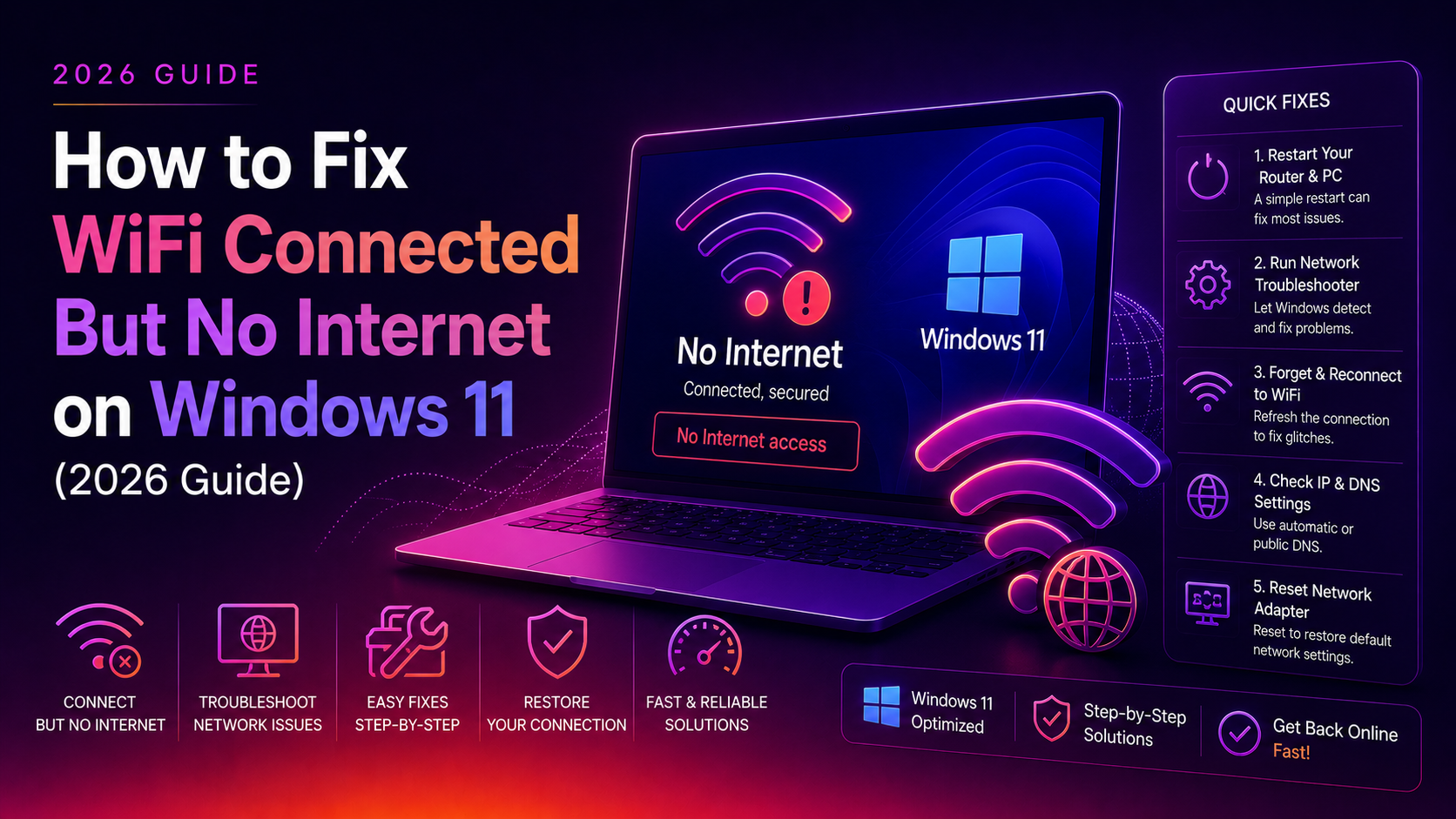
Why Does Windows 11 Show "WiFi Connected, No Internet"?
You open your laptop, see the WiFi icon showing full bars, yet every browser tab returns "ERR_INTERNET_DISCONNECTED" or "No Internet Access." This frustrating Windows 11 problem affects millions of users in 2026 — especially after Windows Updates, driver changes, or router firmware refreshes.
The yellow exclamation mark on your taskbar WiFi icon means Windows has detected a network but cannot reach the internet. The root causes vary:
- Corrupted TCP/IP stack or Winsock catalog — caused by malware, VPN residue, or bad updates
- Stale DNS cache — your PC still points to dead IP addresses
- IP address conflict — your router assigned a duplicate IP to two devices
- Outdated or corrupt WiFi driver — especially after KB updates that replace chipset drivers
- Windows 11 KB5085516 bug (March 2026) — a known Microsoft bug that falsely flags connections as "no internet"
- Proxy or VPN misconfiguration — leftover proxy settings blocking traffic
This guide walks you through every fix in order from fastest to most thorough. Most users are back online after Step 2 or 3.
Before You Start: Quick Checks
Run through these 60-second checks before diving into commands:
- Test another device on the same WiFi — if your phone has internet, the router is fine and this is a Windows-only issue.
- Restart your router — unplug power for 30 seconds, then plug back in. Wait 2 minutes before reconnecting.
- Check for KB5085516 — go to Settings → Windows Update → Update history. If you see this update installed before March 21, 2026, install the emergency patch via Settings → Windows Update → Optional Updates.
- Airplane mode toggle — press Win + A, turn Airplane Mode on, wait 5 seconds, turn it off.
If these quick checks don't work, proceed to the numbered fixes below.
Fix 1: Flush DNS Cache and Reset TCP/IP Stack (Most Effective)
This is the single most effective fix for "WiFi connected no internet" on Windows 11. It clears stale DNS entries, releases your IP lease, and rebuilds the Winsock catalog.
Step 1: Right-click the Start button and select Terminal (Admin) or Command Prompt (Admin).
Step 2: Run all five commands in order, pressing Enter after each:
netsh winsock reset
netsh int ip reset
ipconfig /release
ipconfig /flushdns
ipconfig /renew
Step 3: Restart your PC. Do not skip the restart — Winsock changes only take effect after a full reboot.
After reboot, check your WiFi. For most users, this resolves the issue immediately. If you see "Successfully reset the Winsock Catalog" in the output, the reset worked correctly.
Fix 2: Forget the WiFi Network and Reconnect
A corrupted saved network profile can cause persistent "no internet" states even after the router is fully functional.
Step 1: Click the WiFi icon in your taskbar.
Step 2: Find your network name, right-click it, and select Forget.
Step 3: Click your network name again, enter the WiFi password, and reconnect.
This forces Windows 11 to create a fresh network profile without any corrupted authentication data.
Alternatively, via Settings: Settings → Network & Internet → WiFi → Manage known networks → click your network → Forget.
Fix 3: Update or Reinstall the WiFi Driver
Windows 11 feature updates (like the 24H2 update) often replace chipset-specific drivers with generic Microsoft drivers that lack full functionality. This is a very common cause of "connected, no internet" after Windows Update.
Option A: Update via Device Manager
devmgmt.mscPress Win + R, type the command above, press Enter. Expand Network Adapters, right-click your WiFi adapter (e.g., "Intel Wi-Fi 6 AX201"), and select Update driver → Search automatically for drivers.
Option B: Download from Manufacturer (Recommended)
For more reliable results, visit your laptop or motherboard manufacturer's support page:
- Dell: dell.com/support → Drivers & Downloads → your model → Network
- HP: support.hp.com → your model → All drivers → Network Adapters
- Lenovo: support.lenovo.com → your model → Drivers & Software → Networking
- ASUS: asus.com/support → your model → Driver & Tools → LAN
- Intel WiFi chipsets: intel.com/content/www/us/en/download/19351/intel-wireless-bluetooth-for-windows-10-and-windows-11.html
Option C: Reinstall the Driver
If updating doesn't help, reinstall from scratch:
- Open Device Manager (
devmgmt.msc) - Expand Network Adapters
- Right-click your WiFi adapter → Uninstall device
- Check "Attempt to remove the driver for this device"
- Click Uninstall, then restart your PC
- Windows will reinstall a clean driver on reboot
Fix 4: Disable Proxy Settings and Check VPN
Leftover proxy settings from corporate networks, VPN software, or browser extensions frequently cause this issue — Windows routes all traffic through a non-existent proxy server.
Disable Proxy via Settings
Go to Settings → Network & Internet → Proxy. Under Manual proxy setup, make sure Use a proxy server is toggled Off. Under Automatic proxy setup, disable Automatically detect settings if you don't use a corporate proxy.
Disable Proxy via Command Line
netsh winhttp reset proxyRun this in an admin Terminal. It resets the WinHTTP proxy to direct (no proxy), which fixes issues caused by VPN clients that forget to clean up their proxy settings on uninstall.
If You Use a VPN
Disconnect your VPN entirely, then test internet access. If internet works without VPN, the VPN client's split tunneling or DNS leak protection is interfering. Check your VPN client settings or reinstall it.
Fix 5: Change DNS Server to Google or Cloudflare
Your ISP's DNS server may be temporarily down or returning wrong results, causing Windows 11 to report "no internet" even though the physical connection is fine.
Step 1: Press Win + I → Network & Internet → WiFi → Hardware properties.
Step 2: Click Edit next to DNS server assignment.
Step 3: Switch to Manual, enable IPv4, and enter:
Preferred DNS: 8.8.8.8   (Google)
Alternate DNS: 8.8.4.4

OR

Preferred DNS: 1.1.1.1   (Cloudflare)
Alternate DNS: 1.0.0.1
Step 4: Save and test. If internet works immediately, your ISP's DNS was the problem.
You can also set DNS via PowerShell (admin):
Set-DnsClientServerAddress -InterfaceAlias "Wi-Fi" -ServerAddresses ("8.8.8.8","8.8.4.4")Fix 6: Run Windows Network Diagnostics and Reset
Built-in Troubleshooter
Windows 11 has an improved network troubleshooter in 2026. Right-click the WiFi icon in your taskbar → Troubleshoot problems. The Get Help app will run automatic diagnostics and attempt fixes. Let it run fully — it often detects driver issues and misconfigured adapters automatically.
Full Network Reset (Last Resort Before Reinstall)
If all else fails, a network reset removes all network adapters and resets all networking components to default:
Go to Settings → Network & Internet → Advanced network settings → Network reset → Reset now.
Warning: This removes all saved WiFi passwords, VPN configurations, and custom network settings. You will need to reconnect to all networks from scratch.
Alternatively, via PowerShell (admin):
netsh int ip reset resetlog.txt
netsh advfirewall reset
netsh winsock reset catalog
Fix 7: Advanced — Check IPv4/IPv6 Settings and DHCP
In rare cases, your adapter's IP settings are set to static instead of automatic, causing an IP mismatch with your router's DHCP range.
Step 1: Press Win + R, type ncpa.cpl, press Enter.
Step 2: Right-click your WiFi adapter → Properties.
Step 3: Double-click Internet Protocol Version 4 (TCP/IPv4).
Step 4: Ensure both options are set to Obtain an IP address automatically and Obtain DNS server address automatically.
Step 5: Click OK. Do the same for Internet Protocol Version 6 (TCP/IPv6).
If your adapter was set to a static IP that conflicts with another device, switching to automatic (DHCP) resolves the conflict instantly.
When to Call a Professional
If you've worked through all 7 fixes and still see "WiFi connected, no internet" on Windows 11, the issue may be hardware-level (faulty WiFi card), ISP-side (modem firmware issue), or a deep Windows corruption that requires a repair install (sfc /scannow + DISM /Online /Cleanup-Image /RestoreHealth).
Rather than spending hours troubleshooting alone, CloudHouse Technologies Pay-Per-Ticket Support connects you with a Windows expert in minutes — no subscription, no contracts, pay only for what you need. Our technicians resolve most WiFi/networking issues remotely in under 30 minutes.
Frequently Asked Questions
Why does my Windows 11 laptop say "connected, no internet" even though my phone works fine on the same WiFi?
This means the router and internet connection are working correctly — the problem is isolated to your Windows 11 device. The most common causes are a corrupted Winsock catalog, stale DNS cache, or a bad WiFi driver. Start with Fix 1 (netsh winsock reset + ipconfig /flushdns) to resolve it quickly.
Does netsh winsock reset delete any files or settings permanently?
No. The command only rebuilds the Windows Sockets API catalog to its default state. It does not delete your files, browser history, WiFi passwords, or any personal settings. It is completely safe to run on Windows 11 and requires only an admin Command Prompt.
Why did my WiFi stop working after a Windows 11 update?
Windows 11 feature updates (24H2, 23H2) sometimes replace manufacturer-specific WiFi drivers with generic Microsoft drivers that lack full functionality. Additionally, the March 2026 update KB5085516 introduced a known bug that falsely shows "no internet" — Microsoft released an emergency patch to fix it. Always check Windows Update → Optional Updates for emergency patches after connectivity breaks following an update.
How do I fix Windows 11 WiFi connected no internet without a restart?
You can try these without restarting: (1) Airplane mode toggle (on → wait 5 sec → off), (2) ipconfig /flushdns + ipconfig /renew in admin CMD, (3) changing DNS to 8.8.8.8 in WiFi hardware properties, (4) disabling proxy settings in Settings → Network → Proxy. Note: netsh winsock reset requires a restart to take full effect.
What is the fastest fix for Windows 11 "no internet" when WiFi shows connected?
Open Command Prompt as Administrator and run these five commands in sequence: netsh winsock reset, netsh int ip reset, ipconfig /release, ipconfig /flushdns, ipconfig /renew. Then restart your PC. This resolves approximately 70% of "WiFi connected no internet" cases on Windows 11 within 3 minutes.