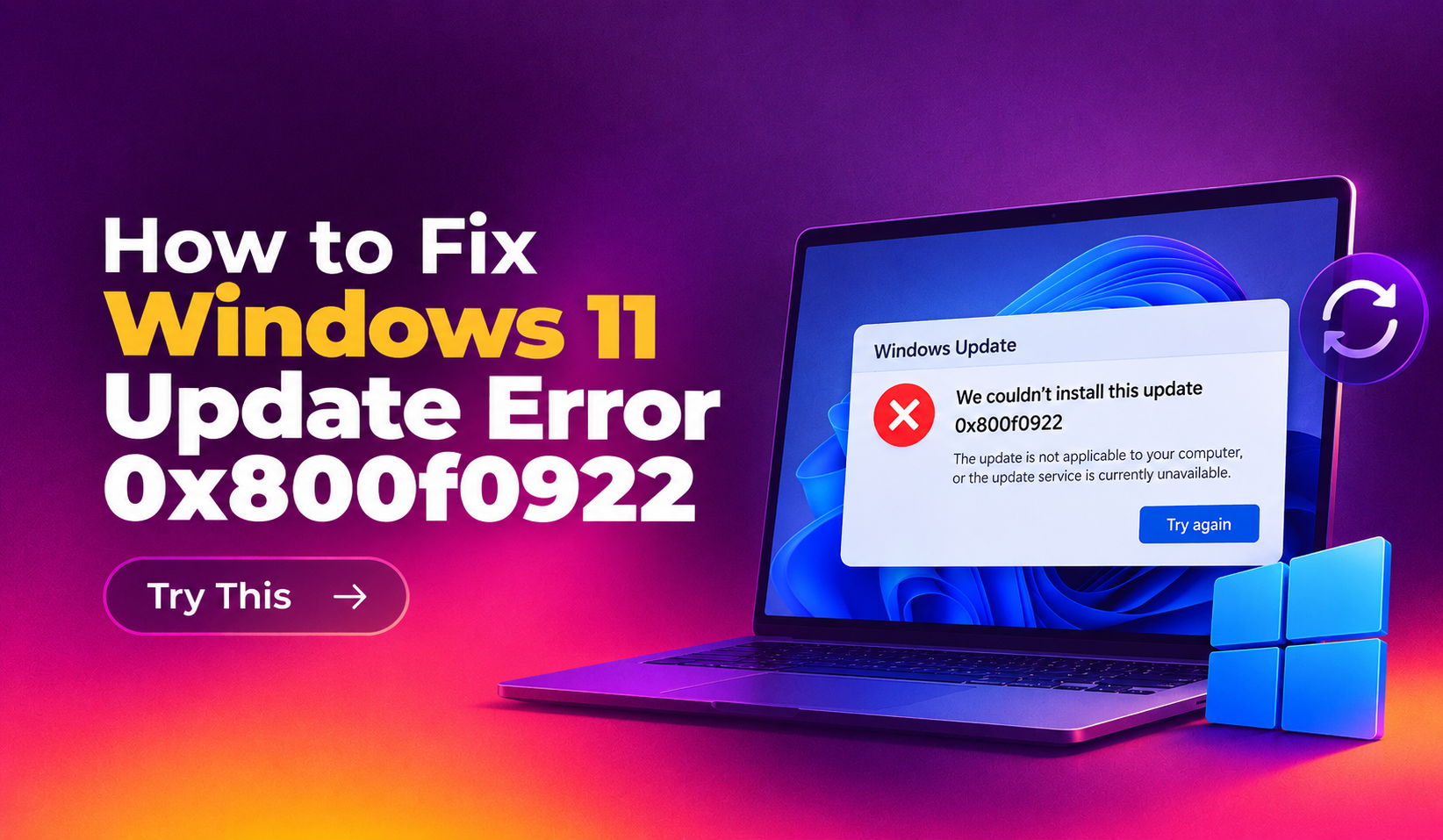
What Is Windows 11 Update Error 0x800f0922?
Windows 11 update error 0x800f0922 is a servicing failure that stops a cumulative update from completing installation. In May 2026, Microsoft officially confirmed that this error is blocking the KB5089549 security update (released May 12, 2026) on devices running Windows 11 versions 24H2 and 25H2. Affected machines typically roll back around the 35% mark during reboot, leaving the update in a failed state.
The primary culprit in 2026 is a small or full EFI System Partition (ESP) — the hidden partition that stores boot files. When the ESP has 10 MB or less of free space, Windows cannot stage the new boot files required by the update, triggering the 0x800f0922 error. Secondary causes include corrupted system files, a damaged Windows Update cache, and disabled Windows Update services.
This guide walks you through every confirmed fix, from Microsoft’s official registry workaround to DISM/SFC repair and manual cache clearing — so you can get KB5089549 (and all future updates) installing cleanly again.
Why Does Error 0x800f0922 Happen on Windows 11 in 2026?
There are four main causes of error 0x800f0922:
- Insufficient EFI System Partition space — The most common cause in 2026. OEM PCs often ship with an ESP of only 100–260 MB. As Windows accumulates boot file updates over time, the partition fills up. KB5089549 requires extra headroom that many older ESPs do not have.
- Corrupted Windows Update components — Damaged entries in the CBS (Component Based Servicing) store can block update staging.
- Stale SoftwareDistribution cache — Old or partial update packages cached on disk can conflict with a fresh download.
- Disabled or misconfigured services — Windows Update, BITS (Background Intelligent Transfer Service), or Cryptographic Services being disabled will prevent updates from completing.
You can confirm the ESP is the issue by checking C:\Windows\Logs\CBS\CBS.log — look for messages like “Failed to add boot file” or “Insufficient free space on EFI partition.”
Fix 1: Apply Microsoft’s Known Issue Rollback (KIR) — Do This First
For consumer PCs and unmanaged business devices, Microsoft has already deployed a Known Issue Rollback (KIR) through Windows Update to mitigate the ESP space problem. The simplest fix is to let KIR propagate to your device:
- Open Settings → Windows Update.
- Click Check for updates.
- If a small servicing update appears, install it.
- Restart your PC.
- Return to Windows Update and try installing KB5089549 again.
Many users report that simply restarting and checking for updates once is enough after KIR propagates. Allow up to 24 hours for KIR to reach your device automatically.
Enterprise/managed devices note: KIR does not apply automatically to domain-joined or Intune-managed devices. Network administrators must deploy the Group Policy workaround provided in Microsoft’s support article.
Fix 2: Apply the Registry Workaround (Reduces EFI Padding)
If KIR has not resolved the issue, Microsoft’s official workaround is a registry tweak that reduces the padding Windows reserves inside the EFI partition during servicing — freeing enough space for the update to complete.
- Press Win + S, type cmd, right-click Command Prompt, and choose Run as administrator.
- Paste the following command and press Enter:
reg add "HKLM\SYSTEM\CurrentControlSet\Control\Bfsvc" /v EspPaddingPercent /t REG_DWORD /d 0 /f- Restart your computer.
- Open Settings → Windows Update → Check for updates and install KB5089549.
This registry value tells the Boot File Servicing (Bfsvc) component to use zero padding when writing to the ESP, which is safe for most consumer hardware. Microsoft is shipping a permanent fix in a future cumulative update.
Fix 3: Check and Free EFI Partition Space Manually
If the registry workaround alone is not sufficient, you can manually inspect and clean the EFI System Partition using DiskPart and mountvol.
Step 1 — Check ESP free space using DiskPart:
diskpart
list disk
select disk 0
list partition
Identify the partition of type System (usually 100–260 MB). Note its partition number.
Step 2 — Mount the ESP to drive B:
mountvol B: /SStep 3 — List EFI contents to identify large or orphaned files:
dir B:\EFI /sLook for old boot loader folders from previous Windows versions. Do NOT delete Microsoft or OEM boot files unless you are certain they are orphaned — a mistake here can make the PC unbootable.
Step 4 — Unmount when done:
mountvol B: /DIf you are not comfortable editing the EFI partition, contact CloudHouse Technologies Pay-Per-Ticket Support — our engineers safely resize or clean EFI partitions without risking your boot environment.
Fix 4: Repair System Files with SFC and DISM
Corrupted system files can independently trigger 0x800f0922 even when the ESP has adequate space. Run SFC first, then DISM.
Step 1 — Run System File Checker (as administrator):
sfc /scannowWait for the scan to complete (5–15 minutes). If it reports “Windows Resource Protection found corrupt files and repaired them,” restart and try Windows Update again.
Step 2 — Run DISM to repair the Windows image:
DISM /Online /Cleanup-Image /CheckHealthDISM /Online /Cleanup-Image /ScanHealthDISM /Online /Cleanup-Image /RestoreHealthThe /RestoreHealth command downloads replacement files from Windows Update. Ensure you have an internet connection. The process can take 10–30 minutes.
Step 3 — Restart and check for updates.
Fix 5: Reset the Windows Update Cache
A corrupted SoftwareDistribution folder can prevent KB5089549 from downloading or staging correctly. Clearing it forces Windows to re-download a clean copy. Open an elevated Command Prompt and run:
net stop wuauserv
net stop cryptsvc
net stop bits
net stop msiserver

ren C:\Windows\SoftwareDistribution SoftwareDistribution.old
ren C:\Windows\System32\catroot2 catroot2.old

net start wuauserv
net start cryptsvc
net start bits
net start msiserver
After running these commands, open Settings → Windows Update → Check for updates. Windows rebuilds the SoftwareDistribution folder and re-downloads the update from scratch.
Fix 6: Run the Built-In Windows Update Troubleshooter
Windows 11 includes a built-in troubleshooter that automatically detects and resets common update failures:
- Open Settings → System → Troubleshoot → Other troubleshooters.
- Next to Windows Update, click Run.
- Follow the on-screen steps and apply any recommended fixes.
- Restart your PC and check for updates.
The troubleshooter automatically resets the Windows Update service, clears the cache, and re-registers update DLL files — covering many of the manual steps above in a single click.
Fix 7: Verify Windows Update Services Are Running
If Windows Update, BITS, or Cryptographic Services are stopped, no update will complete. Check their status from an elevated Command Prompt:
sc query wuauserv
sc query bits
sc query cryptsvc
If any service shows STOPPED, start it and set it to start automatically:
net start wuauserv
net start bits
net start cryptsvc

sc config wuauserv start= auto
sc config bits start= delayed-auto
sc config cryptsvc start= auto
Fix 8: Download and Install KB5089549 Manually
If Windows Update itself is broken, bypass it by downloading the update directly from the Microsoft Update Catalog:
- Go to catalog.update.microsoft.com and search for KB5089549.
- Download the version matching your architecture (x64 for most PCs; ARM64 for Surface Pro X and Snapdragon devices).
- Run the downloaded
.msufile as administrator.
Important: If the EFI partition is the root cause, the manual installer will also fail with 0x800f0922. Apply Fix 2 (registry workaround) before attempting the manual install.
Fix 9: Read CBS.log for Precise Error Details
If none of the above fixes work, inspect the Component-Based Servicing log to identify the exact failure:
notepad C:\Windows\Logs\CBS\CBS.logPress Ctrl+End to jump to the most recent entries, then search for FAILED. Key messages:
- “Failed to add boot file” → EFI partition issue — apply Fix 2 and Fix 3.
- “Cannot repair member file” → Corrupted system file — run Fix 4.
- “0x800f0922” with no boot message → Reset update components (Fix 5 and Fix 6).
When to Call a Professional
If you have tried all nine fixes and the error persists, the issue likely requires resizing the EFI partition — a task that involves repartitioning the disk using WinPE. Attempting this without experience can result in a non-bootable system.
The team at CloudHouse Technologies Pay-Per-Ticket Support resolves Windows 11 update errors remotely with no subscription required. You pay only for the fix.
Summary: Which Fix to Try First?
- Most users: Check for updates → restart → check again (KIR, Fix 1).
- If KIR did not help: Apply the EspPaddingPercent registry tweak (Fix 2).
- If registry fix did not work: Run SFC + DISM (Fix 4), then reset the update cache (Fix 5).
- If all else fails: Download KB5089549 manually from the Update Catalog (Fix 8) or read CBS.log (Fix 9).