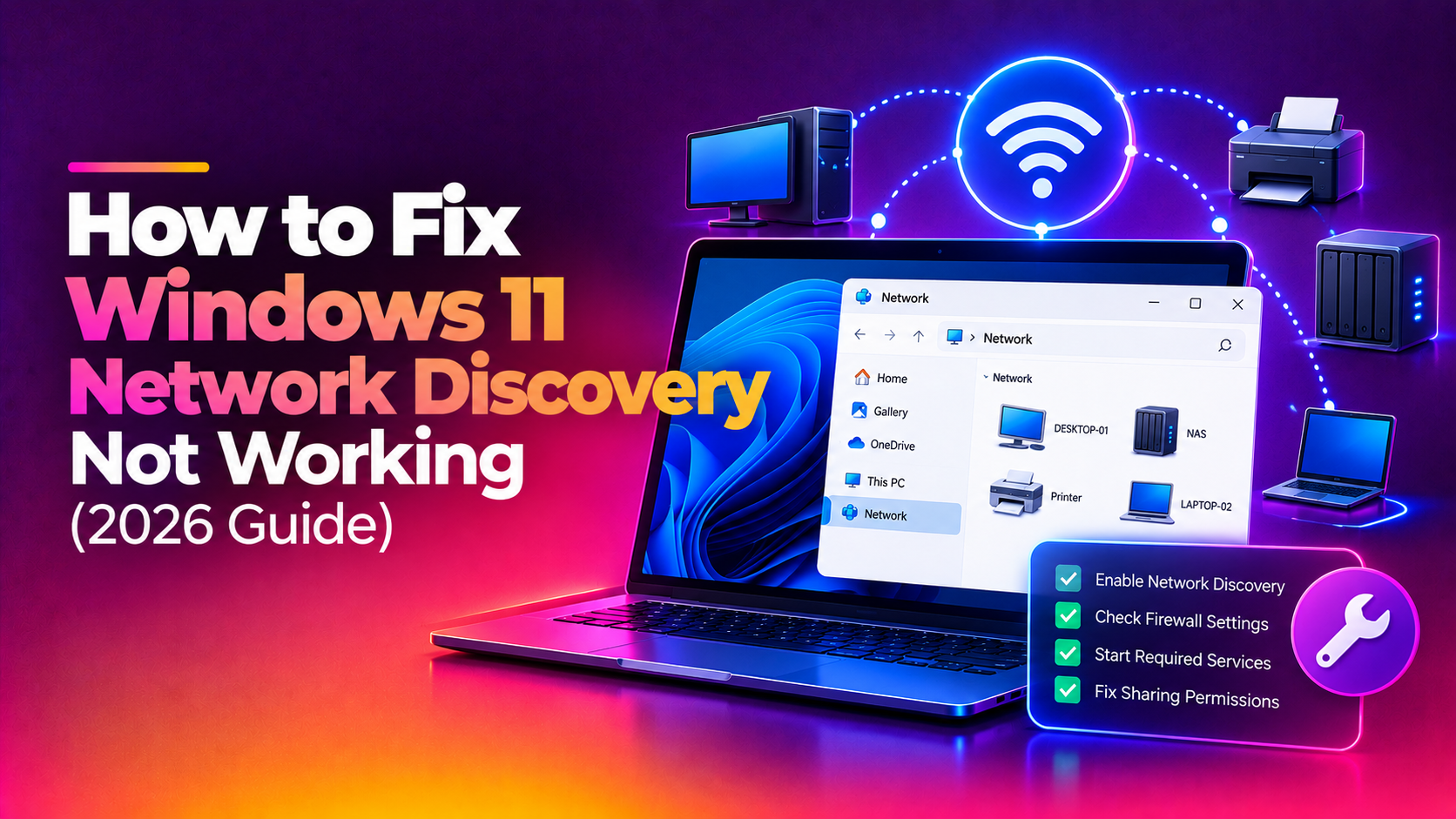
If your Windows 11 PC has suddenly stopped seeing other computers, NAS drives, or shared printers on your local network — even though everything is plugged in and connected to the same router — you're dealing with a broken Network Discovery stack. This is one of the most common post-update headaches in 2026, especially after the 24H2 and 25H2 feature updates, which quietly reset network profiles, tighten SMB guest access, and stop background discovery services without warning. This guide walks through every real cause and fix, from the Settings toggle down to the registry and PowerShell level.
What Causes Network Discovery to Stop Working on Windows 11
Network Discovery relies on a chain of background services (Function Discovery Provider Host, Function Discovery Resource Publication, SSDP Discovery, UPnP Device Host) plus your network profile type (Private vs Public) and firewall rules. If any link in that chain breaks — which happens frequently after Windows Update — your PC either can't announce itself to the network or can't see announcements from other devices. Common triggers include:
- Network profile silently reset to Public after a feature update, driver reinstall, or VPN disconnect
- The Function Discovery Resource Publication (FDResPub) service stuck in "Manual" startup and not actually running, even though Settings shows the toggle as On
- Windows 11 24H2/25H2 tightening SMB1/guest authentication, hiding older NAS boxes and legacy devices from Network view
- Third-party firewall or antivirus software blocking mDNS/SSDP/NetBIOS broadcast traffic
- Devices on different workgroups or subnets after a router reset or DHCP change
- Corrupted network stack after a Windows Update rollback or driver update
Fix 1: Confirm Your Network Profile Is Set to Private
Windows hides your PC from other devices by design when the active network is marked Public.
- Open Settings > Network & internet
- Click Wi-Fi or Ethernet depending on your connection type
- Click your active network name to open its properties
- Under Network profile type, select Private
You can verify or force this from an elevated PowerShell window as well:
Get-NetConnectionProfile
Set-NetConnectionProfile -InterfaceAlias "Wi-Fi" -NetworkCategory Private
Replace "Wi-Fi" with "Ethernet" if you're on a wired connection. Run Get-NetConnectionProfile first to confirm the exact interface alias and current category.
Fix 2: Turn On Network Discovery and File/Printer Sharing
- Open Control Panel > Network and Internet > Network and Sharing Center
- Click Change advanced sharing settings
- Under the Private profile, enable:
- Turn on network discovery
- Turn on automatic setup of network-connected devices
- Turn on file and printer sharing
- Click Save changes
You can push the same settings from an elevated Command Prompt using netsh:
netsh advfirewall firewall set rule group="Network Discovery" new enable=Yes
netsh advfirewall firewall set rule group="File and Printer Sharing" new enable=Yes
Fix 3: Fix the Function Discovery Services (The Real Culprit After Updates)
This is the fix that solves it most often. After a Windows Update, the toggle in Settings can show "On" while the underlying Function Discovery Resource Publication (FDResPub) service has silently stopped or reverted to Manual startup.
- Press Win + R, type
services.msc, press Enter - Locate and double-click each of the following:
- Function Discovery Provider Host (FDPHOST)
- Function Discovery Resource Publication (FDResPub)
- SSDP Discovery
- UPnP Device Host
- DNS Client
- Set Startup type to Automatic for each, then click Start if the service isn't running
You can do this faster from an elevated PowerShell prompt:
Set-Service -Name FDResPub -StartupType Automatic
Set-Service -Name FDPHOST -StartupType Automatic
Set-Service -Name SSDPSRV -StartupType Automatic
Set-Service -Name upnphost -StartupType Automatic
Start-Service -Name FDResPub, FDPHOST, SSDPSRV, upnphost
If FDResPub refuses to start and throws an error, its service dependencies may be broken. Reset them with:
sc config fdrespub depend= RpcSs/http/fdphost/LanmanWorkstationFix 4: Reset SMB and Workgroup Settings (24H2/25H2 Specific)
Windows 11 24H2 and 25H2 further restricted SMB guest logins, which can hide older NAS devices and Windows 10 PCs from Network view even when discovery is otherwise working correctly.
- Confirm all devices share the same workgroup name: Settings > System > About > Advanced system settings > Computer Name tab > Change
- Check whether SMB1 support needs to be enabled for legacy devices: Control Panel > Programs > Turn Windows features on or off > SMB 1.0/CIFS File Sharing Support (only enable this if you understand the security tradeoff of legacy SMB)
- As an immediate workaround while you troubleshoot, connect directly by typing the device's IP address or hostname into File Explorer's address bar:
\\192.168.1.50or\\NAS-DEVICE
Fix 5: Check the Windows Firewall Rules
- Open Windows Security > Firewall & network protection
- Click Allow an app through firewall
- Click Change settings, then locate Network Discovery and File and Printer Sharing
- Ensure both are checked for the Private column
If you run a third-party antivirus with its own firewall (Norton, McAfee, Bitdefender), check its network protection settings too — these frequently override Windows Firewall rules silently after an update.
Fix 6: Run Network Reset as a Last Resort
If none of the above resolves it, a full network stack reset clears out corrupted adapter bindings and protocol configurations.
ipconfig /flushdns
netsh winsock reset
netsh int ip reset
Or via Settings: Settings > Network & internet > Advanced network settings > Network reset. This removes and reinstalls all network adapters, so you'll need to reconnect to Wi-Fi and re-enter credentials afterward. Restart the PC once the reset completes.
When to Call In Managed Support
Network discovery problems that resist every fix above are usually a sign of deeper group policy conflicts, domain vs workgroup misconfiguration, or a botched update rollout across multiple machines — common in small offices where several PCs updated to 24H2/25H2 at different times. If you're managing more than a handful of endpoints, chasing this service-by-service on every machine isn't a good use of your time. CloudHouse's Pay-Per-Ticket Support service lets you get a dedicated technician to resolve exactly this kind of networking issue on demand, without a monthly contract.
Frequently Asked Questions
Why did my PC stop showing on the network after a Windows Update?
Feature updates like 24H2 and 25H2 frequently reset the network profile to Public and can stop the Function Discovery services or revert their startup type to Manual. Re-enabling Private profile and restarting FDResPub/FDPHOST resolves most cases.
Do I need to enable SMB1 to see old NAS devices?
Only if the device is very old and doesn't support SMB2/3. Enabling SMB1 reintroduces a known security risk, so only do it temporarily and disable it again once you've confirmed the device works, or better, update the NAS firmware.
Why does Settings show Network Discovery as "On" but it still doesn't work?
The Settings toggle only reflects the firewall rule state, not whether the underlying FDResPub and FDPHOST services are actually running. Check services.msc directly — this mismatch is extremely common after updates.
Can I connect to a device even if I can't see it in Network view?
Yes. Type \\IP_ADDRESS or \\HOSTNAME directly into File Explorer's address bar. This bypasses discovery broadcast entirely and connects via direct SMB, which works even when discovery services are broken.
Will a network reset delete my saved Wi-Fi passwords?
Yes, network reset removes all network adapters and their saved configurations, including Wi-Fi passwords and VPN profiles. Have your Wi-Fi password ready before running it, since you'll need to re-enter it.