Why KB5077181 Is Failing on Windows 11 25H2 PCs
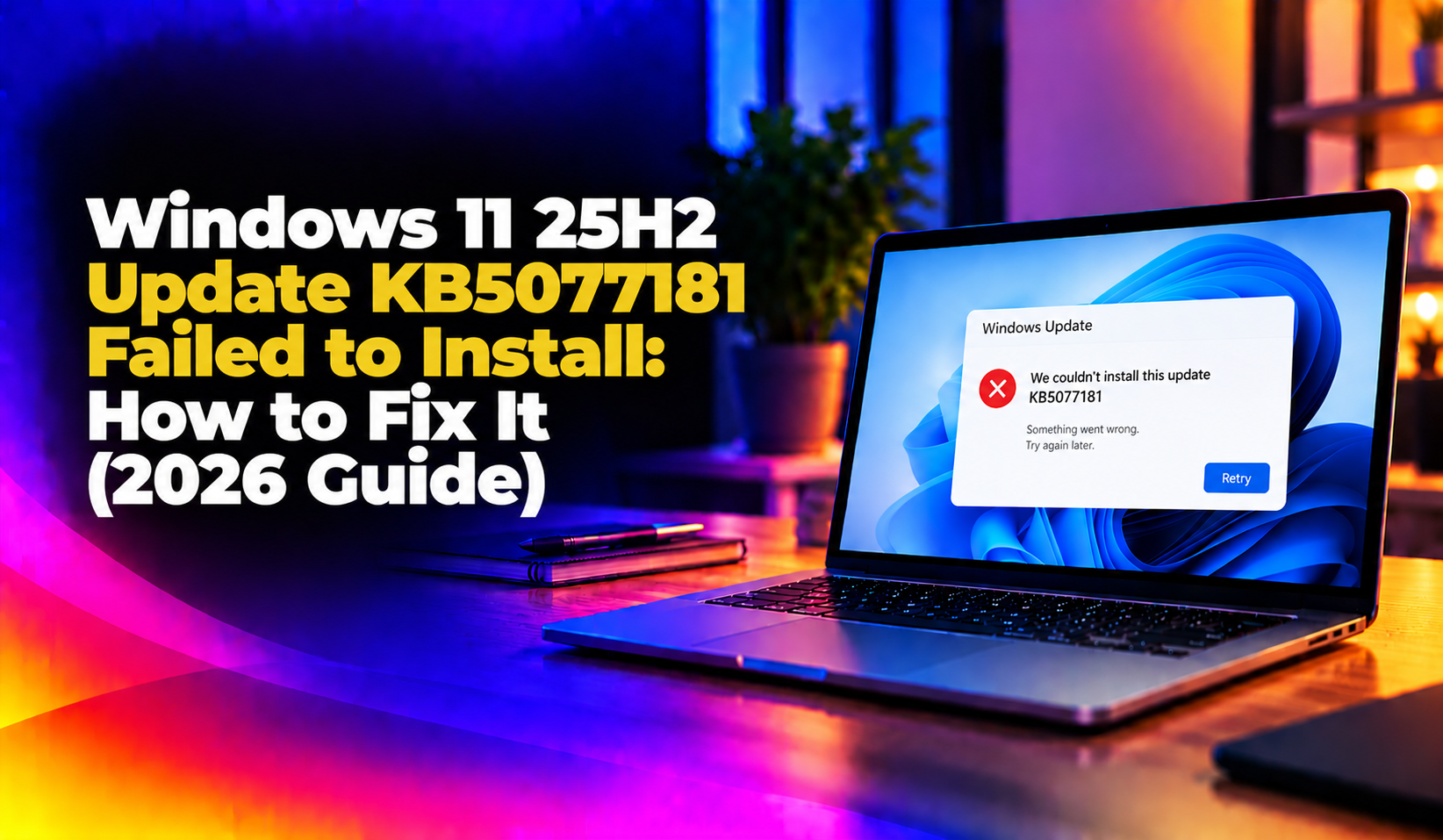
Since early 2026, a growing number of Windows 11 users have reported that the February 2026 cumulative update for Windows 11, version 25H2 — KB5077181 (OS Build 26200.7840) — refuses to install. Windows Update either gets stuck downloading, fails at the "Working on updates" screen, or rolls back with an error after a restart. Microsoft has confirmed this mainly affects devices that were upgraded from Windows 10 (22H2/21H2) or Windows 11 23H2 into 24H2/25H2, where a leftover servicing package from the older build conflicts with the new cumulative update package.
The most common error codes seen alongside this failure are 0x80073712 (a corrupted or missing component in the servicing store) and 0x800f0993 (a package dependency mismatch during the update trial phase). If Windows Update is stuck at 0% or rolling back KB5077181 repeatedly, this guide walks through the exact fixes — from a simple retry to the DISM package removal command Microsoft itself recommends.
Step 1: Confirm You're Hitting the KB5077181 Failure
Before troubleshooting, verify the symptom matches this specific issue:
- Go to Settings > Windows Update > Update history.
- Look for "2026-02 Cumulative Update for Windows 11, version 25H2 for x64-based Systems (KB5077181)" marked as Failed.
- Check the error code shown — typically
0x80073712,0x800f0993, or a generic "There were some problems installing updates" message. - Open Event Viewer > Windows Logs > System and filter for Event ID 20 or 24 from source WindowsUpdateClient to confirm the failed KB number.
Step 2: Run the Built-in Windows Update Troubleshooter
This is the fastest first step and resolves a meaningful share of stuck-update cases without touching the command line.
- Open Settings > System > Troubleshoot > Other troubleshooters.
- Click Run next to Windows Update.
- Let it scan and apply fixes, then restart the PC and retry the update via Settings > Windows Update > Check for updates.
If KB5077181 still fails with the same error code, move to the manual reset steps below.
Step 3: Reset the Windows Update Components Manually
Corrupted update cache files are the single most common cause of a KB stuck reinstalling the same way every time. Open Command Prompt as Administrator and run:
net stop wuauserv
net stop cryptSvc
net stop bits
net stop msiserver

ren C:\Windows\SoftwareDistribution SoftwareDistribution.old
ren C:\Windows\System32\catroot2 catroot2.old

net start wuauserv
net start cryptSvc
net start bits
net start msiserver
Restart the machine, then retry Windows Update. This clears out any half-downloaded or mismatched update packages that trigger 0x80073712 and 0x800f0993.
Step 4: Run DISM and SFC to Repair the Component Store
If the reset above doesn't clear the failure, the underlying Windows component store (WinSxS) is likely corrupted. Run these three DISM checks in order, each from an elevated Command Prompt:
DISM /Online /Cleanup-Image /CheckHealth
DISM /Online /Cleanup-Image /ScanHealth
DISM /Online /Cleanup-Image /RestoreHealth
RestoreHealth pulls repair files from Windows Update by default. If you're offline or Windows Update itself is broken, point DISM at a mounted Windows 11 25H2 ISO instead:
DISM /Online /Cleanup-Image /RestoreHealth /Source:D:\sources\install.wim /LimitAccessOnce DISM completes without errors, run a System File Checker pass to catch anything DISM missed:
sfc /scannowRestart and retry the update.
Step 5: Remove the Conflicting Rollup Package (Microsoft's Official Mitigation)
Microsoft's own guidance for this exact issue is to remove the leftover rollup package left behind from the upgrade path, then let KB5077181 install cleanly. From an elevated Command Prompt, first list installed packages to confirm the exact name on your build:
DISM /Online /Get-Packages /Format:TableLook for an entry similar to Package_for_RollupFix~31bf3856ad364e35~amd64~~26100.1742.1.10, then remove it:
DISM /Online /Remove-Package /PackageName:Package_for_RollupFix~31bf3856ad364e35~amd64~~26100.1742.1.10Restart the PC and run Windows Update again. In most reported cases, KB5077181 installs successfully on the next attempt once this stale package is cleared.
Step 6: Manually Download and Install via the Microsoft Update Catalog
If Windows Update still won't pull the file correctly, download KB5077181 directly and install it with the standalone installer:
- Go to the Microsoft Update Catalog and search "KB5077181".
- Download the package matching your architecture (x64/ARM64).
- Double-click the .msu file, or install it from an elevated prompt with:
wusa.exe windows11.0-kb5077181-x64.msu /quiet /norestartRestart when prompted. This bypasses the Windows Update client entirely and often succeeds even when the built-in update pipeline is stuck.
Step 7: Last Resort — In-Place Repair Upgrade
If none of the above resolves the failure, Microsoft recommends an in-place upgrade using Windows 11 25H2 installation media, which repairs the OS without wiping personal files or installed applications:
- Download the Windows 11 Installation Assistant or create bootable media via the Media Creation Tool.
- Run
setup.exefrom the mounted ISO while already inside Windows. - Choose "Keep personal files and apps" when prompted.
This rebuilds the Windows component store from scratch and clears any deep corruption that DISM/SFC couldn't fix, resolving update failures tied to legacy upgrade paths from Windows 10 or older 23H2 builds.
Preventing This on Future Cumulative Updates
Microsoft's June 2026 Patch Tuesday release included protective fixes intended to stop this class of failure from recurring on future monthly updates: KB5094127 for Windows 10, KB5093998 for Windows 11 23H2, and KB5094126 for Windows 11 24H2/25H2. Installing these as soon as they're offered reduces the chance of hitting the same 0x80073712/0x800f0993 pattern on the next Patch Tuesday cycle.
When to Bring in Professional Support
Update failures tied to legacy upgrade paths, corrupted WinSxS stores, or fleet-wide KB rollout issues across multiple office PCs can eat hours of IT time when handled one machine at a time. If you're managing this across more than a handful of endpoints, or you'd rather not risk a failed in-place repair on a production machine, CloudHouse Technologies' pay-per-ticket remote IT support can diagnose and resolve the specific KB failure on your systems without a monthly retainer.
Frequently Asked Questions
Why does KB5077181 keep failing and rolling back on Windows 11 25H2?
It's most often caused by a leftover servicing package from an earlier upgrade path (Windows 10 22H2/21H2 or Windows 11 23H2 upgraded into 24H2/25H2) that conflicts with the new cumulative update. Removing the stale rollup package via DISM, as shown in Step 5, resolves it in most cases.
What do error codes 0x80073712 and 0x800f0993 mean?
0x80073712 indicates a corrupted or missing component in the Windows servicing store. 0x800f0993 indicates a package dependency mismatch encountered while Windows Update evaluates whether the update can safely apply. Both are commonly resolved with DISM RestoreHealth and the rollup package removal steps.
Is it safe to remove the RollupFix package with DISM?
Yes. The package name Microsoft references is a leftover component from a prior update cycle, not an active security patch. Removing it simply clears the conflict so the current cumulative update (KB5077181) can install cleanly; Windows Update will still keep your system current afterward.
Will an in-place upgrade repair delete my files or apps?
No, as long as you choose "Keep personal files and apps" during setup. An in-place repair upgrade rebuilds Windows system files and the component store while preserving your data, installed programs, and most settings.
How do I stop this from happening on the next cumulative update?
Install Microsoft's June 2026 protective updates (KB5094127 for Windows 10, KB5093998 for Windows 11 23H2, KB5094126 for Windows 11 24H2/25H2) as soon as they're offered. These specifically patch the upgrade-path conflict that causes future monthly updates to fail the same way.