Why Does Windows 10 Show USB Device Not Recognized?
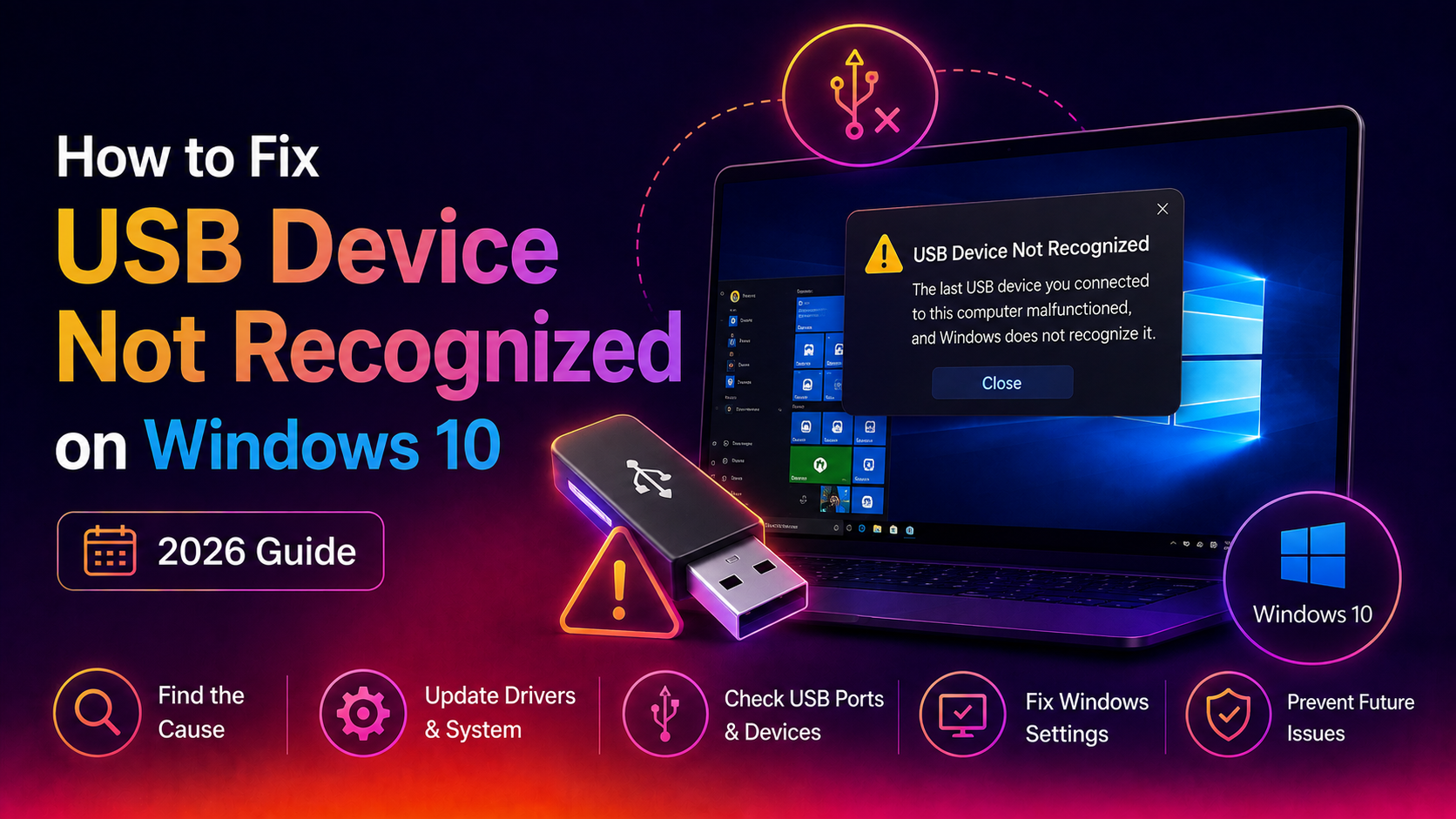
You plug in a USB drive, phone, or peripheral and Windows 10 instantly shows the balloon notification: USB Device Not Recognized. The last USB device you connected to this computer malfunctioned, and Windows does not recognize it. Frustrating? Absolutely. Unfixable? Not at all.
This error affects millions of Windows 10 users every year. The root causes range from a corrupted USB driver and Device Manager error code 43, to a misconfigured power management setting that tells Windows to cut power to USB ports. In 2026, a fresh wave of reports has emerged following recent cumulative updates linked to USB enumeration regressions on certain AMD and Intel chipsets.
This guide walks you through every fix in the correct order from a 30-second hardware check to advanced driver reinstallation and registry tweaks so you can get your USB device working again without reinstalling Windows.
What Is Error Code 43 in Device Manager?
When Windows reports error code 43 in Device Manager, it means: Windows has stopped this device because it has reported problems. The driver detected an internal failure and told the operating system to halt the device. You will see this under Device Manager then Universal Serial Bus controllers or under the specific device listed with a yellow exclamation mark.
Code 43 is almost always a driver-layer problem, not a hardware failure which is why reinstalling or rolling back the USB driver fixes it in the majority of cases.
Before You Begin: Quick Hardware Checks
Run these checks before touching any software settings. They rule out physical causes and save you time:
- Try a different USB port — swap from a USB 3.0 blue port to a USB 2.0 black port, or vice versa.
- Try a different USB cable — cables fail more often than people expect.
- Test the device on another PC — if it fails there too, the device itself is faulty.
- Remove USB hubs — plug directly into the motherboard port, bypassing any hub or dock.
- Restart the PC completely — a full shutdown clears most transient driver states.
If the device works on another PC but not yours, continue to the software fixes below.
Fix 1: Uninstall and Reinstall the USB Device Driver
This is the most effective fix for error code 43 and is safe to perform on any Windows 10 machine.
- Right-click the Start button and select Device Manager.
- Expand Universal Serial Bus controllers.
- Look for any device with a yellow exclamation mark. Right-click it and select Properties. Confirm the error code is 43 or the device says Unknown Device.
- Right-click the flagged device again and select Uninstall device. Check the box Delete the driver software for this device if it appears.
- Unplug the USB device from the port.
- Wait 10 seconds, then plug the USB device back in.
- Windows 10 will automatically re-detect the device and reinstall its driver. Watch Device Manager refresh and the yellow mark should disappear.
If the unknown device comes back with code 43 after reinstalling, move to Fix 2.
Fix 2: Update USB Root Hub Drivers
USB Root Hubs are the controller drivers that manage all USB ports on your motherboard. Outdated or corrupted root hub drivers cause intermittent USB recognition failures across all ports.
- Open Device Manager by right-clicking Start and selecting Device Manager.
- Expand Universal Serial Bus controllers.
- Right-click the first USB Root Hub entry and select Update driver.
- Choose Search automatically for drivers. Let Windows check Windows Update.
- Repeat for every USB Root Hub listed. There may be 2 to 4 entries.
- Restart your PC after all updates complete.
For Intel chipset systems, also visit Intel's Driver and Support Assistant page to download the latest chipset and USB driver packages directly from Intel.
Fix 3: Disable USB Selective Suspend
Windows 10's USB Selective Suspend feature cuts power to idle USB ports to save battery. On desktop PCs and certain laptops, this causes USB devices to disconnect randomly or fail to be recognized after the PC resumes from sleep.
- Open Device Manager.
- Expand Universal Serial Bus controllers.
- Right-click USB Root Hub then select Properties then the Power Management tab.
- Uncheck Allow the computer to turn off this device to save power.
- Click OK. Repeat for every USB Root Hub entry.
Then disable Selective Suspend globally via Power Options:
- Press Win + R, type
powercfg.cpl, press Enter. - Click Change plan settings next to your active power plan then Change advanced power settings.
- Expand USB settings then USB selective suspend setting.
- Set both On battery and Plugged in to Disabled.
- Click Apply then OK.
Fix 4: Run USB Reset Commands via Command Prompt
Windows 10 includes built-in USB diagnostics you can trigger from Command Prompt. These commands reset the USB subsystem without requiring a full reinstall:
REM Open Command Prompt as Administrator
REM Right-click Start then Windows PowerShell (Admin)

REM Step 1: Force Windows to re-scan all hardware buses
pnputil /scan-devices

REM Step 2: Reset the network stack (fixes USB network adapters)
netsh winsock reset
netsh int ip reset
After running these commands, restart your PC and reconnect the USB device. The pnputil /scan-devices command tells the Plug and Play subsystem to rescan all hardware buses which is equivalent to clicking Scan for hardware changes in Device Manager but more thorough.
Fix 5: Update Windows 10 to the Latest Patch
Microsoft has acknowledged USB enumeration regressions introduced by some 2026 cumulative updates on Intel and AMD platforms. Always ensure you are on the latest patch:
- Press Win + I to open Settings.
- Go to Update and Security then Windows Update.
- Click Check for updates.
- Install all pending updates, including Optional updates where driver updates are often hidden.
- Restart your PC.
If a recent update caused your USB problem, uninstall it: go to Settings then Update and Security then View Update History then Uninstall Updates, find the most recent cumulative update, and uninstall it. Then test your USB device.
Fix 6: Reinstall All USB Controllers (Full Reset)
This fix uninstalls every USB controller driver on the system and forces Windows to reinstall them fresh. It resolves stubborn cases where multiple USB devices fail simultaneously.
- Open Device Manager.
- Expand Universal Serial Bus controllers.
- Right-click every entry: USB Root Hub, USB Composite Device, Generic USB Hub, xHCI Host Controller and select Uninstall device. Do not check Delete driver software for these entries.
- After uninstalling all USB controller entries, go to Action then Scan for hardware changes.
- Windows 10 will detect and reinstall all USB controllers automatically.
- Restart your PC.
Note: Your mouse and keyboard may stop working during this process if they are USB-connected. Have a spare keyboard available or use your laptop built-in keyboard as backup.
Fix 7: Clear Corrupted USB Registry Keys
Corrupted USB driver registry entries can prevent Windows 10 from loading USB drivers correctly even after reinstallation. UpperFilters and LowerFilters values are known to cause code 43 errors when left behind by third-party USB software:
REM Open Registry Editor
REM Press Win+R, type regedit, press Enter

REM Navigate to this key:
REM HKEY_LOCAL_MACHINE\SYSTEM\CurrentControlSet\Control\Class\{36FC9E60-C465-11CF-8056-444553540000}

REM In the right pane, look for UpperFilters and LowerFilters values
REM If present, right-click each one and select Delete
REM These are left behind by third-party USB tools and cause driver load failures
Important: Back up your registry first. In Registry Editor press File then Export and save a backup to your Desktop before making any changes.
After deleting these entries, restart your PC and reconnect the USB device.
Fix 8: Update Your Motherboard BIOS Firmware
BIOS updates often include USB controller firmware patches that resolve hardware-level recognition failures especially for newer USB 3.2 and USB4 devices connected to older boards. This fix is particularly relevant if:
- The USB device is never recognized regardless of port or cable.
- The problem started after a Windows 10 feature update.
- You have an AMD Ryzen or Intel 12th or 13th Gen system.
Visit your motherboard manufacturer's support page (ASUS, MSI, Gigabyte, ASRock, Dell, HP, Lenovo) and download the latest BIOS or UEFI version. Flash it using their provided utility. Most modern boards support in-OS flashing via a dedicated application.
Fix 9: Run a Clean Boot to Isolate Third-Party Conflicts
Antivirus programs, USB management tools, and virtual machine hypervisors can intercept USB driver calls and cause recognition failures. A clean boot starts Windows 10 with only Microsoft services running:
- Press Win + R, type
msconfig, press Enter. - Go to the Services tab. Check Hide all Microsoft services, then click Disable all.
- Go to the Startup tab then click Open Task Manager and disable all startup items.
- Click OK and restart your PC.
- Test your USB device. If it works in clean boot, re-enable services one group at a time to identify the conflict.
When All Else Fails: Get Expert Help
If you have tried every fix above and your USB device still shows not recognized in Windows 10, the issue may involve a deeper hardware fault, a corrupted Windows system image, or a driver conflict introduced by a recent Windows feature update. Rather than spending more hours troubleshooting, consider getting a professional remote diagnosis: CloudHouse Technologies Pay-Per-Ticket Support — our technicians connect remotely to your Windows 10 PC, run advanced diagnostics, and fix USB driver issues in a single session. No subscription, no contract — you pay only if we fix the problem.
Summary: USB Device Not Recognized Fix Checklist
- Try different ports and cables first
- Uninstall and reinstall the specific USB device driver (Fix 1)
- Update all USB Root Hub drivers (Fix 2)
- Disable USB Selective Suspend in Power Options (Fix 3)
- Run pnputil /scan-devices from Admin Command Prompt (Fix 4)
- Apply all pending Windows 10 updates or roll back the last update (Fix 5)
- Full USB controller reinstall if multiple ports fail (Fix 6)
- Delete UpperFilters/LowerFilters registry values (Fix 7)
- Flash latest BIOS firmware (Fix 8)
- Clean boot to isolate software conflicts (Fix 9)