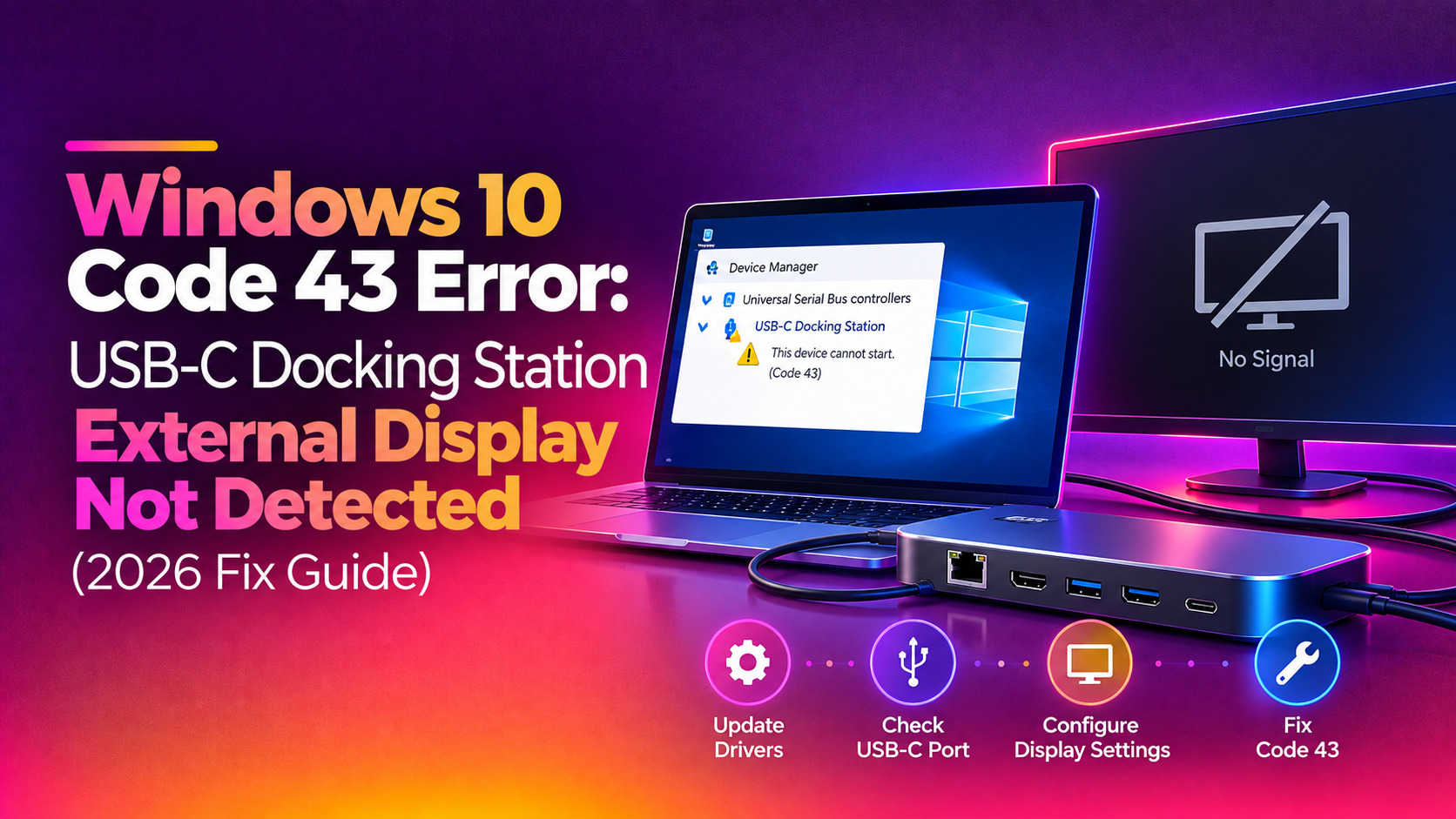
If you dock your laptop and your external monitor stays blank, or Device Manager throws a "This device cannot start (Code 43)" error against your USB-C docking station's display adapter, you're dealing with one of the most common — and most misunderstood — Windows 10 hardware faults in 2026. This guide walks through the exact causes and fixes for Code 43 on USB-C and Thunderbolt docking stations, specifically when the fault affects the external display path rather than USB peripherals.
What Code 43 Actually Means on a Docking Station
Code 43 is Windows' generic way of saying "a driver told me this device failed, so I'm shutting it down." On a docking station, this almost always points to the DisplayLink or USB-C Alternate Mode (DisplayPort Alt Mode) driver stack that converts USB-C signal into HDMI or DisplayPort output. When Windows 10 sees the dock's video bridge chip enumerate correctly but then fail initialization, it raises Code 43 against a device like "DisplayLink Graphics Adapter" or "USB Video Device" in Device Manager, rather than against the monitor itself.
This is different from a simple "no signal" issue — the operating system has detected the hardware but refused to hand it a working driver session.
Step 1: Confirm the Faulting Device in Device Manager
- Press Win + X and select Device Manager.
- Expand Display adapters and Universal Serial Bus controllers.
- Look for a yellow warning triangle on any entry named "DisplayLink," "USB3.0 to Dual Display Adapter," "USB Video Device," or your dock manufacturer's name (Dell, Lenovo, HP, Anker, CalDigit, Plugable, etc.).
- Right-click the faulting device > Properties > check the Device status text — Code 43 will be listed explicitly.
Step 2: Rule Out Power Delivery Starvation
Docking stations that run the display bridge chip and charge the laptop simultaneously can starve the USB-C controller of power, which triggers Code 43 intermittently — often only when a second or third monitor is attached.
- Connect the dock's power adapter directly to a wall outlet, not a power strip shared with other high-draw devices.
- Disconnect all downstream USB peripherals (webcams, external drives) temporarily and see if the display initializes.
- If your dock supports 100W+ Power Delivery, confirm you're using the cable and charger rated for that wattage — underpowered cables are a leading cause of Code 43 on 2026-era docks with dual 4K output.
Step 3: Full Driver Reset for the Video Bridge Chip
A stale or corrupted DisplayLink/Alt-Mode driver is the single most common root cause. Do a clean reinstall rather than a simple "Update Driver":
- Open Settings > Apps > Installed apps, search for "DisplayLink" or your dock vendor's software suite, and uninstall it completely.
- Reboot, then physically unplug the dock from both power and the laptop for at least 30 seconds — this fully discharges the bridge chip's capacitors and forces a cold enumeration on reconnect.
- Download the latest driver package directly from the dock manufacturer's support page (not Windows Update, which frequently ships an outdated Alt-Mode driver).
- Install the fresh driver before reconnecting the dock, reboot again, then connect the dock last.
Step 4: Clear Ghost Devices from the Registry
Repeated dock swaps across multiple laptops can leave orphaned device entries that conflict with the live one and force Code 43 even after a clean driver install.
- Open Command Prompt as Administrator and run
set devmgr_show_nonpresent_devices=1thenstart devmgmt.msc. - In Device Manager, click View > Show hidden devices.
- Expand Display adapters and Universal Serial Bus controllers; right-click and Uninstall device on any greyed-out (non-present) dock-related entries.
- Restart the PC and reconnect the dock to force a clean re-enumeration.
Step 5: Check the USB-C Alt Mode / Thunderbolt Firmware
Some laptops need a firmware-level DisplayPort Alt Mode update, separate from the OS driver, to correctly negotiate multi-stream transport (MST) with docking stations:
- Check your laptop manufacturer's support site for a "Thunderbolt / USB4 firmware" or "UEFI/BIOS" update — Dell, Lenovo, and HP release these periodically to fix exactly this class of Code 43 fault.
- Run
msinfo32and confirm your BIOS version against the vendor's latest release notes. - Update the BIOS/UEFI first, then reinstall the dock driver — order matters, as driver installers sometimes skip steps if they detect outdated firmware.
Step 6: Test With a Different Port and Cable
Not every USB-C port on a laptop carries a DisplayPort Alt Mode signal. Some ports are data/charging only.
- Consult your laptop's manual for the specific port marked with a DisplayPort or Thunderbolt icon (usually a lightning bolt or "DP" label).
- Swap to a certified USB-C cable rated for at least USB 3.1 Gen 2 / 10Gbps with full Alt Mode support — many "charge-only" cables physically lack the extra data lanes required for video.
How Windows 10 Enumerates a Docking Station's Display Path (And Why It Breaks)
Understanding the enumeration chain helps explain why Code 43 shows up specifically on the display bridge and not the whole dock. When you plug a USB-C dock into a laptop, three things happen almost simultaneously: the USB controller negotiates a data link, the Power Delivery controller negotiates a charging contract, and — if the port supports it — the DisplayPort Alt Mode controller negotiates a video tunnel alongside the USB data. Windows 10 treats each of these as a separate logical device even though they all share the same physical cable and port.
The video tunnel negotiation is the most fragile of the three because it depends on the laptop's GPU driver, the dock's bridge chip firmware, and the cable's electrical capability all agreeing at once. If any one of those three reports a mismatch — for example, the GPU driver expects DisplayPort 1.4 but the cable only supports 1.2 — Windows doesn't fail gracefully with a "reduced resolution" message the way it might on a native HDMI port. Instead it frequently just kills the device outright and raises Code 43, because the OS has no fallback path for a partially-negotiated Alt Mode tunnel the way it does for standard video outputs.
This is also why the same dock can work perfectly on one laptop and throw Code 43 on another from the same model line — a difference in GPU driver version, a different cable bundled at purchase, or a slightly different BIOS Alt Mode implementation is enough to tip the negotiation into failure.
Event Viewer: Finding the Exact Failure Reason Behind Code 43
Device Manager only tells you that something failed — Event Viewer often tells you why, which can save significant troubleshooting time:
- Press Win + X and choose Event Viewer.
- Navigate to Windows Logs > System.
- Filter the current log for Event ID 10 (Kernel-PnP), 219, or 225 — these correspond to driver load failures and device start failures respectively.
- Look at the timestamp matching when you last connected the dock. The event description frequently names the exact driver file (such as a DisplayLink .sys file) and a status code that maps to a specific failure — for example, "STATUS_DEVICE_POWER_FAILURE" points you straight back to the power delivery troubleshooting in Step 2, while "STATUS_DRIVER_INTERNAL_ERROR" points to Step 3's clean driver reinstall.
Cross-referencing the Event Viewer status code against the dock manufacturer's knowledge base article for that specific code is often faster than working through every generic fix in sequence.
When It's Still Not Fixed: Hardware Diagnosis
If Code 43 persists after driver, firmware, power, and cable checks, the fault is likely in the dock's video bridge chip itself or in the laptop's USB-C controller silicon. At this point, further generic troubleshooting online tends to waste hours without resolution — a technician with remote diagnostic access can pull driver logs, event viewer traces, and run vendor-specific dock diagnostics far faster than trial and error. If you'd rather have this resolved in one sitting instead of spending another evening swapping cables, CloudHouse's pay-per-ticket remote support connects you with a technician who can remotely inspect your Device Manager logs, dock firmware version, and driver stack, and fix the Code 43 fault in a single paid session — no subscription required.
Preventing Code 43 From Recurring
- Keep dock firmware and drivers on a quarterly update schedule rather than waiting for a failure.
- Avoid hot-swapping the same dock between multiple laptops without uninstalling the driver first on each machine.
- Disable USB selective suspend for the dock's root hub under Power Options > Change plan settings > Advanced settings > USB settings, to prevent Windows from cutting power mid-session.
Frequently Asked Questions
Why does my USB-C dock show Code 43 only when I connect two monitors?
This is almost always a power delivery limitation. Driving two external displays plus laptop charging over one USB-C link can exceed what the dock's bridge chip can sustain, triggering Windows to fail the device rather than risk instability. Try disconnecting one monitor or using a higher-wattage power adapter.
Does uninstalling and reinstalling the DisplayLink driver delete my display settings?
No, but it will reset multi-monitor arrangement and scaling preferences to default. Take a screenshot of your current display layout in Settings > System > Display before uninstalling so you can quickly restore it.
Is Code 43 a hardware failure or a software/driver issue?
In most 2026 cases involving docking stations, it's a software/driver/firmware conflict rather than physical hardware failure. True hardware failure is more likely if the same dock also fails on a completely different laptop with a fresh driver install.
Will a Windows 10 update fix Code 43 automatically?
Rarely. Windows Update generally ships a generic, older Alt-Mode driver. Manufacturer-specific driver packages from the dock vendor's own site almost always resolve Code 43 faster than waiting on a Windows Update driver refresh.
Should I roll back to an older BIOS if the newest one causes Code 43?
Only as a last resort, and only if you can confirm the previous BIOS version explicitly supported your dock model without issue. Rolling back BIOS can introduce other security and stability problems, so try firmware and driver fixes on the current BIOS first.