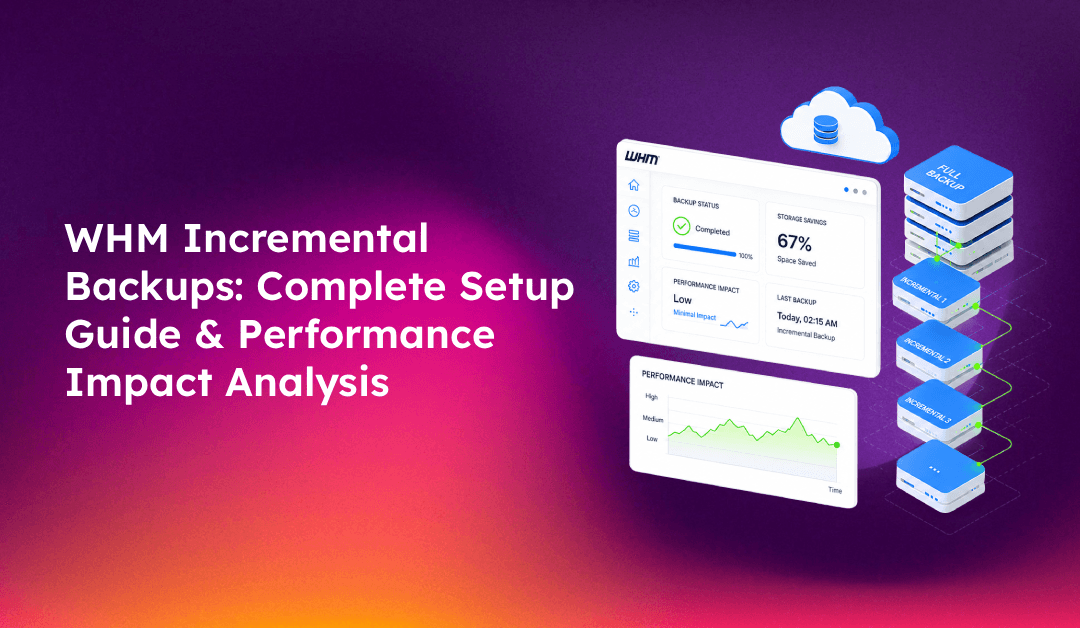
WHM incremental backups can cut your backup storage by 85% compared to daily full backups — but they come with a critical limitation that many server admins discover only when they desperately need to restore a client's account. This guide covers everything you need to configure WHM incremental backups correctly, understand the disk space and performance impact, and know when to look at third-party alternatives like JetBackup instead.
How WHM Incremental Backups Work (vs. Full Backups)
A full backup copies every file on the server — every time it runs. A 50GB server produces a 50GB backup daily, regardless of how little changed. Incremental backups take a different approach: the first run creates a complete baseline, and every subsequent backup copies only the files that changed since the last run.
Technically, WHM uses rsync-style file comparison. It examines file modification timestamps (and optionally checksums) against the previous backup's reference, then copies only the delta. The result:
- Full backup on a 10GB server: ~10GB per backup × 7 days = 70GB weekly storage
- Incremental backup on the same server (changing 100MB/day): ~10.6GB total = ~85% storage reduction
There's an important caveat on databases: MySQL/MariaDB tables are still dumped in full each time — SQL dumps can't be incrementally diffed. File-level storage savings are dramatic, but database-heavy accounts see less relative improvement.
One final constraint: incremental backups in cPanel/WHM cannot be compressed or split into archives. If you need remote backups, the only supported destination protocol is Rsync. S3, FTP, and SFTP destinations are available for full and compressed backups but not incremental.
💡 None of these worked? Skip the guesswork.
Get Expert Help →Step-by-Step WHM Incremental Backup Configuration
Navigate to Home → Backup → Backup Configuration in WHM.
In the Backup Status section, select Enable. If backups were previously disabled, the system will schedule the first full backup run immediately.
Under Backup Type, select Incremental. Note the two alternatives: Compressed (smaller files, higher CPU) and Uncompressed (fastest but largest footprint). Incremental is the only option that avoids re-copying unchanged data.
Set the local backup path (default: /backup/). Ensure the partition has enough space for one full backup plus several weeks of daily deltas. Enable Check the Available Disk Space and set a minimum threshold (typically 10–20% of partition size) — this prevents backups from filling the disk silently.
In the Scheduling and Retention section, configure:
- Daily backups: Enable, select days (common: Sunday–Saturday for full daily coverage)
- Retention: 7–14 daily backups provides adequate granularity without excessive storage
- Weekly/Monthly backups: Keep 4 weekly and 3 monthly backups as longer-term restore points
In the Files section, enable Back up User Accounts, Back up Bandwidth Data, and Back up System Files. Use the Select Users button to exclude specific accounts if needed (useful for excluding large accounts with static data).
Click Save Configuration. The first backup run will be a complete full backup regardless of the incremental setting — this is by design and establishes the baseline for future incremental runs.
Performance Impact: Disk Space and Server Resource Savings
The performance profile of incremental backups is fundamentally different from compressed full backups:
- CPU usage: Minimal. No compression algorithm runs, so the server doesn't spike during backup windows
- Disk I/O: Low. Only changed files are read and written — a typical backup window writes a fraction of what a full compressed backup would
- Backup duration: Dramatically shorter after the first run. A server that takes 45 minutes for a full backup might complete its daily incremental in 3–5 minutes
This makes incremental backups particularly valuable on shared hosting servers where dozens of cPanel accounts generate constant small file changes. The backup process runs in the background at low priority, and website visitors typically experience no noticeable lag.
Disk space projections for a 50GB server with moderate activity (500MB/day change rate):
- Full daily backups (7-day retention): 350GB
- Incremental backups (7-day retention): ~53.5GB
- Savings: ~85%
Critical Limitations of cPanel Native Incremental Backups
Here's the limitation that catches hosting companies off guard: cPanel's native incremental backups cannot be restored account-by-account. This is an architectural constraint, not a configuration option.
When a client calls requesting a file restore or database rollback, the answer with native incremental backups is: you can only do a full server restore. You cannot extract a single account, a single database, or a single directory from an incremental backup chain.
Why? The incremental backup structure allows excluding specific items from account backups. This incompatibility means the system can't guarantee a consistent, isolated account snapshot that can be safely restored independently.
The restore process for a full server recovery also carries complexity:
1. Restore the baseline full backup
2. Apply each incremental backup in sequence chronologically
3. Continue until reaching the target restore date/time
Skip any incremental in the chain and the restore is corrupted. This is manageable for disaster recovery scenarios, but it makes incremental backups entirely unsuitable as the sole backup strategy for hosting providers who regularly handle per-account restore requests.
Additional limitations worth noting:
- Backup retention points are limited (1 daily, 1 weekly, 1 monthly per schedule)
- Incremental only works via Rsync for remote destinations — no S3, no SFTP
- A corrupted file in the chain can compromise all subsequent incrementals that reference it
When to Use JetBackup or Enterprise Backup Solutions
JetBackup is a paid WHM plugin that addresses the core limitation of cPanel's native incremental backups. The key differences:
- Account-level restores: JetBackup's incremental backups CAN be restored per account. Clients can even self-serve their own file and database restores through their cPanel interface
- Remote destination flexibility: S3, Google Drive, FTP, SFTP, and additional remote servers all support incremental backups — not just Rsync
- Point-in-time recovery: JetBackup uses hard links to create efficient snapshots. A 2GB account with 30-day retention uses approximately 2GB + 30 days of delta storage, vs 60GB for daily full backups
- Automatic restore sequencing: JetBackup handles full + incremental application automatically during restore — no manual chain management
Choose native WHM incremental backups if: you have a single server, primarily need disaster recovery (full server restore), and want to minimize storage costs without additional software licensing.
Choose JetBackup if: you run a hosting business where clients expect account-level restore capabilities, you need offsite backups to S3 or similar, or you want customer self-service restore portals.
For hosting companies managing multiple servers with complex client restore requirements, managed server services include backup strategy design, configuration, monitoring, and restore execution — ensuring you always have a tested recovery path before you need it.