
When a cPanel account is corrupted, a disk fails, or a client accidentally deletes their entire website, your first question is: do we have a clean backup? If you configured backups at the cPanel account level and assumed that was enough, the answer is often no. WHM-level backup configuration is the layer that actually protects everything — across all accounts, with scheduled retention, remote offsite destinations, and failure alerting.
This guide walks through every WHM Backup Configuration setting that matters, explains the trade-offs, and gives you a setup that can survive a full disk failure without losing client data.
Why WHM-Level Backup Configuration Matters More Than cPanel Backups
cPanel's built-in backup tool lets individual account holders download full or partial backups of their own account. It is useful for self-service restores but has serious limitations for server administrators:
- cPanel-level backups are stored on the same server. If the disk fails, the backup fails with it.
- No centralised scheduling — each account must manage its own backup triggers.
- No retention policies — backups accumulate and exhaust disk space silently.
- No failure alerting — a failed backup is only discovered when a restore is attempted.
WHM's Backup Configuration solves all of these. It backs up every cPanel account on the server simultaneously, rotates old backups automatically, ships copies to remote destinations, and can email you on failure.
💡 None of these worked? Skip the guesswork.
Get Expert Help →Step-by-Step: Configuring WHM Backup Settings
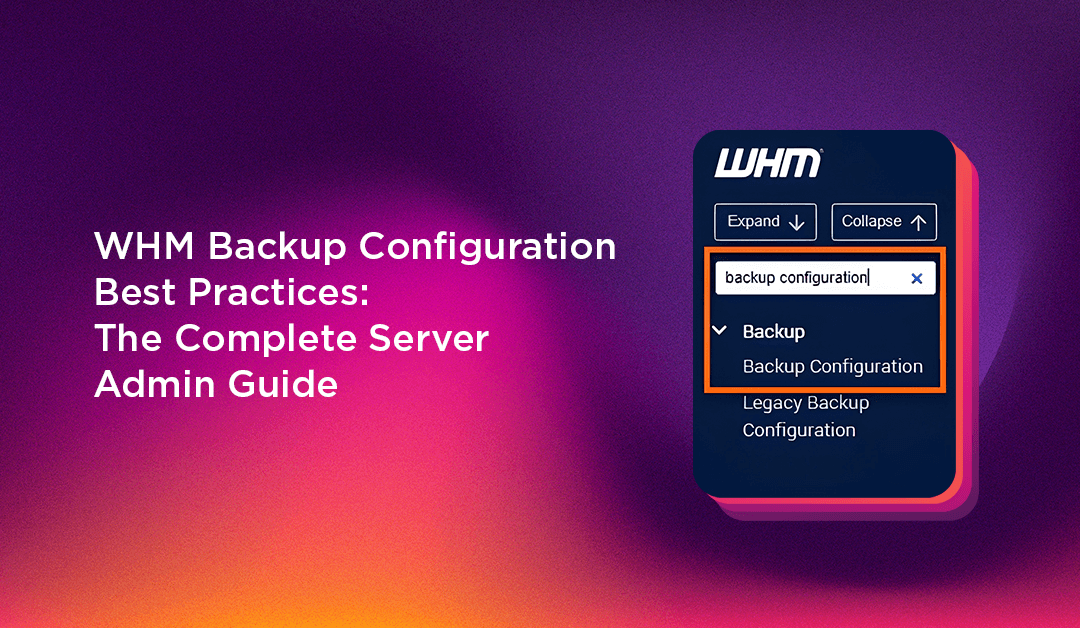
Go to WHM > Backup > Backup Configuration.
At the top of the page, toggle Backup Status: Enabled. Without this, no WHM-managed backups run regardless of other settings.
- Compressed: Backups are gzip-compressed. Slower to create but uses less disk space. Best for most hosting environments.
- Uncompressed: Faster to create and restore. Use only if disk space is not a concern and restore speed is critical.
- Incremental: Only changes since the last backup are saved. Fastest and most disk-efficient for large accounts. Requires rsync support.
For most WHM servers, start with Compressed and evaluate incremental if daily backup windows become too long.
Under Scheduling and Retention:
- Enable Daily backups and set the retention to 3 copies. This gives you three days of rollback without excessive disk use.
- Enable Weekly backups on Sunday with retention of 2 copies — useful for catching issues discovered days after they occurred.
- Enable Monthly backups with retention of 1 copy for compliance and long-term reference.
Set the backup start time to a low-traffic window (e.g., 2:00 AM) to minimise I/O impact on live sites.
Under Files, enable:
- Home directories — all account files and email
- MySQL databases — critical; a backup without the DB is useless for most sites
- Email filters and configuration
Enable System Files only if you want to backup the server configuration itself (nameserver data, firewall rules, etc.) — useful for disaster recovery but adds significant backup size.
Setting Up Remote Backup Destinations in WHM
Local-only backups are an insurance policy with the same house as the thing you're insuring. Configure at least one remote destination.
Adding an FTP destination
- Go to WHM > Backup > Backup Configuration > Additional Destinations
- Select FTP as the destination type
- Enter the remote FTP server hostname, username, password, and destination path
- Set Backup transfer limit to avoid saturating the server's upload bandwidth during peak hours
- Click Save and Validate Destination — WHM will write a test file and verify the connection
Adding an Amazon S3 destination
- Select Amazon S3 as the destination type
- Enter your IAM user's access key and secret key
- Specify the bucket name and folder prefix (e.g.,
server-backups/server1/) - Choose the S3 region closest to your server
- Enable Backup transfer limit and validate
Use an IAM policy that grants only s3:PutObject, s3:GetObject, and s3:ListBucket on the specific bucket. Never use root AWS credentials for WHM backup destinations.
Adding a Google Drive destination
WHM supports Google Drive via OAuth. Go to the destination settings, select Google Drive, click Authorize, and complete the OAuth flow with a service account. Useful for clients on Google Workspace who want backups in their own Drive.
Incremental vs Full Backups in WHM: Which Should You Use?
WHM's incremental backup uses rsync to copy only files that have changed since the last backup. The trade-offs:
| Feature | Full (Compressed) | Incremental |
|---|---|---|
| Disk space | Higher — full copy each run | Lower — only changes stored |
| Backup speed | Slower for large accounts | Fast after first run |
| Restore speed | Fast — single archive | Slower — may require multiple snapshots |
| Best for | Servers under 50 GB total | Servers over 100 GB or with many accounts |
For most shared hosting servers under 50 GB, compressed full backups are the simpler and more reliable choice. Switch to incremental when daily backup windows start running into business hours.
Monitoring WHM Backup Jobs and Alerting on Failures
WHM can email the server administrator on backup failure. Configure this under WHM > Server Contacts — add your email under Contact Preferences > Backup.
For more granular monitoring, check backup logs manually:
ls -la /usr/local/cpanel/logs/cpbackup/
tail -f /usr/local/cpanel/logs/cpbackup/daily.log
The log records each account's backup status, file count, and size. A backup that completes in 2 seconds for a large account is a warning sign — the backup likely skipped or failed silently.
Disk space planning: Before enabling WHM backups, calculate the storage requirement:
# Total disk used by all accounts
du -sh /home/*/ | awk '{sum += $1} END {print sum "G total"}'
With 3 daily + 2 weekly + 1 monthly retention and compression, budget approximately 3-4× your current total account disk usage for local backup storage. If that exceeds available disk, start with remote-only backups or reduce retention counts.
Managing backup configuration across a fleet of cPanel servers is time-intensive. If you're running multiple WHM servers and need centralised backup monitoring, retention policy enforcement, and failure response, CloudHouse's server management service includes backup configuration and monitoring as a core deliverable.