A router is one of the most fundamental devices in modern networking — it is the piece of hardware that directs data traffic between your devices and the internet, and between different networks within an organisation. Whether you are troubleshooting a slow connection, planning a business network, or simply trying to understand how the internet actually works, knowing what a router is and how it operates gives you a significant advantage. This guide covers everything: definition, how routing works, types, security best practices, setup steps, and troubleshooting.
What Is a Router?
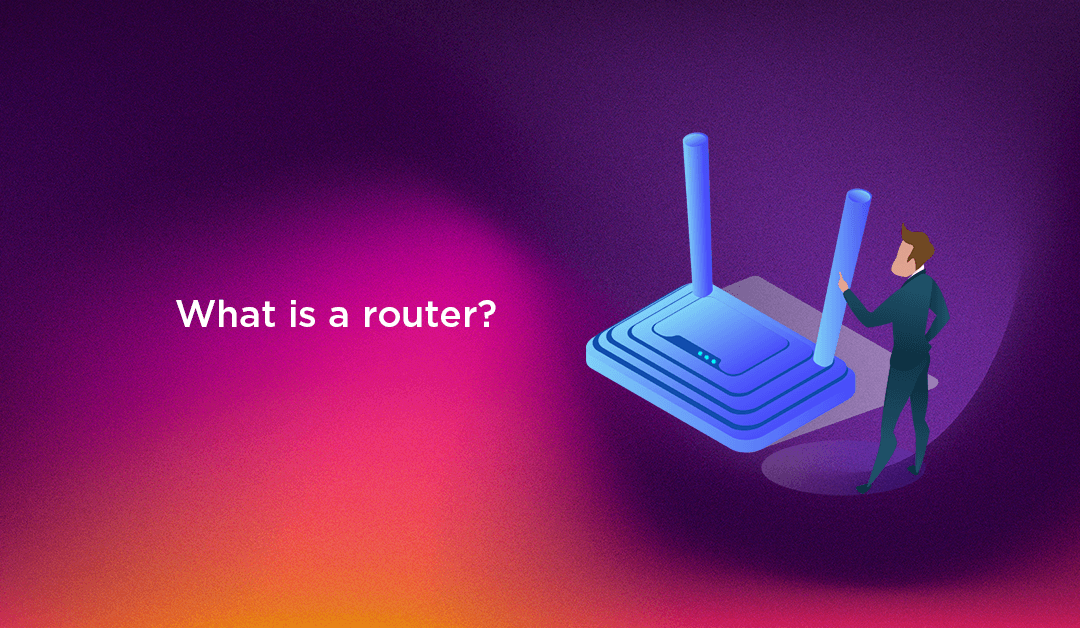
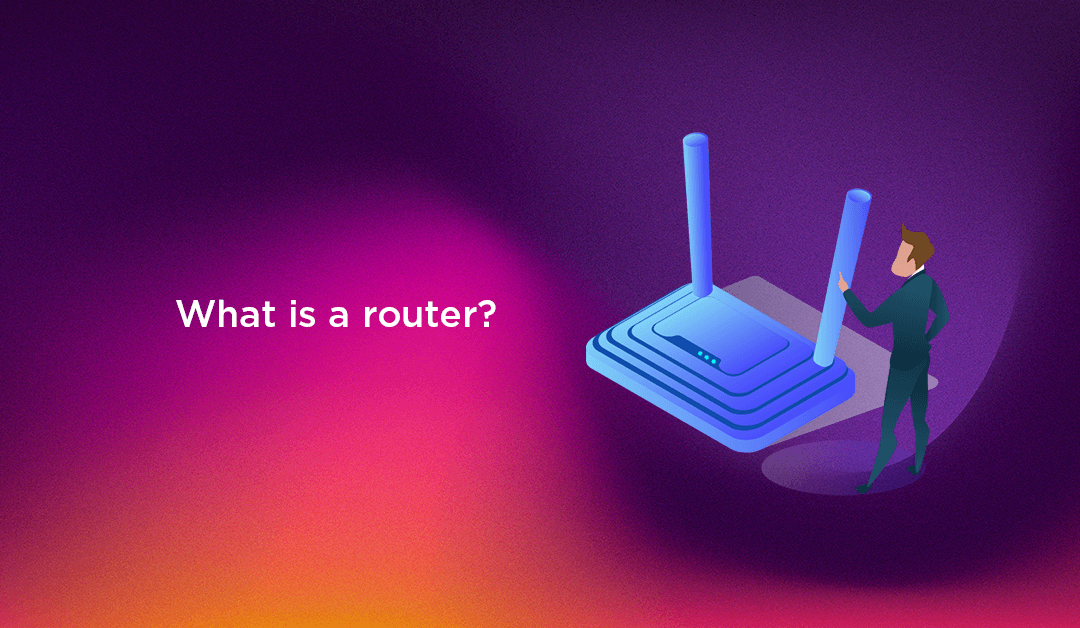
A router is a networking device that receives, analyses, and forwards data packets between computer networks. It connects two or more networks — most commonly your local network (your home or office devices) and the wider internet — and directs each packet of data to its correct destination using the most efficient path available.
Think of a router as a postal sorting office for digital data. When you send a request — loading a webpage, sending an email, streaming a video — your device breaks that request into small chunks of data called packets. Each packet is addressed with a destination IP address. The router reads that address, consults its routing table, and forwards the packet down the correct path toward its destination. When the destination server responds, the router directs the response packets back to your device.
Without a router, your devices would have no way to communicate with devices outside your local network. The router is the gatekeeper between your private network and the rest of the internet.
How Does a Router Work?
Understanding how a router works requires understanding three core concepts: IP addresses, routing tables, and packet forwarding.
IP Addresses
Every device on a network has an IP address — a unique numerical identifier that tells routers where to send data. There are two types relevant to routing:
- Public IP address: The address your router presents to the internet — assigned by your Internet Service Provider (ISP). All devices on your network share this single public IP when communicating with the outside world.
- Private IP address: The address assigned to each individual device within your local network (e.g., 192.168.1.5). These are not visible to the internet — they exist only within your private network.
The Routing Table
A routing table is an internal database that the router uses to determine where to forward each packet. It contains a list of known network destinations and the best path to reach each one — including the next hop (the next router or gateway in the path) and the interface to use. Routers build and update their routing tables in two ways:
- Static routing: An administrator manually configures fixed routes in the routing table. Simple and predictable, but does not automatically adapt when network conditions change.
- Dynamic routing: The router automatically discovers and updates routes by communicating with other routers using routing protocols such as OSPF (Open Shortest Path First), BGP (Border Gateway Protocol), or EIGRP (Enhanced Interior Gateway Routing Protocol). Dynamic routing adapts automatically to network changes, making it the standard for enterprise and internet-scale networks.
Packet Forwarding Process
When a packet arrives at a router, the following sequence occurs in milliseconds:
- The router reads the packet's destination IP address from its header.
- It looks up that IP address in its routing table to find the best next hop.
- It decrements the packet's Time to Live (TTL) counter by 1. If TTL reaches zero, the packet is discarded (preventing infinite loops).
- It forwards the packet out through the appropriate network interface toward the next hop.
- This process repeats at each router along the path until the packet reaches its destination.
Key Functions of a Router
Modern routers do far more than simply forward packets. Here are the key functions built into most contemporary routers:
Network Address Translation (NAT)
NAT allows multiple devices on your private network to share a single public IP address. When a device on your local network sends a request to the internet, the router replaces the device's private IP with the public IP and tracks the connection in a NAT table. When the response arrives, the router translates the address back and delivers the data to the correct device. NAT effectively hides your internal network structure from the outside world, providing a basic layer of privacy and security.
DHCP Server
Most routers include a built-in DHCP (Dynamic Host Configuration Protocol) server that automatically assigns IP addresses to devices that join the network. Without DHCP, every device would need to be manually configured with a unique IP address — a significant administrative burden in any network with more than a few devices.
Firewall
Consumer and enterprise routers typically include a built-in firewall that inspects incoming and outgoing traffic and blocks connections that match known threat patterns or that violate configured rules. The firewall acts as the first line of defence against external threats, preventing unauthorised access to your network before traffic even reaches your devices or servers.
Quality of Service (QoS)
QoS allows routers to prioritise certain types of traffic over others. For example, a business router configured with QoS rules might prioritise VoIP calls and video conferencing traffic above file downloads, ensuring that real-time communication remains smooth even when the network is under heavy load.
VPN Support
Many modern routers support VPN (Virtual Private Network) connections — either as a VPN client (connecting the entire network through a VPN tunnel) or as a VPN server (allowing remote employees to securely access the office network). Router-level VPN is more efficient than running a VPN client on each individual device, particularly in business environments.
Types of Routers
Routers come in several categories, each designed for a specific use case. Understanding the different types of routers helps you choose the right device for your environment.
Wireless Routers
Wireless routers are the most common type for homes and small offices. They combine a router, a wireless access point (Wi-Fi), and often a modem interface into a single device. They transmit data to connected devices over radio frequencies using Wi-Fi standards (802.11ac, Wi-Fi 6/802.11ax, or Wi-Fi 7/802.11be). Modern wireless routers support multiple frequency bands (2.4 GHz and 5 GHz, or also 6 GHz on Wi-Fi 6E/7) to balance range and speed.
Wired Routers
Wired routers connect devices exclusively via Ethernet cables. They offer lower latency and more stable connections than wireless, making them preferred for environments where reliability is critical — financial trading systems, industrial control networks, and high-performance server environments. Wired connections are also more secure, as they are immune to wireless eavesdropping.
Core Routers
Core routers operate at the backbone of large networks — inside the internet itself or within large enterprise networks. They are designed to handle enormous volumes of traffic at very high speeds, forwarding packets between different parts of the same network rather than between different networks. Core routers are built for performance and reliability above all else.
Edge Routers
Edge routers sit at the boundary between an organisation's internal network and an external network (typically the internet or a service provider's network). They handle the handoff between different autonomous systems and are responsible for enforcing security policies at the network perimeter. In enterprise environments, the edge router is often where BGP routing is configured.
Virtual Routers
Virtual routers are software-based routers that run on standard server hardware rather than dedicated networking equipment. They are widely used in cloud environments, software-defined networking (SDN), and virtualised data centres. Virtual routers offer flexibility and scalability — you can deploy and configure them without physical hardware — but they require careful capacity planning to avoid performance bottlenecks.
Mesh Routers
Mesh router systems consist of multiple router nodes placed around a building that work together as a single unified network. Rather than extending a single router's signal (which degrades with distance), mesh systems create a web of interconnected nodes that hand off devices seamlessly as they move around the space. They are ideal for large homes, multi-floor offices, or any environment where a single router cannot provide uniform coverage.
SD-WAN Routers
SD-WAN (Software-Defined Wide Area Network) routers represent the modern evolution of enterprise routing. They use software to intelligently manage and optimise traffic across multiple WAN connections — broadband internet, MPLS, LTE/5G — in real time, routing each application's traffic over the most appropriate link based on current conditions. SD-WAN dramatically reduces WAN costs while improving performance and resilience for businesses with multiple branch offices.
Router vs Modem: What Is the Difference?
The distinction between a router and a modem is one of the most common sources of confusion in home and small business networking.
- Modem: A modem (modulator-demodulator) connects your home or office to your Internet Service Provider's network by converting the signal type used by your ISP (coaxial cable signal, telephone line DSL signal, or fibre optic signal) into the standard digital signal that your router and devices can use. Without a modem, you have no internet connection at all.
- Router: A router connects all your local devices to each other and to the internet via the modem. It manages your local network, assigns IP addresses, enforces firewall rules, and directs traffic between your devices and the internet.
Many ISPs supply a single modem-router combo unit (sometimes called a "gateway") that combines both functions. While convenient, dedicated separate devices typically offer better performance, more configuration options, and greater flexibility — particularly for business use cases.
Router vs Switch: What Is the Difference?
A network switch and a router are often deployed together but serve different purposes:
- Router: Connects different networks together (your local network to the internet, or one network segment to another). Operates at Layer 3 (the Network layer) of the OSI model. Makes forwarding decisions based on IP addresses.
- Switch: Connects devices within the same network. Operates at Layer 2 (the Data Link layer) of the OSI model. Makes forwarding decisions based on MAC addresses, not IP addresses. Does not route traffic between different networks or to the internet.
In practice: a router connects your network to the internet and manages inter-network traffic. A switch expands the number of wired ports available within your local network, allowing you to connect more devices without replacing the router. Most businesses use both: a router at the network perimeter and one or more switches to connect internal devices.
Router Security: Best Practices
Your router is the entry point to your entire network. A compromised router gives an attacker access to every device connected to it — servers, workstations, printers, IoT devices. Router security is therefore not optional, particularly for businesses. Here are the essential security practices every organisation should implement:
- Change default credentials immediately: Every router ships with factory default admin usernames and passwords that are publicly documented. Attackers scan for routers still using these defaults. Change both the admin username and password to strong, unique values before the router goes live — and change them every six months thereafter.
- Keep firmware updated: Router firmware vulnerabilities are regularly discovered and patched by manufacturers. An unpatched router running firmware from two years ago is a known attack surface. Enable automatic firmware updates where possible, and check manually if automatic updates are not available.
- Disable WPS (Wi-Fi Protected Setup): WPS is a convenience feature designed to simplify device connection but is known to have significant security vulnerabilities. Disable it entirely on any router handling sensitive traffic.
- Use WPA3 encryption: For wireless networks, always use WPA3 (or at minimum WPA2-AES) encryption. WEP and WPA (original) are broken and should never be used. WPA3 provides significantly stronger protection against brute-force attacks.
- Segment your network with VLANs: For business environments, use VLANs (Virtual Local Area Networks) to segment your network into isolated zones — separating employee workstations from servers, guest Wi-Fi from internal systems, and IoT devices from sensitive infrastructure. Even if one segment is compromised, proper VLAN segmentation prevents lateral movement to other parts of the network.
- Disable remote management: Unless specifically required, disable remote management access to the router's admin interface from outside the local network. If remote management is necessary, restrict it to specific IP addresses and require VPN access.
- Review connected devices regularly: Periodically audit the list of devices connected to your router. Unrecognised devices should trigger immediate investigation — they may indicate an unauthorised connection or a compromised IoT device.
💡 None of these worked? Skip the guesswork.
Get Expert Help →How to Set Up a Router: Step-by-Step
Whether you are setting up a home router or deploying a business network device, the following steps cover the essential configuration process.
Connect an Ethernet cable from your modem's LAN port to the router's WAN (Wide Area Network) port, typically labelled "Internet" or coloured differently from the LAN ports. If your ISP has supplied a modem-router combo unit, skip this step and connect devices directly to the combo unit's LAN ports.
Power on the router and wait for it to fully boot (typically 60–90 seconds). From a device connected to the router via Ethernet, open a browser and navigate to the router's admin IP address — commonly 192.168.1.1 or 192.168.0.1 (check the label on the back of the router or the documentation). Log in with the default credentials listed on the router (you will change these immediately).
The very first action in the admin interface should be to change the admin username and password to strong, unique values. This is not optional — default credentials are publicly known and exploited actively by attackers.
Go to the WAN or Internet settings section and configure your connection type as specified by your ISP. Common types include: DHCP (most broadband connections — usually auto-detected), PPPoE (requires a username and password from your ISP, common for DSL), or Static IP (requires manual entry of IP, subnet mask, gateway, and DNS servers).
Navigate to the wireless settings section. Set your SSID (network name) — avoid using your name, address, or ISP-default names that reveal router model information. Set the security mode to WPA3 (or WPA2-AES if WPA3 is not available). Choose a strong passphrase of at least 12 characters. For business deployments, create separate SSIDs for staff and guests, placing the guest network on an isolated VLAN.
Consider replacing your ISP's default DNS servers with faster, more privacy-respecting alternatives such as Cloudflare (1.1.1.1), Google (8.8.8.8), or enterprise-grade options with built-in malware filtering such as Cisco OpenDNS. DNS configuration is typically found in the WAN or LAN settings section of the admin interface.
Before putting the router into production, check for and install any available firmware updates. Manufacturers frequently release updates that fix security vulnerabilities discovered after the unit was manufactured. In the admin interface, look for a "Firmware Update" or "Software Update" section and follow the prompts.
Review the router's built-in firewall settings and ensure the firewall is enabled. For business environments, configure explicit allow/deny rules for inbound traffic. Only open port forwarding rules for services that genuinely require external access — each open port is a potential attack surface. Document every port forwarding rule with its business justification.
Common Router Problems and Troubleshooting
Even well-configured routers encounter issues. Here are the most common problems and how to diagnose them:
- No internet access despite router being on: Check the WAN connection between the router and modem. Verify the modem is online (check ISP status). Reboot both the modem and router in sequence: power off both, wait 30 seconds, power on the modem first, wait for it to fully connect, then power on the router. Check that the WAN IP address in the router admin interface shows a valid IP (not 0.0.0.0 or a private IP).
- Slow Wi-Fi speeds: Check for channel congestion — use a Wi-Fi analyser app to identify overcrowded channels and switch to a less congested one. Move the router to a more central location. Check whether the slow speeds are Wi-Fi-specific or also present on wired connections (which isolates whether the issue is the router's WAN connection or its wireless radio).
- Devices dropping connection intermittently: Often caused by DHCP lease conflicts. Check the DHCP lease table in the admin interface for duplicate IP assignments. Consider assigning static IP addresses to critical devices (servers, printers) to prevent conflicts. Also check for firmware issues — this symptom is a common trigger for manufacturer firmware updates.
- Router admin page inaccessible: Try connecting via a wired Ethernet connection rather than Wi-Fi. Try different browsers. If the standard gateway IP does not work, check the IP assigned to your device and use its default gateway IP. As a last resort, perform a factory reset (note: this erases all configuration).
- High latency / ping spikes: Run a ping test to the router's own IP (should be under 1ms on wired) and to a public DNS server (should be under 20ms on a typical broadband connection). If latency to the router is high, the issue is local — possibly wireless interference, overloaded router CPU, or a faulty cable. If latency to the router is fine but latency to external hosts is high, the issue is likely with the ISP or WAN connection.
Routers in Business Networks
For businesses, routers are not just a convenience — they are the critical infrastructure that underpins every aspect of operations. A poorly configured, outdated, or under-specified router creates security vulnerabilities, performance bottlenecks, and reliability risks that directly affect business outcomes.
Business-grade routers differ from consumer devices in several important ways: they support higher concurrent connection counts, more complex routing configurations, enterprise security features (VLAN, VPN, intrusion prevention), centralised management, redundant hardware components, and Service Level Agreements from the manufacturer. They are also designed for continuous 24/7 operation without the performance degradation that consumer routers often exhibit after weeks of uninterrupted use.
Managing routers as part of a broader IT infrastructure — including firmware patching, security audits, configuration management, and performance monitoring — requires ongoing expertise. If your team is stretched thin or lacks dedicated network engineering skills, professional server and network management services can ensure your router and wider network infrastructure remain secure, optimised, and properly maintained at all times.
Emerging Router Technologies
The router market is evolving rapidly in response to changing network architectures and demands. Key emerging technologies to be aware of:
- Wi-Fi 6 and Wi-Fi 7: The latest wireless standards (802.11ax and 802.11be) deliver significantly higher throughput, lower latency, and better performance in dense device environments. Wi-Fi 7, in particular, introduces multi-link operation (MLO) — allowing devices to simultaneously transmit and receive across multiple frequency bands, dramatically reducing latency and improving reliability.
- SD-WAN: Software-Defined WAN replaces traditional branch office routers with intelligent, software-controlled devices that optimise traffic across multiple WAN links in real time. For businesses with multiple locations, SD-WAN delivers significant cost savings and performance improvements over traditional MPLS-only connectivity.
- 5G Routers: Routers that use 5G cellular networks as their primary or backup WAN connection are enabling new use cases — particularly for businesses in locations without fixed-line broadband, for temporary deployments, and for primary connectivity redundancy.
- Zero-Trust Network Access (ZTNA): Modern enterprise routers are increasingly integrating with ZTNA frameworks that verify every device and user before granting network access — moving beyond the traditional perimeter-based "trust everything inside the firewall" model that has proven insufficient against modern threats.
Conclusion
A router is far more than just a box that provides Wi-Fi — it is the intelligent traffic director that makes modern networked computing possible. Understanding what a router is, how packet forwarding and routing tables work, the differences between router types, and how to secure and configure one properly gives you the foundation to build reliable, high-performance networks — whether for a home office, a growing business, or a multi-site enterprise. As networks become more complex and security threats more sophisticated, a well-managed router remains one of the most important investments in your IT infrastructure.