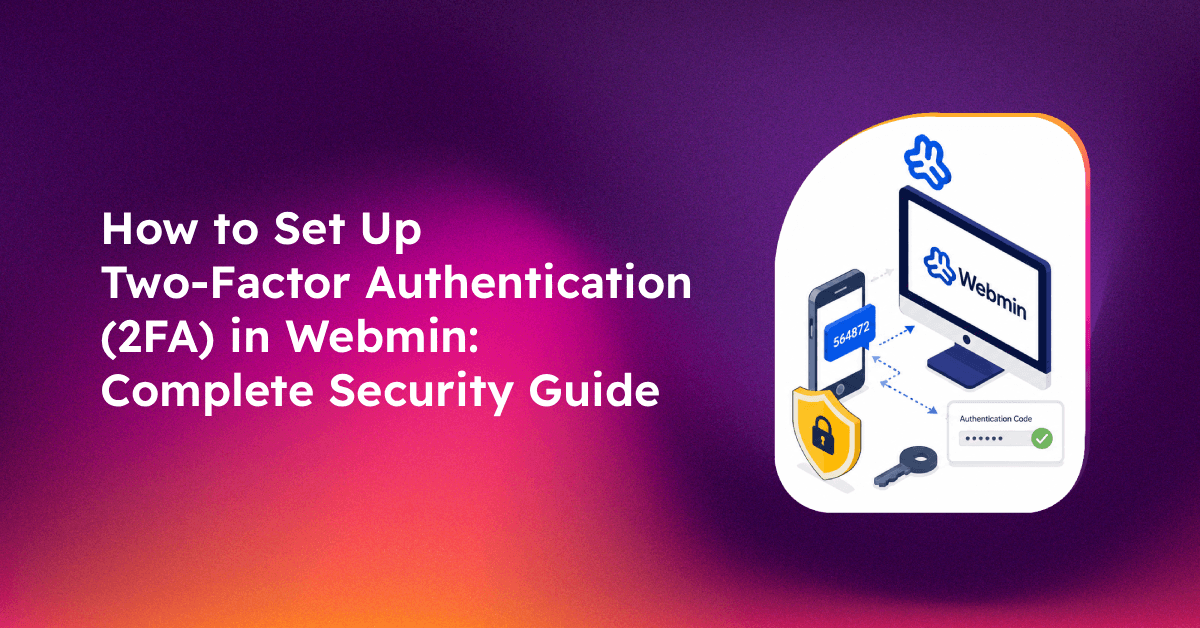
Securing your server's control panel is one of the most critical steps in server hardening — and if you're running Webmin, enabling webmin two factor authentication setup is the single most effective change you can make today. A brute-force attack on an exposed Webmin port takes seconds with automated tools, but a stolen password combined with TOTP 2FA becomes nearly worthless to an attacker. In this guide, you'll get a complete, step-by-step walkthrough for enabling Webmin 2FA using Google Authenticator or Authy, enrolling users, testing your setup, and recovering from lockouts — so your server stays protected without the headaches.
Why Webmin Without 2FA Is a Serious Security Risk
Webmin is a powerful, web-based system administration interface that typically runs on port 10000. While convenient, that convenience is a double-edged sword: your server's full administrative power is one compromised password away from disaster. Here's why running Webmin without 2FA is genuinely dangerous in 2025:
- Automated credential stuffing: Botnets constantly scan the internet for port 10000 and try millions of username/password combinations per hour. A weak or reused password will eventually fall.
- No session expiry by default: Webmin sessions can persist far longer than intended, meaning a stolen session cookie or credential can give an attacker persistent access.
- Root-level access: Unlike a compromised web app, a Webmin breach gives attackers root shell access — they can install malware, exfiltrate data, or destroy your entire system in minutes.
- Password reuse across services: Many administrators reuse passwords. A breach of one service (email, SaaS tool) can cascade into a Webmin compromise.
- Shared hosting environments: If you host multiple clients, a single Webmin breach can expose every client's data.
Two-factor authentication addresses all of these risks by requiring something you know (your password) plus something you have (your phone). Even if your password is leaked in a data breach, an attacker cannot log into Webmin without also having physical access to your authenticator app.
For organisations managing multiple servers, our managed server hardening service combines 2FA enforcement, port lockdown, fail2ban configuration, and continuous monitoring into a single managed package.
Prerequisites: What You Need Before Enabling Webmin 2FA
Before you start, make sure you have the following in place:
- Webmin 1.970 or later: Earlier versions have limited or buggy TOTP support. Run
webmin --versionor check Webmin → Webmin Configuration → Webmin Information to verify your version. - Root or sudo SSH access: You need command-line access as a fallback. If something goes wrong during 2FA enrollment, you'll need SSH to recover — set this up before you start.
- A smartphone with an authenticator app: Download Google Authenticator (iOS / Android) or Authy (iOS / Android / Desktop) before proceeding.
- The Perl module Authen::OATH: Webmin uses this Perl module to generate and verify TOTP codes. If it isn't installed, Webmin will prompt you to install it automatically — but it's worth checking first.
- Accurate server time (NTP): TOTP codes are time-based. If your server's clock drifts more than 30 seconds from real time, every 2FA code will be rejected. Run
timedatectl statusto confirm NTP is active.
Verify NTP Synchronisation
timedatectl status
# Look for: "NTP service: active" and "System clock synchronized: yes"

# If NTP is inactive:
sudo timedatectl set-ntp true
sudo systemctl restart systemd-timesyncd
Check or Install Authen::OATH
# Check if the module is installed:
perl -e "use Authen::OATH; print 'OK
'" 2>&& echo "Installed" || echo "Not installed"

# Install via CPAN if missing:
sudo perl -MCPAN -e "install Authen::OATH"
# Or via package manager on Debian/Ubuntu:
sudo apt-get install libauthen-oath-perl
💡 None of these worked? Skip the guesswork.
Get Expert Help →How to Enable 2FA in Webmin Configuration (Step-by-Step)
This section covers enabling 2FA at the global Webmin level — meaning it becomes available for all users to enroll. Enrollment is done per-user in the next section.
Navigate to https://your-server-ip:10000 in your browser and log in with your root credentials.
In the left-hand navigation panel, click Webmin → Webmin Configuration. This opens the main configuration page with all global settings.
Scroll down the configuration icons or use the search field to find Two-Factor Authentication. Click on it to open the 2FA settings panel.
From the "Two-factor authentication provider" dropdown, select Google Authenticator. This uses the industry-standard TOTP (Time-based One-Time Password) algorithm, compatible with Google Authenticator, Authy, Microsoft Authenticator, and any RFC 6238-compliant app.
If Webmin detects that Authen::OATH is not installed, it will display a warning with a link to the Perl Modules page. Click the link, find Authen::OATH, and click Install. Wait for the installation to complete, then return to the Two-Factor Authentication page.
Click Save. Two-factor authentication is now enabled at the system level. Users will be able to enroll, but 2FA is not yet enforced for any account.
If you want to make 2FA mandatory for every login (recommended for production servers), look for the option "Require two-factor authentication for all Webmin users" and enable it. Users without an enrolled 2FA device will be forced to enroll on next login.
Enabling 2FA via Command Line (Alternative Method)
If you prefer to configure Webmin from the command line (useful for automated deployments or if the GUI is unavailable):
# Enable Google Authenticator TOTP globally
echo "twofactor_provider=totp" >> /etc/webmin/miniserv.conf

# Restart Webmin to apply
/etc/init.d/webmin restart
# or
systemctl restart webminGo to Webmin → Webmin Users. You'll see a list of all configured Webmin users.
Click on the username (e.g., root or your admin account) to open the user's settings page.
Near the bottom of the user settings page, click the Two-Factor Authentication button. This takes you to the enrollment page for this specific user.
Webmin generates a unique TOTP secret for this user and displays a QR code on screen.
Open Google Authenticator or Authy on your phone, tap Add Account → Scan a QR code, and scan the QR code on screen. If you cannot scan the QR code, click "Show secret key" to get the base32 secret and enter it manually in your app.
Your authenticator app will immediately begin generating 6-digit codes that rotate every 30 seconds. Enter the current code in the "Verification code" field on the Webmin enrollment page and click Confirm.
Write down or securely store the TOTP secret (shown as a base32 string). This is your only recovery option if you lose your phone. Store it in a password manager or a secure offline location.
Do NOT log out of your existing Webmin session until you have confirmed 2FA works in a fresh browser.
Navigate to https://your-server-ip:10000 in the incognito window. This creates a completely fresh session.
Enter your credentials as normal. If 2FA is correctly enabled, you should now see a third field: "Two-factor authentication code" or "Verification code".
Open your authenticator app, get the current 6-digit code for your Webmin entry, and enter it in the verification code field. Click Login.
If you land on the Webmin dashboard, 2FA is working correctly. You can now safely close your original session.
In the incognito window, log out and try logging in with an incorrect TOTP code. Webmin should reject the login with an "Invalid two-factor authentication code" error. This confirms the 2FA validation is active and not being silently bypassed.
Troubleshooting Common Webmin 2FA Issues (Locked Out, QR Code Errors)
Issue 1: "Invalid two-factor authentication code" on every attempt
Cause: Almost always a time drift issue. TOTP codes are valid only within a 30-second window. If your server clock is off by more than 30 seconds from real time, every code will be rejected.
Fix:
# Check server time vs real time
date
# Sync immediately:
sudo ntpdate pool.ntp.org
# Or with chrony:
sudo chronyc makestep
Issue 2: QR code won't scan
Cause: Screen brightness too low, phone camera quality, or the QR code image is small. Some firewall configurations also block the QR image from loading.
Fix: Click "Show secret key" on the enrollment page. Copy the base32 string and add it manually to your authenticator app using the "Enter setup key" option.
Issue 3: Locked out — phone lost or app deleted
This is the most serious situation. You'll need SSH root access to recover.
# SSH into your server
ssh root@your-server-ip

# Remove TOTP from the affected user (replace 'root' with your username):
sed -i 's/totp//g' /etc/webmin/miniserv.users

# Remove the global TOTP provider setting:
sed -i '/twofactor_provider=totp/d' /etc/webmin/miniserv.conf

# Remove the stored TOTP secret for the user:
rm -f /etc/webmin/twofactor/root.totp
# (Replace 'root' with the affected username)

# Restart Webmin:
systemctl restart webmin
# or
/etc/init.d/webmin restart
After this, you can log into Webmin with just your password and re-enroll with a new device.
Issue 4: "Locked myself out — 2FA enabled but never enrolled"
This can happen if the global "require 2FA" option is enabled before the admin user has enrolled. The recovery is the same as Issue 3 — SSH in and run the sed commands above.
Issue 5: Authen::OATH module installation fails
Fix on Debian/Ubuntu:
sudo apt-get update && sudo apt-get install -y libauthen-oath-perl cpanminus
sudo cpanm Authen::OATH
Fix on CentOS/RHEL:
sudo yum install -y perl-CPAN
sudo perl -MCPAN -e "install Authen::OATH"
Issue 6: 2FA prompt missing after enabling
Cause: Webmin may have cached the old session configuration. Clear browser cookies for the Webmin domain, or try a fresh private window. Also confirm the user was enrolled (not just that the global setting was saved) — global configuration enables the feature, but each user must be individually enrolled.
FAQs
See the FAQ section below for quick answers to the most common Webmin 2FA questions.
Conclusion
Enabling two-factor authentication in Webmin is one of the fastest, highest-impact security changes you can make to a Linux server. With the Authen::OATH Perl module, the built-in TOTP configuration, and either Google Authenticator or Authy on your phone, the entire setup takes under 15 minutes. The key discipline is testing with an incognito window before logging out, saving your TOTP secret as a backup, and verifying NTP synchronisation before you begin. With 2FA active, brute-force credential attacks and phishing-sourced password leaks both become dead ends for attackers.
If you're managing multiple servers or hosting client environments, enforcing 2FA is just one layer in a comprehensive hardening strategy. Our team at CloudHouse Technologies provides end-to-end server security — from 2FA rollout and SSH hardening to intrusion detection and automated patching. Learn more about our managed server hardening service and let us handle the security so you can focus on running your business.