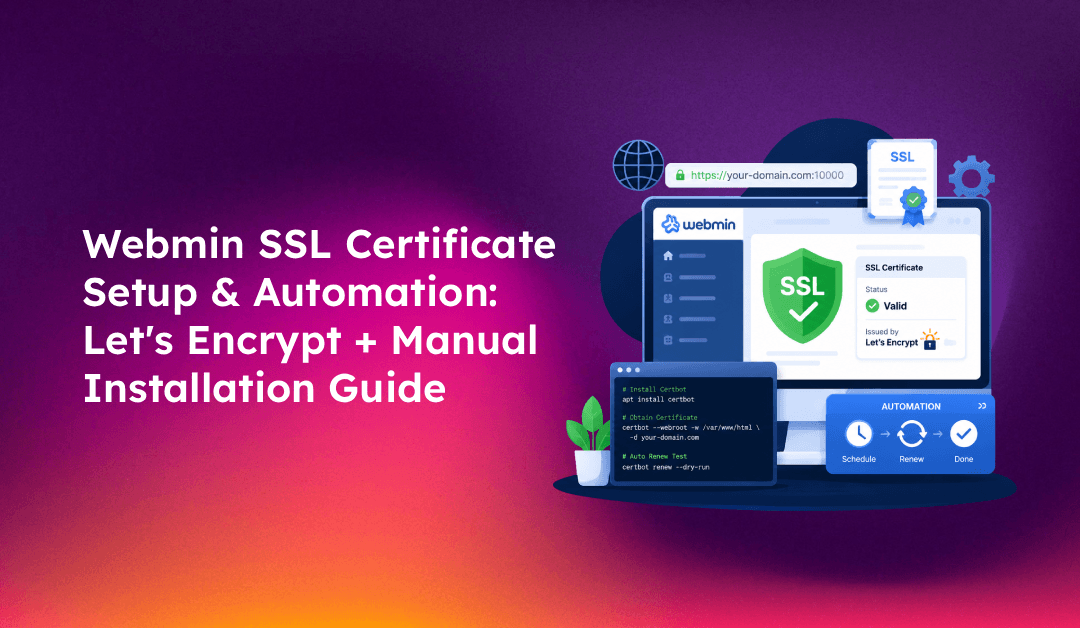
If you're running Webmin on a Linux server and still seeing that browser warning about an untrusted connection, you're leaving both your control panel and your clients' data exposed. An SSL certificate on Webmin encrypts the admin interface running on port 10000 — but more importantly, it ensures that the credentials and commands passing between your browser and your server stay private. This guide walks you through installing Let's Encrypt SSL and commercial certificates in Webmin, automating renewals, and fixing the most common SSL errors that trip up server admins.
Why SSL Certificate Management Matters for Webmin Security
Webmin listens on port 10000 and ships with a self-signed certificate by default. That self-signed cert encrypts the traffic — but it doesn't prove identity. Browsers flag it as untrusted, and more critically, it's trivially replaceable by a man-in-the-middle attacker on the same network segment.
For hosting companies managing multiple client servers, the risk compounds. Administrators often authenticate via saved browser sessions or password managers. A single compromised session on an untrusted certificate can expose root access across your entire fleet.
Replacing the default self-signed cert with a trusted SSL certificate — whether Let's Encrypt or a commercial CA — removes the browser warnings, establishes trust, and satisfies compliance requirements (PCI DSS, SOC 2) that increasingly demand encrypted admin interfaces.
- Let's Encrypt certificates: Free, automated, 90-day validity, ideal for most server admin use cases
- Commercial SSL certificates: Paid, longer validity periods (1–2 years), required by some enterprise compliance frameworks
- Wildcard certificates: Cover subdomains (*.yourdomain.com), useful when Webmin runs on a subdomain like webmin.yourdomain.com
💡 None of these worked? Skip the guesswork.
Get Expert Help →Installing Let's Encrypt SSL in Webmin (Step-by-Step)
Webmin has native Let's Encrypt support built into the SSL Encryption module. Before you start, ensure port 80 is open and your domain's A record points to the server's IP address — Let's Encrypt's HTTP-01 challenge requires both.
Navigate to Networking → Network Configuration → Hostname and DNS Client. Set the hostname to your fully qualified domain name (e.g., webmin.yourdomain.com). This is the domain the certificate will be issued for.
Go to Webmin → Webmin Configuration → SSL Encryption → Let's Encrypt tab.
Fill in the following fields:
- Hostnames for certificate: Enter your domain (e.g.,
webmin.yourdomain.com) - Website root directory for validation: Enter the web root path (e.g.,
/var/www/html) or use the DNS challenge if port 80 is blocked - Months between automatic renewal: Set to
2— Let's Encrypt certs expire in 90 days; renewing at 60 days gives you a 30-day buffer
Click Request Certificate. Webmin contacts Let's Encrypt, completes the HTTP-01 challenge, and stores the issued certificate at /etc/webmin/miniserv.pem (a combined PEM file containing both the private key and certificate).
Return to Webmin Configuration and click Restart Webmin. Reload https://webmin.yourdomain.com:10000 — the browser warning should be gone.
Webmin automatically schedules a renewal cron job via its Scheduled Functions interface. You can verify it under Webmin → Webmin Configuration → Webmin Scheduled Functions — look for the renew_letsencrypt_cert task.
After completing domain validation with your CA, download the certificate bundle. You'll typically receive:
yourdomain.crt— Your issued certificateintermediate.crt(orca-bundle.crt) — The CA's intermediate certificate chainprivate.key— Your private key (generated during CSR creation)
cp /etc/webmin/miniserv.pem /etc/webmin/miniserv.pem.backupcat private.key yourdomain.crt > /etc/webmin/miniserv.pem
chmod 600 /etc/webmin/miniserv.pemThe file must contain the private key block first, followed by the certificate block. Verify the structure:
head -1 /etc/webmin/miniserv.pem
# Should output: -----BEGIN RSA PRIVATE KEY----- or -----BEGIN PRIVATE KEY-----Edit /etc/webmin/miniserv.conf and add:
extracas=/etc/webmin/intermediate.crtCopy the intermediate cert to that path first: cp intermediate.crt /etc/webmin/intermediate.crt
sudo systemctl restart webminVerify the certificate is trusted by checking the SSL settings panel in Webmin or running:
openssl x509 -in /etc/webmin/miniserv.pem -noout -datesAutomating SSL Certificate Renewals to Prevent Expiration
Certificate expiration is one of the most common causes of unexpected Webmin lockouts. A lapsed cert breaks HTTPS, and if your team relies on Webmin for server access, even a short outage during a critical incident can be devastating.
Option 1: Webmin's Built-in Renewal (Recommended for Let's Encrypt)
When you set up Let's Encrypt through Webmin's SSL module, it automatically registers a renewal task. Check and confirm it's active:
Go to Webmin → Webmin Configuration → SSL Encryption → Let's Encrypt and verify Months between automatic renewal is set. Webmin will renew before expiry as long as the Webmin process is running and port 80 is accessible.
Option 2: External Certbot Cron (For servers where Webmin doesn't control the cert)
Create a renewal script at /usr/local/bin/renew-webmin-ssl.sh:
#!/bin/bash
certbot renew --quiet
cp /etc/letsencrypt/live/yourdomain.com/privkey.pem /etc/webmin/privkey.pem
cp /etc/letsencrypt/live/yourdomain.com/fullchain.pem /etc/webmin/fullchain.pem
cat /etc/webmin/privkey.pem /etc/webmin/fullchain.pem > /etc/webmin/miniserv.pem
chmod 600 /etc/webmin/miniserv.pem
systemctl restart webmin
Make it executable and add a cron entry:
chmod +x /usr/local/bin/renew-webmin-ssl.sh
sudo crontab -e
# Add:
0 3 * * * /usr/local/bin/renew-webmin-ssl.sh >> /var/log/webmin-ssl-renew.log 2>&1
Option 3: Point Webmin directly to Let's Encrypt live folder
Edit /etc/webmin/miniserv.conf to reference the live cert paths directly (certbot updates these in-place on renewal):
keyfile=/etc/letsencrypt/live/yourdomain.com/privkey.pem
certfile=/etc/letsencrypt/live/yourdomain.com/fullchain.pem
After editing, restart Webmin. On each future certbot renewal, the updated cert is automatically picked up on the next Webmin restart. Pair this with a post-renewal hook that restarts Webmin:
# /etc/letsencrypt/renewal-hooks/deploy/restart-webmin.sh
#!/bin/bash
systemctl restart webmin
Troubleshooting Common Webmin SSL Certificate Errors
Error: "SSL certificate verify failed"
This usually indicates the CA certificate store on the server is outdated or corrupted. Reinstall the ca-certificates package:
# Debian/Ubuntu
sudo apt-get install --reinstall ca-certificates

# CentOS/RHEL
sudo yum install -y ca-certificates
Error: "The certificate issuer is unknown" (browser warning persists after install)
The intermediate certificate chain is missing. Verify extracas is set correctly in /etc/webmin/miniserv.conf:
grep extracas /etc/webmin/miniserv.confIf missing, add it pointing to your intermediate cert file, then restart Webmin.
Error: Port 10000 connection refused
Check if another process has taken port 10000:
ss -tulpn | grep 10000If there's a conflict, either stop the competing process or change Webmin's port in /etc/webmin/miniserv.conf (port=10001) and restart.
Error: Let's Encrypt certificate not renewing
Check that port 80 is open (not blocked by firewall):
iptables -L INPUT -n | grep "port 80"Also verify the Webmin Scheduled Functions task is still active after any Webmin upgrades.
Verify certificate expiry
Run this regularly on servers with critical uptime requirements:
openssl x509 -in /etc/webmin/miniserv.pem -noout -dates
# Or check all certs on the system:
for cert in $(find /etc/letsencrypt/live/ -name "cert.pem"); do
  echo "$cert: $(openssl x509 -in $cert -noout -enddate)"
done
For hosting companies managing multiple servers, manually tracking certificate expiry across dozens of Webmin instances is unsustainable. Managed server services handle SSL lifecycle monitoring, automated renewals, and emergency cert replacements as part of routine server management — so expiration is never a surprise.