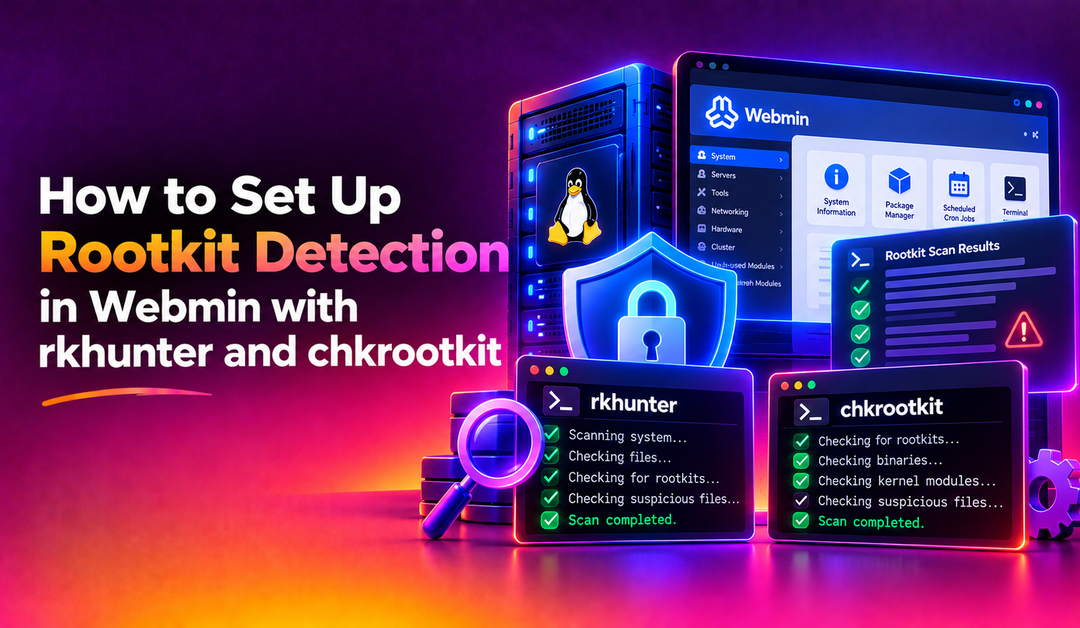
If you manage Linux servers using Webmin, one of the most critical security questions you need to answer is: has my server been compromised? Rootkits are malicious software packages designed to hide themselves and other malware from standard system tools — and once installed, they can steal credentials, open backdoors, and cause irreversible damage. Setting up rootkit detection in Webmin using rkhunter and chkrootkit gives you a proactive defence layer that scans your server daily and alerts you before a minor breach becomes a catastrophe.
This guide walks you through installing both tools, configuring them for your Webmin-managed server, scheduling automated scans with email alerts, and correctly interpreting scan results — including how to handle the false positives that trip up most admins.
What Are Rootkits and Why Do They Target Web Hosting Servers?
A rootkit is a collection of tools that an attacker installs after gaining initial access to a system. Its primary goal is persistence and concealment — hiding processes, files, network connections, and user accounts from the OS itself. On web hosting servers running Webmin, common attack vectors include:
- Exploiting outdated CMS software (WordPress, Joomla) hosted on the server
- Brute-forcing SSH or the Webmin panel (port 10000)
- Leveraging known CVEs in the kernel or system libraries
- Compromising a reseller account and escalating privileges
Once a rootkit is in place, standard commands like ls, ps, and netstat may return falsified output. This is why you need dedicated scanning tools that operate independently of the compromised userland.
rkhunter vs chkrootkit: Which One Should You Use?
Both tools serve the same goal — detecting rootkits — but with different methodologies. Running both gives you defence in depth.
rkhunter (Rootkit Hunter)
rkhunter works by comparing the current state of your system against a known-good database of file hashes, checking for hidden files, suspicious kernel module strings, and anomalous network listeners. It maintains an SHA-256 hash database of critical system binaries and flags any file that has changed without an authorised update.
Strengths:
- Maintains a hash database of critical binaries — detects binary replacement attacks
- Checks for known rootkit file signatures and directory patterns
- Validates
/etc/passwdand/etc/shadowfor suspicious UID 0 accounts - Tests for hidden network listeners and promiscuous interfaces
chkrootkit
chkrootkit takes a different approach — it searches for over 70 known rootkit signatures using shell scripts and C programs. It checks running processes against /proc directly, detects LKM (loadable kernel module) trojans, and scans for known backdoor strings in binaries.
Strengths:
- Lightweight — runs in seconds with minimal CPU impact
- Checks process list directly against kernel's
/proc(detects hidden processes) - Finds network interface promiscuity even when
ifconfigis trojaned - Detects LKM rootkits that hide at the kernel level
Recommendation: Run both. rkhunter excels at detecting binary tampering; chkrootkit excels at detecting active hidden processes. Together they cover each other's blind spots.
Step 1: Install rkhunter and chkrootkit on Your Server
SSH into your server as root (or use Webmin's built-in terminal under Tools > Terminal).
Ubuntu / Debian
apt update
apt install rkhunter chkrootkit -y
CentOS / AlmaLinux / Rocky Linux
dnf install epel-release -y
dnf install rkhunter chkrootkit -y
Verify both installed successfully:
rkhunter --version
chkrootkit -V
Step 2: Initialise the rkhunter Database (Baseline Scan)
Before rkhunter can detect changes, it needs to establish a baseline of your current system state. This must be done immediately after a clean install — before any compromise occurs.
rkhunter --propupdThis command scans all monitored files (system binaries, libraries, config files) and records their SHA-256 hashes in /var/lib/rkhunter/db/rkhunter.dat. Any subsequent change to these files will trigger a warning.
Important: Run rkhunter --propupd again after every legitimate system update (kernel upgrades, package updates). Failing to do so will generate false positives for every updated binary.
Step 3: Configure rkhunter Email Alerts
Edit the rkhunter configuration file to enable email notifications:
nano /etc/rkhunter.confFind and update these key settings:
# Email address to receive warning reports
MAIL-ON-WARNING=admin@yourdomain.com

# Mail command — use 'mail' or the full path to your MTA
MAIL_CMD=mail -s "[rkhunter] Warnings found on $(hostname)"

# Only send email when warnings are found (not on clean scans)
# This is set per-cron configuration, see Step 5

# Allow SSH root login if your server uses it
ALLOW_SSH_ROOT_USER=yes

# Set your SSH protocol version (2 is standard)
ALLOW_SSH_PROT_V1=0
On systems using /etc/sysconfig/rkhunter (CentOS/AlmaLinux), also set:
MAILTO="admin@yourdomain.com"
DIAG_SCAN=false
Save the file and test the configuration:
rkhunter --config-checkFix any reported configuration errors before proceeding.
Step 4: Configure chkrootkit
chkrootkit requires minimal configuration. On Debian/Ubuntu systems, the configuration file is at /etc/chkrootkit.conf:
nano /etc/chkrootkit.confSet the following:
# Run chkrootkit daily (set to true to enable the cron job)
RUN_DAILY="true"

# Send email on positive findings
RUN_DAILY_OPTS="-q"

# Email recipient (Debian-specific — uses mail)
DIFF_MODE="false"
On CentOS/RHEL systems without a package config file, you will manage chkrootkit via a custom cron script (see Step 5).
Step 5: Schedule Automated Daily Scans with Cron
Create a dedicated cron script that runs both tools nightly and emails results only when warnings are found:
nano /etc/cron.daily/rootkit-scanPaste this script:
#!/bin/bash
ADMIN_EMAIL="admin@yourdomain.com"
HOSTNAME=$(hostname)
DATE=$(date '+%Y-%m-%d %H:%M')

# Update rkhunter database definitions
/usr/bin/rkhunter --update --nocolors --quiet 2>/dev/null

# Run rkhunter scan — email only if warnings found
/usr/bin/rkhunter --check --cronjob --report-warnings-only --nocolors 2>&1 |   mail -s "[SECURITY] rkhunter warnings on $HOSTNAME ($DATE)" $ADMIN_EMAIL

# Run chkrootkit scan — capture output
CHKROOTKIT_OUT=$(/usr/sbin/chkrootkit -q 2>&1)

# Only email if suspicious output found
if echo "$CHKROOTKIT_OUT" | grep -qiE "infected|suspicious|warning"; then
  echo "$CHKROOTKIT_OUT" |     mail -s "[SECURITY] chkrootkit alert on $HOSTNAME ($DATE)" $ADMIN_EMAIL
fi
Make it executable:
chmod +x /etc/cron.daily/rootkit-scanTest the script manually:
bash /etc/cron.daily/rootkit-scanCheck your inbox for the test email. If no email arrives, verify your server's mail delivery:
echo "Test email" | mail -s "Test" admin@yourdomain.com
tail -50 /var/log/mail.log
Step 6: Run a Manual Scan via Webmin Terminal
You can run on-demand scans directly from the Webmin interface. Navigate to Tools > Terminal and run:
# Full rkhunter scan with verbose output
rkhunter --check --nocolors 2>&1 | less

# Quick chkrootkit scan
chkrootkit 2>&1 | grep -v "not found" | less
Alternatively, use Webmin's Scheduled Cron Jobs module (under System > Scheduled Cron Jobs) to manage your scan schedule through the GUI without editing cron files directly.
Step 7: Interpreting Scan Results and Handling False Positives
Both tools produce results that require interpretation. Not every warning means your server is compromised — false positives are common and expected. Here is how to triage them.
Common rkhunter False Positives
Warning: The file properties have changed
This appears after a package update. The binary was legitimately changed by apt upgrade or yum update. Fix: run rkhunter --propupd after every system update.
Warning: /usr/bin/wget — SHA256 hash mismatch
Same cause as above. A package manager update changed the binary. Always run --propupd post-update.
Warning: PACKET_SNIFFER — network interface in promiscuous mode
This can trigger on servers running virtual machines or containers (VirtualBox, KVM, Docker) where bridge interfaces are inherently promiscuous. Verify with:
ip link show | grep PROMISCIf only your VM bridge interface shows PROMISC, this is a legitimate false positive. Whitelist it in /etc/rkhunter.conf:
ALLOWPROCDELETED=yes
ALLOWIPCPROCDELETED=yes
Common chkrootkit False Positives
INFECTED: sniffer — eth0: PROMISC
Same as above — triggered by virtualisation bridges.
Possible Linux/RST.b trojan installed
Usually a false positive on servers running high-connection-count services (mail servers, busy web servers). Verify no unexpected listening services with:
netstat -tulnp | grep LISTEN
ss -tlnp
When to Take a Warning Seriously
- A system binary hash changed and you did NOT run a package update
- A new UID 0 account appeared in
/etc/passwd - An unexpected port is listening, especially on high port numbers
- Hidden processes detected that don't match any known service
- Files in
/devthat are not device files
If any of the above apply, escalate immediately: take a disk image, isolate the server from the network, and begin incident response procedures. Consider contacting CloudHouse's server hardening team for professional forensic investigation.
Step 8: Whitelist Known-Good Configurations
To reduce alert fatigue, whitelist your server's known legitimate configurations in /etc/rkhunter.conf:
# Allow Webmin's SSH configuration
ALLOW_SYSLOG_REMOTE_LOGGING=yes

# Whitelist hidden directories that are legitimate
ALLOWHIDDENDIR=/dev/.udev
ALLOWHIDDENDIR=/dev/.static
ALLOWHIDDENDIR=/dev/.initramfs

# Whitelist hidden files
ALLOWHIDDENFILE=/dev/.blkid.tab
ALLOWHIDDENFILE=/dev/.blkid.tab.old

# Skip specific check categories if not relevant
DISABLE_TESTS=suspscan hidden_ports
After making changes, run rkhunter --config-check to verify your configuration syntax is valid.
Integrating with Webmin's System Logs
Webmin's System Logs module (under System > System Logs) can be configured to monitor rkhunter's log output in real time. rkhunter writes its scan results to /var/log/rkhunter.log. Add this file as a watched log in Webmin to surface warnings directly in your dashboard without relying solely on email.
Navigate to System > System Logs, click Add a new logfile, and point it to /var/log/rkhunter.log. Set a filter for the keyword Warning to highlight critical entries.
FAQs
How often should I run rkhunter and chkrootkit on a Webmin server?
Daily automated scans are the minimum recommendation for production servers. The cron scripts in this guide run both tools each night and email you only when warnings are found, so you get actionable alerts without daily noise. High-security environments should also run on-demand scans before and after any manual server changes.
Does running rkhunter affect server performance?
rkhunter and chkrootkit have negligible performance impact on modern hardware. A full rkhunter scan typically completes in 1–3 minutes and uses minimal CPU. Schedule scans during off-peak hours (3–5 AM) to avoid any overlap with peak traffic, but the tools will not cause noticeable slowdown even on busy servers.
I got a rkhunter warning after running yum update — is my server compromised?
No. Package manager updates legitimately replace system binaries, changing their SHA-256 hashes. After any system update, run `rkhunter --propupd` to update the baseline database. This tells rkhunter the new hashes are authorised. If you receive hash warnings and did NOT run any updates, investigate immediately.
Can rkhunter detect a rootkit that is already hiding itself?
Partially. Once a sophisticated kernel-level rootkit is active, it can subvert the tools rkhunter uses to scan. This is why running scans from a clean baseline (before any compromise) and storing the hash database on read-only media or a remote server greatly improves detection reliability. For confirmed-active rootkits, offline forensic analysis from a live boot is more reliable.
What should I do if rkhunter or chkrootkit confirms a real rootkit infection?
Do not try to clean the rootkit in place — once a rootkit is installed, the only trustworthy remediation is a complete OS reinstall from clean media. Immediately isolate the server from the network, preserve disk images for forensic analysis, notify affected users, rotate all credentials (SSH keys, Webmin passwords, database passwords), and redeploy the server from your last clean backup. CloudHouse's server hardening team can assist with post-incident hardening to prevent recurrence.
Conclusion
Rootkit detection is not a one-time setup — it is an ongoing security discipline. By installing both rkhunter and chkrootkit on your Webmin-managed server, configuring daily automated scans with targeted email alerts, and establishing a clean baseline hash database, you gain a reliable early-warning system against one of the most dangerous classes of server compromise. The key discipline is running rkhunter --propupd after every legitimate update, whitelisting your known-good environment, and taking any unexplained warning seriously. If you need professional help hardening your server's security posture, CloudHouse's server hardening service covers rootkit detection setup, incident response, and ongoing security monitoring.