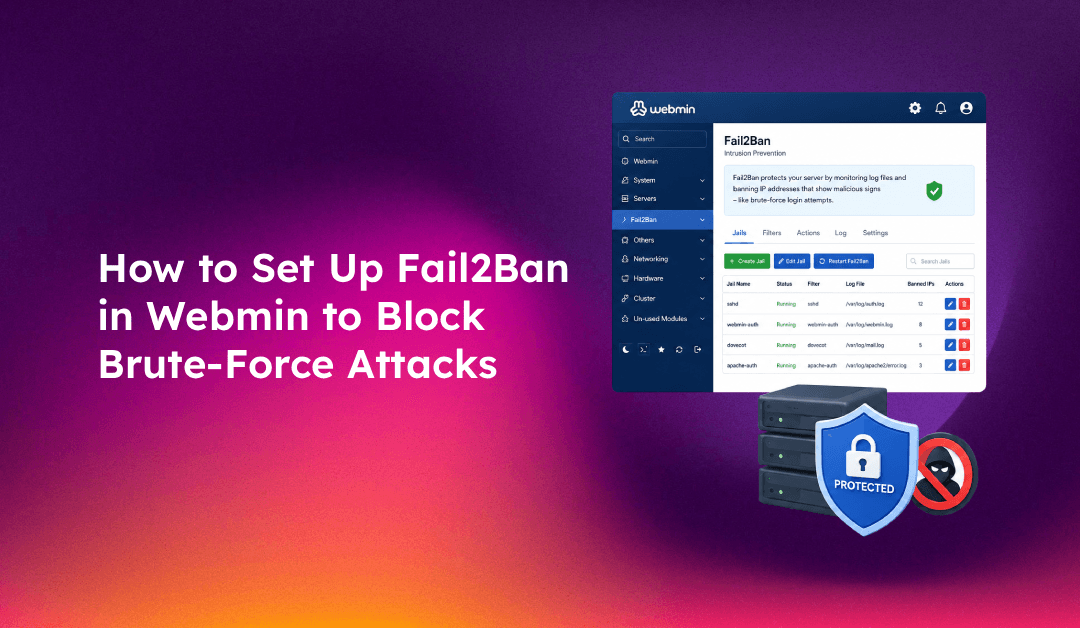
Webmin's administrative interface running on port 10000 is a prime target for automated brute-force attacks. Botnets scan the internet continuously, hammering login forms with credential lists — and if your server lacks rate limiting, a single compromised password can give attackers full root-level access. Fail2Ban solves this by monitoring Webmin's authentication logs and automatically blocking offending IP addresses after a configurable number of failed attempts.
This guide walks you through installing Fail2Ban, creating a dedicated Webmin jail, and tuning ban thresholds so legitimate admins are never locked out while attackers are stopped cold.
Why Fail2Ban Is Critical for Webmin Security
Without Fail2Ban, your Webmin login page is fully exposed to:
- Credential-stuffing attacks using leaked username/password databases
- Dictionary attacks cycling through common passwords at thousands of attempts per minute
- Distributed botnets making slow, low-volume attacks that bypass basic rate limits
Fail2Ban operates by parsing log files in real time. When it detects a pattern — such as five failed logins within two minutes — it adds a firewall rule (via iptables or firewalld) to drop all packets from that IP for a defined ban period. The ban lifts automatically, or you can lift it manually if needed.
If you are already running managed server hardening, Fail2Ban should be part of your baseline security stack alongside port knocking, 2FA, and IP whitelisting.
Prerequisites
- A Linux server running Webmin (tested on Ubuntu 20.04/22.04, CentOS 7/8, AlmaLinux 8/9, Debian 11/12)
- Root or sudo access via SSH
- Webmin version 1.9 or later (auth log path varies — confirmed below)
iptablesorfirewalldactive (Fail2Ban uses one as its backend)
Step 1: Install Fail2Ban
On Debian/Ubuntu:
sudo apt update
sudo apt install fail2ban -y
sudo systemctl enable fail2ban
sudo systemctl start fail2ban
On CentOS/AlmaLinux/Rocky Linux (RHEL-based):
sudo dnf install epel-release -y
sudo dnf install fail2ban -y
sudo systemctl enable fail2ban
sudo systemctl start fail2ban
Verify the installation:
fail2ban-client --version
sudo fail2ban-client status
You should see Number of jail: 0 at this point — no jails are active yet.
Step 2: Locate the Webmin Authentication Log
Fail2Ban needs to know where Webmin writes its authentication failures. The log path depends on your Webmin version and OS:
- Most common (Webmin 1.9+):
/var/webmin/miniserv.log - Older Webmin or RPM-based:
/var/log/webmin/miniserv.log
Confirm the path and check what a failed login looks like:
sudo tail -50 /var/webmin/miniserv.log | grep "Failed\|Invalid\|login"A failed login entry looks like:
Failed login as root from 192.0.2.45 at Thu May 22 03:14:55 2025Note this pattern — it is what the Fail2Ban filter will match.
Step 3: Create the Webmin Fail2Ban Filter
Fail2Ban uses filter files (regex patterns) to identify failure events in logs. Create a dedicated filter for Webmin:
sudo nano /etc/fail2ban/filter.d/webmin.confPaste in the following:
[Definition]
failregex = Failed login as .+ from <HOST>
            Invalid login as .+ from <HOST>
ignoreregex =
Save and close the file. The <HOST> placeholder is automatically replaced by Fail2Ban with the actual IP address regex.
Test the filter against your log immediately to make sure it matches:
sudo fail2ban-regex /var/webmin/miniserv.log /etc/fail2ban/filter.d/webmin.confLook for a non-zero Lines: X matched result. If matches are zero, check your log path and the exact failure string format on your system.
Step 4: Create the Webmin Jail Configuration
Jails combine a filter with action rules (ban duration, attempts threshold, log path). Create a local jail override to avoid your config being wiped during Fail2Ban upgrades:
sudo nano /etc/fail2ban/jail.d/webmin.confAdd:
[webmin]
enabled  = true
port     = 10000
filter   = webmin
logpath  = /var/webmin/miniserv.log
maxretry = 5
findtime = 120
bantime  = 3600
action   = iptables-multiport[name=webmin, port="10000", protocol=tcp]
Key parameters explained:
maxretry = 5— Ban after 5 failed attemptsfindtime = 120— Count failures within a 2-minute windowbantime = 3600— Ban for 1 hour (3600 seconds); use-1for permanentport = 10000— Webmin's default port (change if you've moved it)
Reload Fail2Ban to activate the jail:
sudo fail2ban-client reload
sudo fail2ban-client status webmin
Expected output:
Status for the jail: webmin
|- Filter
|  |- Currently failed: 0
|  |- Total failed: 0
|  `- File list: /var/webmin/miniserv.log
`- Actions
   |- Currently banned: 0
   |- Total banned: 0
   `- Banned IP list:
Step 5: Test the Fail2Ban Webmin Jail
Intentionally trigger failed logins from a test IP (use a second machine or VPN) by entering wrong credentials five times on the Webmin login page at https://your-server-ip:10000.
Check if the IP was banned:
sudo fail2ban-client status webminYou should see the test IP in Banned IP list. To unban it (for your own IP if locked out):
sudo fail2ban-client set webmin unbanip 192.0.2.45Never ban your own management IP. Whitelist it first (see Step 7).
Step 6: Enable Email Notifications for Bans (Optional)
Get alerted when Fail2Ban bans an IP. Edit the global Fail2Ban configuration:
sudo nano /etc/fail2ban/jail.localAdd:
[DEFAULT]
destemail = admin@yourdomain.com
sendername = Fail2Ban
mta = sendmail
action = %(action_mwl)s
The action_mwl action sends an email with the WHOis report and relevant log lines when a ban fires. Requires a functional mail relay (sendmail or postfix) on the server.
Step 7: Whitelist Your Admin IP Addresses
Prevent accidentally locking yourself out by adding trusted IPs to the global ignore list:
sudo nano /etc/fail2ban/jail.localAdd under [DEFAULT]:
ignoreip = 127.0.0.1/8 ::1 203.0.113.10 203.0.113.0/24Replace 203.0.113.10 with your real admin IP or subnet. After saving:
sudo fail2ban-client reloadStep 8: Increase Ban Time for Repeat Offenders
Fail2Ban supports recidive jails — a meta-jail that bans IPs that have been banned multiple times for progressively longer periods. Add to /etc/fail2ban/jail.d/recidive.conf:
[recidive]
enabled  = true
logpath  = /var/log/fail2ban.log
banaction = iptables-allports
bantime  = 604800
findtime = 86400
maxretry = 3
This bans repeat offenders for 7 days (604800 seconds) after they trigger 3 ban events within 24 hours. Highly effective against persistent attackers.
Monitoring and Viewing Banned IPs
Check current Fail2Ban status across all jails:
sudo fail2ban-client statusList all banned IPs in the Webmin jail:
sudo fail2ban-client status webmin | grep "Banned IP"View the Fail2Ban log for recent actions:
sudo tail -f /var/log/fail2ban.logCheck iptables to confirm ban rules are active:
sudo iptables -L -n | grep -i fail2banTroubleshooting Common Fail2Ban + Webmin Issues
1. Jail not starting — "ERROR No file(s) found for logpath"
Verify the log path exists: ls -la /var/webmin/miniserv.log. If it doesn't, Webmin may not have written any logs yet, or the path differs. Check: grep logfile /etc/webmin/miniserv.conf.
2. Filter matches 0 lines
Run fail2ban-regex with verbose output: sudo fail2ban-regex --verbose /var/webmin/miniserv.log /etc/fail2ban/filter.d/webmin.conf. Compare the exact log line format against the filter regex and adjust failregex if needed.
3. Own IP banned
Unban immediately: sudo fail2ban-client set webmin unbanip YOUR-IP, then add the IP to ignoreip in jail.local and reload.
4. Fail2Ban not running after reboot
Ensure it is enabled: sudo systemctl enable fail2ban. Also confirm the service starts correctly: sudo journalctl -u fail2ban --no-pager | tail -20.
Conclusion
Setting up Fail2Ban with a dedicated Webmin jail is one of the highest-impact, lowest-cost security improvements you can make to any Linux server running Webmin. Five failed logins and an attacker's IP is blocked — automatically, without any manual intervention. Combined with IP whitelisting, 2FA, and regular log reviews, this makes your Webmin interface dramatically more resilient against the brute-force attacks that compromise thousands of servers every day.