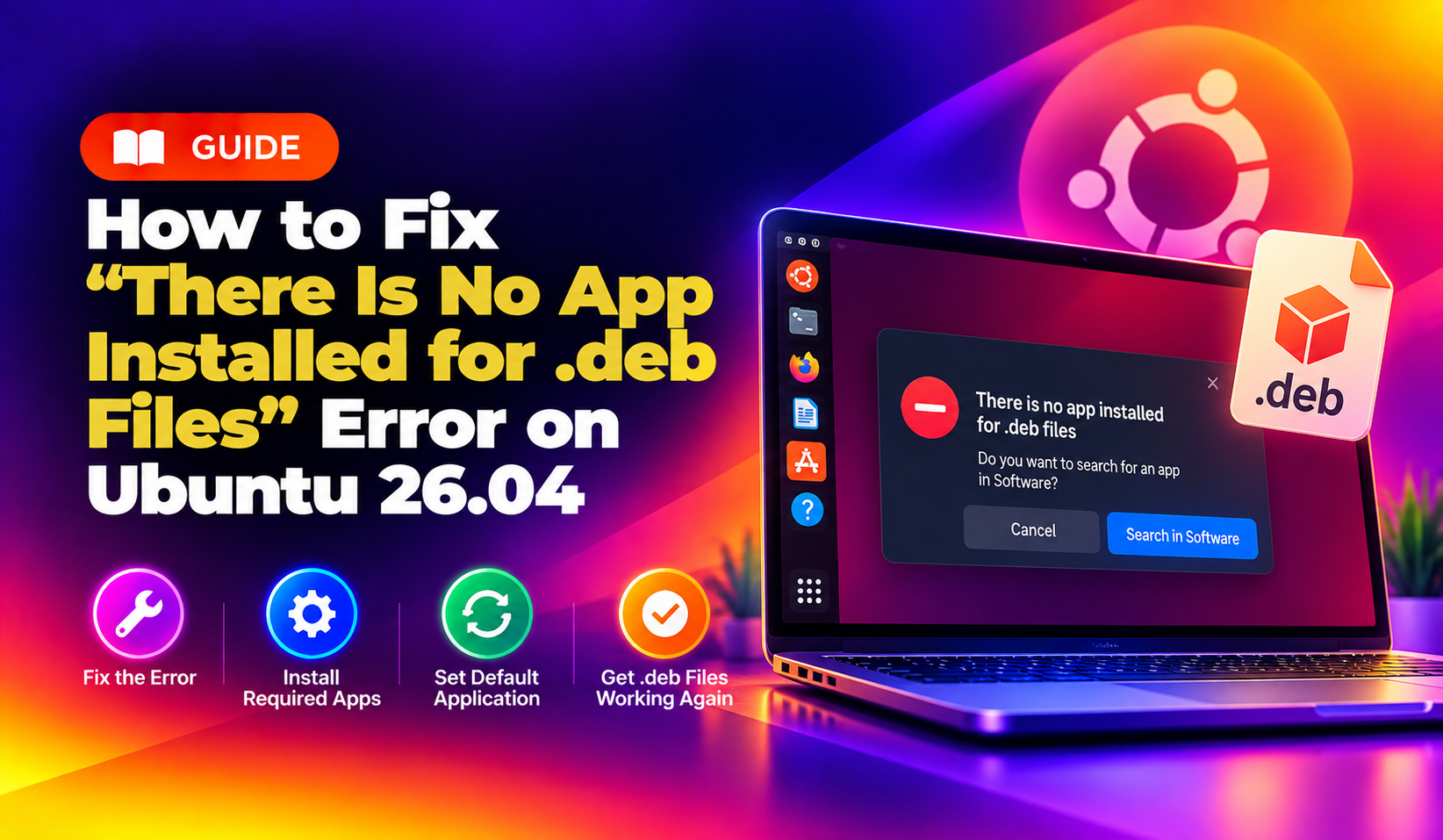
If you've recently upgraded to Ubuntu 26.04 (or installed it fresh) and tried to double-click a downloaded .deb file in the Files (Nautilus) app, you've probably run straight into this frustrating message:
"There is no app installed for 'Debian package' files. Do you want to search for an app to open this file?"
This isn't a bug — it's a deliberate change. Ubuntu 26.04 ships without a bundled graphical .deb installer (GDebi and the old "Ubuntu Software Install" handler are no longer installed by default), and GNOME's App Center only understands Snap and Flatpak packages out of the box. If you're trying to install Zoom, Slack, Chrome, VS Code, or any vendor-supplied .deb, you'll hit this wall immediately.
This guide covers every reliable way to fix it — from the fastest terminal command to reinstalling a proper graphical double-click installer, plus the underlying dependency errors this issue often masks.
Why This Happens on Ubuntu 26.04
Historically, Ubuntu shipped with gdebi or Ubuntu Software registered as the default handler (MIME type application/vnd.debian.binary-package) for .deb files. Starting with Ubuntu 26.04's GNOME 47-based desktop, several changes converged:
- GNOME Software / App Center dropped native support for opening standalone
.debfiles — it's now Snap/Flatpak-first by design. gdebi-coreandgdebiare no longer part of the default install image.- Nautilus (Files) has no fallback MIME handler registered for the package type, so it just asks you to "search for an app."
The good news: the fix takes under two minutes, and you have three solid options depending on whether you want a one-off terminal install or a permanent double-click fix.
Fix 1: Install the .deb Directly with APT (Fastest, Recommended)
You don't actually need a graphical installer at all. Modern apt can install local .deb files directly and — critically — it will automatically pull in any missing dependencies from your repositories, which GDebi historically struggled with.
Open a terminal, cd into your Downloads folder, and run:
cd ~/Downloads
sudo apt update
sudo apt install ./package-name.deb
Note the ./ before the filename — without it, apt tries to search its repository index for a package literally named package-name.deb and fails with a "Unable to locate package" error. The leading ./ tells apt it's a local file path.
Example for a typical Chrome download:
sudo apt install ./google-chrome-stable_current_amd64.debIf apt reports unmet dependencies, run:
sudo apt --fix-broken install
sudo apt install ./package-name.deb
Fix 2: Reinstall GDebi for a Proper Double-Click Installer
If you want the "double-click a .deb, see a GUI, click Install" experience back — useful for less technical users on shared desktops — reinstall GDebi and re-register it as the default handler:
sudo apt update
sudo apt install gdebi
Once installed, right-click any .deb file in Files > Open With > Other Application, choose GDebi Package Installer, and check "Always use this application." From then on, double-clicking any .deb will launch GDebi's dependency-aware graphical installer instead of throwing the "no app installed" error.
If GDebi itself won't launch after installing (a known GTK3/GTK4 compatibility issue on some 26.04 spins), fall back to Fix 1 or try:
sudo apt install gdebi-core
gdebi-gtk package-name.deb
Fix 3: Use dpkg Directly (Advanced/Offline Use)
If you're offline or working on a minimal install without full repo access, you can use dpkg directly, though you'll need to resolve dependencies manually afterward:
sudo dpkg -i package-name.deb
sudo apt --fix-broken install
The second command is essential — dpkg alone doesn't resolve dependency trees the way apt does, so skipping it commonly leaves the package "half-installed" with broken dependency links.
Common Follow-On Errors and How to Fix Them
Once you get past the "no app installed" message, a few secondary errors are common on 26.04:
"dpkg: error processing package (--configure): dependency problems"
sudo apt update
sudo apt install -f
"Unable to locate package" when the .deb is named correctly
This almost always means you forgot the ./ prefix, or you're not in the directory containing the file. Confirm with ls -la *.deb before rerunning the install.
GPG / repository signature errors after installing a vendor .deb
Many vendor packages (Chrome, Slack, VS Code) also add their own APT repository during install. If that repo's signing key is outdated, run:
sudo apt update 2>&1 | grep NO_PUBKEYthen re-import the key using the vendor's documented keyring path under /etc/apt/keyrings/ or /usr/share/keyrings/.
Verifying the Install Worked
After any of the fixes above, confirm the package installed cleanly:
dpkg -l | grep package-name
apt list --installed | grep package-name
And check for any leftover broken state:
sudo apt check
sudo apt autoremove
When to Get Help
If you're managing this across a fleet of Ubuntu desktops in an office, or if repeated dependency conflicts keep breaking package installs after every update cycle, it's often faster to have a specialist team standardize your package management policy (APT pinning, PPA hygiene, Snap/Flatpak vs .deb strategy) than to keep firefighting one machine at a time. CloudHouse Technologies' engineers handle exactly this kind of desktop and server package management troubleshooting — you can get hands-on help via our pay-per-ticket Linux support service without committing to a monthly contract.
Frequently Asked Questions
Why doesn't Ubuntu 26.04 open .deb files by default anymore?
Ubuntu's GNOME-based App Center is built around Snap and Flatpak sandboxed packages, not traditional .deb files. GDebi, the classic graphical .deb installer, is no longer preinstalled, so there's no default MIME handler registered for the Debian package type — resulting in the "no app installed" prompt.
Is it safe to install .deb files with apt install ./file.deb?
Yes. This is actually the officially recommended method since Ubuntu 16.04 — it's safer than plain dpkg because apt resolves and installs missing dependencies automatically from your configured repositories, and it's the same underlying mechanism GDebi and Ubuntu Software used.
Should I use Snap or Flatpak instead of .deb when both are available?
For most desktop apps, Snap or Flatpak versions are easier to keep updated and are sandboxed for better security. However, .deb packages integrate more tightly with the system (theming, file associations, smaller disk footprint) and are still preferred for CLI tools and enterprise software vendors who don't publish Snap/Flatpak builds.
How do I make GDebi the permanent default for .deb files again?
After installing gdebi via apt, right-click a .deb file in Files, choose "Open With Other Application," select GDebi Package Installer, and tick "Always use this application for this file type." This updates the MIME association permanently in your user's ~/.config/mimeapps.list.
What if apt install ./package.deb still fails with dependency errors?
Run sudo apt update first to refresh repository indexes, then retry. If it still fails, run sudo apt --fix-broken install to force dependency resolution, and check that any third-party PPA required by the package is actually added via sudo add-apt-repository.