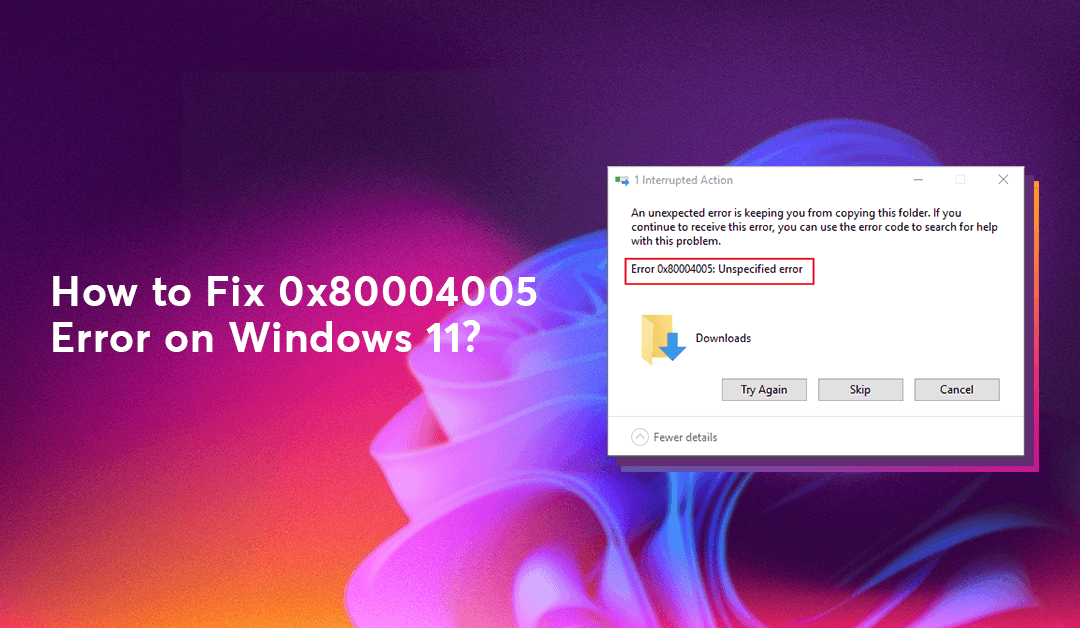
Resolving the Windows 0x80004005 error
Among those annoying problems Windows 11's 0x80004005 error says little about. It just looks like an "Unspecified Error," so it's difficult to figure out what happened.
This inaccuracy might occur while:
Patching Windows
Unzipping ZIP files
Reaching network drives or shared folders
Start Windows
Installing applications
The positive news is this is a common problem with Windows, but you can quickly fix it by using the instructions given below.
Why Does Error 0x80004005 Occur?
The “Unspecified Error” message can be triggered by several issues:
Corrupted Windows update files
Damaged system files
Network or permission issues
Problems with ZIP extraction
Outdated or misconfigured drivers
Interference from antivirus software
Let’s go through the most effective solutions.
Method 1: : Windows Update Troubleshooter
If the error appears during Windows Update, this built-in tool often resolves it.
Steps:
Open Settings
Go to System → Troubleshoot → Other troubleshooters
Find Windows Update → click Run
Let the troubleshooter detect and fix issues automatically.
Method 2: Check File Permissions
This one’s common when you’re copying files or opening certain folders.
You might not have permission. Here’s how to make sure you do:
Right-click the file or folder.
Click Properties, then go to the Security tab.
Click Edit to change permissions.
Make sure your user name has Full control.
Method 3: Unzip Files Properly
If the error appears while unzipping a file, Windows’ built-in extractor may not support certain archive formats.
Try:
WinRA
7-Zip
WinZip
These tools handle more formats and avoid the 0x80004005 ZIP error.
Method 4 : Run SFC and DISM
SFC and DISM are tools that fix damaged Windows files.
Here’s how to run them:
Click Start and type cmd.
Right-click Command Prompt and choose Run as administrator.
Type this and press enter: sfc /scannow
Wait for it to finish. Then run: DISM /Online /Cleanup-Image /RestoreHealth
This will scan and fix broken Windows components.
Method 5 : Fix It in the Registry (Carefully!)
Use this method for network or file-sharing issues.
Warning: Back up the registry before proceeding.
Steps:
Press Windows + R, type regedit, and press Enter.
Navigate to:
HKEY_LOCAL_MACHINE\SOFTWARE\Microsoft\Windows\CurrentVersion\Policies\System
Right-click and select New > QWORD (64-bit) Value.
Name it LocalAccountTokenFilterPolicy and set its value to 1.
Restart the computer.
Method 6 : Turn Off Your Antivirus (Temporarily)
Antivirus software can sometimes block essential system processes. Temporarily disable it and check if the error resolves.
Method 7 : Check for Duplicate Files in the Background
Sometimes a hidden background process is still holding onto the file you’re trying to use — and that’s what triggers this annoying little error.
Press Ctrl + Shift + Esc to open Task Manager, then check the Processes tab.
If you spot anything that’s using the file or folder you’re working with, go ahead and end the task. Just be careful not to close anything important your system needs to run!
Share this article
Loading comments...
© 2026 CloudHouse Technologies Pvt.Ltd. All rights reserved.