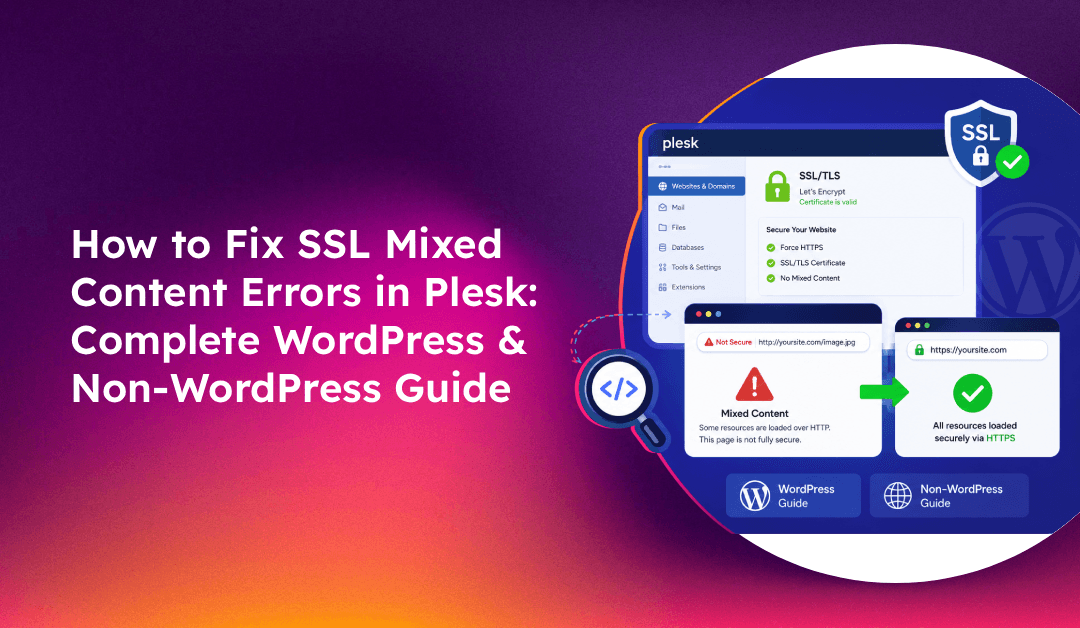
You have installed an SSL certificate in Plesk, the padlock should be green, yet your browser still shows "Not Secure" or a broken padlock icon. The certificate is valid — the problem is mixed content. Mixed content errors occur when a page loads over HTTPS but references resources (images, scripts, stylesheets, iframes) using plain http:// URLs. Browsers block or warn about these, even though your SSL certificate itself is perfectly fine. This guide covers every method to diagnose and permanently fix mixed content errors in Plesk for WordPress and non-WordPress sites.
Understanding Mixed Content in Plesk
There are two types of mixed content:
- Mixed active content (blocked): Scripts, stylesheets, iframes, and XHR requests loaded over HTTP. These are blocked entirely by modern browsers because they can be used to hijack the page. Your site may appear broken or display JavaScript errors.
- Mixed passive content (warned): Images, audio, and video loaded over HTTP. These show a warning but are not blocked. The padlock shows a warning symbol instead of the solid green icon.
After enabling HTTPS in Plesk, any resource in your website's code or database that still uses an absolute http:// URL will trigger this error. The SSL certificate on your server has no ability to "upgrade" these references automatically — you must fix them in the source.
💡 None of these worked? Skip the guesswork.
Get Expert Help →Step 1: Diagnose Mixed Content Using Browser Dev Tools
In Chrome or Firefox, press F12 to open Developer Tools. Go to the Console tab. Look for warnings like:
Mixed Content: The page at 'https://yourdomain.com/' was loaded over HTTPS,
but requested an insecure resource 'http://yourdomain.com/wp-content/uploads/image.jpg'.
This content should also be served over HTTPS.In the Network tab, reload the page and filter by type (JS, CSS, Img). Look for entries with the URL starting with http://. These are your mixed content sources.
In Chrome DevTools → Security tab, click on any "Not Secure" warning to see a summary of what resources are causing the issue, including whether it is active or passive mixed content.
For a quick external check, visit whynopadlock.com and enter your URL. It crawls the page and lists all insecure resources causing the mixed content error.
Step 2: Fix Mixed Content in WordPress Sites on Plesk
Method A: Really Simple SSL Plugin (Fastest)
1. In WordPress admin → Plugins → Add New, search for Really Simple SSL and install it.
2. Activate the plugin. It will detect your SSL certificate and prompt you to activate HTTPS with one click.
3. The plugin automatically updates WordPress Address (URL) and Site Address (URL) to https://, and adds a JavaScript fix for any remaining inline mixed content.
4. After activation, clear all caches (Plesk cache, WordPress caching plugin, browser cache) and verify the padlock is now solid.
Method B: Update WordPress Site URL to HTTPS
1. In WordPress admin → Settings → General, update both:
- WordPress Address (URL):
https://yourdomain.com - Site Address (URL):
https://yourdomain.com
Save changes. This fixes the base URL but does not update existing content in the database.
Method C: Database Search and Replace (Fixes Stored URLs)
Images, links, and media URLs stored in the WordPress database still use http://. Update them with WP-CLI:
wp search-replace 'http://yourdomain.com' 'https://yourdomain.com' --all-tables --precise --recurse-objectsOr use the Search Replace DB tool (safely, in a test first):
# Dry run to see what would change:
wp search-replace 'http://yourdomain.com' 'https://yourdomain.com' --dry-run --all-tables
After the replacement, run:
wp cache flushMethod D: Add Content Security Policy Upgrade Header
For resources you cannot update directly, add this header in Plesk to instruct browsers to automatically upgrade all HTTP requests to HTTPS:
In Plesk → Domains → yourdomain.com → Apache & nginx Settings → Additional headers:
Content-Security-Policy: upgrade-insecure-requestsThis is a browser-level upgrade directive — resources still load, but browsers automatically request them over HTTPS. Note: this does not fix broken mixed content where the resource genuinely does not exist over HTTPS.
Step 3: Fix Mixed Content in Non-WordPress Sites on Plesk
Method A: Find and Replace HTTP URLs in Code
For custom HTML, PHP, or static sites, search your files for hard-coded http:// references:
# Via SSH — search all PHP and HTML files in the domain root:
grep -r "http://yourdomain.com" /var/www/vhosts/yourdomain.com/httpdocs/

# For all domains on Plesk:
grep -r "http://yourdomain.com" /var/www/vhosts/yourdomain.com/httpdocs/ --include="*.php" --include="*.html" --include="*.js" --include="*.css"
Replace the hard-coded URLs with either:
https://yourdomain.com— absolute HTTPS URL//yourdomain.com— protocol-relative URL (works on both HTTP and HTTPS, but not recommended for modern sites)
Method B: Force HTTPS in .htaccess for Apache
Plesk stores per-domain .htaccess at /var/www/vhosts/yourdomain.com/httpdocs/.htaccess. Add these rules to force all traffic to HTTPS:
RewriteEngine On
RewriteCond %{HTTPS} off
RewriteRule ^(.*)$ https://%{HTTP_HOST}%{REQUEST_URI} [L,R=301]Important: In Plesk, use only one method to force HTTPS. Do not enable the Plesk checkbox and add .htaccess rules simultaneously — this causes redirect loops.
Method C: Fix Mixed Content via Plesk Built-In Settings
Plesk Obsidian and newer versions include the SSL It! extension with a "Redirect from http to https" toggle:
1. In Plesk → Domains → yourdomain.com → SSL/TLS Certificates.
2. Scroll to the SSL It! section. Enable "Redirect from HTTP to HTTPS" — this is a 301 redirect.
3. Optionally enable HSTS if you want browsers to permanently remember to use HTTPS (be careful — HSTS cannot be easily reversed once set with a long max-age).
Do NOT also check the redirect box in Hosting Settings if you have already enabled it in SSL It! — enabling both causes a loop.
Step 4: Fix Mixed Content with Nginx in Plesk
If your Plesk domain is using Nginx (either standalone or as a proxy), add the upgrade header in nginx configuration:
In Plesk → Domains → yourdomain.com → Apache & Nginx Settings → Additional nginx directives:
add_header Content-Security-Policy "upgrade-insecure-requests";Apply changes and restart nginx:
service nginx restartStep 5: Handle Mixed Content from Third-Party Resources
Some mixed content comes from external sources — ad networks, analytics scripts, social media embeds, or CDN resources loaded over HTTP.
- Google Analytics / Tag Manager: Both are loaded over HTTPS by default in modern versions. If you see older UA script snippets using
http://, update to the GA4 script. - Embedded media: YouTube, Vimeo, and Google Maps all support HTTPS embeds. Change
http://tohttps://in your embed code. - External images: If third-party images only exist on HTTP, you cannot force HTTPS for them. Consider hosting a copy of the image on your server instead.
- Font libraries: Google Fonts and Adobe Fonts both support HTTPS. Update any font embed URLs to use
https://.
Step 6: Clear All Caches After Fixing
Mixed content issues often persist after fixes because of aggressive caching at multiple levels. After every fix, clear:
1. Browser cache: Ctrl+Shift+Delete in Chrome/Firefox, or open in Incognito/Private mode to verify
2. WordPress caching plugins: WP Super Cache, W3 Total Cache, WP Rocket — all have a "Flush Cache" or "Empty Cache" button in the WordPress admin
3. Plesk website cache: In Plesk → Domains → yourdomain.com → Performance → click "Clear Cache" if the PHP caching extension is active
4. Cloudflare cache: If your domain uses Cloudflare, go to Cloudflare dashboard → Caching → Configuration → Purge Everything
Verifying the Fix
After completing the fixes and clearing caches:
- Open the site in an Incognito/Private browser window
- The padlock should be solid (no warning triangle)
- Browser console should show zero mixed content warnings
- Run a final check at
whynopadlock.com
For Plesk-managed servers with multiple domains requiring SSL configuration, mixed content remediation, and ongoing TLS hardening, CloudHouse Technologies' server management service handles the full SSL lifecycle across your hosting environment.