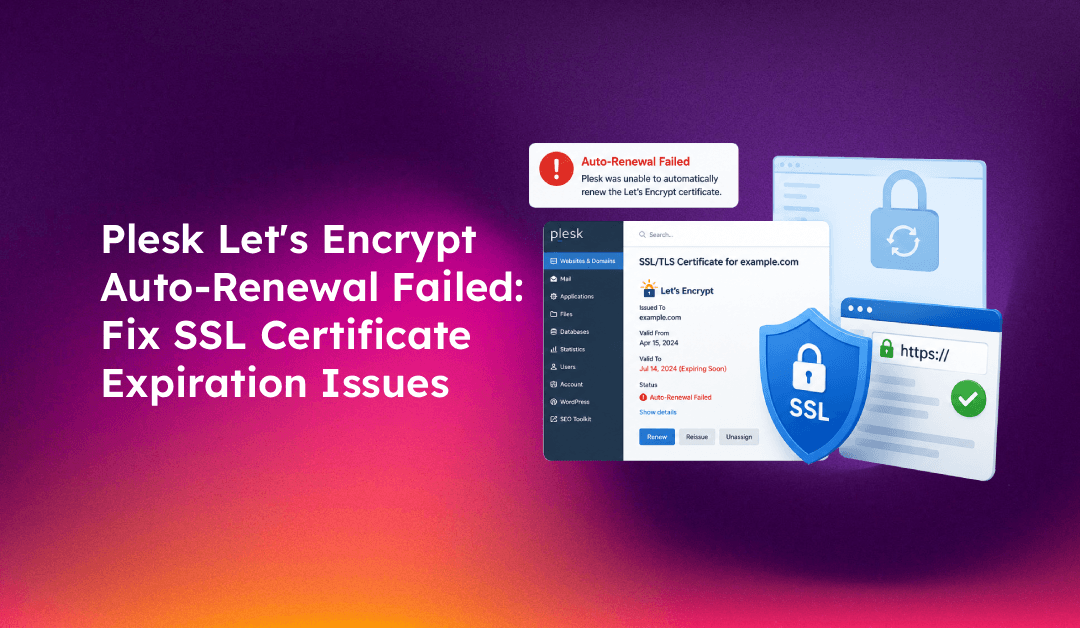
A Plesk server can silently stop renewing Let's Encrypt certificates for weeks — and you only find out when a client calls because their site shows a browser security warning. SSL expiration is entirely preventable, but only if you understand exactly why Plesk's auto-renewal fails and how to fix each cause.
This guide covers every common reason Plesk Let's Encrypt auto-renewal breaks — from the "Keep Secured" toggle to renamed certificates to ACME challenge failures — with the exact CLI commands and configuration fixes to resolve each one.
How Plesk Let's Encrypt Auto-Renewal Works
When you install a Let's Encrypt certificate through Plesk's SSL It! extension and enable "Keep Secured", Plesk automatically queues renewal approximately 30 days before expiration. The renewal process:
- Identifies certificates due for renewal
- Initiates an ACME challenge (HTTP-01 or DNS-01) with Let's Encrypt's servers
- Validates domain ownership
- Downloads and installs the new certificate
- Restarts the web server to apply the new cert
Any failure in this chain causes the renewal to silently fail. No warning is shown in the Plesk panel unless you check the SSL It! logs or the certificate status page.
Cause 1: "Keep Secured" is Not Enabled
The most common cause of failed renewals is that the "Keep Secured" option is simply not toggled on. Without it, Plesk won't attempt automatic renewal even if the certificate was originally installed through Let's Encrypt.
Fix at the Domain Level
- In Plesk, go to Domains → yourdomain.com → SSL/TLS Certificates
- Find the active Let's Encrypt certificate
- Ensure the Keep the website secured toggle is ON
Fix at the Service Plan Level
If you want to enforce this for all hosting plans:
- Go to Service Plans → your plan name → Additional Services
- Open the SSL It! dropdown
- Set Keep Secured to enabled
- Click Update Hosting to apply to all existing subscriptions using this plan
Cause 2: Certificate Was Renamed
Plesk's auto-renewal engine looks for certificates named exactly "Lets Encrypt yourdomain.com". If you or a previous admin renamed the certificate in the Plesk Certificate Manager, auto-renewal will fail silently every time.
Identify Renamed Certificates
# SSH into the server and check cert names in the Plesk database
plesk db "SELECT name, domain_id FROM certificates WHERE name NOT LIKE 'Lets Encrypt%' AND name NOT LIKE 'Lets Encrypt%'"
Or check via the Plesk panel:
- Go to Tools & Settings → SSL/TLS Certificates
- Look for Let's Encrypt certificates that don't follow the naming pattern
Lets Encrypt domain.com
Fix a Renamed Certificate
You cannot simply rename it back. You must:
- Delete the renamed certificate from Tools & Settings → SSL/TLS Certificates
- Go to Domains → yourdomain.com → SSL/TLS Certificates
- Click Get it free (Let's Encrypt) and issue a fresh certificate
- Enable Keep Secured on the new certificate
Cause 3: HTTP-01 ACME Challenge Failing
Let's Encrypt verifies domain ownership during renewal by placing a token at:
http://yourdomain.com/.well-known/acme-challenge/TOKENIf Let's Encrypt can't reach this URL, the challenge fails and the certificate doesn't renew.
Common HTTP-01 Blockers
- Port 80 blocked by firewall — Let's Encrypt always uses HTTP-01 over port 80, even if your site redirects to HTTPS
- ModSecurity blocking the request — WAF rules sometimes flag ACME challenge requests as suspicious
- HTTPS-only redirect before challenge — if your site redirects all HTTP to HTTPS and the challenge path isn't excluded, the validation fails
- Cloudflare in proxy mode — Cloudflare may intercept the challenge request before it reaches your server
Diagnose HTTP-01 Failures
# Create a test file to verify HTTP access to the challenge path
mkdir -p /var/www/vhosts/yourdomain.com/httpdocs/.well-known/acme-challenge
echo "test" > /var/www/vhosts/yourdomain.com/httpdocs/.well-known/acme-challenge/test.txt

# Test access from an external machine
curl -I http://yourdomain.com/.well-known/acme-challenge/test.txt
If the curl returns anything other than HTTP 200 with the file content, the challenge will fail.
Fix: Open Port 80 in Plesk Firewall
- Go to Tools & Settings → Firewall
- Find the HTTP (port 80) rule and ensure it allows incoming connections
- Click Apply Firewall Rules
Fix: Disable ModSecurity for ACME Path
If ModSecurity is blocking challenges:
# Add a ModSecurity exclusion rule in Apache/Nginx vhost config
SecRule REQUEST_URI "@beginsWith /.well-known/acme-challenge/" "id:1001,phase:1,allow,nolog"
Cause 4: DNS-01 Challenge Failing (Wildcard Certificates)
Wildcard certificates require DNS-01 validation — Let's Encrypt asks Plesk to create a TXT record at _acme-challenge.yourdomain.com. If your DNS is managed externally (Cloudflare, Route53), Plesk can't create this record automatically.
Signs of DNS-01 Failure
In the Plesk Let's Encrypt log:
DNS problem: NXDOMAIN looking up TXT for _acme-challenge.yourdomain.com
Timeout during connect (likely firewall problem)
Check the Let's Encrypt Log
# View the SSL It! extension log
cat /var/log/plesk/panel.log | grep -i "lets\|letsencrypt\|acme"

# Or the dedicated SSL It! log
cat /opt/psa/var/modules/letsencrypt/letsencrypt.log | tail -50
Fix: Use Plesk DNS for Wildcard Certs
If using external DNS for wildcard certs, you have two options:
Option 1: Switch the domain's DNS to Plesk for certificate renewals, renew, then switch back (tedious but functional).
Option 2: Use a DNS provider that Plesk's SSL It! supports via API — Cloudflare, Route53, and GoDaddy are supported through community plugins. Install the relevant DNS provider plugin in Plesk's extension catalog, configure your API key, and Plesk will handle DNS-01 challenges automatically.
Cause 5: Let's Encrypt Rate Limits
Let's Encrypt enforces rate limits — 50 certificates per registered domain per week, and 5 failed validation attempts per hostname per hour. If you've been repeatedly attempting to renew a failing certificate, you may hit the rate limit.
Check Rate Limit Status
# Check current rate limit status via Let's Encrypt API
curl -s "https://crt.sh/?q=yourdomain.com&output=json" | python3 -c "
import json, sys
from datetime import datetime, timezone
data = json.load(sys.stdin)
recent = [d for d in data if datetime.fromisoformat(d['not_before'].replace('Z','+00:00')) > datetime(2024,1,1,tzinfo=timezone.utc)]
print(f'Certificates issued recently: {len(recent)}')"
If you're rate-limited, wait the required period (up to 1 week for the weekly quota) before retrying.
Cause 6: Renewal Timing Configuration
By default, Plesk attempts renewal 30 days before expiration. You can adjust this window in panel.ini:
# SSH into server
vi /usr/local/psa/admin/conf/panel.ini

# Add or modify the [ext-letsencrypt] section
[ext-letsencrypt]
renew-before-expiration = 45
Setting 45 days gives more time to catch and fix failed renewals before the certificate actually expires.
How to Manually Renew a Let's Encrypt Certificate in Plesk
If auto-renewal has failed and you need to renew immediately:
Via Plesk Panel:
- Go to Domains → yourdomain.com → SSL/TLS Certificates
- Click the Let's Encrypt certificate name
- Click Renew
Via CLI:
# Force renewal for a specific domain
plesk ext sslit --update-all

# Or renew a specific domain's certificate
plesk ext sslit -d yourdomain.com -o enable
Preventing Future Auto-Renewal Failures
- Enable certificate expiration alerts — go to Tools & Settings → Notifications and enable SSL certificate expiration warnings (30 and 7 days before)
- Set renewal window to 45+ days — gives more recovery time if renewals fail
- Never rename Let's Encrypt certificates — the auto-renewal engine depends on the exact naming convention
- Keep port 80 open permanently — even if your site runs HTTPS-only, port 80 must be accessible for ACME challenges
- Monitor the SSL It! log weekly — check
/opt/psa/var/modules/letsencrypt/letsencrypt.logfor silent failures
If you're managing multiple Plesk servers and can't afford the time to monitor certificate renewals across all domains, CloudHouse Technologies provides fully managed Plesk server management — including proactive SSL monitoring, automatic renewal fixes, and 24/7 incident response when a certificate issue affects your clients.
Conclusion
Plesk Let's Encrypt auto-renewal failures almost always trace back to one of six causes: disabled "Keep Secured", renamed certificates, blocked port 80, DNS validation failures for wildcard certs, rate limit hits, or a misconfigured renewal window. Use the diagnostic commands in this guide to identify which cause applies, fix it, then verify with a manual renewal before the certificate expires. Setting certificate expiration alerts and widening the renewal window to 45 days gives you the safety net to catch any future failures before they reach your clients.