If your Plesk server is still serving websites over unencrypted HTTP — or if your HTTPS sites lack HSTS headers — you're failing security audits, hurting search rankings, and leaving clients exposed to man-in-the-middle attacks. This guide shows you exactly how to configure plesk force HTTPS redirect HSTS to eliminate HTTP access entirely and lock browsers into secure connections for months or years at a time.
Why HSTS Is Now a Hard Requirement — Not a Nice-to-Have
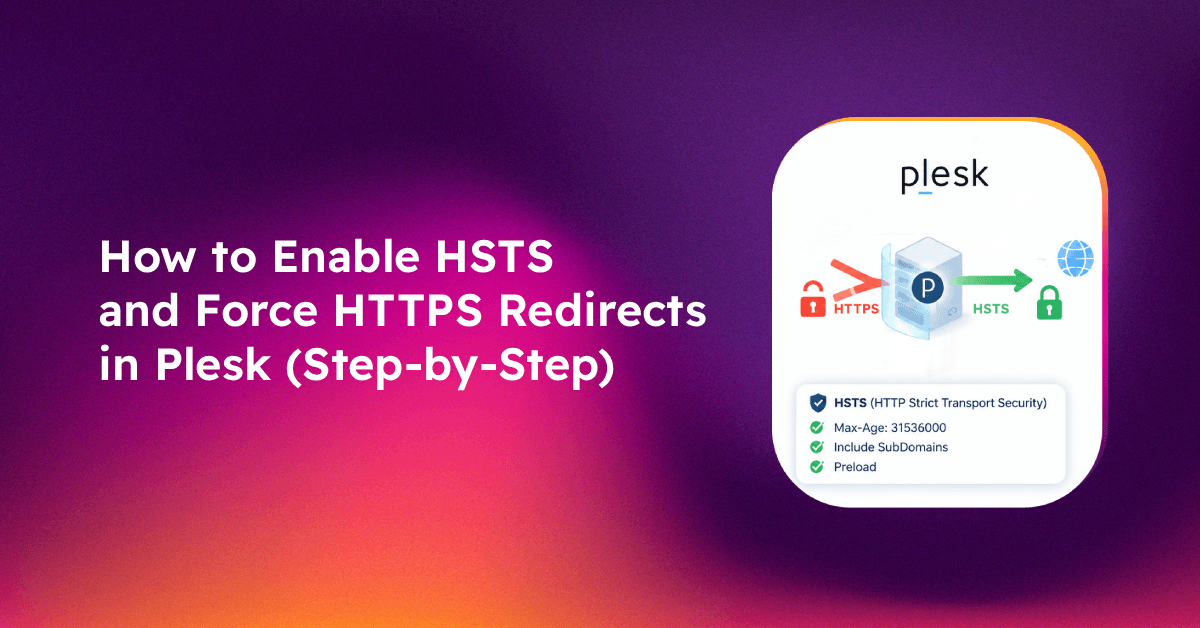
HTTP Strict Transport Security (HSTS) is an HTTP response header that tells browsers: "Never connect to this domain over HTTP again — only use HTTPS, even if the user types the address without https://." Once a browser has seen the HSTS header, it will refuse to load the site over HTTP for the duration specified in the max-age directive.
In 2026, HSTS is no longer optional for several practical reasons:
- PCI-DSS 4.0 (requirement 6.3.3) explicitly requires TLS for all data in transit — HSTS is the mechanism that enforces this at the browser level
- Google Search Console flags sites without HTTPS as insecure and may reduce crawl priority for HTTP pages
- Security audit tools (Qualys SSL Labs, SecurityHeaders.com, Nessus) flag missing HSTS as a medium-severity finding
- Browser security indicators — Chrome and Firefox display "Not Secure" for any HTTP page and will soon block mixed-content resources entirely
A 301 redirect from HTTP to HTTPS is a prerequisite for HSTS, but it is not sufficient on its own. Without the HSTS header, a browser that requests http:// first will be redirected to HTTPS — but that initial HTTP request is still vulnerable to interception. HSTS eliminates this first-request attack window.
Prerequisites: Valid SSL Certificate and HTTP→HTTPS 301 Redirect in Plesk
Before enabling HSTS, verify two things are already working correctly for your domain in Plesk:
1. Valid SSL certificate installed
Navigate to Plesk → Websites & Domains → [your domain] → SSL/TLS Certificates. Confirm that a certificate is installed and its expiry date is in the future. If you need to install one, use Let's Encrypt: Websites & Domains → [domain] → SSL/TLS Certificates → Let's Encrypt → Install.
2. HTTP to HTTPS redirect is active
In Websites & Domains → [domain] → Hosting Settings, confirm Redirect from http to https is checked. If not, enable it and save — Plesk will add a 301 redirect directive to the Apache or nginx configuration for that domain.
Test the redirect works before proceeding:
curl -I http://yourdomain.comYou should see HTTP/1.1 301 Moved Permanently with a Location: https://yourdomain.com/ header. If you see anything other than a 301, fix the redirect first — HSTS on top of a broken redirect will lock users out of the site entirely.
💡 None of these worked? Skip the guesswork.
Get Expert Help →Enabling HSTS for a Single Domain via the Plesk GUI
Plesk 18.x and later includes a native HSTS toggle in the SSL/TLS certificate management interface.
Go to Websites & Domains → [your domain] → SSL/TLS Certificates. Click the name of the currently installed certificate to open its settings.
Scroll down to the HSTS section. You will see a checkbox labeled Enable HSTS and a max-age field.
The max-age directive specifies how long (in seconds) browsers should remember to use HTTPS only. Recommended values:
- 1 month (2592000 seconds): Use this first when testing HSTS for the first time — short enough to recover quickly if something breaks
- 6 months (15768000 seconds): Safe for production after confirming HTTPS works correctly
- 1 year (31536000 seconds): Required for HSTS Preload submission (see below)
After saving, Plesk adds the following header to the domain's web server configuration:
Strict-Transport-Security: max-age=15768000curl -I https://yourdomain.com | grep -i strict-transport-securityYou should see the Strict-Transport-Security header in the response.
Setting includeSubDomains and preload Flags Safely
The basic HSTS header only protects the exact domain. Two optional flags extend its scope:
includeSubDomains
Adding this flag tells browsers to apply HSTS to all subdomains of the domain as well:
Strict-Transport-Security: max-age=15768000; includeSubDomainsWarning: Only enable includeSubDomains if every subdomain (mail.yourdomain.com, ftp.yourdomain.com, dev.yourdomain.com) has a valid SSL certificate. Any subdomain without HTTPS will become inaccessible to browsers that have seen the HSTS header.
In Plesk, enable this via SSL/TLS Certificates → [certificate] → HSTS → Include subdomains checkbox.
preload
The preload flag opts the domain into inclusion in the HSTS Preload List — a hardcoded list of domains shipped with every major browser. Browsers in this list never make an HTTP connection to the domain, even on first visit.
Strict-Transport-Security: max-age=31536000; includeSubDomains; preloadCritical warning: Preload is permanent and extremely difficult to reverse. Once your domain is on the preload list, removal takes months and browser vendors are not obligated to honor removal requests quickly. Only submit to the preload list if:
- You have HTTPS working correctly on all subdomains
- You have a max-age of at least 1 year (31536000 seconds)
- You are committed to maintaining HTTPS indefinitely
Submit to the preload list at https://hstspreload.org after your HSTS deployment has been stable for at least 2 weeks.
Configuring HSTS Server-Wide via CLI for All Domains
If you manage many domains on a Plesk server, enabling HSTS one domain at a time through the GUI is impractical. Use the Plesk CLI to configure HSTS server-wide.
Enable HSTS for all domains on the server:
plesk bin settings --set hsts_enabled=true
plesk bin settings --set hsts_max_age=15768000
plesk bin settings --set hsts_include_subdomains=true
Apply to existing domains (not just new ones):
for domain in $(plesk bin domain --list); do
  plesk bin certificate --update-hsts -domain-name "$domain"     -max-age 15768000 -include-subdomains true
done
Verify settings were applied:
plesk bin settings --list | grep hstsTesting HSTS with Security Headers Scanner and Browser DevTools
After configuring HSTS, always verify it is working correctly before extending the max-age period.
SecurityHeaders.com scan:
Visit https://securityheaders.com, enter your domain, and run a scan. A correctly configured HSTS domain should score an A or A+ rating. The scan report shows exactly which headers are present and flags any missing security headers.
Browser DevTools verification:
- Open Chrome DevTools → Network tab
- Load
https://yourdomain.com - Click the first request to the domain
- In the Response Headers section, locate
strict-transport-security - Verify the max-age value matches what you configured
Test that HTTP is properly redirected:
curl -I http://yourdomain.com
# Expected: HTTP/1.1 301 Moved Permanently
# Location: https://yourdomain.com/
Common Mistakes That Break HSTS (and How to Fix Them)
Mistake 1: Enabling HSTS before the SSL certificate is valid
If the SSL certificate is expired or untrusted, HSTS locks users out with no way to bypass the error. Always verify the certificate is valid before enabling HSTS. Fix: disable HSTS in Plesk SSL settings and resolve the certificate issue first.
Mistake 2: Setting includeSubDomains without HTTPS on all subdomains
A subdomain like staging.yourdomain.com running on HTTP becomes completely inaccessible after HSTS is seen. Fix: audit all subdomains with dig +short yourdomain.com NS and ensure each has a valid SSL certificate before enabling includeSubDomains.
Mistake 3: HSTS header appearing on both HTTP and HTTPS responses
HSTS headers must only be served over HTTPS. If your Plesk configuration serves the header on HTTP responses (before the redirect), some clients will behave unexpectedly. Fix: verify with curl -I http://yourdomain.com — the HSTS header should not appear in this response, only in the HTTPS response after redirect.
Mistake 4: Using a very long max-age before testing
Setting a 1-year max-age on first deployment means if HTTPS breaks later, browsers will refuse to load your site for up to a year. Always start with 1 month, confirm everything works for 2 weeks, then extend to 6 months, then 1 year.
For hosting providers managing dozens of domains across multiple servers, consistent HSTS enforcement as part of a broader SSL management policy is a core deliverable in any managed server service.
FAQs
What happens if I disable HSTS after enabling it?
Browsers that have already seen the HSTS header will continue to enforce HTTPS-only for the remainder of the max-age period — you cannot make them forget immediately. The only way to speed up recovery is to set max-age to 0 and serve that header, which tells browsers to stop enforcing HSTS. This is why starting with a short max-age is so important.
Does Plesk's HSTS setting work with both Apache and nginx?
Yes. Plesk configures HSTS at the web server configuration layer for whichever web server is active for the domain. The resulting directive is equivalent for both Apache and nginx, and Plesk handles the difference in directive syntax automatically.
Will HSTS affect my Plesk panel login at https://server.ip:8443?
No. HSTS is applied per-domain to hosted websites. The Plesk admin panel at port 8443 uses its own SSL configuration and is not affected by per-domain HSTS settings configured for hosted websites.
Can I enable HSTS for wildcard subdomains in Plesk?
HSTS with includeSubDomains covers all subdomains automatically, including wildcards. You do not need separate HSTS configuration for each subdomain — a single configuration on the root domain with includeSubDomains is sufficient.
How do I check if HSTS is preventing access after a certificate issue?
Open Chrome, go to chrome://net-internals/#hsts, enter the domain, and click Query. This shows the stored HSTS policy for that domain in your browser. You can delete it from there to allow HTTP access while you fix the certificate issue.