Spam is one of the most persistent problems for any server hosting email — and for Plesk server administrators, greylisting is one of the most effective and underused spam reduction tools available. Unlike SpamAssassin (which scores and filters incoming messages) or DNS-based blacklists (which block known bad actors), greylisting stops spam at the protocol level by exploiting a simple truth: legitimate mail servers retry rejected messages; spam servers usually do not.
This guide covers how Plesk greylisting works, how to enable and configure it at the server and domain level, how to whitelist trusted senders like Office 365 and Google Workspace, how to tune delivery delays, and how to use the grey_listing CLI for advanced configuration.
How Greylisting Works
When greylisting is active, the first time a mail server attempts to deliver an email from an unknown sender to your Plesk server, your server returns a temporary rejection (SMTP 4xx code — specifically 451 or 450). This is a standard "try again later" response.
Here is what happens next:
- Legitimate mail servers: Queue the message and retry delivery after a few minutes. On retry, your Plesk server recognises the sender/IP combination and accepts the message.
- Spam servers: Typically do not retry — they are optimised for volume, not reliability. The message is never delivered.
The result is that the first email from any new legitimate sender is delayed by a few minutes, but subsequent emails from the same sender arrive immediately (they are now in the greylisting whitelist). This one-time delay is the trade-off for eliminating a significant percentage of spam at zero filtering cost.
Greylisting Limitations to Know Before Enabling
Before configuring greylisting on your Plesk server, understand its limitations:
- First-contact delay: The initial email from any new sender is delayed. For most business email, this is acceptable. For transactional email or time-sensitive notifications, it may not be.
- Multi-IP senders: Large providers like Microsoft 365 and Google Workspace retry from different IP addresses. Greylisting treats each new IP as a new sender, causing repeated delays until you whitelist the sending domain.
- Does not block all spam: Spam from properly configured mail servers (using the same IP to retry) will pass greylisting. Combine it with SpamAssassin and DKIM/SPF/DMARC validation for comprehensive protection.
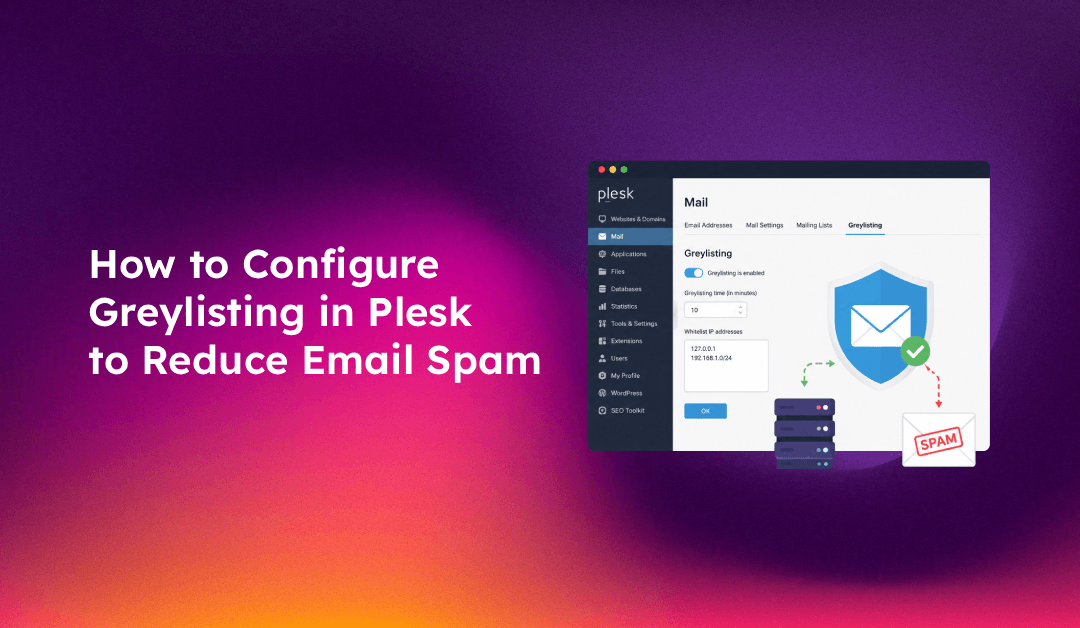
Step 1: Enable Server-Wide Greylisting in Plesk
Log into the Plesk panel as the administrator and navigate to:
Tools & Settings > Mail Server Settings > Spam Filter
Under the Greylisting section:
1. Check "Switch on server-wide greylisting spam protection"
2. Click OK to save
Server-wide greylisting is now active for all domains hosted on the server. All incoming mail from unknown senders will receive the temporary 4xx rejection on first contact.
Note: Enabling server-wide greylisting does NOT prevent individual domain owners from disabling it for their own domain if the "Personal greylisting configuration" option is allowed. See the permissions section below.
Step 2: Configure Per-Domain Greylisting
Domain owners can manage greylisting for their domain independently. In the Plesk Customer Panel:
Mail > Mail Settings > Spam Filter (greylisting)
Options available:
- Use server-wide settings — inherits the server-wide configuration (default)
- Switch on greylisting for all mail accounts — enables greylisting for this domain regardless of server-wide setting
- Switch off greylisting for all mail accounts — disables greylisting for this domain (useful for transactional email domains)
For a domain that receives time-sensitive business emails where even a 5-minute delay is unacceptable, disable greylisting at the domain level while keeping it active server-wide for other domains.
Step 3: Whitelist Trusted Senders (GUI)
The most common greylisting complaint is delayed delivery from Office 365 or Google Workspace. The fix is whitelisting these senders so they bypass greylisting entirely.
Navigate to: Tools & Settings > Spam Filter > White List
Add the following patterns for the most common enterprise email providers:
| Provider | Whitelist Pattern |
|---|---|
| Microsoft 365 / Exchange Online | *@*.outbound.protection.outlook.com |
| Google Workspace / Gmail | *@*.google.com |
| SendGrid | *@sendgrid.net |
| Mailchimp / Mandrill | *@mandrillapp.com |
| Amazon SES | *@amazonses.com |
Click Add for each entry and then OK to save.
Step 4: Advanced Configuration via CLI (grey_listing utility)
The Plesk GUI exposes basic greylisting controls, but the full configuration — including timing intervals and per-account whitelists — is only available through the grey_listing command-line utility.
View Current Greylisting Configuration
plesk bin grey_listing --status-serverThis shows the current server-wide greylisting state and all configured parameters.
Adjust Greylisting Intervals
# Grey interval: how long (seconds) to hold a new sender's first message
# Default: 300 seconds (5 minutes)
# Recommended: reduce to 60-120 for faster first-delivery
plesk bin grey_listing --update-server -grey-interval 120

# Expire interval: how long (seconds) a greylisted entry remains valid
# Default: 7 days (604800 seconds)
plesk bin grey_listing --update-server -expire-interval 604800

# Penalty interval: extended wait for senders that retry too quickly
# Default: 300 seconds
plesk bin grey_listing --update-server -penalty-interval 300
Reducing the grey-interval to 120 seconds means the initial delay for new senders is 2 minutes instead of 5, balancing spam protection with user experience.
Add Server-Wide Domain Whitelist via CLI
# Whitelist all Microsoft 365 outbound
plesk bin grey_listing --update-server -domains-whitelist add:*@*.outbound.protection.outlook.com

# Whitelist Google Workspace
plesk bin grey_listing --update-server -domains-whitelist add:*@*.google.com

# View the current server whitelist
plesk bin grey_listing --update-server -domains-whitelist list
Add Per-Mailbox Whitelist via CLI
# Whitelist all mail from a specific domain for one mailbox
plesk bin grey_listing --update-mailname user@yourdomain.com -domains-whitelist add:*@trustedpartner.com

# View per-mailbox whitelist
plesk bin grey_listing --update-mailname user@yourdomain.com -domains-whitelist list
Enable/Disable Greylisting for a Specific Domain
# Enable greylisting for a domain
plesk bin grey_listing --enable-domain yourdomain.com

# Disable greylisting for a domain
plesk bin grey_listing --disable-domain yourdomain.com
Step 5: Fix the "4.7.1 Service unavailable — try again later" Delivery Error
If senders report receiving this error when emailing your Plesk server, it is the greylisting 451 temporary rejection working as designed. However, if the delay is excessive (more than 30 minutes), investigate:
1. Check if the sender uses multiple IPs — Office 365 and some large providers retry from different IP addresses. Greylisting treats each new IP as a new connection, creating a loop. Fix: whitelist the sender's domain as described in Step 3/4.
2. Check greylisting logs:
grep "greylisting" /var/log/maillog | tail -50     # CentOS/AlmaLinux
grep "greylisting" /var/log/mail.log | tail -50    # Ubuntu/Debian
3. Verify your grey-interval setting:
plesk bin grey_listing --status-server | grep -i intervalIf grey-interval is set to 300 seconds (5 minutes) or higher and the sender's mail server has a short retry window, reduce the interval to 60–120 seconds.
Step 6: Manage Greylisting Permissions for Domain Owners
By default, Plesk allows domain owners to configure their own greylisting settings. If you want to lock greylisting server-wide and prevent domain-level overrides:
Navigate to: Tools & Settings > Mail Server Settings > Spam Filter Permissions
Under Greylisting, set the permission to:
- No access — domain owners cannot change greylisting settings; server-wide configuration applies to all domains
- Read only — domain owners can see but not change settings
- Full access — domain owners can enable/disable greylisting per domain (default)
For managed hosting environments where you control spam policy centrally, setting this to "No access" ensures consistent protection across all hosted domains.
Combining Greylisting with SpamAssassin in Plesk
Greylisting and SpamAssassin serve complementary roles — they should both be active:
- Greylisting blocks spam at the connection level before the message is even received — zero processing cost
- SpamAssassin scores and filters messages that pass greylisting — catches spam from well-configured mail servers that do retry
Enable both in Tools & Settings > Mail Server Settings > Spam Filter. Set SpamAssassin's score threshold to 5 (default) and configure it to either tag subjects ([SPAM]) or move messages to the Junk folder rather than deleting them — this prevents false positive message loss.
If persistent spam delivery issues continue despite both layers, consider adding DNS-based blacklist (DNSBL) checks in Plesk's mail server settings for a third layer of protection. Need help building a complete Plesk email security stack? CloudHouse's server management team configures greylisting, SpamAssassin, DKIM, SPF, and DMARC as a unified email security solution.
FAQs
Does enabling greylisting in Plesk affect outgoing email?
No — greylisting only affects incoming messages. Your outgoing email is not delayed or rejected by your own greylisting configuration. However, if you are sending to a server with greylisting enabled, your first email to a new recipient on that server may be delayed by their greylisting policy.
Why is email from Office 365 delayed even after enabling greylisting?
Microsoft 365 uses a pool of outbound IP addresses and may retry from a different IP than the initial attempt. Greylisting treats each new IP as a new sender, creating repeated delays. The fix is to whitelist the Office 365 sending domain: add *@*.outbound.protection.outlook.com to the server-wide greylisting whitelist via the Plesk GUI or CLI.
Can individual mailbox users manage their own greylisting settings?
Yes, if the Plesk administrator grants them permission. Users can manage per-mailbox greylisting settings at Domains > domain > Mail Accounts > their mailbox > Spam Filter. They can add trusted sender domains to their personal whitelist without affecting other mailboxes.
How do I completely disable greylisting for one domain without affecting others?
Use the CLI: plesk bin grey_listing --disable-domain yourdomain.com. Or in the Plesk panel, navigate to Mail > Mail Settings for that domain and set greylisting to "off for all mail accounts." This domain will stop greylisting while all other domains continue using the server-wide policy.
What is the difference between greylisting and blacklisting in Plesk?
Greylisting temporarily defers email from unknown senders and then accepts it on retry — it is a delay-based filter that does not permanently block anyone. Blacklisting permanently rejects all email from specific senders, domains, or IP ranges. Use greylisting as a first-pass spam reduction layer and blacklisting only for known malicious senders you never want to receive email from.
Conclusion
Plesk greylisting is a highly effective, low-overhead spam reduction technique that stops spam before it even reaches your filtering stack. The key to successful deployment is: enabling it server-wide, immediately whitelisting major business email providers (Office 365, Google Workspace) to prevent complaint-generating delays, reducing the grey-interval to 60–120 seconds for faster first-delivery, and combining it with SpamAssassin for comprehensive coverage. If you need help configuring a full Plesk email security stack — greylisting, SpamAssassin, DKIM, SPF, and DMARC — CloudHouse's server management service handles the complete setup and ongoing monitoring.