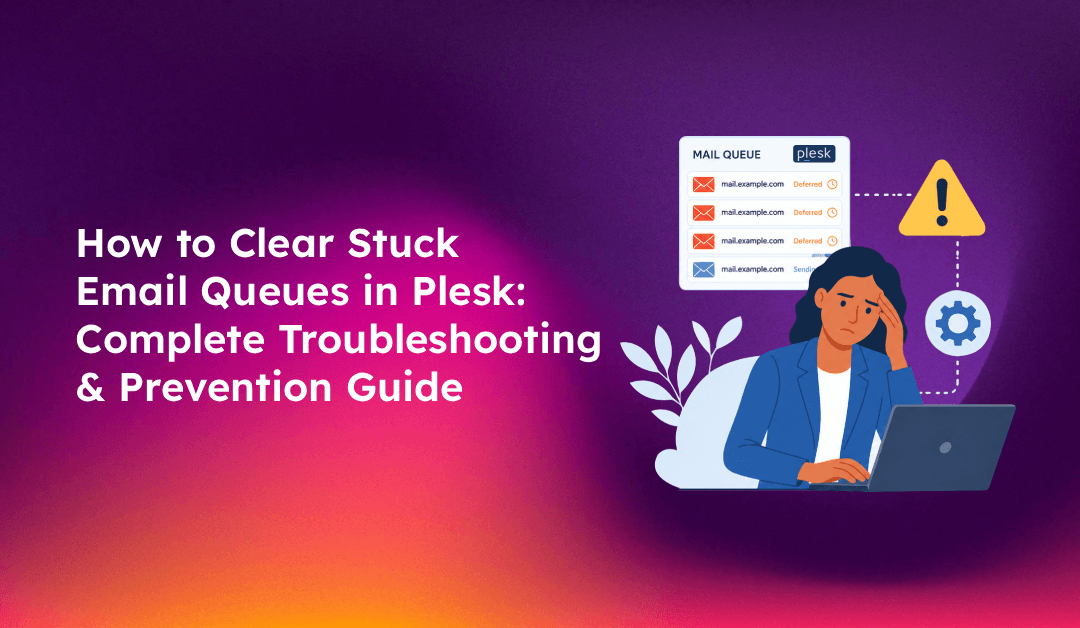
A growing email queue in Plesk is rarely just a backlog — it's usually a symptom of something actively broken. Whether the queue is building because of Amavis timeouts, a blacklisted server IP, an outbound spam attack, or a firewall blocking port 25, the stuck messages compound quickly and create delivery failures across all accounts on the server. This guide walks through how to access the Plesk mail queue, clear it safely, diagnose the underlying cause, and configure the server to prevent the same buildup from happening again.
What Causes Emails to Get Stuck in Plesk Mail Queue?
Plesk uses Postfix as its mail transfer agent (MTA). When Postfix can't deliver a message, it moves it to the deferred queue — a holding area where it retries delivery on a schedule. A healthy server has a small, fast-moving deferred queue. A stuck queue means retries are also failing, and the backlog keeps growing.
The most common causes:
- Connection timeouts on port 25: The most frequent cause. Outbound SMTP (port 25) is blocked by the server's firewall, the hosting provider's network, or the recipient mail server's firewall. Postfix attempts delivery, times out, and defers the message.
- Amavis/Plesk Email Security not responding: Plesk routes outbound mail through Amavis on port 10024 for spam and virus scanning. If Amavis is down, misconfigured, or overloaded, messages queue up waiting for scan completion. The log signature:
connect to 127.0.0.1:10024: Connection refused. - Blacklisted server IP: If the server's sending IP appears on a DNS-based blocklist (DNSBL), receiving mail servers reject connections. Postfix defers the messages and continues retrying against the rejection.
- Outbound spam attack: A compromised email account or web application sends bulk spam. The queue fills with thousands of messages that recipient servers reject, creating a feedback loop.
- DNS/MX record misconfiguration: Invalid or missing MX records for recipient domains cause "Host or domain name not found" errors. Postfix defers rather than immediately bouncing in case the DNS issue is temporary.
- Resource exhaustion: Insufficient RAM for Amavis processes, disk space on the mail spool partition, or file descriptor limits can all stall queue processing.
How to Access and Monitor the Plesk Mail Queue
Via the Plesk Admin Panel
Navigate to Tools & Settings → Mail Server Settings → Mail Queue tab. This interface shows all queued messages with their queue IDs, senders, recipients, and the reason for deferral. You can search by sender, recipient, or subject, and delete individual messages from the UI.
Via SSH Command Line
For bulk operations or when the Plesk UI is slow due to a large queue, the command line is significantly faster.
List all queued messages with details:
postqueue -pThe output shows queue ID (first column), timestamp, sender, recipient, and the deferral reason in parentheses. A large output here confirms the queue is backed up.
Get a quick count of queued messages:
postqueue -p | grep -c "^[A-Z0-9]"Monitor queue size in real-time:
watch -n 10 "postqueue -p | wc -l"Step-by-Step Guide to Clear Stuck Messages from Your Queue
Choose the appropriate command based on what you need to clear. Start with the least destructive option and escalate if needed.
Option 1: Flush the Queue (Retry Delivery of All Messages)
If the underlying issue is fixed (firewall rule added, Amavis restarted, IP delisted), flush the queue to trigger immediate redelivery attempts:
postqueue -fThis is the safest starting point — it attempts redelivery without deleting anything. Watch the mail log to confirm messages are going out:
tail -f /var/log/maillogOption 2: Requeue All Deferred Messages
Re-enqueue all deferred messages for immediate retry (useful after fixing a configuration issue):
postsuper -r ALLOption 3: Delete a Specific Message by Queue ID
Get the queue ID from postqueue -p (first column), then delete it:
postsuper -d QUEUE_ID_HEREExample: postsuper -d B3D7B2601F8A
Option 4: Delete All Deferred Messages
Clears only the deferred queue (messages that failed delivery and are waiting to retry). Does not delete messages currently in transit:
postsuper -d ALL deferredOption 5: Delete Messages from a Specific Sender or Domain
When a compromised account is flooding the queue, remove only its messages:
postqueue -p | tail -n +2 | awk 'BEGIN { RS = "" } /@compromiseddomain\.com/ { print $1 }' | tr -d '*!' | postsuper -d -Option 6: Clear MAILER-DAEMON Bounce Messages
After a spam attack, the queue often fills with bounce-back messages addressed to MAILER-DAEMON:
mailq | awk '/MAILER-DAEMON/ { print $1 }' | tr -d '*' | postsuper -d -Via Plesk Utility
Plesk includes its own mail queue management utility:
/usr/local/psa/admin/sbin/mailqueuemng --cleanTroubleshooting Common Queue Issues
Diagnosing Connection Timeout (Port 25 Blocked)
Check the mail log for connection timeout patterns:
grep "status=deferred" /var/log/maillog | grep "Connection timed out" | tail -20Test if outbound SMTP is reachable:
telnet mail.gmail.com 25If this command hangs or fails to connect, port 25 is blocked. Check your firewall rules and contact your hosting provider — many cloud providers block port 25 by default and require a support ticket to enable it.
Diagnosing Amavis Connection Issues
Look for Amavis connection refused errors in the log:
grep "127.0.0.1:10024" /var/log/maillog | tail -20Check if Amavis is running:
systemctl status amavisdRestart Amavis if it's stopped or failed:
systemctl restart amavisdAfter restarting Amavis, flush the queue: postqueue -f
Checking for a Blacklisted Server IP
Look for rejection messages in the mail log:
grep "status=bounced" /var/log/maillog | grep -i "blacklist\|blocked\|reject" | tail -20Check your server IP against major blocklists using MXToolbox (mxtoolbox.com/blacklists.aspx). If blacklisted, identify the spam source first, then submit delisting requests to each blocklist. Navigate to Tools & Settings → IP Address Blacklisting in Plesk to check status from the admin panel.
Tracing a Specific Message
Get the queue ID from postqueue -p, then search the logs for its full delivery history:
grep "QUEUE_ID" /var/log/maillogOr check Plesk's Log Browser: Tools & Settings → Log Browser → Mail.
Best Practices to Prevent Queue Backups and Performance Issues
Configure Outbound Email Rate Limits
Plesk's Outgoing Mail Control lets you limit how many emails per hour each domain or mailbox can send. This is the most effective defense against compromised accounts flooding the queue:
Navigate to Tools & Settings → Outgoing Mail Control. Set limits at the server, service plan, and subscription level. A typical limit of 200–500 emails/hour per domain prevents any single compromised account from overwhelming the queue while allowing legitimate bulk sends.
Monitor Queue Size Regularly
Add a cron job to alert when the queue exceeds a threshold:
*/15 * * * * QUEUE_SIZE=$(postqueue -p | grep -c "^[A-Z0-9]"); if [ "$QUEUE_SIZE" -gt 500 ]; then echo "Mail queue size: $QUEUE_SIZE" | mail -s "ALERT: Large mail queue" admin@yourdomain.com; fiTune Amavis for Your Server Load
In Tools & Settings → Mail Server Settings, configure the number of concurrent Amavis processes based on your server's RAM. Each Amavis process uses approximately 100–150 MB. Over-configuring causes memory exhaustion; under-configuring creates scanning bottlenecks that back up the queue.
Maintain DNS Authentication Records
SPF, DKIM, and DMARC records significantly reduce delivery failures and the chance of your IP being blacklisted. Verify they're configured correctly under Tools & Settings → DNS Template and Mail → Mail Settings per domain.
Check PTR/Reverse DNS
Many receiving mail servers reject connections from IPs without valid reverse DNS. Verify your server's PTR record resolves correctly:
dig -x YOUR_SERVER_IP +shortThe result should match your mail server's hostname (e.g., mail.yourdomain.com). Contact your hosting provider if the PTR record is missing or incorrect.
Managing email queue health across multiple Plesk servers requires ongoing monitoring — not just reactive cleanup. For hosting companies where email deliverability is a core service, managed server services include proactive queue monitoring, spam source identification, and blacklist remediation so delivery issues are caught before clients notice them.