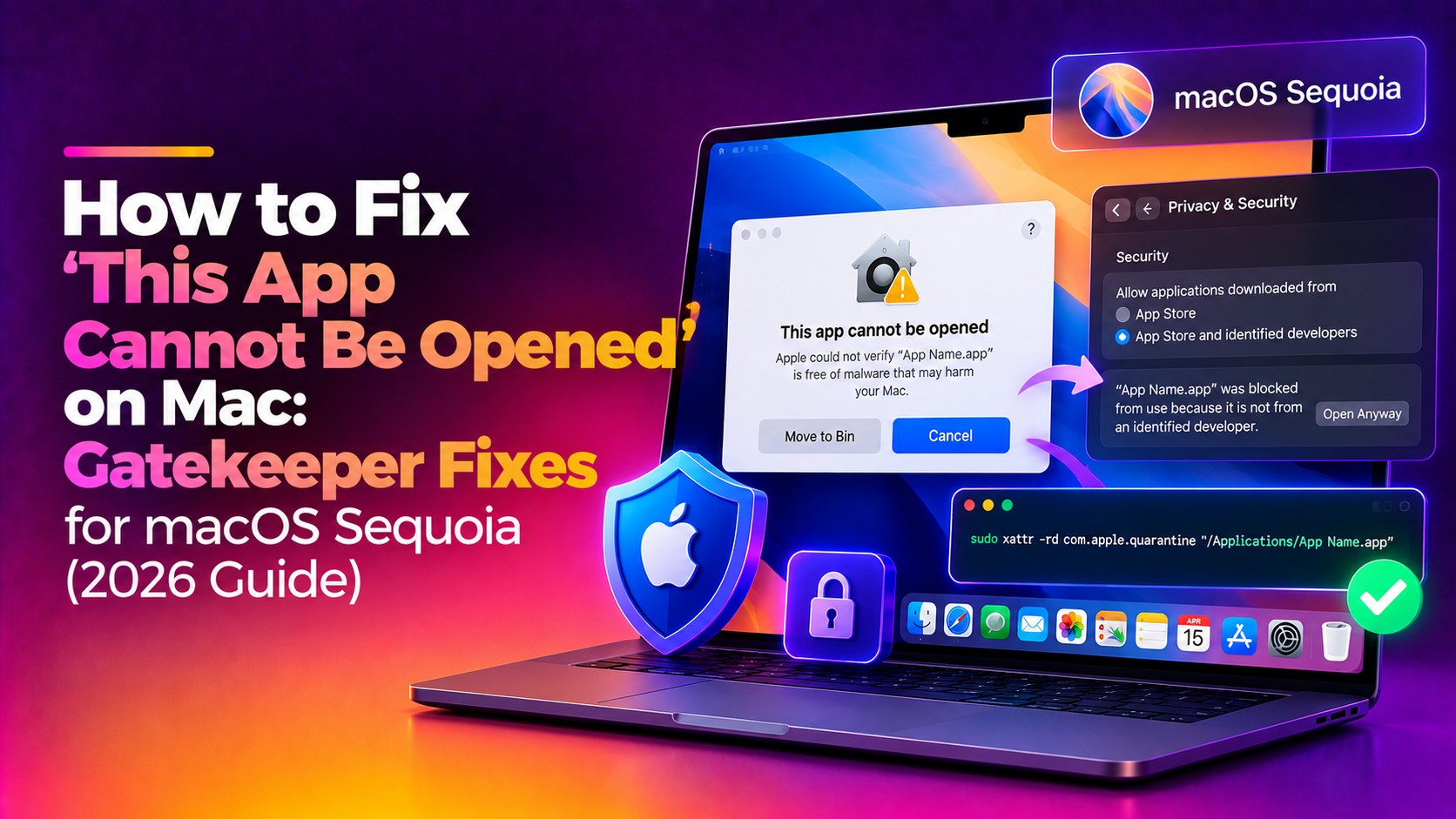
Why Does Your Mac Say "This App Cannot Be Opened"?
If you've tried to launch an app on your Mac and got a message like "This app cannot be opened", "macOS cannot verify that this app is free from malware", or "App is damaged and can't be opened" — you're not alone. This is one of the most common Mac software complaints in 2026, especially after upgrading to macOS Sequoia (15.x).
The culprit is almost always Gatekeeper — Apple's built-in security layer that checks whether an app has been signed and notarised by a verified Apple developer. If an app hasn't gone through Apple's vetting process, Gatekeeper blocks it. The problem? Plenty of legitimate, well-known apps still trigger this warning.
In macOS Sequoia, Apple tightened Gatekeeper further. The old right-click workaround no longer works by default, and the "Open Anyway" button disappears after about an hour — so timing matters. This guide walks you through every reliable fix for 2026.
Common Error Messages You Might See
Before diving into fixes, identify which message you're seeing — each points to a slightly different cause:
- "This app cannot be opened" — App lacks a valid developer signature.
- "macOS cannot verify that this app is free from malware" — App is not notarised with Apple.
- "App is damaged and can't be opened. You should move it to the Trash." — Often a quarantine flag issue, not actual damage.
- "[App Name] was blocked to protect your Mac" — Gatekeeper blocked the app outright; requires System Settings override.
- "You don't have permission to open the application" — File permission issue, separate from Gatekeeper.
Fix 1: Use "Open Anyway" in System Settings (Most Common Fix)
This is the primary fix for macOS Sequoia (15.x). The old Control+click trick was disabled in Sequoia — this is now the correct method.
- Try to open the app (double-click it). The error dialog will appear — close it.
- Open Apple menu → System Settings → Privacy & Security.
- Scroll down to the Security section.
- You should see a message: "[App Name] was blocked to protect your Mac."
- Click Open Anyway.
- Enter your administrator password when prompted.
- Click Open Anyway again in the confirmation dialog.
Important: The "Open Anyway" button only appears for approximately one hour after the failed launch attempt. If you don't see it, try launching the app again to re-trigger it, then return to System Settings immediately.
Fix 2: Remove the Quarantine Flag with Terminal (Fastest Method)
Every file downloaded from the internet gets a quarantine flag attached by macOS. Gatekeeper reads this flag and blocks untrusted apps. You can strip the flag with one Terminal command:
xattr -d com.apple.quarantine /Applications/AppName.appReplace AppName.app with the exact name of your app. To find it, drag the app into Terminal after typing xattr -d com.apple.quarantine (with a trailing space) — it will auto-fill the correct path.
If the above doesn't work (for apps with nested quarantine flags), use the recursive version:
xattr -rd com.apple.quarantine /Applications/AppName.appAfter running this command, try opening the app normally. No password required, and the change is permanent.
Fix 3: Check App Permissions in System Settings
Some apps are blocked not because of Gatekeeper's signing check, but because macOS Sequoia revoked a permission during the update (this is a known Sequoia regression for apps requiring Full Disk Access, Camera, Microphone, or Accessibility).
- Go to Apple menu → System Settings → Privacy & Security.
- Check categories relevant to the app: Full Disk Access, Files and Folders, Accessibility, Camera, Microphone.
- If the app is listed but toggled off, turn it on.
- If the app is not listed, click the + button, navigate to /Applications, and add the app manually.
This fix is especially common after a macOS Sequoia minor update (15.1, 15.2, 15.3, 15.4, 15.5) — Apple sometimes resets permissions during point releases.
Fix 4: Re-download the App from the Official Source
If you downloaded an app from a third-party mirror, a file-sharing site, or an old version archive, the installer may be genuinely damaged or unsigned. Re-download from the developer's official website or the Mac App Store:
- Drag the problematic app to the Trash and empty it.
- Clear your Downloads folder of the old installer.
- Visit the developer's official website or the Mac App Store.
- Download the latest version and install fresh.
Apps installed from the Mac App Store bypass Gatekeeper entirely — Apple has already verified them. If a free app has a Mac App Store version, that's the easiest route.
Fix 5: Fix the "App Is Damaged" Error with a Date Trick
Some older apps trigger the "App is damaged and can't be opened" message because their developer certificate expired. This doesn't mean the app is actually broken — you can sometimes bypass this by opening Terminal and running:
sudo date 0101120023This temporarily sets your Mac's clock back to January 1, 2023 (before many certificates expired). Open the app, then immediately restore the correct date:
sudo sntp -sS time.apple.comNote: Only use this method if you're certain the app is safe. It's most useful for legacy professional software (audio plugins, design tools) that hasn't been updated to meet Apple's current notarisation requirements.
Fix 6: Check for macOS and App Updates
Many app crashes and Gatekeeper errors in 2026 stem from incompatibility between an app built for an older macOS version and Sequoia's newer security model. Always check both:
Update macOS: Apple menu → System Settings → General → Software Update.
Update Apps:
- For App Store apps: Open the App Store → Updates tab.
- For third-party apps: Open the app's built-in updater, or check the developer's website.
If an app developer hasn't released a Sequoia-compatible update yet, check their support forums — many devs post beta builds or workarounds there.
Fix 7: Temporarily Allow Apps from Anywhere (Advanced)
If none of the above fixes work and you need to run a trusted unsigned app, you can temporarily unlock the "Anywhere" option in Gatekeeper via Terminal. Use this with caution — only for apps you fully trust.
sudo spctl --master-disableThis removes the Gatekeeper restriction. Open System Settings → Privacy & Security — you'll see a new "Anywhere" option under "Allow apps downloaded from." Select it, open your app, then immediately re-enable Gatekeeper:
sudo spctl --master-enableOn macOS Sequoia, Apple hides the "Anywhere" option in the GUI, so Terminal is the only way to access it. Always re-enable Gatekeeper after using this method.
When to Get Professional Help
If you've tried all seven fixes and the app still won't open — or if you're seeing the error across multiple apps after an update — there may be a deeper issue: a corrupted macOS System Integrity Protection (SIP) state, a broken app framework, or a permissions issue at the filesystem level.
Rather than spending hours in Terminal or risking your Mac's security configuration, CloudHouse Technologies Pay-Per-Ticket Support gives you direct access to a Mac software expert who can diagnose and fix the problem remotely — no subscription, no commitment, you only pay for what you need.
Frequently Asked Questions
Why did Gatekeeper start blocking an app that worked fine before?
After a macOS update, Gatekeeper re-scans apps and may block ones whose developer certificates have since expired or whose notarisation no longer meets Apple's updated requirements. This is especially common after upgrading to a new major version of macOS like Sequoia.
Is it safe to remove the quarantine flag with xattr?
Yes, if you're certain the app is from a legitimate source. The quarantine flag is just metadata macOS added when you downloaded the file. Removing it tells Gatekeeper to stop checking that flag — it doesn't change the app itself. Only do this for apps you downloaded from the developer's official website.
Why doesn't right-clicking and choosing "Open" work on macOS Sequoia?
Apple changed Gatekeeper behaviour in macOS Sequoia (15.x). In previous versions (Ventura, Monterey), right-clicking and choosing Open would let you bypass the warning. In Sequoia, this was removed — you must now use the "Open Anyway" button in System Settings → Privacy & Security.
My app shows "damaged and can't be opened" but I just downloaded it. What went wrong?
This usually means the download was interrupted (partial file), the file was modified after download, or the quarantine flag is triggering a false positive for an unsigned but legitimate app. Try re-downloading the file from the official source, and if it still fails, use the xattr -rd com.apple.quarantine command to remove the quarantine flag.
Will disabling Gatekeeper permanently harm my Mac?
Temporarily disabling Gatekeeper with sudo spctl --master-disable does lower your Mac's defences while it's off. It should only be done briefly to open a specific app, then immediately re-enabled. Never leave Gatekeeper permanently disabled, as it protects your Mac from running malicious software.