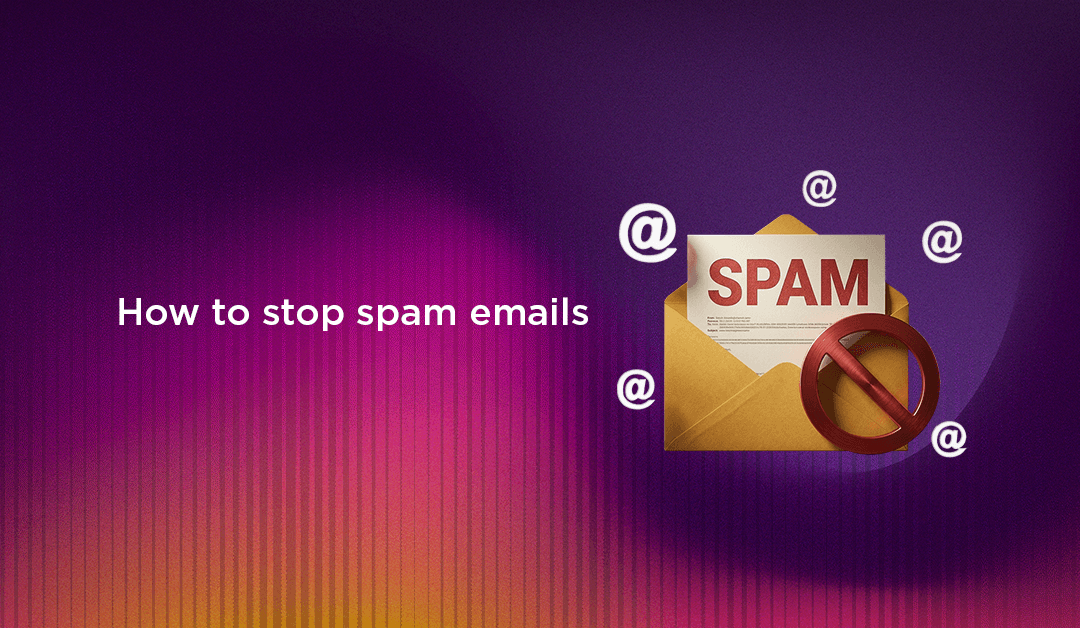
Spam emails are more than just a nuisance cluttering your inbox — they are a significant security threat. Phishing attacks delivered via spam are the leading cause of data breaches, credential theft, ransomware infections, and business email compromise globally. Learning how to stop spam emails effectively requires a layered approach: personal inbox hygiene habits for individuals, technical email authentication standards for domain owners, and server-level filtering controls for businesses running their own mail infrastructure. This guide covers all three layers in practical, actionable detail.
Whether you are an individual drowning in unwanted marketing emails, a business owner whose domain is being spoofed to send spam to others, or a system administrator looking to configure robust server-side spam filtering — this complete 2026 guide has you covered.
Why Spam Emails Are More Dangerous Than You Think
Before diving into solutions, it is worth understanding why spam is worth taking seriously beyond the inconvenience:
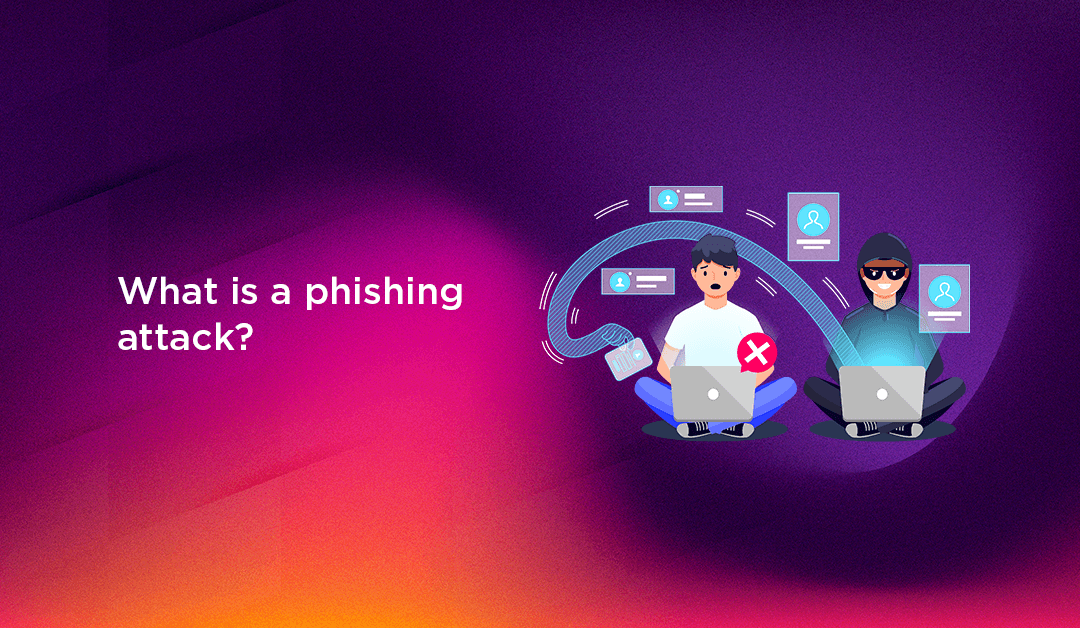
- Phishing attacks: The majority of phishing attempts — emails that impersonate banks, cloud services, HR departments, or executives to steal credentials or trigger fraudulent payments — arrive via spam. A single successful phishing click can compromise an entire organisation's network.
- Malware delivery: Spam emails are the primary delivery vector for malicious attachments (weaponised Office documents, PDFs with exploits, fake invoice files containing ransomware). Opening the wrong attachment can encrypt your entire file system within minutes.
- Business Email Compromise (BEC): Targeted spam emails impersonating senior executives ("CEO fraud") trick employees into authorising fraudulent wire transfers or sharing sensitive credentials. BEC caused over $2.9 billion in losses in the US alone in a single recent year.
- Domain reputation damage: If your business domain is being spoofed to send spam — which happens frequently when SPF, DKIM, and DMARC are not configured — your domain's sender reputation degrades and your legitimate emails start landing in recipients' spam folders.
- Account enumeration: Responding to or even opening certain spam emails can confirm to senders that your email address is active, resulting in dramatically more targeted spam and phishing attempts.
💡 None of these worked? Skip the guesswork.
Get Expert Help →How to Stop Spam Emails in Your Personal Inbox
For individual email users, the most effective spam reduction strategy combines using your email provider's built-in tools, practising good email hygiene, and protecting your address from further exposure. Here is a step-by-step approach:
Every major email provider — Gmail, Outlook, Apple Mail, Yahoo Mail — has a "Mark as Spam" or "Report Junk" button. Use it consistently on every unwanted email rather than simply deleting them. When you report an email as spam, your email provider's machine learning systems use that signal (along with reports from millions of other users) to improve spam detection accuracy across the platform. This is the single most important action you can take to train your inbox to catch similar spam in the future.
After reporting as spam, block the sender to prevent future messages from the same address from reaching your inbox. In Gmail: open the email, click the three-dot menu (⋮) in the top right, and select "Block [sender name]." In Outlook: right-click the email, select Junk, then "Block Sender." Blocked senders go directly to spam or are deleted, depending on your settings. Note that sophisticated spammers frequently change sending addresses, so blocking is most effective against legitimate companies sending unwanted marketing, not determined spam operations.
Email filters let you automatically sort, archive, label, or delete incoming messages based on sender, subject line keywords, or other criteria — without waiting for the spam filter to catch up. In Gmail: click Settings → See all settings → Filters and Blocked Addresses → Create a new filter. In Outlook: go to Settings → Rules → Add new rule. You can create rules like "if the sender is from domain X, send directly to trash" or "if subject contains 'unsubscribe' from unknown senders, mark as read and archive."
The unsubscribe link at the bottom of marketing emails is a legitimate and effective way to stop emails from reputable companies — retailers, newsletters, SaaS platforms — that you once opted in to but no longer want to hear from. However, never click the unsubscribe link in emails from unknown or suspicious senders. For bad actors, an unsubscribe click confirms your email address is active and monitored, which can actually increase the volume of targeted spam you receive. The rule: only unsubscribe from companies you recognise and that you know have your email legitimately.
One of the most effective long-term strategies for reducing spam is never using your primary email address when signing up for online services, entering contests, downloading free tools, or making one-off purchases. Create a separate "junk" email account specifically for this purpose, or use an email aliasing service. If that address gets spammed heavily, you can abandon it without losing access to important correspondence on your primary address. Many password managers now offer built-in email aliasing features that forward to your real address but hide it from the sending service.
While this does not stop spam from arriving, it prevents spammers from compromising your email account and using it to send spam to your contacts — one of the most socially damaging forms of spam. If your email account is hijacked and used to send spam, every contact in your address book may receive malicious emails that appear to come from you, damaging your personal and professional relationships.
Before writing your SPF record, map every service that sends email on behalf of your domain: your primary mail provider (Google Workspace, Microsoft 365), your transactional email provider (SendGrid, Mailgun, Amazon SES), your CRM (HubSpot, Salesforce), your marketing platform (Mailchimp, Klaviyo), and any in-house or third-party application servers. Missing any legitimate sender from your SPF record will cause their emails to fail authentication after you enforce DMARC.
In your domain registrar's DNS management (GoDaddy, Namecheap, Cloudflare DNS, Google Domains), add a TXT record at your root domain (@ or blank host) containing your complete SPF policy. Verify it is correct using a free SPF checker tool (MXToolbox SPF Lookup, dmarcian SPF Surveyor). Confirm you have only one SPF record.
In your email provider's admin panel, find the DKIM settings and enable DKIM signing. Your provider will give you a TXT record to add to your DNS — typically at a selector subdomain like mail._domainkey.yourdomain.com or google._domainkey.yourdomain.com. Add this record and wait for DNS propagation (up to 48 hours, usually much faster). Verify DKIM is active using MXToolbox DKIM Lookup or by sending a test email to mail-tester.com.
Add a TXT record at _dmarc.yourdomain.com starting with policy none and an rua address where aggregate reports will be delivered. Use a DMARC report analysis tool (dmarcian, PowerDMARC, Postmark's DMARC Digests) to parse and visualise the incoming reports — raw DMARC XML reports are not human-readable.
Over the first 2–4 weeks, your DMARC reports will show you every source sending email from your domain — both authorised and unauthorised. For each legitimate sender that is failing authentication, add them to your SPF record or configure DKIM. For unrecognised sources (spoofers), confirm they are not sending any legitimate email and note them for enforcement.
Once you are confident all legitimate senders are passing authentication, update your DMARC policy from p=none to p=quarantine. Monitor for two more weeks for any false positives. Then advance to p=reject for maximum protection — unauthenticated emails claiming to be from your domain will be rejected outright by receiving servers.
Server-Level Spam Filtering for Businesses Running Their Own Mail Server
If your business runs its own Linux mail server (Postfix, Sendmail, Dovecot), you have powerful additional spam filtering tools available at the server level — before spam ever reaches end-user inboxes:
SpamAssassin
SpamAssassin is the most widely used open-source spam filtering engine for Linux mail servers. It analyses incoming email against hundreds of scoring rules — header analysis, body content patterns, URL reputation checks, Bayesian filtering trained on known spam and ham — and assigns each email a spam score. Emails above a configurable threshold are marked as spam, quarantined, or rejected. SpamAssassin integrates with Postfix and can be augmented with custom rule sets and external reputation databases.
# Install SpamAssassin on Ubuntu/Debian
sudo apt install spamassassin spamc

# Enable and start the service
sudo systemctl enable spamassassin
sudo systemctl start spamassassin

# Configure Postfix to pipe email through SpamAssassin (in /etc/postfix/master.cf)
# Add to the smtp inet line:
# -o content_filter=spamassassin
DNS-Based Blackhole Lists (DNSBLs / RBLs)
DNSBLs (also called Real-time Blackhole Lists or RBLs) are constantly updated databases of IP addresses known to be spam sources, compromised mail servers, or open relays. Your mail server can check every inbound connection's IP against one or more RBLs and reject or score email from listed sources before even accepting the message body. Popular RBLs include Spamhaus ZEN, Barracuda Reputation Block List, and SpamCop. Configure RBL checks in Postfix via the smtpd_recipient_restrictions setting.
Greylisting
Greylisting temporarily rejects email from unknown senders with a "try again later" response (SMTP 451 code). Legitimate mail servers automatically retry after a delay and the email is then delivered. Most spam-sending botnets do not retry rejected messages — making greylisting surprisingly effective at eliminating a significant percentage of spam with minimal configuration. The main drawback is a delivery delay of a few minutes for first-time legitimate senders. Postgrey is the standard greylisting implementation for Postfix.
DNSBL + SPF + DKIM Verification at the Gateway
Configure your Postfix server to verify SPF and DKIM for inbound email as well — rejecting or flagging emails that fail authentication for their claimed sending domain. This protects your users from receiving phishing emails that spoof legitimate brands. The opendkim and postfix-policyd-spf-python packages handle inbound SPF and DKIM verification for Postfix.
Best Practices for Businesses Sending Bulk Email
If your business sends marketing emails, newsletters, or transactional email at volume, your email practices directly determine whether your messages reach inboxes or spam folders — and whether your domain maintains a healthy sending reputation:
- Use double opt-in: Only add subscribers who have explicitly confirmed their subscription via a confirmation email. This eliminates typos, reduces spam complaints, and ensures your list consists of people who genuinely want your email.
- Maintain list hygiene: Regularly remove hard bounced addresses, unsubscribed contacts, and chronically unengaged subscribers. Sending to stale, unengaged lists is one of the fastest ways to damage your sender reputation and increase spam complaint rates.
- Honour unsubscribes immediately: Process unsubscribe requests within 10 business days (required by CAN-SPAM) or ideally within 24 hours. Continuing to send to people who have unsubscribed generates spam complaints that harm your domain's reputation with ISPs.
- Monitor your spam complaint rate: Google Postmaster Tools shows your domain's spam complaint rate with Gmail users. Keep it below 0.1% — above 0.3% Google will begin throttling or rejecting your email. Yahoo and Microsoft have similar monitoring tools.
- Warm up new sending IPs and domains gradually: If you are starting to send bulk email from a new IP or new domain, increase volume slowly over several weeks. Jumping from zero to hundreds of thousands of emails is a strong spam signal to ISPs.
Professional Email Security and Server Configuration
Deploying SPF, DKIM, and DMARC correctly — particularly identifying all legitimate sending sources and escalating through enforcement policies safely — requires care to avoid accidentally breaking legitimate email delivery during the transition. If your team lacks the time or expertise to implement and monitor these controls, getting professional assistance is well worth it.
CloudHouse Technologies provides comprehensive Google Workspace setup services that include complete SPF, DKIM, DMARC, and MX record configuration for your domain — ensuring your business email is authenticated, your domain is protected from spoofing, and your outgoing messages reach inboxes reliably from day one. For businesses running their own Linux mail servers, our server hardening services include mail server security hardening, SpamAssassin configuration, and DNSBL integration to dramatically reduce the spam your users receive.
Conclusion
Stopping spam emails effectively requires action at multiple levels: training your inbox filters and practising good email hygiene as an individual; deploying SPF, DKIM, and DMARC to protect your domain as a business owner; and configuring server-level spam filtering tools if you run your own mail infrastructure. The investment in these controls pays for itself many times over — in reduced phishing risk, protected domain reputation, better email deliverability for your own outgoing messages, and the security confidence that comes from knowing your email is authenticated end-to-end. In 2026, with email authentication now required by major inbox providers, there is no longer any good reason to delay deploying these protections.