Understanding how email works is essential for anyone who manages business communications, runs a mail server, or wants to troubleshoot delivery problems. Every email you send travels through a chain of servers, protocols, and DNS lookups before landing in a recipient's inbox — and when any link in that chain breaks, your message bounces, gets marked as spam, or disappears entirely. This guide explains the complete email delivery process, the three core email protocols, MX records, port numbers, and how email authentication keeps your messages trustworthy.
What Is Email?
Email — short for electronic mail — is a method of exchanging digital messages between people using electronic devices connected to the internet (or a private network). Each email address consists of two parts separated by the @ symbol: a local part (the mailbox name, such as john) and a domain part (the mail server's domain, such as company.com). Together they form a globally unique identifier: john@company.com.
Unlike instant messaging, email is an asynchronous communication method — the sender and recipient do not need to be online simultaneously. This is possible because email relies on a series of servers that store and forward messages until they can be delivered.
Email is built on open, standardised protocols developed in the 1970s and 1980s — SMTP, IMAP, and POP3 — that remain the foundation of global email infrastructure today, regardless of which email client or service you use.
💡 None of these worked? Skip the guesswork.
Get Expert Help →How Email Works — Step by Step
Every time you click "Send," your email goes on a journey involving multiple servers, DNS lookups, and protocol handshakes. Here is exactly what happens:
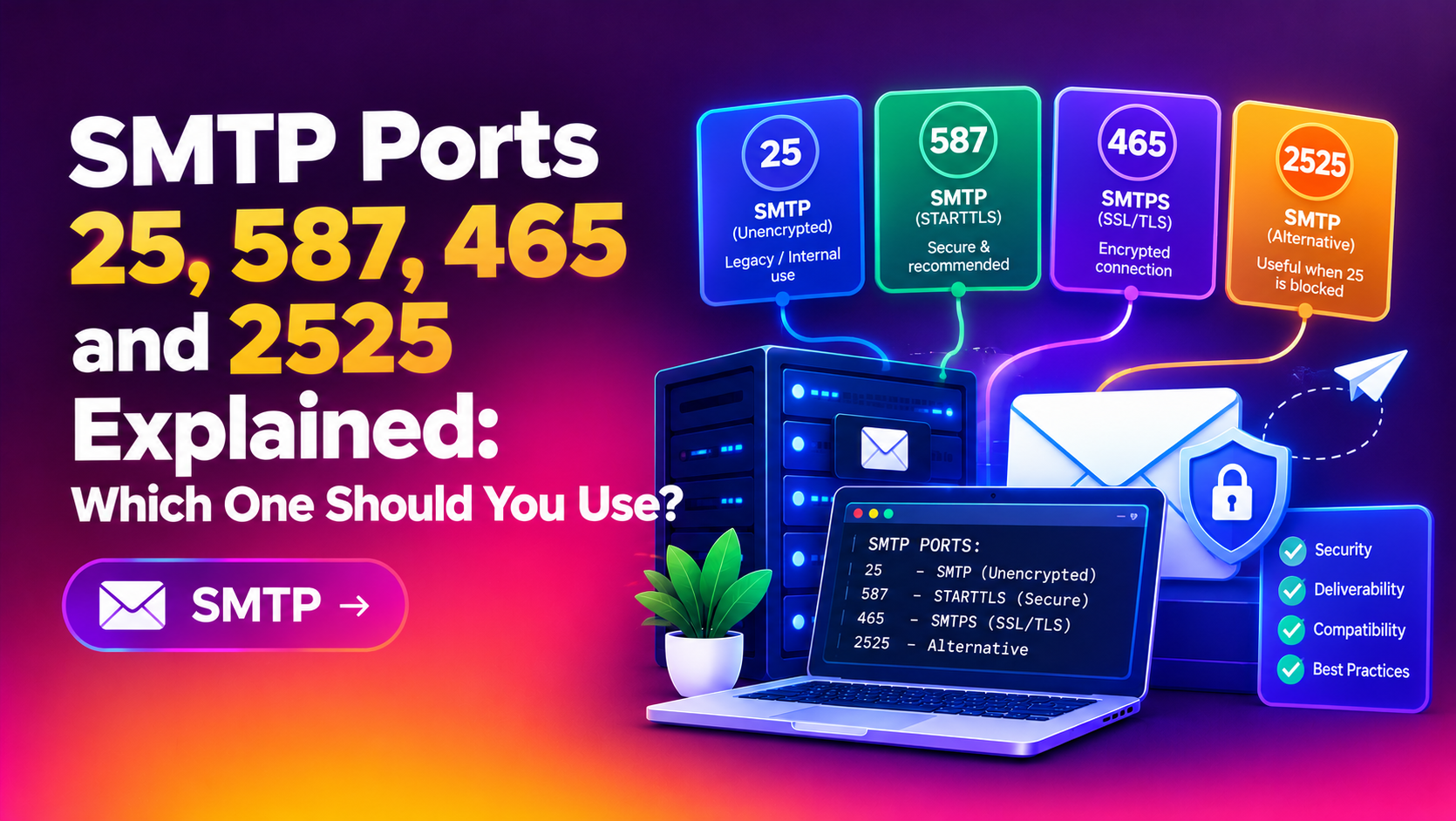
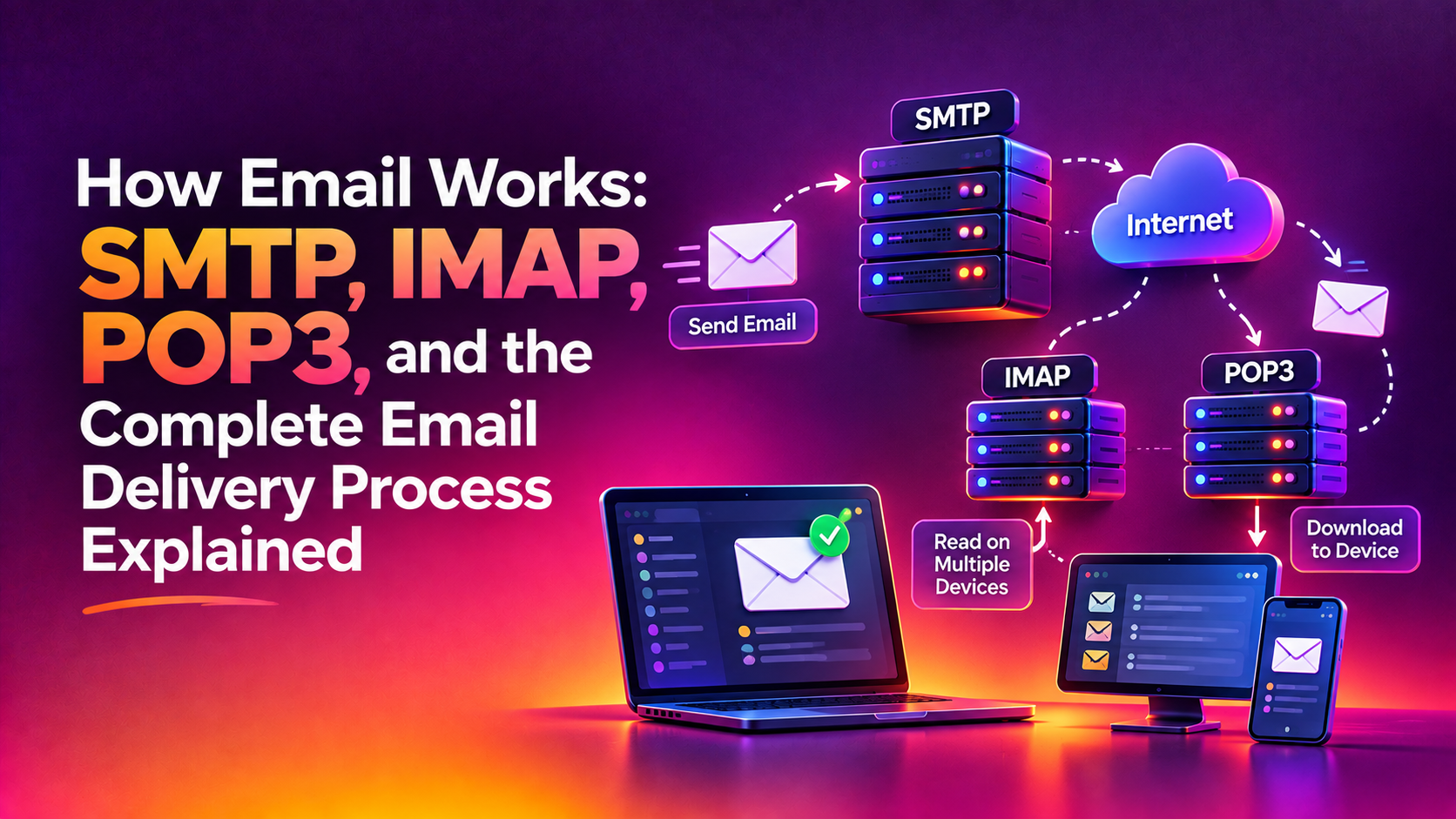
You write an email in your email client (Gmail, Outlook, Apple Mail, Thunderbird, or any other) and click Send. Your client connects to your outgoing mail server — called a Mail Transfer Agent (MTA) or SMTP server — using the SMTP protocol. The client authenticates with a username and password, then submits the message on port 587 (or 465 for implicit TLS).
Your sender's MTA does not know where to deliver the email directly. Instead, it queries the Domain Name System (DNS) for the recipient domain's MX (Mail Exchange) records. An MX record is a special DNS entry that identifies which mail server is authorised to accept incoming email for that domain. If the recipient is alice@example.com, the MTA looks up the MX records for example.com and receives a list of mail servers with associated priority numbers.
Your sender's MTA opens an SMTP connection — typically on port 25 — to the highest-priority mail server listed in the recipient domain's MX records. The two servers perform an SMTP handshake, exchanging commands like EHLO, MAIL FROM, RCPT TO, and DATA. If the primary MX server is unavailable, the sending MTA tries the next server in the priority list. This failover mechanism is why email is resilient even when individual mail servers go offline temporarily.
Before accepting the message, the recipient's mail server performs a series of checks. It verifies the sender's domain against SPF records (to confirm the sending server is authorised), checks the message's DKIM signature (a cryptographic signature that proves the email hasn't been tampered with in transit), and evaluates the sender's domain against DMARC policy. It also checks against real-time block lists (RBLs), analyses message content for spam characteristics, and may scan attachments for malware.
Once the recipient's MTA accepts the message, it is stored on the mail server in the recipient's mailbox — a dedicated storage area on the server that holds incoming messages. The message now waits for the recipient's email client to retrieve it. This storage can be on a dedicated on-premises mail server, a cloud-hosted service like Google Workspace or Microsoft 365, or a shared hosting environment.
When the recipient opens their email client, it connects to the mail server using either IMAP or POP3 to retrieve the waiting messages. IMAP leaves messages on the server and synchronises the inbox state across all devices; POP3 downloads messages to the local device and typically deletes them from the server. Modern webmail clients (like Gmail in a browser) bypass this step, communicating directly with the server over HTTPS instead.
Run dig MX yourdomain.com in a terminal to retrieve your domain's MX records and verify the correct mail servers are listed with the right priorities.
Run dig TXT yourdomain.com and look for a record starting with v=spf1. Confirm it includes all the mail servers you use to send email — including third-party services like Mailchimp, Zendesk, or transactional email providers.
Query dig TXT selector._domainkey.yourdomain.com (replacing selector with your actual DKIM selector — often google for Google Workspace or default for other services) to confirm the public key is published.
Run dig TXT _dmarc.yourdomain.com to verify your DMARC record exists and has the policy you intend. Aim for p=reject once you've confirmed SPF and DKIM are working correctly.
MXToolbox (mxtoolbox.com) provides an all-in-one interface for checking MX records, blacklists, SPF, DKIM, and DMARC from a browser — useful for a quick comprehensive check without command-line tools.
Email has been the backbone of business communication for decades, and despite the rise of chat platforms and collaboration tools, it remains irreplaceable for formal communication, transactional messages, and cross-organisation collaboration. Understanding the protocols and infrastructure that power it — SMTP for sending, IMAP or POP3 for receiving, MX records for routing, and SPF/DKIM/DMARC for authentication — gives you the foundation to configure it correctly, troubleshoot it effectively, and keep your messages reaching the inbox reliably.