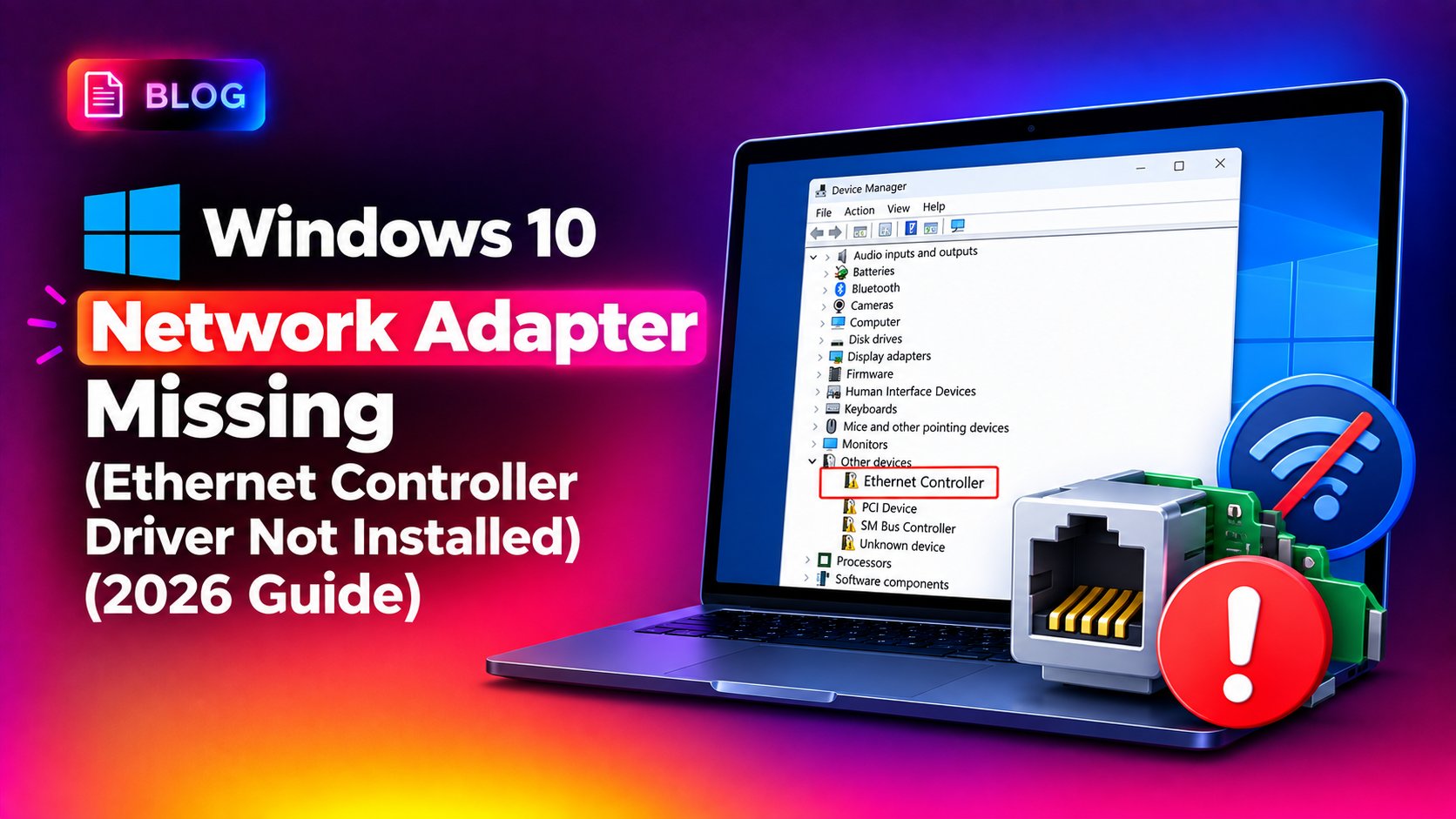
If you turn on your PC and Device Manager shows "Network adapters" completely missing, or your Ethernet Controller sits under "Other devices" with a yellow exclamation mark, you're not alone. This is one of the most common Windows 10 driver failures in 2026 — especially after a Windows Update, a BIOS reset, or a clean install — and it leaves you with no internet connection and no obvious way to download a fix (since you need internet to get the driver). This guide walks through every real fix, from the free Microsoft "Show Hidden Devices" trick to manually pulling driver packages with a second PC.
Why Your Network Adapter Disappears on Windows 10
Before fixing it, it helps to know why this happens. The most common causes in 2026 are:
- A Windows Update replaced or removed the Ethernet/Wi-Fi driver (common after cumulative updates that touch
ndis.sysor network stack components). - The device is hidden — Windows sometimes marks a "ghost" adapter as hidden instead of deleting it, so it won't show up in a normal Device Manager view.
- Corrupted driver store entries in
C:\Windows\System32\DriverStore\FileRepository. - BIOS/UEFI setting disabling the onboard LAN controller after a firmware update or CMOS reset.
- Fresh Windows 10 install where the generic Microsoft driver doesn't recognize newer Realtek, Intel I219/I225, or Killer E3100 controllers.
Step 1: Confirm the Adapter Is Actually Missing (Not Just Hidden)
Open Device Manager with Win + X → Device Manager, then expand Network adapters. If you see nothing there, or your Ethernet Controller appears under Other devices with a yellow triangle, do this:
- In Device Manager, click View → Show hidden devices.
- Re-expand Network adapters — look for a greyed-out entry.
- Right-click any greyed-out adapter and choose Enable device.
If nothing appears even with hidden devices shown, the driver itself is missing or uninstalled — proceed to Step 2.
Step 2: Check the Exact Error Code on the Device
Right-click the device under Other devices (it may be listed as "Ethernet Controller," "Network Controller," or "PCI Simple Communications Controller") and open Properties. The Device Status box will show one of these:
- Code 28 — "The drivers for this device are not installed." This is the most frequent code for a missing Ethernet/Wi-Fi driver.
- Code 31 — "This device is not working properly because Windows cannot load the drivers required for this device."
- Code 10 — "This device cannot start," often after a bad driver rollback.
Note the exact Hardware ID for later — right-click the device, go to Properties → Details tab → Property: Hardware Ids, and copy the top value (e.g. PCI\VEN_10EC&DEV_8168). You'll need this to find the correct driver on the manufacturer's site if Windows Update can't supply one.
Step 3: Run Windows Update and the Network Adapter Troubleshooter
If you have any working connection (Wi-Fi, mobile hotspot, or a spare USB Ethernet dongle), try Windows' built-in fixes first:
- Go to Settings → Update & Security → Troubleshoot → Additional troubleshooters → Network Adapter, and run it.
- Go to Settings → Update & Security → Windows Update → Check for updates — driver updates sometimes ship as optional updates under View optional updates → Driver updates.
- Open an elevated Command Prompt and reset the network stack:
netsh winsock reset
netsh int ip reset
ipconfig /flushdns
Restart the PC after running these commands.
Step 4: Reinstall the Driver from Device Manager
If the adapter shows up (even as "Unknown device" or "Ethernet Controller"), try a manual reinstall:
- Right-click the device → Uninstall device. Check the box "Delete the driver software for this device" if offered.
- Restart the computer — Windows will attempt to auto-detect and reinstall a driver on boot.
- If it doesn't, go back to Device Manager, right-click the device (or the PC name at the top) and choose Scan for hardware changes.
If Windows still can't find a driver, right-click the device → Update driver → Search automatically for drivers. On Windows 10 2026 builds this also checks Windows Update's driver catalog, not just the local disk.
Step 5: Manually Download and Install the Correct Driver
When Windows can't auto-resolve it, you need to identify the exact chipset and grab the driver from another device:
- On a second PC or phone, search the Hardware ID you copied earlier (e.g.
DEV_8168is a Realtek RTL8111/8168 Gigabit chipset) or check your motherboard/laptop model's support page. - Download the LAN/Ethernet driver package (not just the chipset driver) for Windows 10 64-bit.
- Copy the installer to a USB drive and run it on the affected PC.
- Reboot once installation completes.
For laptops, always get drivers from the manufacturer's support page (Dell, HP, Lenovo, ASUS) rather than a generic Realtek/Intel download — OEMs often ship modified INF files for power management compatibility.
Step 6: Check BIOS/UEFI for a Disabled LAN Controller
If the adapter never appears — not even as an unknown device — the onboard NIC may be disabled in firmware:
- Reboot and enter BIOS/UEFI (commonly Del, F2, or F10 at boot).
- Look under Advanced → Onboard Devices or Integrated Peripherals for "Onboard LAN Controller" or "Network Controller."
- Set it to Enabled, save, and exit (usually F10).
This is especially common after a CMOS battery replacement or a full BIOS reset to defaults.
Step 7: Rule Out a Corrupted Driver Store
If reinstalling repeatedly fails with the same Code 28/31 error, the driver store cache may be corrupted. From an elevated PowerShell prompt:
pnputil /enum-drivers
Get-NetAdapter | Format-List Name, InterfaceDescription, Status, DriverVersion
If Get-NetAdapter returns nothing at all, the NIC isn't enumerating at the driver level — this confirms you need a clean driver reinstall rather than a software/registry fix. You can remove a specific stored driver package with:
pnputil /delete-driver oemXX.inf /uninstall /force(Replace oemXX.inf with the actual package name for the network driver, found via pnputil /enum-drivers.)
Step 8: When Nothing Works — Consider a Fresh Driver Push or Professional Help
If you've gone through BIOS, Device Manager, and manual driver installs and the adapter still won't enumerate, you may be dealing with failing hardware (a dead onboard NIC chip) or a deeper Windows component store corruption that needs a DISM/SFC repair or an in-place upgrade repair install. At this point, rather than risking further changes to a production machine, it's worth getting a technician to remotely diagnose and fix it safely. CloudHouse's pay-per-ticket remote support service can get your network adapter working again in a single paid session, without a subscription commitment.
Common Chipsets Behind This Error
Knowing your chipset speeds up the fix considerably. The three most common Ethernet controllers affected by Code 28/31 on Windows 10 in 2026 are:
- Realtek RTL8111/8168/8125 — found in most desktop motherboards; Hardware ID typically starts with
PCI\VEN_10EC. - Intel I219-V/I225-V — common in business laptops and higher-end motherboards; Hardware ID starts with
PCI\VEN_8086. - Killer E3100/E2600 — found in gaming laptops, often bundled with Killer Control Center software that can itself break the driver after an update.
Cross-reference the numbers after DEV_ in your Hardware ID against the manufacturer's chipset list to confirm an exact match before downloading any driver package — installing the wrong sub-variant is a common reason reinstalls silently fail.
Using DISM and SFC to Rule Out System File Corruption
If Get-NetAdapter returns nothing and a clean driver reinstall still fails, the underlying Windows component store may be damaged. Run these from an elevated Command Prompt, in order:
DISM /Online /Cleanup-Image /CheckHealth
DISM /Online /Cleanup-Image /ScanHealth
DISM /Online /Cleanup-Image /RestoreHealth
sfc /scannow
The RestoreHealth step requires internet access to pull repair files from Windows Update, so run it over Wi-Fi or a mobile hotspot if your Ethernet is the one that's broken. After it completes and reports no violations, restart and retry the driver installation from Step 4 or 5.
How to Prevent This From Happening Again
- Before installing any big Windows Update or feature update, note your current NIC driver version (
Get-NetAdapter | Select DriverVersion) so you can roll back if needed. - Keep a portable USB Ethernet or Wi-Fi adapter as a backup so you always have internet access to download drivers if the onboard NIC fails.
- Create a System Restore point before major driver or BIOS changes: Control Panel → System → System Protection → Create.
- Download your exact laptop/motherboard model's LAN driver ahead of time and store it locally, since you can't download it once you lose your connection.
Frequently Asked Questions
Why does my network adapter disappear after a Windows 10 update?
Cumulative updates occasionally replace or remove third-party OEM network drivers with a generic Microsoft driver that doesn't match your exact chipset, causing Code 28 or a missing adapter until you reinstall the correct OEM driver.
How do I download a network driver if I have no internet connection?
Use a second device (phone or another PC) to download the driver package matching your Hardware ID, then transfer it via USB drive to the affected PC.
What does Code 28 mean in Device Manager?
Code 28 means "The drivers for this device are not installed." It shows up when Windows recognizes hardware exists but has no matching driver package installed for it.
Can a BIOS update disable my Ethernet port?
Yes. BIOS updates or CMOS resets can revert the "Onboard LAN Controller" setting to disabled by default, making the NIC invisible to Windows entirely until it's re-enabled in firmware.
Is it safe to delete and reinstall network drivers?
Yes, as long as you have the correct driver package ready beforehand (or another way online, like Wi-Fi or a mobile hotspot) — uninstalling and reinstalling is a standard, safe troubleshooting step for Code 28 and Code 31 errors.