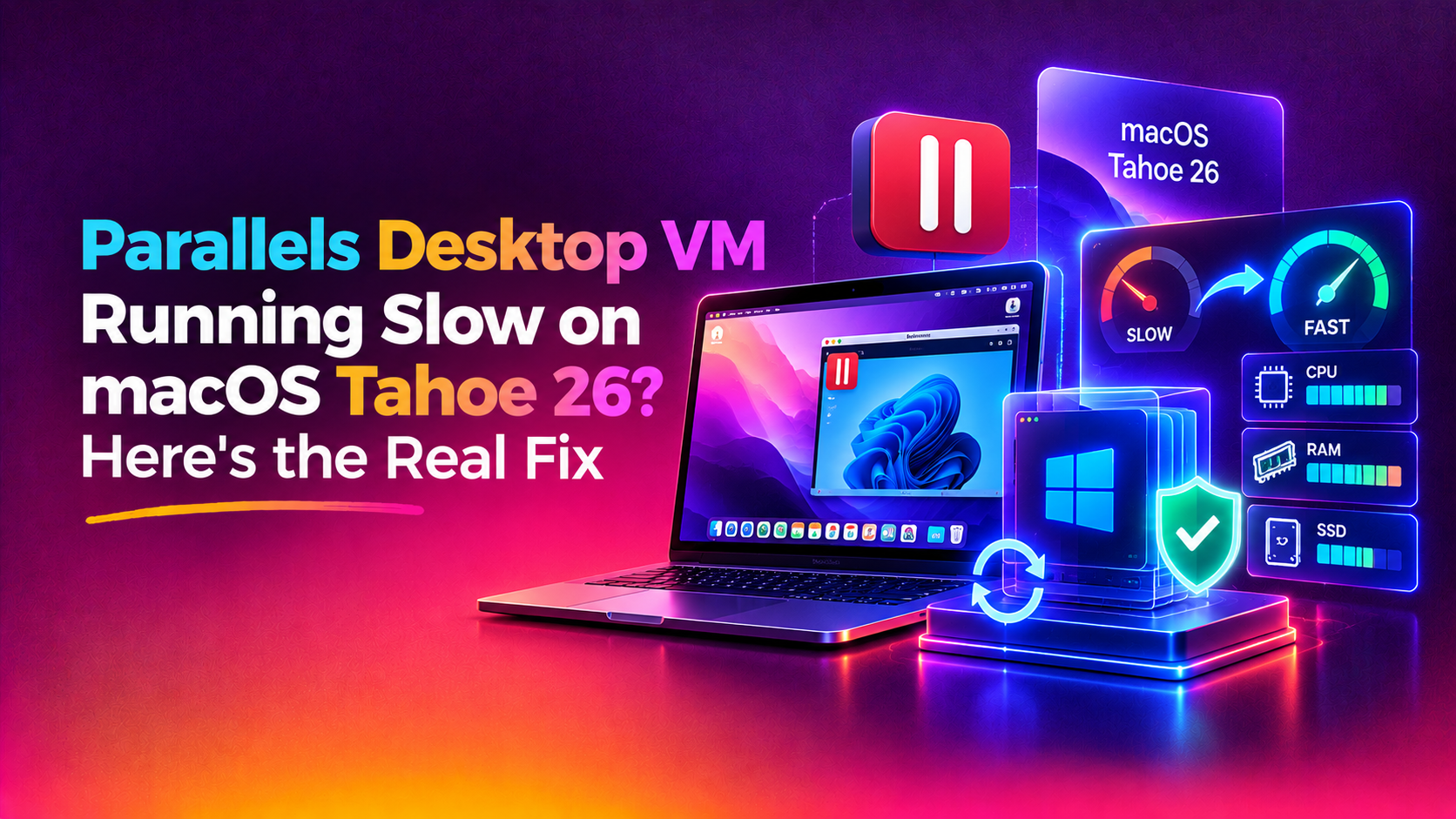
Why Parallels Desktop Feels Sluggish on macOS Tahoe 26
If your Windows or Linux virtual machine has turned into a slideshow since you updated your host Mac to macOS Tahoe 26, you are not alone. Since Tahoe's release, thousands of Parallels Desktop users have reported prl_vm_app and prl_disp_service pinning CPU cores, VM windows freezing during Coherence mode switches, and disk I/O crawling to a halt inside guest operating systems. This is a distinct problem from ordinary "Mac running slow" complaints — it is specific to virtualization layers interacting with Apple's new Tahoe kernel, Metal 4 graphics stack, and revised memory compression behavior.
This guide walks through diagnosing exactly which Parallels process is choking your Mac, the Tahoe-specific settings that fix it, and when the problem is actually a resource allocation mistake rather than a bug.
Step 1: Identify the Exact Culprit Process
Before changing any settings, confirm what is actually consuming resources. Open Activity Monitor (Cmd+Space, type "Activity Monitor") and sort by CPU:
- prl_vm_app — the actual virtual machine process. High and sustained usage here usually means the guest OS itself is under load, or CPU core allocation is misconfigured.
- prl_disp_service — the Parallels display/coordination service. Spikes here during window snapping or Space switching point to a Tahoe window compositor conflict.
- prl_naptd — network address translation daemon. High usage here indicates a networking loop, often triggered by Tahoe's new Local Network permission prompts silently blocking and retrying VM traffic.
- kernel_task — if this is also elevated alongside Parallels processes, your Mac is throttling for thermal reasons caused by virtualization load, not fixing a Parallels bug will only get you halfway.
Run this in Terminal for a live, sorted snapshot without needing to keep Activity Monitor open:
top -o cpu -stats pid,command,cpu,mem -n 15Step 2: Update Parallels Desktop to the Tahoe-Certified Build
Parallels shipped several Tahoe compatibility patches after 26.0 launched, addressing VM freezes on host update and Coherence mode stalls. Confirm your build:
/Applications/Parallels\ Desktop.app/Contents/MacOS/prl_client_app --versionIf you are on anything earlier than the current Tahoe-certified release, update via Parallels Desktop menu > Check for Updates, or download the latest installer directly. Running an outdated build against Tahoe 26.1+ is the single most common cause of this issue.
Step 3: Fix CPU and Memory Over-Allocation
Tahoe's memory compression and Stage Manager both compete with the guest OS for the same physical RAM. Parallels' default "Automatic" resource mode can over-commit on Apple Silicon Macs with 8GB or 16GB unified memory.
- Shut down the VM completely (not just suspend).
- Open Configure > Hardware > CPU & Memory.
- Set CPU cores to no more than half your Mac's total performance cores.
- Set memory to no more than 50% of total unified memory, leaving headroom for macOS Tahoe's own footprint (Tahoe's redesigned UI and background indexing use noticeably more RAM than Sequoia).
- Under Options > Optimization, set "Faster virtual machine" only if you are not running the VM in the background while multitasking — otherwise choose "Faster Mac."
Step 4: Disable Conflicting Tahoe Visual Effects
Tahoe's new "Liquid Glass" interface elements and live wallpaper motion effects are GPU-intensive and directly compete with Parallels' 3D graphics passthrough (prl_vm_app uses Metal for guest rendering). Reduce host-side GPU contention:
defaults write com.apple.universalaccess reduceMotion -bool true
defaults write com.apple.dock expose-animation-duration -float 0.1
Then in System Settings > Accessibility > Display, enable "Reduce motion" and "Reduce transparency." Log out and back in for changes to fully apply.
Step 5: Clear Corrupted VM Snapshots and Caches
Snapshot chains that survived a Sequoia-to-Tahoe upgrade can become fragmented, forcing Parallels to read from multiple delta files on every disk operation. Check snapshot count:
prlctl snapshot-list "Your VM Name"If you see more than 3-4 snapshots, consolidate them:
prlctl snapshot-delete "Your VM Name" -i {snapshot-id}Also clear Parallels' Tools cache, which frequently goes stale after a macOS major update:
rm -rf ~/Library/Caches/com.parallels.desktop.console
rm -rf ~/Library/Group\ Containers/*.com.parallels.desktop.appstore
Step 6: Rule Out Disk Contention from APFS Snapshots
Tahoe's Time Machine and system snapshotting can lock the same NVMe I/O queues Parallels needs for the virtual disk. Check for active local snapshots:
tmutil listlocalsnapshots /If Time Machine backups are frequently overlapping with VM usage, thin them manually:
tmutil thinlocalsnapshots / 10000000000 4Better yet, exclude your Parallels VM storage folder from Time Machine entirely — backing up a multi-gigabyte .pvm bundle on every hourly snapshot is a major, avoidable I/O drag.
Step 7: When It's a Hardware Ceiling, Not a Software Bug
Apple Silicon Macs with 8GB unified memory are simply undersized for running Tahoe plus a Windows VM plus Rosetta-translated guest tools simultaneously. If you have tried every step above and CPU/memory pressure stays in the red (check via memory_pressure in Terminal), the realistic fix is either upgrading RAM (on Apple Silicon this means a new Mac, since memory isn't upgradeable) or migrating the workload to a dedicated remote server or VPS where the virtual machine runs independently of your daily-driver Mac's resources.
For teams and businesses hitting this ceiling repeatedly, offloading VM-heavy workloads to managed infrastructure is often cheaper and faster than constant local troubleshooting. Our pay-per-ticket remote IT support team can audit your Parallels configuration, right-size your VM allocation, or help you migrate the workload to a dedicated host so your Mac stays responsive for everyday work.
Quick Diagnostic Checklist
- Confirm Parallels Desktop is on the latest Tahoe-certified build
- Reduce allocated CPU cores and RAM to 50% or less of host totals
- Disable Reduce Motion/Transparency conflicts with GPU passthrough
- Consolidate or delete stale VM snapshots
- Exclude the .pvm bundle from Time Machine and thin local snapshots
- Check
kernel_taskand thermal throttling separately from Parallels processes
Frequently Asked Questions
Why is prl_vm_app using so much CPU on macOS Tahoe?
Most often this is caused by an outdated Parallels build that hasn't been optimized for Tahoe's kernel and Metal 4 graphics changes, combined with over-allocated CPU cores in the VM configuration. Updating Parallels and reducing allocated cores resolves the majority of cases.
Does macOS Tahoe break Parallels Desktop compatibility?
Tahoe itself does not break Parallels, but earlier Parallels builds released before Tahoe's launch have known issues including VM freezes on host restart and Coherence mode stalls. Running the current Tahoe-certified Parallels release fixes these.
How much RAM should I allocate to a VM on an 8GB Apple Silicon Mac?
Generally avoid running memory-heavy VMs on 8GB Macs after upgrading to Tahoe, since the OS itself now uses more baseline memory. If you must, allocate no more than 3-4GB to the guest and close all other apps first.
Why does my VM lag specifically when switching Spaces or using Stage Manager?
Tahoe's window compositor and Parallels' Coherence/window-tracking service both hook into the same Spaces transition APIs, causing brief prl_disp_service spikes. Disabling Stage Manager while a VM is running reduces this conflict.
Should I use Time Machine with a Parallels VM installed?
You can, but exclude the VM's storage bundle from backups. Backing up a large, frequently-changing .pvm file on every snapshot competes with the VM for disk I/O and can be the actual source of perceived "VM slowness."