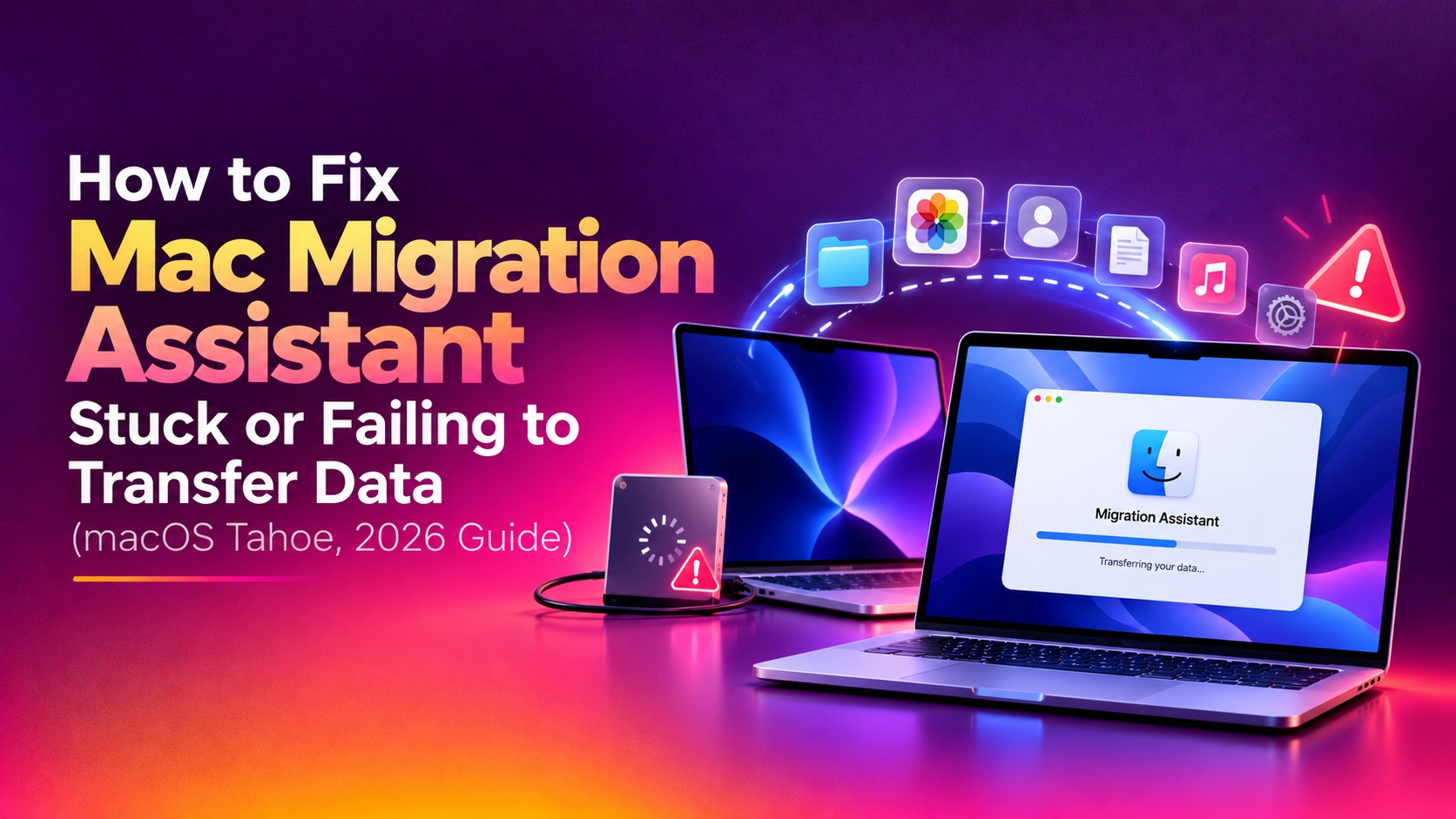
Setting up a new Mac should take an hour, not a whole weekend. But if Migration Assistant is stuck on "Estimating time remaining," frozen at a random percentage, or failing outright with a networking error, you are not alone. This is one of the most common complaints from users setting up a new Mac on macOS Tahoe in 2026, especially when migrating over Wi-Fi from an older Intel Mac or a Time Machine backup drive. In this guide we walk through exactly why Migration Assistant stalls and the fixes that actually get your data moving again — without losing anything in the process.
What Is Migration Assistant and Why It Gets Stuck
Migration Assistant is Apple's built-in tool (found in Applications > Utilities > Migration Assistant, or offered automatically during Setup Assistant on a new Mac) for transferring apps, files, user accounts, and settings from an old Mac, a Time Machine backup, or a Windows PC. It moves an enormous number of small files — Photos libraries, Mail databases, application support files, keychains — and any interruption in that pipeline (a dropped Wi-Fi packet, a sleeping disk, a firewall blocking the connection) can cause the whole process to appear frozen.
The most common trigger in 2026 is a peer-to-peer Wi-Fi migration between two Macs that are both also connected to a home network, which creates interference and packet loss that Migration Assistant does not always report clearly.
Common Migration Assistant Errors on macOS Tahoe
- "Estimating time remaining" spinning with no progress for 30+ minutes
- "About 1 minute remaining" that never actually finishes — this is often just Migration Assistant copying thousands of tiny cache and metadata files, and can genuinely take over an hour even though the countdown looks stuck
- "Unable to use this machine for migration. A startup networking error occurred" — a known Tahoe-specific bug reported on Apple's own community forums
- "This Mac Can't Be Used to Migrate Data" when the source Mac fails a compatibility check
- Migration Assistant quits unexpectedly partway through a transfer
- Time Machine backup drive not recognized or not showing up as a migration source
💡 None of these worked? Skip the guesswork.
Get Expert Help →Fix 1: Check and Stabilize Your Network Connection
Open System Settings > Wi-Fi on both Macs and confirm they show the identical network name (SSID). If your router broadcasts separate 2.4GHz and 5GHz networks with different names, make sure both Macs are joined to the same one.
Migration Assistant's peer-to-peer transfer is sensitive to signal strength. Sit both machines within a few feet of your router for the duration of the migration, and pause any other bandwidth-heavy activity (streaming, large downloads, backups) on the same network.
If you use a mesh Wi-Fi system, band-steering can silently move one Mac to a different radio mid-transfer, which looks exactly like a stall. Disable band-steering in your router's app, or connect both Macs to the same access point manually.
Press Command + Option + Esc, select Migration Assistant, and click Force Quit on both the source and destination Mac.
A full restart clears any half-open network sockets from the failed attempt, which is often the real reason a second attempt succeeds where the first one hung.
Open it from Applications > Utilities on both machines within a minute or two of each other so the pairing codes match correctly.
Fix 4: Free Up Disk Space Before Migrating
Migration Assistant needs headroom on the destination drive to stage files during the transfer. Check available space with:
df -h /If your new Mac is running low on free space (especially on a 256GB model), the migration can silently stall while it waits for space, then eventually fail. Free up at least 20% of your destination drive's capacity before starting, and consider deselecting large, non-essential items (like an old Photos library that lives elsewhere) in the Migration Assistant category picker.
Fix 5: Update macOS on Both Machines First
Mismatched macOS versions between source and destination are a frequent cause of migration failures on Tahoe. Before you begin:
1. Update the new Mac fully — go to System Settings > General > Software Update and install all pending updates, including any Migration Assistant-related patches Apple has shipped for macOS Tahoe.
2. Update the old Mac to the latest version its hardware supports — even if it can't run Tahoe, running the newest compatible macOS version reduces protocol mismatches during the handshake.
You can check your current version from the Terminal with:
sw_vers -productVersionFix 6: Migrate from a Time Machine Backup Instead
If a direct Mac-to-Mac migration keeps failing — particularly with the "startup networking error" some users are seeing on Tahoe — the most reliable workaround is to migrate from a Time Machine backup on an external drive instead of a live peer-to-peer connection.
1. Back up the old Mac to an external drive with Time Machine via System Settings > General > Time Machine.
2. Connect that same drive to the new Mac and open Migration Assistant.
3. Select "From a Mac, Time Machine backup, or startup disk" and choose the backup drive when it appears in the list.
If Migration Assistant doesn't detect the drive automatically, open Disk Utility, select the drive, and click First Aid to repair the volume before trying again — a partially corrupted backup catalog is a common reason the drive won't show up as a valid source.
Fix 7: Disable VPN, Firewall, and Third-Party Security Software
Third-party antivirus tools, VPN clients, and even macOS's built-in firewall can block the ports Migration Assistant uses for its peer-to-peer handshake. Before migrating:
- Quit any VPN client completely on both Macs
- Temporarily disable third-party antivirus or endpoint security software
- Go to System Settings > Network > Firewall and turn the firewall off for the duration of the migration, then re-enable it afterward
Fix 8: Use a Direct Cable Connection (Thunderbolt/USB-C)
For the fastest and most reliable transfer, skip the network entirely. If both Macs have Thunderbolt or USB-C ports, connect them directly with a single Thunderbolt/USB-C cable. Migration Assistant automatically detects the direct link and will offer it as a connection option — this is typically 5-10x faster than Wi-Fi and almost never stalls, since there's no router, DHCP, or wireless interference involved.
When to Get Professional Help
If you've tried a wired connection, disabled security software, freed up space, and updated both machines and Migration Assistant is still failing — or you're nervous about losing irreplaceable files during a DIY transfer — it's worth bringing in a professional rather than risking a corrupted migration. CloudHouse Technologies' Pay-Per-Ticket Mac support lets you get a technician to safely complete the transfer, verify data integrity, and troubleshoot the underlying networking error without any subscription commitment.
Frequently Asked Questions
Why does Migration Assistant say "About 1 minute remaining" but never finish?
This is a known quirk, not necessarily a real freeze. Near the end of a transfer, Migration Assistant copies thousands of tiny system and cache files that don't map cleanly onto the progress bar, so the "1 minute" estimate can stay on screen for well over an hour on large migrations. Leave it running for at least 60-90 minutes before assuming it's actually stuck.
How long should a Mac-to-Mac migration take?
Over Wi-Fi, expect roughly 1-2 hours per 100GB of data. Over a direct Thunderbolt or USB-C cable, the same transfer can complete in 15-30 minutes. If you're moving several hundred gigabytes of Photos or Mail data over Wi-Fi, budget several hours and use a wired connection whenever possible.
Can I cancel a stuck Migration Assistant transfer safely?
Yes. Force quitting Migration Assistant on both Macs and restarting them does not damage the source data — it remains untouched on the old Mac or backup drive. You can safely retry as many times as needed.
Why can't Migration Assistant find my Time Machine backup drive?
This usually means a loose cable connection, a drive formatted incorrectly for the destination Mac, or a corrupted Time Machine backup catalog. Reconnect the drive, try a different USB or Thunderbolt port, and run First Aid on it in Disk Utility before retrying the migration.
Does migrating apps cause more failures than migrating just files?
Yes — transferring installed Applications is one of the most common causes of Migration Assistant hanging, since some apps ship kernel extensions or license files that don't transfer cleanly between macOS versions. If you're only moving Users, Documents, Photos, and Mail data, deselect the Applications category in Migration Assistant and reinstall apps fresh on the new Mac instead.