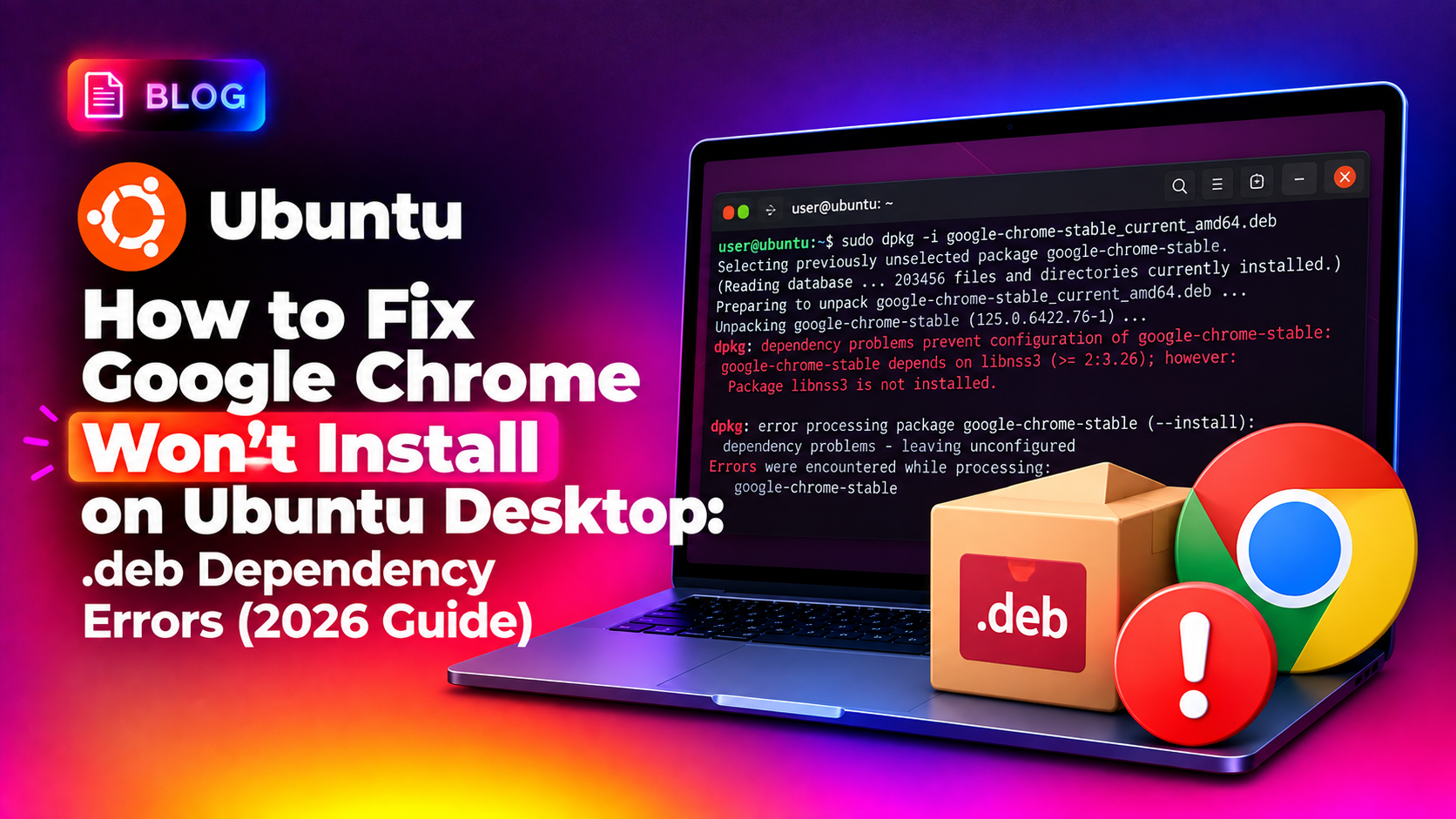
If Google Chrome won't install on Ubuntu, you've probably run into one of three walls: dpkg refusing to configure the package because of missing dependencies, apt update throwing a NO_PUBKEY GPG error after you added Google's repository, or apt telling you it can't even find google-chrome-stable after you thought you'd added the repo correctly. All three are common on Ubuntu 24.04 and 26.04 because Ubuntu tightened its package signing rules and deprecated the old global apt-key system. This guide walks through each error with the exact terminal commands to fix it, whether you downloaded the .deb file directly from google.com/chrome or you're trying to install via the official apt repository.
Why Google Chrome's .deb Package Fails to Install on Ubuntu
Chrome's official .deb installer is built as a generic Debian package that assumes certain libraries are already present on your system. On a fresh Ubuntu Desktop install, several of those libraries (like libxss1, libappindicator3-1, or libnss3) may be missing, especially on minimal installs or Ubuntu 26.04 where some packages were renamed or dropped from the default repos. Double-clicking the .deb in the Software Center often fails silently or shows a vague "not supported" message, which is why installing from the terminal with dpkg gives you the real error output you need to diagnose the problem.
There are three distinct failure points, and each needs a different fix:
- dpkg dependency errors — happens when you run
sudo dpkg -i google-chrome-stable_current_amd64.debdirectly - NO_PUBKEY / GPG signature errors — happens when apt tries to update after Google's repo was added, especially on Ubuntu 24.04+
- "Unable to locate package" — happens when the repository was added incorrectly or apt never refreshed its package index
Error 1: dpkg: dependency problems prevent configuration of google-chrome-stable
If you downloaded the .deb file from the Chrome website and ran:
sudo dpkg -i google-chrome-stable_current_amd64.debYou may see output like:
dpkg: dependency problems prevent configuration of google-chrome-stable:
 google-chrome-stable depends on libxss1; however:
  Package libxss1 is not installed.
 google-chrome-stable depends on libappindicator3-1 | libayatana-appindicator3-1; however:
  Package libappindicator3-1 is not installed.
  Package libayatana-appindicator3-1 is not installed.
dpkg: error processing package google-chrome-stable (--configure):
 dependency problems - leaving unconfigured
This is a normal and easily fixed dpkg dependency error. dpkg itself cannot resolve dependencies — it just installs the package files and reports what's missing. You need apt to pull in the missing libraries afterward.
💡 None of these worked? Skip the guesswork.
Get Expert Help →Fixing Broken Dependencies with apt --fix-broken install
This registers the package as "unpacked but not configured," which is exactly the state apt needs to complete.
sudo dpkg -i google-chrome-stable_current_amd64.debsudo apt-get -f installThe -f (or --fix-broken) flag tells apt to scan for packages left in a broken state and automatically download and install whatever they depend on. You'll see apt fetch packages like libxss1 or libayatana-appindicator3-1 from your existing Ubuntu repositories, then automatically finish configuring Chrome.
dpkg -l | grep google-chrome-stableYou want to see ii at the start of the line (both letters, not iF or iU), which means the package is fully installed and configured, not left in a half-broken state.
sudo rm -f /etc/apt/sources.list.d/google-chrome.list
sudo rm -f /usr/share/keyrings/google-chrome.gpgcurl -fsSL https://dl.google.com/linux/linux_signing_key.pub | sudo gpg --dearmor -o /usr/share/keyrings/google-chrome.gpgThe gpg --dearmor step converts the ASCII-armored key into the binary format modern apt expects, and saving it under /usr/share/keyrings/ keeps it isolated from other repositories' keys — this is the security model Ubuntu 24.04+ requires instead of the old shared apt-key add approach.
echo "deb [arch=amd64 signed-by=/usr/share/keyrings/google-chrome.gpg] http://dl.google.com/linux/chrome/deb/ stable main" | sudo tee /etc/apt/sources.list.d/google-chrome.listThe signed-by= flag tells apt exactly which key file to trust for this specific repository, resolving the NO_PUBKEY error permanently rather than just suppressing the warning.
sudo apt updateYou should see the Google Chrome repo listed with no GPG warnings. If you still see an error, double-check for typos in the file path or a leftover duplicate entry in /etc/apt/sources.list.
Error 3: "Unable to locate package google-chrome-stable" after adding the repo
Sometimes after adding the repository you'll run:
sudo apt install google-chrome-stableand get:
E: Unable to locate package google-chrome-stableThis almost always means one of three things: you forgot to run apt update after adding the repo, the repo file has a syntax error (wrong architecture, malformed URL, or a stray character), or the .list file didn't get picked up because it was saved with the wrong extension or permissions. Check the file contents directly:
cat /etc/apt/sources.list.d/google-chrome.listIt should read exactly:
deb [arch=amd64 signed-by=/usr/share/keyrings/google-chrome.gpg] http://dl.google.com/linux/chrome/deb/ stable mainIf it looks correct, force a full re-index:
sudo apt clean
sudo apt update
sudo apt install google-chrome-stable
Installing Chrome via the Official apt Repository Instead of the .deb File
If you're setting up a new machine, it's cleaner to skip the manual .deb download entirely and install straight from the repository once it's configured correctly, since this also gives you automatic updates through your normal Software Updater:
sudo apt update
sudo apt install google-chrome-stable
This pulls the current stable build along with all of its dependencies resolved automatically by apt, avoiding the dpkg dependency errors covered above entirely.
Verifying the Install and Launching Chrome Successfully
Once installation completes without errors, confirm the version and launch it from the terminal to catch any runtime errors that wouldn't show up in a GUI launcher:
google-chrome --version
google-chrome
If Chrome installs but crashes immediately on launch with a sandbox error, especially inside containers or minimal Ubuntu installs, you may need:
sudo apt install --reinstall google-chrome-stable
google-chrome --no-sandbox
The --no-sandbox flag is a diagnostic step only — don't use it as your permanent launch method outside of a locked-down test environment, since it disables Chrome's process sandboxing.
When to Use Chromium or Flatpak as a Fallback
If you've tried all of the above and Chrome still refuses to install cleanly — which can happen on heavily customized Ubuntu derivatives or systems with conflicting third-party repos — two solid fallbacks exist:
- Chromium from Ubuntu's own repos or as a snap:
sudo snap install chromium— open-source base that Chrome is built on, no dependency drama - Chrome via Flatpak:
flatpak install flathub com.google.Chrome— sandboxed, sidesteps apt/dpkg entirely if your package manager is in a broken state
Both are useful stop-gaps while you diagnose a deeper apt or dpkg problem on the system. If dependency errors, broken repositories, or dpkg lock issues keep recurring across multiple apps — not just Chrome — that's usually a sign of a misconfigured system that's worth having a professional look at. CloudHouse Technologies' pay-per-ticket support can remotely diagnose and fix persistent Ubuntu package management issues without a monthly contract.
Getting Chrome running on Ubuntu 24.04 or 26.04 usually comes down to one of the three errors covered here — a missing dependency dpkg can't resolve on its own, an outdated repository signing method Ubuntu no longer trusts, or a repo file apt never actually indexed. Work through the fixes in order and you'll have Chrome installed and updating normally within a few minutes.