Since upgrading to macOS 26 Tahoe, thousands of creative professionals have reported Adobe Creative Cloud apps — Photoshop, Premiere Pro, Illustrator, and After Effects — crashing on launch, freezing mid-project, or throwing the dreaded "Adobe Creative Cloud has stopped working" dialog. If you rely on these apps for client work, every crash means lost time and unsaved edits. This guide walks through exactly why this happens on Tahoe and how to fix it permanently.
Why Adobe Creative Cloud Apps Crash on macOS 26 Tahoe
macOS 26 Tahoe introduced significant changes to the window server, sandboxing rules, and the Metal graphics framework that Adobe apps depend on for GPU-accelerated rendering. Until Adobe ships fully Tahoe-certified builds, several known conflicts persist:
- Legacy Creative Cloud Helper processes conflicting with Tahoe's stricter background app throttling
- GPU driver mismatches causing Metal API crashes in Premiere Pro and After Effects
- Corrupted or outdated Creative Cloud caches carried over from a Sequoia/Sonoma upgrade
- Third-party plug-ins (fonts, panel extensions) not yet recompiled for Tahoe's updated Gatekeeper rules
- Apple Intelligence background indexing competing for memory with large PSD/PRPROJ files
Step 1: Confirm You Are Actually on macOS 26 Tahoe
Open the Apple menu > About This Mac and confirm your build. Then go to System Settings > General > Software Update and install any pending 26.x point release — Apple has shipped several Tahoe patches (26.1, 26.2, 26.3) specifically addressing app compatibility regressions.
Step 2: Force Quit and Clear the Crash Loop
If Photoshop or Premiere Pro is frozen right now:
- Press
Option + Command + Escto open Force Quit Applications - Select the frozen Adobe app and click Force Quit
- Also force quit any lingering
Adobe Desktop ServiceorCore Syncprocesses
Then open Activity Monitor, search "Adobe", and quit any zombie background helpers before relaunching.
Step 3: Update Creative Cloud Desktop and All Apps
Adobe pushes Tahoe compatibility patches through the Creative Cloud desktop app, not the Mac App Store. Open Creative Cloud, go to the Apps tab, and click Update All. If Creative Cloud itself won't open:
sudo killall "Adobe Desktop Service"
open -a "Creative Cloud"
If it still fails to launch, fully uninstall and reinstall the Creative Cloud desktop app using Adobe's official Creative Cloud Cleaner Tool, then download a fresh installer.
Step 4: Clear Corrupted Adobe Caches
Stale cache files from a previous macOS version are one of the most common Tahoe-specific crash triggers. In Finder, choose Go > Go to Folder and clear these:
~/Library/Caches/Adobe
~/Library/Application Support/Adobe/Common/Media Cache Files
~/Library/Preferences/com.adobe.*.plist
Move each to the Trash (don't delete your actual project files), then relaunch the app so Adobe regenerates fresh preference files under Tahoe's new sandbox model.
Step 5: Reset Metal-Related GPU Settings
Premiere Pro and After Effects crashes on Tahoe are frequently tied to GPU acceleration. Open the app, go to Preferences > Memory & Performance (or General > Video Rendering in Premiere) and temporarily switch the renderer from Metal to Software Only. If the crash stops, your GPU driver stack needs Apple's latest Tahoe graphics update — check System Settings > General > Software Update again after a few days, as Apple ships incremental GPU firmware fixes.
Step 6: Check Gatekeeper and Full Disk Access Permissions
Tahoe tightened Gatekeeper enforcement for apps that read/write outside the sandbox (common with Adobe plug-ins and scratch disks). Go to System Settings > Privacy & Security > Full Disk Access and ensure Photoshop, Premiere Pro, and Creative Cloud are all toggled on. Also check Privacy & Security > App Management and re-approve any blocked Adobe components.
Step 7: Disable Conflicting Third-Party Plug-ins and Fonts
Third-party panels, filters, and font managers not yet updated for Tahoe are a leading cause of crash-on-launch errors. Hold Shift while launching Photoshop to skip loading optional plug-ins, or temporarily move third-party plug-in folders out of:
/Library/Application Support/Adobe/Plug-Ins/CCIf the app launches cleanly without them, reintroduce plug-ins one at a time to isolate the culprit and check the developer's site for a Tahoe-compatible update.
Step 8: Rule Out System-Level Memory Pressure
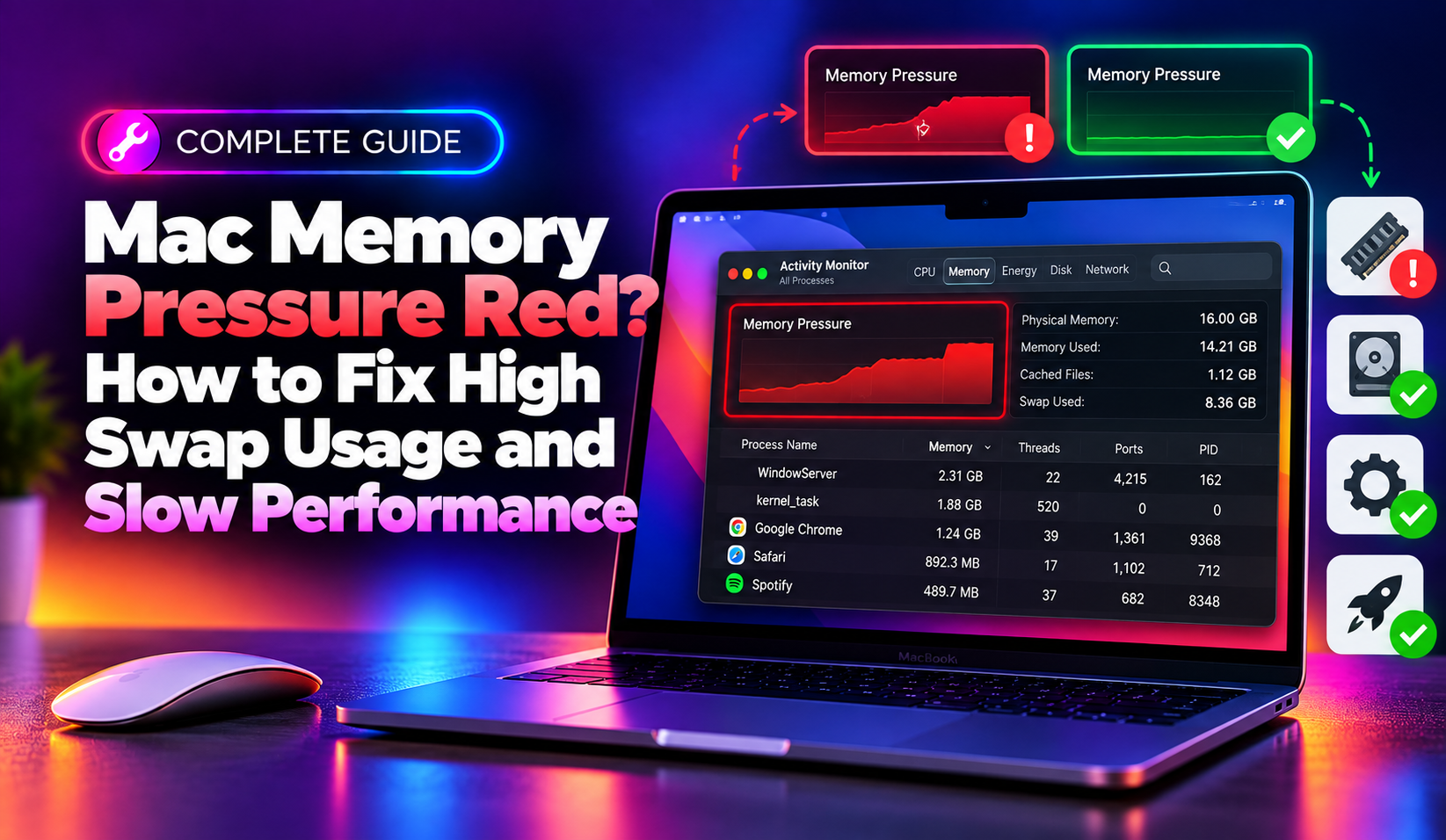
Large Adobe projects combined with Tahoe's Apple Intelligence background processes can push memory pressure into the red zone, triggering crashes that look like an Adobe bug but are actually macOS killing the process. Open Activity Monitor > Memory tab and watch the Memory Pressure graph while working. If it spikes to red, disable Apple Intelligence temporarily under System Settings > Apple Intelligence & Siri and add more swap headroom by freeing disk space.
When to Call in Professional Support
If you've updated everything, cleared caches, reset GPU settings, and Adobe apps are still crashing on macOS 26 Tahoe, the issue may be deeper — corrupted system frameworks, a botched Tahoe upgrade, or hardware-specific GPU faults that need one-on-one diagnostics. For businesses and creative teams who can't afford downtime, CloudHouse Technologies offers pay-per-ticket remote Mac support to diagnose and resolve Adobe/macOS compatibility issues fast, without a recurring support contract.
Conclusion
Adobe Creative Cloud crashes on macOS 26 Tahoe almost always trace back to outdated app builds, corrupted caches, GPU renderer conflicts, or Gatekeeper permission changes introduced by Tahoe. Work through the steps above in order — update everything first, then clear caches, then isolate plug-ins and GPU settings — and the vast majority of crash loops resolve without a full macOS reinstall.