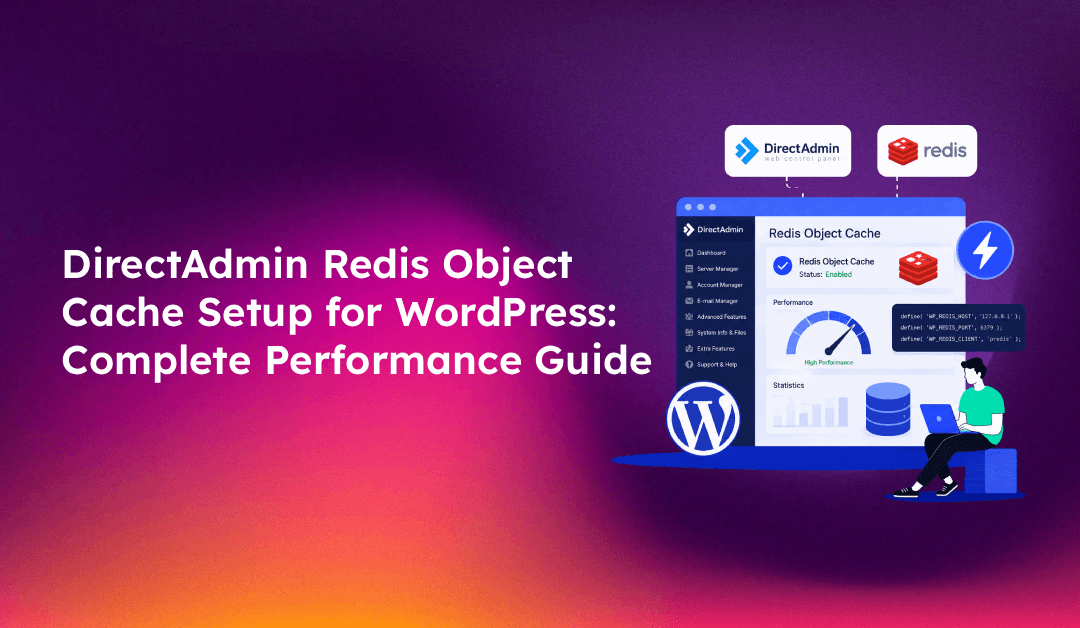
WordPress performance on shared hosting servers often degrades as site traffic grows because every page request triggers multiple database queries — even for content that hasn't changed since the last visitor loaded the same page. Redis object caching solves this by storing the results of database queries in memory, so WordPress retrieves cached data in microseconds instead of hitting MySQL every time.
DirectAdmin includes built-in Redis support through its CustomBuild system, making it straightforward to enable server-wide and then configure per-domain for WordPress sites. This guide walks through the complete DirectAdmin Redis setup: enabling the Redis service, configuring it securely, connecting WordPress via the Redis Object Cache plugin, and monitoring cache performance.
Why WordPress Sites on DirectAdmin Need Redis Object Caching
A default WordPress installation on a DirectAdmin server makes dozens of MySQL queries per page request: retrieving post content, taxonomies, options, widget data, user metadata, and plugin settings. For a site with a few thousand monthly visitors, this is manageable. But as traffic grows, database query volume becomes the primary bottleneck — and it shows as high Time to First Byte (TTFB) and slow admin dashboard responses.
Redis object caching intercepts these database queries and stores their results in RAM under a key that WordPress can look up on the next request. The cache hit rates for typical WordPress sites run at 80–95% after warming up — meaning the vast majority of database queries are served from memory, with MySQL only consulted for the first uncached request and when content is updated.
The performance gains are measurable. WordPress sites running Redis object cache typically see TTFB drop from 300–800ms to 30–80ms for cached requests. Admin dashboard interactions, which involve many small database reads, become noticeably more responsive. For WooCommerce stores, where session data and cart queries add significant database load, Redis is particularly impactful.
Checking if Redis Is Available on Your DirectAdmin Server
Before enabling Redis, confirm whether it is already installed or installable on your DirectAdmin server:
Check if Redis is running:
systemctl status redis
# or
redis-cli ping
If Redis responds with PONG, it is already running and you can skip to the WordPress configuration section.
Check if Redis is available through CustomBuild:
cd /usr/local/directadmin/custombuild
./build show_options | grep -i redis
If Redis appears in the output, it can be installed through CustomBuild. If not, your DirectAdmin version may be older — check the DirectAdmin documentation for your version's Redis availability.
You also need to verify that the PHP Redis extension (phpredis) is available, as WordPress needs it to communicate with the Redis server:
php -m | grep redisIf redis appears in the output, the PHP extension is installed. If not, it needs to be enabled before WordPress can use Redis.
💡 None of these worked? Skip the guesswork.
Get Expert Help →Enabling Redis in DirectAdmin Using CustomBuild
If Redis is not yet installed on your DirectAdmin server, install it through CustomBuild:
cd /usr/local/directadmin/custombuild
./build update
./build set redis yes
./build redis./build set php_extensions redis
./build php_extensionsIf your server runs multiple PHP versions (for example, PHP 7.4, 8.1, and 8.2), the extension needs to be enabled for each version in use. Check which PHP versions are installed:
./build show_options | grep phpThen enable the Redis extension for each version:
./build set php1_extensions redis
./build php1_extensions
./build set php2_extensions redis
./build php2_extensionssystemctl start redis
systemctl enable redisredis-cli ping
# Expected response: PONG
redis-cli info server | grep -E "redis_version|tcp_port|config_file"In WordPress admin, go to Plugins → Add New, search for "Redis Object Cache", install and activate the plugin by Till Krüss.
Add the following to wp-config.php before the line that reads /* That's all, stop editing! */:
For Unix socket connections (faster, recommended):
define( 'WP_REDIS_SCHEME', 'unix' );
define( 'WP_REDIS_PATH', '/var/run/redis/redis.sock' );
define( 'WP_REDIS_PASSWORD', 'YourStrongPasswordHere' );
define( 'WP_REDIS_DATABASE', 0 );
define( 'WP_REDIS_PREFIX', 'yourdomain_' );
For TCP connections:
define( 'WP_REDIS_HOST', '127.0.0.1' );
define( 'WP_REDIS_PORT', 6379 );
define( 'WP_REDIS_PASSWORD', 'YourStrongPasswordHere' );
define( 'WP_REDIS_DATABASE', 0 );
define( 'WP_REDIS_PREFIX', 'yourdomain_' );
The WP_REDIS_PREFIX setting is important on shared hosting servers where multiple WordPress sites share one Redis instance. The prefix namespaces each site's cache keys to prevent collisions. Use a unique prefix per site (typically the domain name without special characters).
In WordPress admin, go to Settings → Redis (the plugin's settings page) and click Enable Object Cache. The plugin copies its object-cache.php drop-in to wp-content/object-cache.php, which WordPress loads automatically.
The Redis settings page will show the connection status (Connected in green) and the current cache hit rate once pages start being served.
Redis supports 16 databases (0–15) by default. As an alternative or complement to prefixes, assign each WordPress site a different database number:
define( 'WP_REDIS_DATABASE', 1 ); // Site 1
define( 'WP_REDIS_DATABASE', 2 ); // Site 2
Monitoring Redis Cache Performance
After enabling Redis, monitor hit rates to confirm the cache is working effectively.
Check Redis stats from the command line:
redis-cli info stats | grep -E "keyspace_hits|keyspace_misses|instantaneous_ops_per_sec"Calculate hit rate: hit_rate = keyspace_hits / (keyspace_hits + keyspace_misses). A healthy WordPress Redis cache should show a hit rate above 80% after 30–60 minutes of traffic.
Check memory usage:
redis-cli info memory | grep -E "used_memory_human|maxmemory_human"Set a maxmemory limit in redis.conf to prevent Redis from consuming all available RAM on a shared server:
maxmemory 256mb
maxmemory-policy allkeys-lru
The allkeys-lru eviction policy removes the least-recently-used keys when the memory limit is reached, which is appropriate for a WordPress object cache where all keys can be regenerated on demand.
Monitor from WordPress:
The Redis Object Cache plugin dashboard widget (visible on the WordPress admin dashboard) shows real-time hit rate, memory usage, key count, and connection status without needing SSH access.
Troubleshooting Common Redis Issues in DirectAdmin
Connection refused / plugin shows "Not Connected"
Verify Redis is running (systemctl status redis), check that wp-config.php has the correct host/socket path and password, and confirm the PHP Redis extension is loaded (php -m | grep redis).
High memory usage causing Redis to evict keys aggressively
Increase the maxmemory setting in redis.conf or reduce the number of sites sharing one Redis instance. Check which keys are consuming the most memory:
redis-cli --bigkeysCache not clearing after WordPress content updates
The Redis Object Cache plugin automatically flushes the relevant cache keys when WordPress saves posts, updates options, or runs actions that trigger wp_cache_flush(). If stale content persists, check that the object-cache.php drop-in is present in wp-content/. Manually flush the cache from Settings → Redis → Flush Cache.
WooCommerce cart or session issues after enabling Redis
WooCommerce session data should not be stored in Redis object cache — it should remain in the database. The Redis Object Cache plugin handles this correctly by default, but if you see cart issues, add:
define( 'WP_REDIS_IGNORED_GROUPS', [ 'woocommerce_transients', 'session' ] );Properly configured Redis object caching is one of the highest-impact performance improvements available for WordPress on DirectAdmin. If you are managing multiple WordPress sites across DirectAdmin servers and want consistent Redis configuration, monitoring, and maintenance across your entire fleet, CloudHouse Technologies' managed server service handles Redis deployment and tuning as part of our standard DirectAdmin management.