
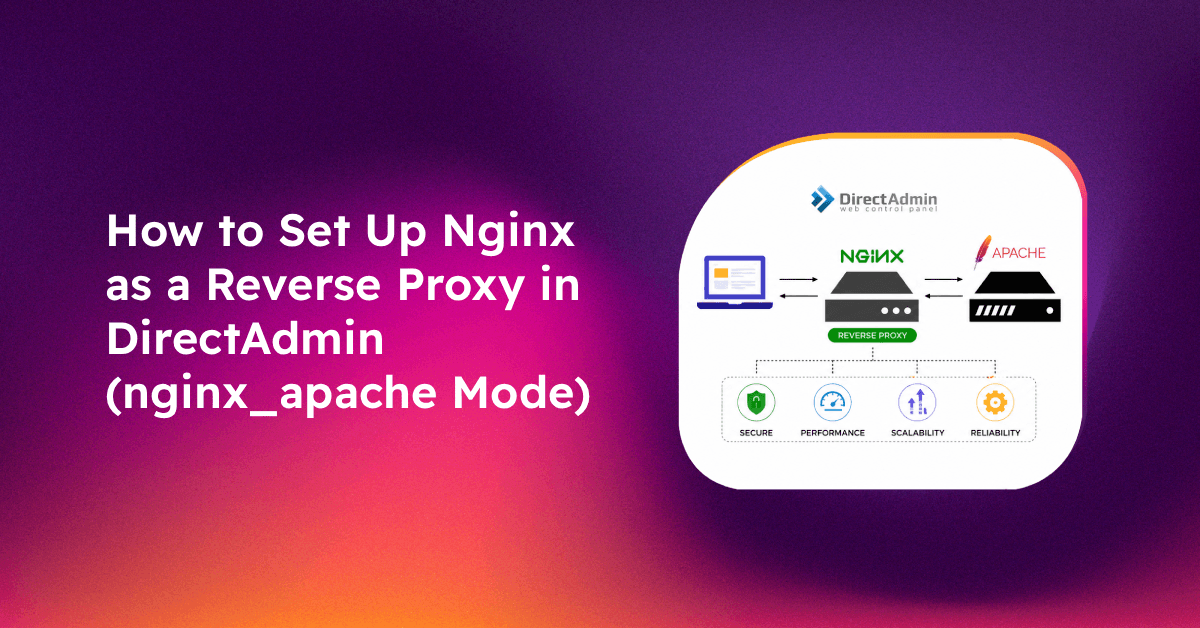
Running Apache alone on a DirectAdmin server works — until traffic grows and you're watching your server struggle to serve static files that Apache processes one at a time through PHP. The nginx_apache reverse proxy configuration changes this: Nginx handles static files (images, CSS, JavaScript) at near-zero CPU cost while Apache continues handling PHP through PHP-FPM. The result is typically a 2–4× reduction in server load for WordPress and content-heavy sites.
This guide covers how to enable nginx_apache mode in DirectAdmin using CustomBuild 2, how the request flow works, how to verify the setup, and how to handle custom configurations for specific domains.
How DirectAdmin nginx_apache Mode Works
In nginx_apache mode, two web servers run simultaneously:
- Nginx listens on ports 80 and 443 — it is the public-facing server that receives all incoming connections
- Apache listens on port 8080 (or another internal port) — it is now a backend processor, not publicly accessible
The request flow works like this:
- Browser requests
example.com/logo.png→ Nginx sees it's a static file → serves it directly from disk, no PHP involved - Browser requests
example.com/index.php→ Nginx sees it's a PHP file → proxies the request to Apache on port 8080 → Apache processes PHP via PHP-FPM → returns HTML to Nginx → Nginx sends it to the browser
This split means Nginx handles 60–90% of requests on typical WordPress servers (static assets) with almost no CPU cost, while Apache focuses purely on PHP execution. And because Apache still processes PHP, full .htaccess compatibility is preserved — including WordPress permalinks, redirect rules, and access controls.
Prerequisites
- DirectAdmin with CustomBuild 2 installed
- Root SSH access
- At least 2GB RAM (nginx_apache adds Nginx as an additional process)
- A test website to verify after the switch — prepare to roll back if something breaks
Note: Switching web servers causes a brief service interruption (typically 30–60 seconds). Schedule the change during a low-traffic window.
💡 None of these worked? Skip the guesswork.
Get Expert Help →Step-by-Step: Enabling nginx_apache in DirectAdmin
cd /usr/local/directadmin/custombuild
./build options | grep webserver
Output will show webserver=apache if you're currently running Apache only.
./build update
./build update_da
Always update before changing web server configuration to avoid build failures from outdated source files.
./build set webserver nginx_apache./build nginx_apacheThis compiles Nginx from source and reconfigures Apache to listen on port 8080. Expect 10–20 minutes for the build. Apache will go down briefly during the switch.
./build rewrite_confsThis regenerates all domain configuration files in both Nginx and Apache formats. Without this step, existing domains may not work correctly under the new setup.
systemctl enable nginx
systemctl start nginx
systemctl restart httpd
Verifying the nginx_apache Setup
After setup, confirm both servers are running and traffic is flowing correctly:
Check both processes are running:
ps aux | grep nginx | grep -v grep
ps aux | grep httpd | grep -v grep
Confirm Nginx is listening on ports 80/443:
ss -tlnp | grep -E ':80|:443'Confirm Apache is listening on port 8080:
ss -tlnp | grep ':8080'Verify Nginx is serving your site:
curl -I http://yourdomain.comLook for Server: nginx in the response headers.
Verify Apache is processing PHP:
curl -I http://yourdomain.com/wp-login.phpYou may see Server: nginx but the response should be a valid PHP page — Nginx is the frontend but Apache processed the PHP.
Check Nginx error log if sites don't load:
tail -50 /var/log/nginx/error.logConfiguring Nginx Caching for Static Files
nginx_apache gives you the foundation, but you can push performance further by enabling Nginx proxy caching to cache PHP responses as well:
Create a cache directory:
mkdir -p /var/cache/nginx
chown nginx:nginx /var/cache/nginx
Add this to your Nginx main configuration (/etc/nginx/nginx.conf in the http block):
proxy_cache_path /var/cache/nginx levels=1:2 keys_zone=main_cache:10m max_size=1g inactive=60m use_temp_path=off;For WordPress specifically, configure cache bypass rules in the domain's Nginx configuration to skip cache for logged-in users and the wp-admin area. In DirectAdmin's nginx_apache setup, domain-specific Nginx configs live at /usr/local/directadmin/data/users/USERNAME/nginx_conf/DOMAIN.conf.
Custom Nginx Configurations Per Domain
DirectAdmin provides official hooks for customising Nginx behaviour per domain without losing changes when configs are rewritten:
Using Custom HTTPD Configurations in DirectAdmin:
Go to Admin Level → Custom HTTPD Configurations → select the domain → select the Nginx configuration section. Place custom directives in the CUSTOM2 token — these are preserved during rewrite_confs rebuilds.
Example: add security headers in the Nginx block:
add_header X-Frame-Options "SAMEORIGIN" always;
add_header X-XSS-Protection "1; mode=block" always;
add_header X-Content-Type-Options "nosniff" always;
add_header Referrer-Policy "strict-origin-when-cross-origin" always;
Example: enable Gzip compression for a specific domain:
gzip on;
gzip_types text/plain text/css application/json application/javascript text/xml application/xml;
gzip_min_length 256;
Per-user custom Nginx configurations can also be placed in:
/usr/local/directadmin/data/users/USERNAME/nginx_conf/Common Issues After Switching to nginx_apache
Images and static files returning 403 Forbidden
This is a known issue in nginx_apache when directory permissions are too restrictive. Nginx serves static files as the nginx user but the files are owned by the cPanel user. Fix:
# Check permissions on public_html
ls -la /home/username/domains/example.com/public_html/

# All directories should be at least 711
find /home/username/domains/example.com/public_html/ -type d -exec chmod 755 {} \;

# Files should be at least 644
find /home/username/domains/example.com/public_html/ -type f -exec chmod 644 {} \;
WordPress .htaccess redirect rules not working
Nginx doesn't read .htaccess files directly — Apache processes them. Verify Apache is correctly receiving PHP requests by checking Apache's access log:
tail -f /var/log/httpd/domains/example.com.logIf you see WordPress requests hitting Apache, .htaccess rules are being processed. If not, check the Nginx upstream configuration is pointing to Apache on port 8080.
SSL certificate not loading under nginx_apache
In nginx_apache mode, SSL is terminated by Nginx — not Apache. Verify your SSL certificate is assigned to the domain in DirectAdmin's SSL/TLS section, then run ./build rewrite_confs to regenerate the Nginx SSL configuration. Check Nginx error log for certificate path issues:
nginx -t    # Test Nginx configuration
grep "ssl_certificate" /etc/nginx/conf.d/*.conf
High memory usage after switch
Running both Nginx and Apache increases baseline memory usage by 100–300MB. If your server is memory-constrained, tune Apache's MaxRequestWorkers down (it no longer needs to handle static files, so fewer workers are needed):
# Edit /etc/httpd/conf/extra/httpd-mpm.conf

    MaxRequestWorkers 50    # Reduce from default 150+
    ThreadsPerChild 25
Rolling Back to Apache-Only Mode
If nginx_apache causes problems, reverting is straightforward:
cd /usr/local/directadmin/custombuild
./build set webserver apache
./build apache
./build rewrite_confs
systemctl stop nginx
systemctl disable nginx
All your websites will work immediately after rollback — Apache is reconfigured to listen on ports 80/443 again.
If you want the performance benefits of Nginx without the complexity of managing the nginx_apache stack yourself, CloudHouse Technologies provides managed DirectAdmin server support including web server stack optimisation, caching configuration, and ongoing performance monitoring.
Conclusion
Enabling nginx_apache mode in DirectAdmin via CustomBuild 2 is a five-command process: update CustomBuild, set the webserver to nginx_apache, build it, rewrite configs, and restart services. The performance benefit — Nginx serving static assets at near-zero CPU cost while Apache handles PHP — is significant for any server with moderate-to-high WordPress traffic.
The key things to watch for: directory permissions (711 minimum for Nginx static file serving), the Apache port moving to 8080, and SSL being terminated by Nginx. If problems arise, rolling back to Apache-only takes under five minutes.