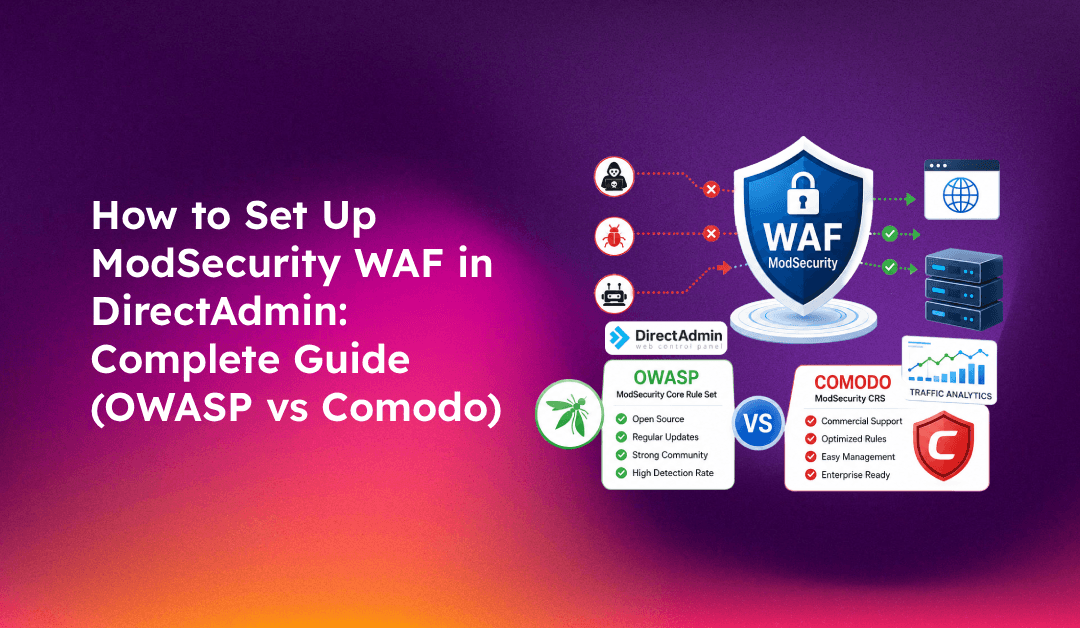
ModSecurity is the most widely deployed open-source web application firewall (WAF) for web servers. If you manage hosting clients on a DirectAdmin server, enabling ModSecurity is one of the most effective ways to protect websites from SQL injection, cross-site scripting (XSS), path traversal attacks, and zero-day exploits — without touching individual application code.
This guide covers the complete DirectAdmin ModSecurity setup: how to install it using CustomBuild 2, how to choose between the OWASP and Comodo rulesets, how to manage rules per domain, and how to handle false positives so your clients' WordPress sites keep working after WAF is enabled.
Prerequisites Before You Begin
Before enabling ModSecurity on your DirectAdmin server, confirm you have the following in place:
- DirectAdmin with CustomBuild 2 — ModSecurity is installed through the CustomBuild system. Run
./build versioninside/usr/local/directadmin/custombuild/to confirm CustomBuild 2 is in use. - Apache or OpenLiteSpeed web server — ModSecurity integrates as an Apache module (mod_security2) or via the OpenLiteSpeed connector. Nginx support requires the modsecurity-nginx connector.
- Root SSH access — all installation and configuration commands require root privileges.
- Sufficient RAM — enabling ModSecurity with the full OWASP ruleset adds roughly 50–100 MB of memory usage per Apache child process. Servers with less than 2 GB RAM should test carefully before enabling globally.
💡 None of these worked? Skip the guesswork.
Get Expert Help →How to Install ModSecurity in DirectAdmin Using CustomBuild
DirectAdmin uses CustomBuild 2 to manage server software installations. ModSecurity installation is a three-step process: update CustomBuild, choose a ruleset, then build and apply.
cd /usr/local/directadmin/custombuild
./build updateFor the Comodo ruleset (recommended for most shared hosting environments):
./build set modsecurity yes
./build set modsecurity_ruleset comodo
For the OWASP Core Rule Set:
./build set modsecurity yes
./build set modsecurity_ruleset owasp./build modsecurity
./build modsecurity_rules
./build rewrite_confsCustomBuild downloads and compiles the ModSecurity module, installs your chosen ruleset, and rewrites Apache configuration files to include the WAF. The full build typically takes 3–8 minutes depending on server speed.
Test that ModSecurity is blocking path traversal attempts:
curl -i "http://yourdomain.com/?page=../../etc/passwd"You should receive a 406 Not Acceptable response. Check /var/log/httpd/modsec_audit.log to confirm the rule triggered and logged the request.
OWASP vs Comodo: Which Ruleset Should You Choose?
The choice between the OWASP Core Rule Set (CRS) and the Comodo ruleset is the most consequential decision in your ModSecurity setup. Both provide strong protection, but they have meaningfully different trade-offs for managed hosting environments.
OWASP Core Rule Set (CRS)
The OWASP CRS is the industry standard, actively maintained by a dedicated team with frequent updates for new attack patterns. It provides the strongest security posture and is the preferred choice for:
- Servers running custom web applications or APIs
- PCI DSS compliance requirements
- Environments where security takes priority over convenience
The downside is a higher false positive rate, particularly with WordPress admin areas, Elementor page builder, WooCommerce, and webmail clients like Roundcube. Expect to spend time whitelisting rules when you first enable OWASP CRS on a shared hosting server.
Comodo Ruleset
The Comodo ruleset was designed specifically for web hosting control panels and shared hosting environments. It has a significantly lower false positive rate with WordPress plugins, WooCommerce, Roundcube, and standard PHP applications. DirectAdmin integrates a Comodo WAF management plugin that provides a UI for reviewing blocked requests and disabling individual rules.
The trade-off: Comodo is no longer in active development. The latest available version is 1.241 (DirectAdmin typically ships 1.233), meaning it does not receive updates for newly discovered attack patterns. It remains effective against established attack classes but should not be treated as a replacement for keeping application software updated.
Recommendation for Managed Hosting
Start with Comodo for shared hosting environments with WordPress sites. Switch to OWASP CRS for servers running custom applications, e-commerce stores processing payments, or any server requiring PCI DSS compliance. You can also run both in sequence — Comodo as the primary WAF and OWASP rules for specific domains that need stronger protection.
Managing ModSecurity Rules at Server and Domain Level
DirectAdmin provides both server-level and per-domain ModSecurity management through its admin and user interfaces.
Server-Level Management (Admin)
In the DirectAdmin admin panel, go to Server Manager → ModSecurity. Here you can:
- Set the global rule engine to On, Off, or DetectionOnly
- View the full list of active rules with their IDs and descriptions
- Disable specific rules globally across all domains
- Load and review audit log entries for recent blocked requests
DetectionOnly mode is essential for initial deployment. It logs all rule matches to /var/log/modsec_audit.log without blocking requests. Run the server in detection mode for 48–72 hours, review the audit log for false positives, whitelist those rules, then switch to On (blocking) mode.
Per-Domain Management (User Level)
Users can manage ModSecurity for their own domains via Advanced Features → Web Application Firewall. From here they can:
- Enable or disable ModSecurity for their domain
- View blocked requests in the audit log
- Disable specific rules by rule ID for their domain only
Important limitation: users can only disable additional rules beyond what the admin has disabled globally. They cannot re-enable a rule that the admin has globally disabled. Per-domain configuration files are stored at /usr/local/directadmin/data/users/{user}/domains/{domain}.modsecurity_rules.
Handling False Positives: Whitelisting Rules
False positives — legitimate requests that ModSecurity incorrectly blocks — are the most common operational challenge after enabling a WAF. Here are the methods available in DirectAdmin.
Method 1: Disable a Rule by ID in the DirectAdmin UI
This is the fastest approach for isolated false positives:
- Go to Server Manager → ModSecurity
- Load the audit log and identify the rule ID that triggered on the false positive
- Click Disable Rule next to that rule ID
The rule ID is logged in /var/log/httpd/modsec_audit.log. Look for the id field in the rule message.
Method 2: Whitelist via Custom Exclusion File
For programmatic control, edit the exclusion file directly:
# /etc/modsecurity.d/REQUEST-900-EXCLUSION-RULES-BEFORE-CRS.conf
SecRuleRemoveById 218500
This globally disables rule 218500. Use SecRuleRemoveById for broad disablement or SecRuleRemoveByTag to target a category of rules.
Method 3: Path-Specific Whitelisting
Disable rules only for specific URL paths to minimise the security impact of whitelisting:
<LocationMatch "/wp-admin/">
  SecRuleRemoveById 940100 941200
</LocationMatch>

<LocationMatch "/phpmyadmin/">
  SecRuleRemoveById 941200 941330
</LocationMatch>
Common False Positives and Their Fixes
WooCommerce 8.x — Order Attribution cookie
Rule ID 218500 triggers on WooCommerce 8.5+ Order Attribution feature. Either disable rule 218500, disable Order Attribution in WooCommerce → Settings → Advanced → Features, or upgrade to WooCommerce 9.0+.
WordPress Elementor editor
Elementor's page builder sends large POST requests that frequently trigger OWASP CRS rules. Whitelist /wp-admin/admin-ajax.php or switch to the Comodo ruleset if Elementor is widely used on the server.
Roundcube webmail
HTML composition in Roundcube triggers XSS detection rules. Whitelist the Roundcube path:
SecRule REQUEST_FILENAME "/roundcube/bin/html2text.php" "allow,phase:1,nolog,ctl:ruleEngine=Off"Preserving Custom Configurations Across CustomBuild Rebuilds
A critical gotcha: when you run ./build rewrite_confs, CustomBuild regenerates configuration files and overwrites any changes you made directly to files in the custombuild/configure/ directory. To preserve customisations, copy your modified file to the custom directory:
mkdir -p /usr/local/directadmin/custombuild/custom/ap2/conf/extra/
cp /usr/local/directadmin/custombuild/configure/ap2/conf/extra/httpd-modsecurity.conf    /usr/local/directadmin/custombuild/custom/ap2/conf/extra/
# Edit the custom copy only
CustomBuild checks the custom directory before the default configure directory, so your changes persist across rebuilds. Always apply configuration changes to the custom copy, not the original configure files.
Key Configuration File Reference
Here is a quick reference for the most important ModSecurity file locations on a DirectAdmin server:
- Main config (Apache 2.4):
/usr/local/directadmin/custombuild/configure/ap2/conf/extra/httpd-modsecurity.conf - Custom exclusions (persistent):
/etc/modsecurity.d/REQUEST-900-EXCLUSION-RULES-BEFORE-CRS.conf - Audit log:
/var/log/httpd/modsec_audit.log - Debug log:
/var/log/httpd/modsec_debug.log - Global disabled rules:
/usr/local/directadmin/data/admin/modsecurity_rules - Per-domain rules:
/usr/local/directadmin/data/users/{user}/domains/{domain}.modsecurity_rules
FAQs
See the FAQs section below for answers to the most common questions about DirectAdmin ModSecurity setup.
Setting up ModSecurity properly on a DirectAdmin server requires ongoing tuning — especially in the first weeks after enablement. If you manage multiple hosting clients and need a WAF configuration that balances security and uptime, CloudHouse Technologies' managed server service handles ModSecurity deployment, ruleset maintenance, and false positive remediation across all your DirectAdmin servers.