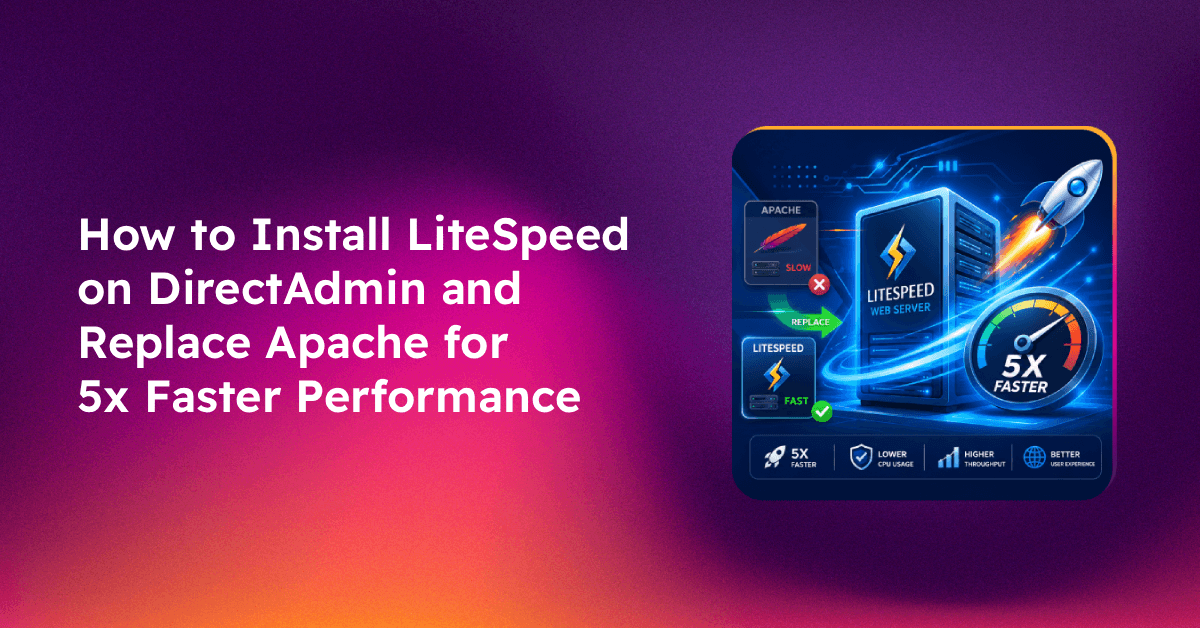
Apache is the default web server for most DirectAdmin installations — but if your server is struggling under traffic load, Apache's process-based concurrency model may be the bottleneck. LiteSpeed Web Server handles the same traffic with significantly lower CPU and memory usage, and its built-in LiteSpeed Cache (LSCache) plugin delivers instant performance gains for WordPress sites without additional configuration overhead. This guide walks you through the complete process to install LiteSpeed DirectAdmin and replace Apache for dramatically better server performance.
Apache vs LiteSpeed on DirectAdmin: Performance Benchmarks That Matter
The performance difference between Apache and LiteSpeed is most visible under concurrent load — the real-world condition that actually causes server slowdowns and 503 errors on shared hosting servers.
Key differences:
- Concurrency model: Apache uses a pre-fork or worker MPM model that spawns separate processes or threads per request. Under high load, this exhausts memory quickly. LiteSpeed uses an asynchronous event-driven model similar to nginx — it handles thousands of concurrent connections with a fraction of the memory footprint.
- Static file serving: LiteSpeed serves static files (images, CSS, JS) at 6–8x faster throughput than Apache under load because it bypasses unnecessary CGI overhead for these requests.
- PHP execution: With LSPHP (LiteSpeed's PHP SAPI), PHP-FPM overhead is eliminated — LSPHP communicates directly with LiteSpeed via an internal protocol, reducing per-request latency by 20–40% versus Apache+PHP-FPM.
- WordPress with LSCache: Sites using the LiteSpeed Cache WordPress plugin can serve cached pages at near-static speed, reducing database queries per page load from 50–100 down to 1–2 for cached visitors.
In practical terms, a DirectAdmin server that maxes out at 200–300 concurrent visitors on Apache can comfortably handle 800–1200 concurrent visitors on LiteSpeed with the same hardware.
Choosing Between LiteSpeed Enterprise and OpenLiteSpeed for DirectAdmin
There are two editions of LiteSpeed Web Server, and the choice matters:
LiteSpeed Web Server Enterprise (LSWS)
- Paid license — starts at $10/month for a 1-CPU VPS license via
https://store.litespeedtech.com - Full drop-in replacement for Apache — reads Apache config files (
httpd.conf,.htaccess) natively without modification - DirectAdmin CustomBuild supports it with a single flag change
- Required for production hosting servers where .htaccess compatibility is important (WordPress, Joomla, WooCommerce)
- Includes LSCache server-side component for all sites on the server
OpenLiteSpeed (OLS)
- Free, open-source edition
- Does not read Apache/httpd.conf format — requires native OLS configuration via its own web UI at port 7080
- Supports LSCache
- Better suited for fresh deployments where you control the full stack, not for existing DirectAdmin servers with many .htaccess-dependent sites
Recommendation: For an existing DirectAdmin server hosting shared cPanel-style accounts with WordPress sites, use LiteSpeed Enterprise. The .htaccess compatibility alone is worth the license cost. For a fresh single-site VPS, OpenLiteSpeed is a cost-effective choice.
💡 None of these worked? Skip the guesswork.
Get Expert Help →Step-by-Step: Installing LiteSpeed via DirectAdmin CustomBuild
DirectAdmin CustomBuild is the package manager built into DirectAdmin for managing web server, PHP, and related software. It handles the LiteSpeed installation, configuration, and service switch from Apache automatically.
Prerequisites:
- DirectAdmin installed and running
- Root SSH access to the server
- LiteSpeed Enterprise license key (purchase from litespeedtech.com) — or use the 15-day free trial key
trial - At least 1 GB free RAM — LiteSpeed itself uses very little, but the switch process temporarily runs both servers
cd /usr/local/directadmin/custombuildcat options.conf | grep webserverYou'll see webserver=apache or webserver=nginx_apache. Take note of the current value.
./build set webserver litespeed./build set lsws_serial YOUR_LICENSE_KEYReplace YOUR_LICENSE_KEY with your actual license key, or use trial for the 15-day evaluation.
./build lswsThis downloads and installs LiteSpeed Web Server, configures it to read the existing Apache virtual host configurations, and sets up the DirectAdmin integration. The process takes 5–15 minutes depending on your server speed.
service lsws status
# or
/usr/local/lsws/bin/lswsctrl statuscd /usr/local/directadmin/custombuild
./build set php1_mode lsphpIf you have multiple PHP versions, set each one:
./build set php2_mode lsphp
./build set php3_mode lsphp./build phpThis compiles PHP with LSPHP support. The process takes 20–45 minutes on a typical VPS. Do not interrupt it.
service lsws restartCreate a test phpinfo page on any domain and check the Server API line — it should read LiteSpeed, not FPM or CGI.
For each WordPress site on the server, install the free LiteSpeed Cache plugin from the WordPress plugin directory. It is actively maintained by LiteSpeed Technologies and has 6+ million active installations.
LiteSpeed stores cached pages on disk at /tmp/lscache/ by default. For high-traffic servers, move this to a RAM-backed tmpfs mount:
# Add to /etc/fstab
tmpfs /tmp/lscache tmpfs defaults,size=2G 0 0

# Mount immediately
mount /tmp/lscacheIn the WordPress admin, go to LiteSpeed Cache → Cache. Enable:
- Enable Cache: On
- Cache Logged-in Users: Off (unless required)
- Cache commenters: Off
- Cache REST API: On (for headless setups)
Under LiteSpeed Cache → Page Optimization, enable CSS and JS minification and combination. These settings are safe for most themes but test on a staging site first for complex setups.
Tuning maxConnections and Worker Processes for High-Traffic VPS
LiteSpeed's default configuration is conservative. For a VPS with 4+ CPU cores and 8+ GB RAM handling hosting traffic, tune these settings via the LiteSpeed Web Admin Console at https://server-ip:7080:
Navigate to Configuration → Server → Tuning:
- Max Connections: Set to 2000–5000 for a 4-core server (default is 1000)
- Max SSL Connections: Set to 1000–2000
- Connection Timeout: 30 seconds (default 300 is too high for shared hosting)
- Keep-Alive Timeout: 5 seconds for shared hosting (reduce from default 15)
Navigate to Configuration → Server → General:
- Worker Processes: Set equal to the number of CPU cores (e.g. 4 for a 4-core server)
After making changes in the admin console, perform a graceful restart:
/usr/local/lsws/bin/lswsctrl restartValidating the Switch: Before/After Load Testing
Quantify the improvement with a simple load test before and after the switch. Use ab (Apache Bench, already installed on most servers):
# Run before switching to LiteSpeed (on Apache)
ab -n 1000 -c 100 https://yourdomain.com/

# Run after switching to LiteSpeed + LSPHP + LSCache enabled
ab -n 1000 -c 100 https://yourdomain.com/
Compare the Requests per second and Time per request metrics. A typical improvement on a WordPress site with LSCache enabled:
- Requests/second: 50–80 on Apache → 400–800 on LiteSpeed+LSCache
- Time per request (mean): 1200ms on Apache → 120–200ms on LiteSpeed+LSCache
For a grep-friendly log of what changed during the switch:
grep -i "litespeed\|lsphp\|lscache" /var/log/directadmin/system.log | tail -50If you're managing a hosting business and want a professional migration from Apache to LiteSpeed without downtime, CloudHouse Technologies' managed server service can handle the full transition including CustomBuild configuration, PHP rebuild, LSCache setup, and load testing.
FAQs
Will switching to LiteSpeed break my existing .htaccess rules?
LiteSpeed Enterprise reads .htaccess files natively in Apache compatibility mode — the same rules work without any modification. This is the primary reason to choose LiteSpeed Enterprise over OpenLiteSpeed for existing DirectAdmin servers.
Can I switch back to Apache if LiteSpeed causes problems?
Yes. Run cd /usr/local/directadmin/custombuild && ./build set webserver apache && ./build apache to revert. LiteSpeed does not delete the Apache installation — it simply deactivates it. The switch back takes about 2–5 minutes.
Does LiteSpeed work with CloudLinux on DirectAdmin?
Yes. LiteSpeed is fully compatible with CloudLinux CageFS and LVE (resource limits). In fact, LiteSpeed's LSPHP mode works better than Apache+suPHP under CloudLinux because it uses less memory per request within the LVE container limits.
How do I update LiteSpeed when a new version is released?
Run ./build lsws from the CustomBuild directory — it checks for the latest version and updates in place. Schedule this during a low-traffic window as it requires a brief service restart.
Why is LiteSpeed showing HTTP instead of HTTPS for some sites after migration?
This usually means the SSL certificate vhost configuration was not picked up correctly. Check /usr/local/lsws/conf/vhosts/ for your domain's config and verify the SSL listener is bound to port 443. Run ./build rewrite_confs from CustomBuild to regenerate all vhost configs from DirectAdmin's database.