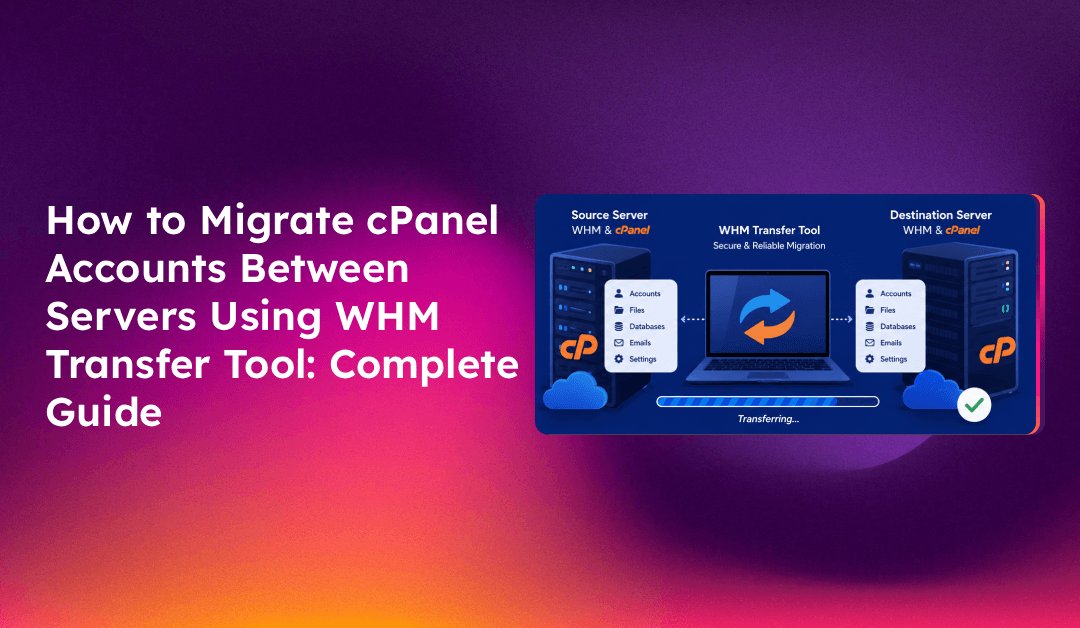
Migrating cPanel accounts from one server to another is one of the most common — and most error-prone — tasks in web hosting administration. Done wrong, it means downtime, lost email, broken databases, and angry clients. Done right with WHM's Transfer Tool, it's a methodical, low-risk process that moves entire hosting accounts — files, databases, email, DNS zones, SSL certificates, and cron jobs — with minimal disruption.
This guide walks through the complete cPanel-to-cPanel server migration process using WHM's Transfer Tool, from pre-migration preparation through post-migration validation and DNS cutover.
When to Use WHM Transfer Tool vs. Other Migration Methods
WHM's Transfer Tool (also called the "Transfer or Copy Accounts" feature) is the recommended method when:
- Both source and destination servers run cPanel/WHM
- You are migrating one or more accounts but not doing a full server-to-server clone
- The source server is accessible over SSH
- You want to preserve all account data: files, databases, emails, cron jobs, DNS zones
For migrating an entire server image (all accounts simultaneously), consider cPanel's pkgacct with rsync, or a WHM batch transfer. If you are moving to a non-cPanel environment, WHM Transfer Tool will not apply — you'll need a manual migration approach.
If you want expert handling of your cPanel-to-cPanel migration, managed server migration services cover the entire process including DNS cutover coordination and post-migration validation.
Pre-Migration Checklist
Before initiating any transfer, complete this checklist on both servers:
On the source server:
- Confirm WHM version:
cat /usr/local/cpanel/version— note the major version - Check available disk space per account:
df -h /homeand WHM's "List Accounts" disk usage column - Identify accounts with custom PHP versions, .htaccess rules, or non-standard configurations that may need special handling
- Enable root SSH access temporarily if not already enabled (needed for WHM Transfer Tool)
- Note the source server IP — you'll need it during the transfer setup
On the destination server:
- Verify sufficient disk space: destination needs at least 1.5x the source account size (for transfer staging)
- Confirm cPanel/WHM is installed and licensed
- Check that the destination WHM version is equal to or newer than the source
- Ensure the same PHP versions are available (install missing versions via WHM's EasyApache 4 before migrating)
- Verify MySQL/MariaDB versions are compatible — migrating from MySQL 8 to MariaDB 10.6 requires verification
Step 1: Configure SSH Access Between Servers
WHM's Transfer Tool connects to the source server via SSH using root credentials or an SSH key. Set up key-based authentication for the most reliable connection:
# On the destination server, generate or use existing SSH key
ssh-keygen -t ed25519 -C "whm-transfer-key" -f /root/.ssh/whm_transfer_key

# Copy the public key to the source server
ssh-copy-id -i /root/.ssh/whm_transfer_key.pub root@source-server-ip

# Test the connection
ssh -i /root/.ssh/whm_transfer_key root@source-server-ip "hostname && uptime"
If you prefer password authentication, ensure PermitRootLogin is set to yes in /etc/ssh/sshd_config on the source server — the WHM Transfer Tool will prompt for the root password during setup.
Step 2: Launch WHM Transfer Tool
1. Log in to WHM on the destination server at https://destination-ip:2087.
2. Navigate to Transfers > Transfer or Copy an Account in the left sidebar.
3. Enter source server details:
- Remote Server: source server IP or hostname
- Login: root
- Authentication: SSH Key (recommended) or Password
- Remote Port: 22 (or custom SSH port)
4. Click "Get Account List" — WHM connects to the source server and fetches all cPanel accounts. This may take 30-60 seconds.
5. Select accounts to transfer using the checkboxes. You can select all or individual accounts. For bulk migrations, consider transferring in batches of 10-20 accounts to monitor progress effectively.
Step 3: Configure Transfer Options
Before starting the transfer, configure these critical options:
- Overwrite Existing Data: Set to "Merge" for accounts that already exist on the destination (e.g., re-transfers) or "Skip" if you want to preserve destination data. For fresh migrations, "Overwrite" is safest.
- Transfer Bandwidth: Limits the transfer speed — useful if the source server is under production load. Leave unlimited for fastest transfer.
- Compress Transfer: Enable compression to reduce bandwidth usage; adds CPU load but speeds up slow network links.
- Unrestricted Restore: Enable if transferring reseller accounts to maintain sub-account structure.
Step 4: Monitor Transfer Progress
WHM displays live transfer logs as each account migrates. Watch for these status indicators:
Copying home directory...— Main file transfer in progressCopying MySQL databases...— Database transfer in progressRestoring DNS zone...— DNS zone recreation on destinationAccount transfer complete— SuccessErrorlines — Note these for post-transfer remediation
For large accounts, monitor disk usage on the destination in parallel:
watch -n 5 "df -h /home && du -sh /home/username 2>/dev/null"WHM Transfer Tool also logs to /var/cpanel/transfer_log/ — useful for reviewing errors after the fact.
Step 5: Verify Account Data After Transfer
After each account completes, verify the transferred data before cutting over DNS:
# Verify file counts match source (rough check)
find /home/username/public_html -type f | wc -l

# Confirm databases were transferred
mysql -u root -p -e "SHOW DATABASES;" | grep username

# Check email accounts exist
cat /etc/valiases/domainname.com

# Verify cron jobs
crontab -u username -l

# Confirm SSL certificates (transferred separately — check /var/cpanel/ssl/installed/)
ls /var/cpanel/ssl/installed/certs/ | grep domainname
Also visit the site using a modified hosts entry to confirm the application loads on the destination before DNS cutover:
# On your local machine, add to /etc/hosts temporarily:
destination-ip   domainname.com www.domainname.com

# Test the site in a browser, then remove the entry after verification
Step 6: DNS Cutover Strategy
DNS cutover is the point of highest risk. Use this strategy to minimize downtime:
24-48 hours before cutover:
# Lower TTL on all DNS records for the domain
# In WHM on source: edit DNS zone, set TTL to 300 (5 minutes)
# This ensures DNS propagates quickly after the actual cut
At cutover time:
- Run a final sync of any accounts with high write activity: re-run the WHM Transfer Tool for those accounts with "Overwrite" to catch recent changes
- Update the domain's A records at the registrar or DNS provider to point to the destination server IP
- Update nameservers if migrating to a server with different nameservers
- Monitor propagation:
dig +short domainname.com @8.8.8.8should show the new IP within minutes
Post-cutover (keep source server available for 48-72 hours):
- Any requests still hitting the source server will continue to work (the old site is still there)
- Monitor error logs on the destination:
tail -f /usr/local/apache/logs/error_log - Once DNS has fully propagated and no traffic hits the source, decommission or repurpose the old server
Common WHM Transfer Errors and Fixes
"Unable to connect to remote server"
Check SSH connectivity: ssh root@source-ip. Verify the source server's firewall allows SSH from the destination IP. Confirm the SSH port matches what WHM Transfer Tool is configured to use.
"MySQL restore failed"
Check MySQL version compatibility. If migrating to a higher MySQL/MariaDB version, some databases may need schema updates. Review /var/cpanel/transfer_log/ for the specific SQL error. Often solvable by importing the database dump manually: mysql -u root -p dbname < /path/to/dump.sql.
"Disk quota exceeded"
The destination doesn't have enough space. Check with df -h /home. Either free space, add storage, or transfer accounts in smaller batches.
"Account already exists — skipped"
The account exists on the destination from a previous transfer. Choose "Overwrite Existing Data" in the transfer options to force a re-transfer.
Conclusion
WHM's Transfer Tool handles the complexity of cPanel-to-cPanel migrations reliably when used correctly — but the preparation and verification steps are what separate a smooth migration from a chaotic one. Lower DNS TTLs well in advance, run a final sync at cutover time, and keep the source server live for 48-72 hours after DNS changes. Most migrations complete without issues; the ones that cause downtime almost always skipped the pre-migration checklist.