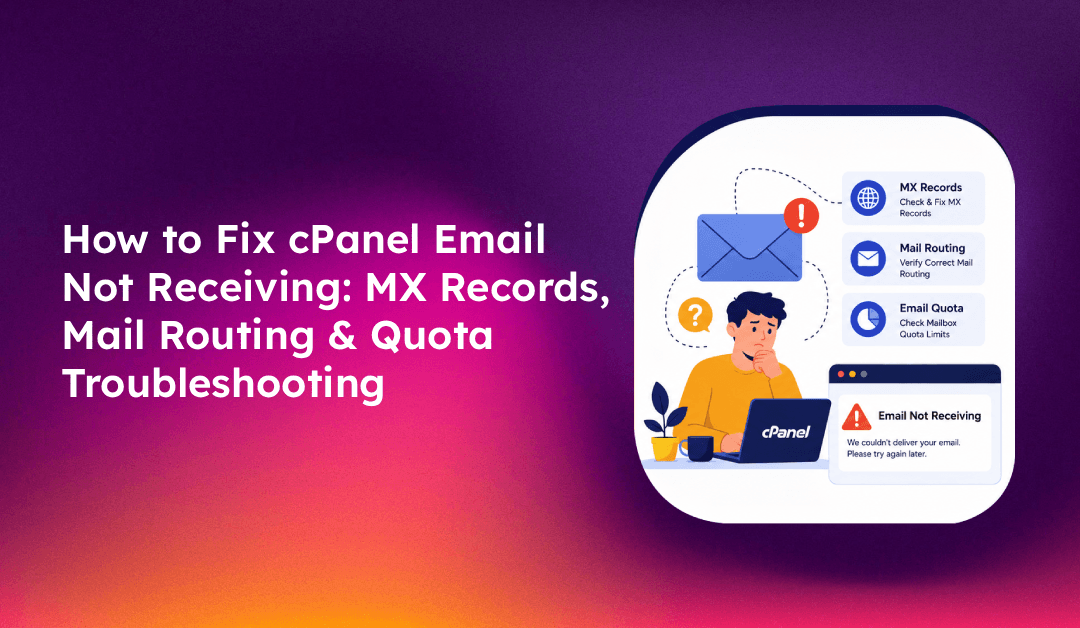
When cPanel email stops receiving messages, the impact is immediate — missed client emails, failed order confirmations, and broken contact forms. The problem is almost always one of five root causes: incorrect MX records, wrong mail routing setting, a full email quota, a blacklisted IP, or Exim delivery failures. This guide covers every cause with exact diagnostic commands and step-by-step fixes.
💡 None of these worked? Skip the guesswork.
Get Expert Help →Step 1: Verify MX Records Are Correct
MX (Mail Exchanger) records tell the internet which server handles email for your domain. If they point to the wrong server, email goes nowhere.
dig MX yourdomain.com +short
# or
nslookup -type=MX yourdomain.com 8.8.8.8
The result should show your server's hostname, for example:
10 mail.yourdomain.com.dig A mail.yourdomain.com +shortThis IP must match your cPanel server's IP. If it does not, the MX record is pointing to the wrong server.
Navigate to cPanel → Domains → Zone Editor → click Manage next to your domain. Locate the MX record and verify its value matches your server hostname. If you are using Cloudflare, ensure the mail subdomain A record is not proxied (grey cloud icon, not orange). Proxied mail records break email delivery.
DNS changes take up to 48 hours to propagate globally. Use a tool like dig @8.8.8.8 MX yourdomain.com to check against Google's DNS before assuming the update took effect.
Log into cPanel → Email → Email Routing. You will see one of three settings for your domain:
- Automatically Detect Configuration — cPanel checks MX records and decides automatically
- Local Mail Exchanger — all email is delivered locally on this server
- Remote Mail Exchanger — email is forwarded to an external mail server (Office 365, Google Workspace, etc.)
- Backup Mail Exchanger — this server holds mail temporarily and forwards it elsewhere
If your email accounts are hosted on the cPanel server (the default setup for most shared and VPS hosting), select Local Mail Exchanger and click Change. If email is hosted on Google Workspace or Office 365 but your website is on cPanel, select Remote Mail Exchanger.
As a server administrator in WHM, navigate to WHM → Email → MX Entry and check the routing setting for the affected domain. You can also check the Exim configuration for local domains:
cat /etc/localdomains | grep yourdomain.comIf the domain is missing from /etc/localdomains, Exim will not accept mail for it locally. Add it with:
echo "yourdomain.com" >> /etc/localdomainsThen rebuild the Exim configuration:
/scripts/buildeximconf
service exim restartNavigate to cPanel → Email → Email Accounts. Look at the Disk Usage column for the affected account. If it shows the quota is full (e.g., "500 MB / 500 MB"), the mailbox is rejecting new mail.
Click Manage next to the email account → Edit → increase the Mailbox Quota or set it to Unlimited. Apply the change.
du -sh /home/username/mail/yourdomain.com/emailuser/Even if the individual account quota is not full, if the server itself is out of disk space, Exim cannot write new mail to disk:
df -hIf /home or / shows 100% usage, free disk space before expecting email delivery to resume.
In cPanel → Email → Track Delivery. Enter the email address you want to test receiving on (e.g., info@yourdomain.com) and click Run Report.
- "Success — virtual_user to local delivery": The server accepted the message correctly. The problem is likely in your email client, not the server.
- "Deferred": The message is queued but not yet delivered — check disk space and Exim queue.
- "Failed — address rejected": The email account does not exist or the domain is not in localdomains.
- "Routed to remote": Mail routing is incorrectly set to remote — fix as described in Step 2.
tail -100 /var/log/exim_mainlog | grep yourdomain.comgrep "rejected" /var/log/exim_mainlog | tail -20
grep "bounce" /var/log/exim_mainlog | tail -20tail -50 /var/log/exim_rejectlogexim -bpc
# Shows count of messages in queue
exim -bp | head -30
# Shows queued messages with detailsIf the queue is backed up, check why messages are not being delivered. Common causes: DNS resolution failure, remote MX rejection, or Exim service crash.
grep -i "^primary" /etc/cpanel/exim_outgoing_ip 2>/dev/null || curl -s http://checkip.amazonaws.com/Use MXToolbox (mxtoolbox.com/blacklists.aspx) or MultiRBL (multirbl.valli.org) to check your IP against major blacklists. If listed, follow each blacklist's delisting procedure.
WHM → Email → Email Deliverability shows a diagnostic summary of SPF, DKIM, DMARC, rDNS, and potential blacklisting issues for all domains on the server.
WHM → Email → Email Deliverability → click Repair for any domain showing issues. This automatically rebuilds SPF and DKIM records.
dig TXT yourdomain.com +short | grep spfA basic SPF record looks like: v=spf1 +a +mx ~all
dig TXT default._domainkey.yourdomain.com +shortFor expert help configuring mail routing and fixing persistent email delivery issues across cPanel servers, CloudHouse Technologies provides managed cPanel server support with email deliverability as a core focus.
Quick Reference: cPanel Email Not Receiving Checklist
- MX records point to correct server hostname
- Mail routing set to "Local Mail Exchanger" for locally hosted email
- Email account quota not full
- Server disk space available (df -h)
- Domain present in /etc/localdomains
- Exim service running (service exim status)
- IP not blacklisted (MXToolbox check)
- Webmail accessible and receiving (test at :2096)
- SPF and DKIM records present in DNS
- Email client using correct IMAP/POP3 settings