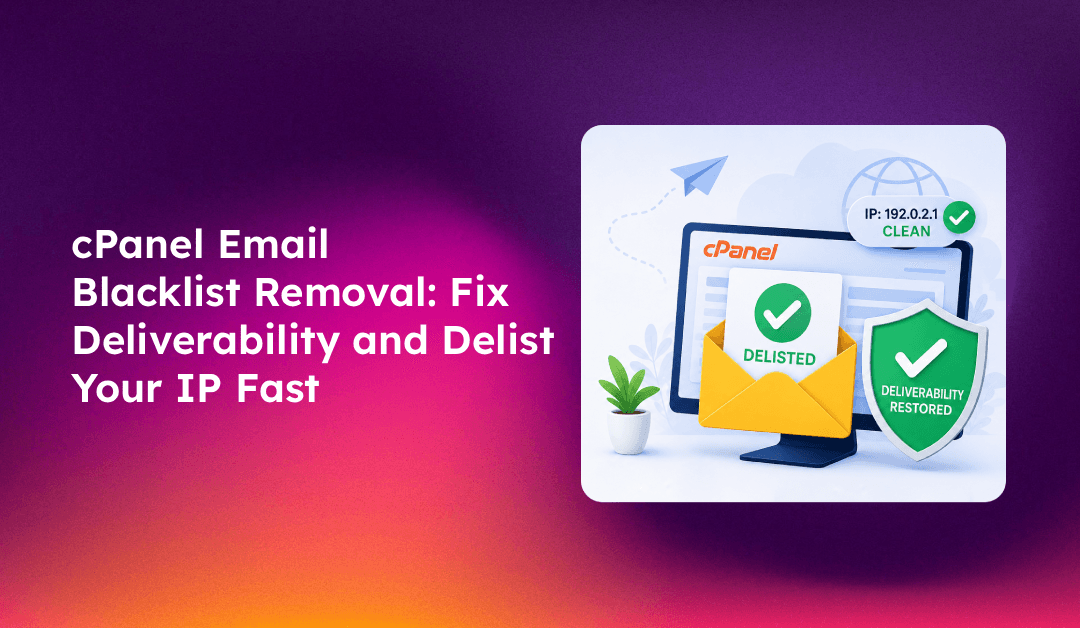
Getting your cPanel server's IP or domain blacklisted is one of the most disruptive email problems a server administrator can face. Unlike emails landing in the spam folder, blacklisting means outright rejection — your clients' emails bounce before they even reach the recipient's spam filter. If your cPanel server is blacklisted, every minute you wait costs real business for your hosting clients.
This guide walks through the complete cPanel email blacklist removal process: how to diagnose the blacklisting, fix the root cause before requesting delisting, remove your IP from major blocklists, and configure your cPanel/WHM server to prevent re-listing.
Why Your cPanel Email Server Gets Blacklisted
Before requesting delisting from any blacklist, you must understand and fix the root cause. Requesting removal without addressing the underlying problem is the most common mistake — blocklist operators will re-list your IP within days if the behaviour that triggered the listing continues.
The most frequent causes of cPanel server blacklisting include:
- Compromised email accounts sending spam — a weak password on one cPanel email account can result in thousands of outgoing spam messages per hour. This is the most common cause of blacklisting on shared hosting servers.
- Hitting spam traps — spam traps are email addresses maintained by blacklist operators specifically to catch senders who use old or purchased lists. If any of your clients are emailing addresses that haven't been active in years, they may be hitting traps.
- High bounce rates — sending to invalid addresses at volume causes Exim to generate excessive bounces, which signals poor list hygiene to blacklist operators.
- Missing or misconfigured SPF, DKIM, and DMARC — legitimate mail without proper authentication is more likely to be flagged and eventually reported, contributing to reputation decay that leads to listing.
- PHP scripts or CMS malware sending email — compromised WordPress installations frequently use
mail()or direct SMTP connections to send spam. This bypasses cPanel account rate limits entirely. - Shared IP reputation from a previous tenant — if your server was recently provisioned and your IP was previously assigned to a spammer, you may inherit a blacklisted IP before sending a single email.
Check If Your IP or Domain Is Actually Blacklisted
Before taking any action, confirm your blacklisting status with lookup tools. A single blocklist listing does not necessarily affect all email delivery — different mail providers query different blocklists. Identify which specific blocklists you appear on before beginning the delisting process.
Check your server's outgoing IP:
curl -s ifconfig.meOr check WHM → Basic cPanel and WHM Setup to find your server IP.
Key blacklist lookup tools:
- MXToolbox Blacklist Check — checks your IP against 100+ blocklists simultaneously. The most comprehensive single lookup tool.
- Spamhaus IP Check — Spamhaus listings (SBL, XBL, PBL) affect the widest range of mail servers and should be treated as highest priority.
- Barracuda Reputation System — many corporate mail servers use Barracuda; a listing here causes delivery failures to enterprise recipients.
- SORBS — check at sorbs.net/lookup. SORBS listings affect a significant number of ISPs and hosting providers.
- Spamcop — frequently queries for new listings. High false positive rate, but still checked by many mail providers.
Run your IP through MXToolbox first to get a complete picture, then prioritise Spamhaus, Barracuda, and Microsoft Smart Network Data Services (SNDS) delisting if listed there.
💡 None of these worked? Skip the guesswork.
Get Expert Help →Fix the Root Cause Before Requesting Delisting
This is the step most admins skip — and it's the reason they get re-listed. Follow these checks in WHM and cPanel before submitting any delisting request.
exim -bp | head -50A large queue of messages to the same domain or from the same cPanel account indicates a compromised account or script sending bulk mail. In WHM, go to Email → Mail Queue Manager to view and manage the queue visually.
grep "cwd=" /var/log/exim_mainlog | grep "$(date +%Y-%m-%d)" | awk '{print $NF}' | sort | uniq -c | sort -rn | head -20This shows which directories are generating the most mail today. A PHP script in a web directory sending hundreds of messages is a clear sign of malware or a compromised CMS.
In WHM, go to Account Functions → Modify an Account and suspend any account sending abnormal mail volume. Change the email account password immediately. For CMS malware, scan with Imunify360 or ClamAV and remove malicious files before unsuspending.
Go to Server Configuration → Tweak Settings → Mail and configure:
- Max hourly emails per domain — set to 200–500 depending on your clients' legitimate sending volume
- Max percentage of failed or deferred messages a domain may send per hour — set to 20% to auto-suspend accounts hitting excessive bounce rates
In WHM, go to Email → Email Deliverability. This tool shows you whether SPF, DKIM, and DMARC are correctly configured for each domain on your server. Fix any reported issues before requesting delisting — blocklist operators check authentication as part of the delisting review.
Delist Your IP from Major Blocklists
Once you have fixed the root cause and confirmed outgoing mail is clean, request removal from each blocklist you appear on. Each service has its own delisting process.
Spamhaus Delisting
Spamhaus is the highest-priority delisting. Go to check.spamhaus.org, enter your IP, and follow the removal link specific to the list type:
- SBL (Spamhaus Blocklist) — manual review required. Submit a removal request with evidence that the issue is resolved. Response time is typically 24–48 hours.
- XBL (Exploits Blocklist) — lists IPs with known exploits or botnet activity. Often cleared by fixing the compromised account/script. XBL auto-removal is available at the Spamhaus website after confirming the exploit is gone.
- PBL (Policy Block List) — lists IP ranges not designated for outbound mail by the ISP. If your data centre IP is on PBL, you need to either relay through your ISP's smart host or request PBL removal by confirming you operate a legitimate mail server.
Barracuda Reputation System
Go to barracudacentral.org/rbl/removal-request and submit your IP with a brief explanation. Barracuda processes requests quickly (often same-day) for IPs that are no longer sending spam.
Microsoft Smart Network Data Services (SNDS) and Junk Mail Reporting
If your server is blocked by Outlook, Hotmail, or Microsoft 365, register your IP with SNDS at sendersupport.olc.protection.outlook.com. SNDS provides detailed data on complaint rates and spam trap hits from Microsoft's infrastructure. Submit a delisting request through the Junk Mail Reporting Program (JMRP) if blocked.
Spamcop
Spamcop listings expire automatically after 24 hours if no new reports are received. Do not request manual removal — fix the source of spam and wait for the listing to expire. Manual delisting requests are not processed by Spamcop.
SORBS
SORBS offers self-service delisting at sorbs.net/lookup. Some SORBS lists (DUHL — Dynamic User/Host List) require a fee for delisting if your IP is in a dynamic range. If your data centre provides static IPs, contact SORBS support with proof of static assignment.
Configure cPanel/WHM to Prevent Re-Listing
Delisting without hardening your server is a temporary fix. Implement these preventive measures in WHM after your IP is cleared.
Enable BoxTrapper only for accounts that need it
BoxTrapper challenge-response can generate backscatter (unsolicited bounce messages to forged senders), which triggers spam trap hits. Disable BoxTrapper globally in WHM → Email → BoxTrapper and enable it only for specific accounts on request.
Configure Exim to reject mail to invalid local addresses
In WHM → Service Configuration → Exim Configuration Manager, enable Reject mail for unknown local users. This prevents your server from accepting and then bouncing mail to invalid addresses, reducing backscatter that contributes to blacklisting.
Set up outgoing SMTP authentication logging
Monitor /var/log/exim_mainlog for anomalies. Set up a cron job to alert you when queue depth exceeds a threshold:
*/15 * * * * root QUEUE=$(exim -bpc); [ "$QUEUE" -gt 500 ] && echo "Mail queue: $QUEUE" | mail -s "HIGH MAIL QUEUE ALERT" admin@yourdomain.comUse IP reputation monitoring services
Set up ongoing monitoring with tools like MXToolbox's blacklist monitor (email alerts when your IP is listed), Postmaster Tools from Google (gmail.com/postmaster), and Microsoft SNDS. Catching a listing within hours — rather than after clients start complaining — dramatically reduces the business impact.
When to Consider a Dedicated IP or IP Rotation
If your shared server IP has accumulated significant negative reputation, or if you frequently host clients who engage in high-volume email sending, a dedicated IP per high-volume sender can isolate reputation damage. In WHM, additional IPs can be assigned to specific cPanel accounts under IP Functions → Change a Site's IP Address.
For servers that continue to face blacklisting despite all corrective measures, the issue may be deeper: the IP block itself (the /24 or /16 range your data centre uses) may have a history that makes delisting difficult. In this case, moving to a new IP range or a different data centre is the only long-term solution.
Managing email reputation on a cPanel server is an ongoing responsibility — not a one-time fix. If your team does not have the capacity to monitor mail queues, respond to blacklistings within hours, and implement proactive authentication hardening, CloudHouse Technologies' managed server service provides 24/7 monitoring, rapid blacklist response, and ongoing email deliverability management for cPanel/WHM environments.