
Introduction
You are browsing the web, click a link, and instead of the page you expected, you are greeted with a stark screen that reads "Error 502 Bad Gateway." If you are a website owner, that moment is even worse — because it means your visitors are seeing the same thing.
A Cloudflare 502 error is one of the most common server-side errors on the internet, and the good news is that it is almost always fixable. The bad news is that it can have several different causes, and diagnosing the right one matters before you start making changes.
In this guide, we will walk through exactly what Cloudflare Error 502 means, what causes it, and how to fix it step by step — whether you are a site visitor, a website owner, or a developer managing a server.
What Is Cloudflare Error 502 Bad Gateway?
An HTTP 502 error indicates that Cloudflare is unable to establish contact with your origin web server. It generally occurs because your origin server is returning this code to Cloudflare, which then returns it to your visitors — caused by a problem connecting to an upstream server.
Put simply, think of Cloudflare as a middleman that sits between your visitor and your web server. When a visitor requests your website, Cloudflare forwards that request to your origin server and waits for a response. A 502 error means the origin server either responded with an error or failed to respond at all. Cloudflare has no valid page to show, so it reports a bad gateway.
It is important to understand that a 502 error is a server-side problem, not a client-side one. The issue is not with the visitor's browser or internet connection — it is with your server or Cloudflare's connection to it.
The Two Types of Cloudflare 502 Errors
Before jumping into fixes, you need to identify which kind of 502 you are dealing with. There are two possible causes: errors originating from your origin web server (the most common), and errors originating from Cloudflare itself. cloudflare Each looks slightly different and requires a different approach.
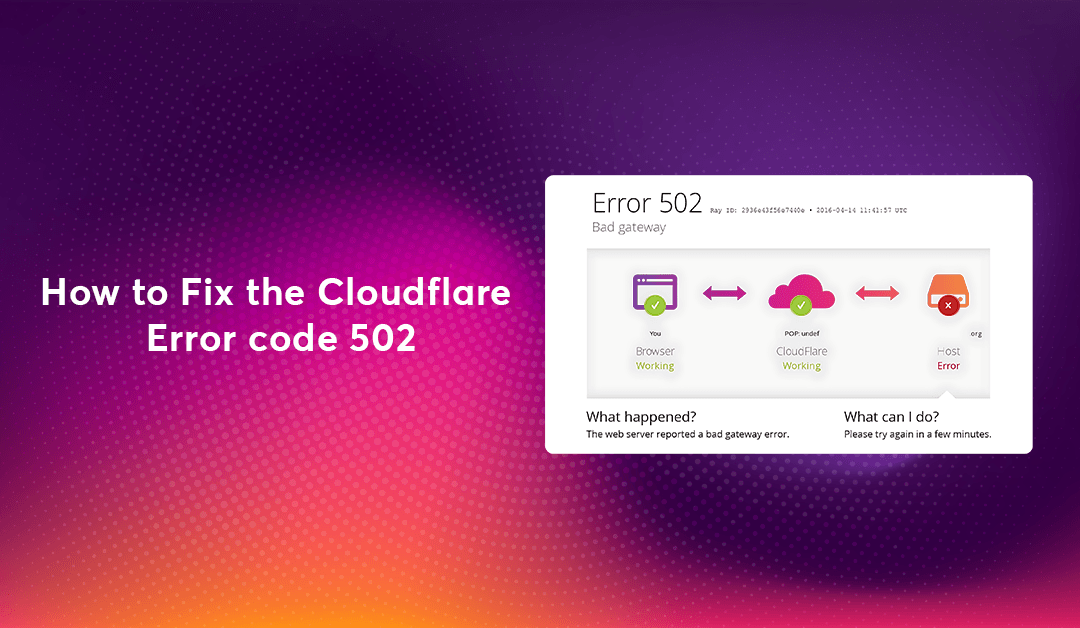
The Cloudflare-branded 502 When your origin web server responds with a standard HTTP 502 bad gateway error, Cloudflare returns a Cloudflare-branded HTTP 502 page. cloudflare This is the error screen you likely recognise — it has the Cloudflare logo and mentions the error code clearly. When you see this, the problem almost certainly lives on your origin server or hosting environment.
The Unbranded 502 A 502 or 504 error originating from Cloudflare itself appears as a blank page without Cloudflare branding. If the error does not mention Cloudflare, you should contact your hosting provider for assistance. cloudflare This is Cloudflare's own infrastructure having trouble, which is rarer but does happen.
Knowing which type you are dealing with narrows the diagnosis considerably before you touch a single setting.
Common Causes of Cloudflare Error 502
Understanding what triggers the error is the fastest path to fixing it. Here are the most frequent culprits.
Your origin server is down or overloaded. The most common cause of a Cloudflare 502 Bad Gateway error is when the web hosting server is down — especially on shared hosting where servers kill processes that take too long to complete. Sometimes, a sudden increase in traffic can also cause the web server to crash, resulting in a loss of connection between the server and Cloudflare.
A faulty plugin or theme (WordPress). If you are on a WordPress website, some plugins and themes can cause 502 errors when PHP scripts take too long to execute. Web Pop A recently updated or poorly coded plugin is often the culprit.
DNS changes that haven't propagated. If you have recently changed your web hosting service or moved to a different IP address, it is recommended to wait up to 24 hours for DNS changes to resolve.
A compression issue at the origin. This error can occur due to a compression issue at the origin, such as when the origin server serves gzip-encoded compressed content but fails to update the content-length header, or if the origin is serving broken gzip compressed content. cloudflare
Cloudflare Tunnel misconfiguration. You might see a 502 Bad Gateway error when connecting to an HTTP or HTTPS application through Cloudflare Tunnel with the message "Unable to reach the origin service." This means the tunnel itself is connected to the Cloudflare network, but cloudflared cannot reach the origin service defined in your ingress rule.
Partial HTTP/2 support. Using Cloudflare Gateway can lead to an HTTP Error 502 if the origin only partially supports HTTP/2.
How to Fix Cloudflare Error 502: Step by Step
Step 1: Wait and Hard-Refresh
Before changing anything, start with the simplest fix. Cloudflare-related 502 Bad Gateway errors often occur due to temporary connection problems, so simply waiting 5 minutes and reloading the page can do the trick. If you still see the error, clear your browser cache by pressing Ctrl + F5 on Windows and Linux, or Cmd + Shift + R on Mac. This "hard refresh" bypasses the cache for that specific page. This solves a surprising number of 502 errors caused by brief traffic spikes or momentary server hiccups.
Step 2: Check Cloudflare's System Status
Before assuming the problem is on your server, rule out a Cloudflare-wide incident. Visit cloudflarestatus.com and check whether any services are currently degraded. In some cases, a particular data center may experience a sudden increase in traffic, causing automated processes to redirect traffic to another data center. During this process, some clients may experience temporary latency or HTTP 502 errors. If Cloudflare is reporting an incident, there is nothing to do but wait for their engineers to resolve it.
Step 3: Test Your Origin Server Directly Bypass Cloudflare entirely to confirm whether your origin server is actually running. The fastest way to do this is by hitting your server's IP address directly in a browser or using curl from your terminal:
bash
curl -I http://YOUR_SERVER_IP
If your server returns a 200 OK response here but Cloudflare is still showing a 502, the problem is in the Cloudflare-to-server connection rather than the server itself. If the direct request also fails, your server is down and that is where your attention needs to go.
Step 4: Restart Your Web Server Log in to your server via SSH and restart your web server process. For Nginx: bash
sudo systemctl restart nginx
For Apache: bash
sudo systemctl restart apache2
After restarting, check the service status to make sure it came back up cleanly: bash
sudo systemctl status nginx
Also check your web server's error logs for clues about what caused it to stop responding in the first place: bash
sudo tail -n 50 /var/log/nginx/error.log
Step 5: Check Server Resources A 502 is often a symptom of a server running out of resources — RAM, CPU, or worker processes. Check what is happening on the machine: bash
htop
free -h
df -h
If your server's memory is nearly full or your CPU is pegged at 100%, the application running on it is likely starving your web server of resources. You may need to restart the application, clear caches, or upgrade your server plan.
Step 6: Disable Faulty WordPress Plugins If your site runs WordPress and you can still access wp-admin, navigate to Plugins and deactivate all plugins at once. Reload your site. If this fixes the error, activate the plugins one by one and reload the site after each activation. When you see the 502 error return, you have found the problematic plugin. If you cannot access your WordPress dashboard, you can disable plugins via FTP by renaming the "Plugins" folder to something like "Old_Plugins."
Step 7: Check PHP Configuration (PHP-FPM) If your server uses PHP-FPM (which is standard on most modern LEMP stacks), a misconfiguration or resource exhaustion in the PHP process manager can cause Nginx to return a 502. Check the PHP-FPM status: bash
sudo systemctl status php8.2-fpm
And inspect its logs: bash
sudo tail -n 50 /var/log/php8.2-fpm.log
You may need to increase the pm.max_children value in your PHP-FPM pool configuration to handle more concurrent requests. Open the pool config file:
bash
sudo nano /etc/php/8.2/fpm/pool.d/www.conf
Adjust the following values based on your server's available RAM:
ini
pm = dynamic
pm.max_children = 20
pm.start_servers = 5
pm.min_spare_servers = 5
pm.max_spare_servers = 10
Restart PHP-FPM after saving:
sudo systemctl restart php8.2-fpm
Step 8: Fix Gzip Compression Issues
If the origin is serving gzip-encoded compressed content but fails to update the content-length header, this can cause a 502. Try disabling compression at your origin to confirm if it resolves the error. For Nginx, check your nginx.conf or site configuration and temporarily comment out the gzip on; directive, then reload:
bash
sudo nginx -t && sudo systemctl reload nginx
If the 502 disappears, the problem is in your gzip configuration. You can then fix the header handling and re-enable compression.
Step 9: Increase Cloudflare's Proxy Timeout If your application legitimately takes a long time to respond (for example, a heavy API endpoint), Cloudflare may be timing out before the origin responds, which presents as a 502. In your Cloudflare dashboard, navigate to Speed → Optimization → Protocol Optimization and review your proxy timeout settings. For higher-tier plans, you can configure custom timeouts via Configuration Rules.
Step 10: Contact Your Hosting Provider If none of the above steps resolve the issue, contact your hosting provider and ask them to investigate excessive server loads, crashes, or network failures, and to identify applications or services that timed out or were blocked.
When you contact support, provide as much detail as possible. If you need further assistance from Cloudflare Support, include the timestamp and timezone of the issue, the URL that resulted in the HTTP 502 response, and the output from browsing to
Fixing 502 Errors Specific to Cloudflare Tunnel
If you are using Cloudflare Tunnel (cloudflared) to expose a local service, the 502 diagnostic is slightly different. A 502 from Cloudflare Tunnel means cloudflared successfully connected to Cloudflare, but failed to reach the origin service locally. The problem is almost always in the last hop.
Start by verifying the service is actually running and reachable from within the tunnel:
bash
# Check if your service container is running
docker ps | grep your-service
# Test it is responding locally
curl -I http://localhost:YOUR_PORT
If the service is running but you are still seeing 502, the most common culprits are a wrong service URL in the tunnel configuration, Docker network isolation preventing cloudflared from reaching the container, or an HTTP/HTTPS mismatch. If cloudflared and your service are in different Docker networks, they cannot communicate — connect them explicitly or use host networking for cloudflared.
For services that respond over HTTPS with a self-signed certificate, add noTLSVerify: true to your tunnel ingress configuration to prevent cloudflared from rejecting the certificate.
Wrapping Up: Fixing Cloudflare Error 502 the Right Way
A Cloudflare 502 Bad Gateway error is never pleasant — but it is rarely mysterious once you know where to look. The key is to work methodically: confirm whether the error is coming from your origin server or from Cloudflare itself, then work down the list from the simplest fixes (a hard refresh, checking Cloudflare's status) to the more involved ones (PHP-FPM tuning, gzip configuration, tunnel networking).
For most WordPress and shared hosting users, a server restart or a misbehaving plugin is the answer. For developers running their own servers or Cloudflare Tunnel setups, the fix usually lives in the configuration layer — a misconfigured service URL, an exhausted PHP worker pool, or a Docker networking issue.
The most important thing is not to change multiple settings at once. Fix one thing, test, and confirm before moving to the next. That discipline will get you back online faster than any other approach.
FAQs on Cloudflare Error 502
Is Error 502 caused by Cloudflare or my server? Most of the time it is your origin server. The presence of Cloudflare branding on the error page is the tell — a Cloudflare-branded 502 means your server sent the error. A blank, unbranded 502 means Cloudflare itself is having trouble.
Does a 502 error affect my SEO? A brief, occasional 502 is unlikely to hurt your rankings. However, if Googlebot repeatedly encounters 502 errors over an extended period, it can negatively impact crawling and indexing. Fix persistent 502s promptly.
How do I stop getting 502 errors in the future? Upgrade to a hosting plan with more resources if your server is frequently overloaded, keep plugins and software updated, set up uptime monitoring so you are alerted the moment your site goes down, and configure Cloudflare's Always Online feature to serve a cached version of your pages during outages.
Can too much traffic cause a 502 error? Yes. A sudden spike in traffic can overwhelm your origin server's available worker processes or exhaust its memory, causing it to stop responding to Cloudflare's requests. Scaling your server resources, enabling Cloudflare's caching aggressively, and using a CDN for static assets all help mitigate this.
What is the difference between Error 502 and Error 504? Both indicate that Cloudflare cannot get a valid response from your origin server. A 502 means your server sent back an explicitly invalid response. A 504 means Cloudflare waited for a response and the server simply did not reply in time — a timeout rather than an outright error.
How do I get a 502 error on a WordPress site? The most common causes on WordPress are a crashed PHP-FPM process, a plugin that triggers a long-running script, or a server that ran out of memory trying to handle a complex page. Disabling plugins and checking PHP-FPM logs are the fastest first steps.
Should I pause Cloudflare to fix a 502 error? Temporarily pausing Cloudflare (from your dashboard under Overview → Advanced Actions → Pause Cloudflare on Site) is a useful diagnostic step. If the site loads normally when Cloudflare is paused, the issue is in how Cloudflare connects to your origin. If it still fails, your origin server itself is the problem regardless of Cloudflare.