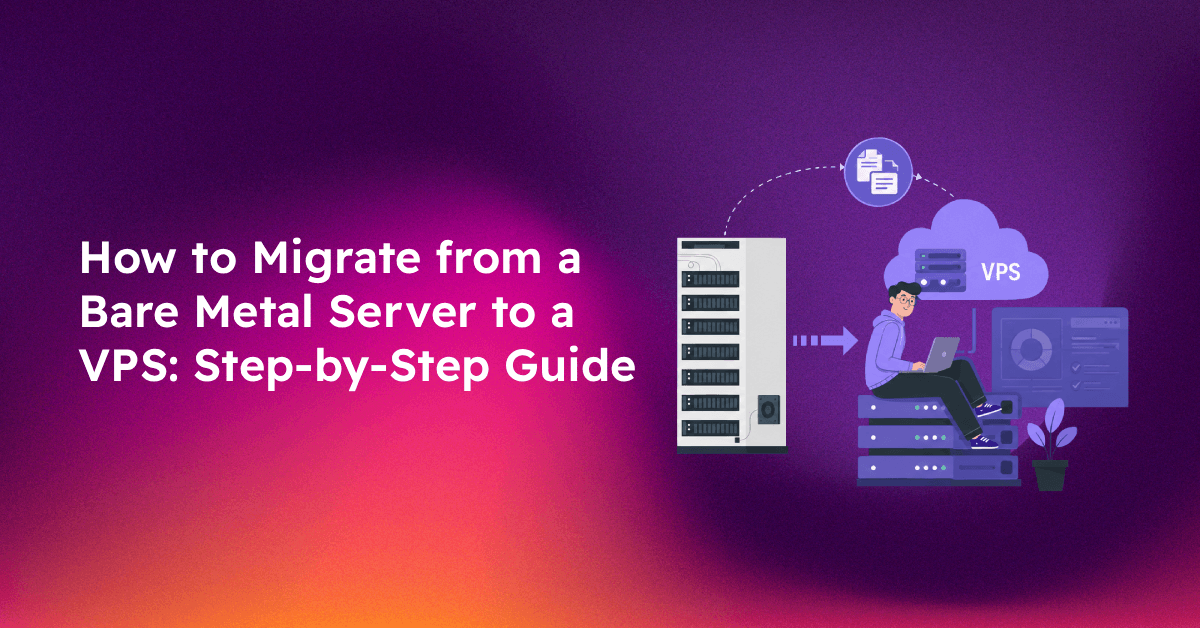
If you're running a bare metal to VPS migration, you already know the stakes: years of configurations, live databases, and production traffic all riding on a single cutover window. Done right, you minimise downtime to minutes. Done wrong, you spend hours troubleshooting a broken server at 2 a.m. This step-by-step guide covers everything — pre-migration audit, rsync data transfer with the pre-cutover + final-sync pattern, DNS cutover, and post-migration validation — so you can move with confidence.
Whether you're consolidating costs, scaling down from over-provisioned hardware, or moving to a cloud-hosted VPS for better geographic redundancy, the process is the same. Let's walk through it systematically.
Bare Metal vs VPS: Key Differences That Affect Your Migration Plan
Before a single byte moves, understand what you're migrating into. The architectural differences between bare metal and VPS directly affect how you size, configure, and test the new environment.
Hardware Abstraction
A bare metal server gives you exclusive access to physical CPUs, RAM, and NVMe storage. A VPS sits on a hypervisor — you get guaranteed vCPUs and RAM, but the underlying hardware is shared. This matters if your application relies on raw I/O throughput, specific CPU instruction sets (e.g., AVX-512 for ML workloads), or hardware-level features like SR-IOV networking.
Kernel and OS Differences
Your bare metal box may be running a custom or long-stable kernel version tuned over years. Your new VPS will come with a fresh OS image. Kernel module differences — especially for storage drivers (RAID controllers, custom filesystems) or network drivers — can cause silent failures post-migration if not audited upfront.
Storage Layout
Bare metal often uses hardware RAID arrays, presenting a single logical volume. VPS storage is typically a virtual disk backed by Ceph, ZFS, or similar. This changes your disk layout: partition tables, mount points, and /etc/fstab entries must all be re-evaluated before migration.
IP Addressing and Networking
Your bare metal server likely has one or more static IPs bound to physical NICs. VPS networking uses virtual NICs with different MAC addresses and often different default gateway configurations. /etc/network/interfaces or /etc/netplan/ configs cannot be copied blindly — they must be rewritten for the VPS environment.
Performance Baseline Expectations
VPS CPU performance is measured in vCPUs, not physical cores. A 16-core bare metal server at 3.0 GHz will typically outperform an 8 vCPU VPS at the same clock spec — especially under sustained load. Run your benchmarks before committing: sysbench cpu --cpu-max-prime=20000 run on both servers and compare.
💡 None of these worked? Skip the guesswork.
Get Expert Help →Pre-Migration Audit: What to Document Before You Touch Anything
The most common cause of failed migrations is missing documentation of what's actually running. Before you open an rsync session, spend 30–60 minutes producing a complete audit of the source server.
Run cat /etc/os-release and uname -r on the bare metal server. Your VPS should run an identical or very close OS version to avoid package compatibility issues.
Run systemctl list-units --type=service --state=running and save the output. Every service listed here must be verified post-migration.
On Debian/Ubuntu: dpkg --get-selections > /root/packages.txt
On CentOS/RHEL: rpm -qa > /root/packages.txt
This file becomes your installation checklist on the VPS.
Run ss -tlnp to list listening ports and their associated processes. Export your firewall rules: iptables-save > /root/iptables-backup.txt or ufw status verbose.
Run df -h, lsblk, and cat /etc/fstab. Note which directories consume the most space — /var/lib/mysql, /home, /var/www — so you can size VPS volumes accurately.
Check system crontabs: crontab -l and cat /etc/cron.d/*. Also check user crontabs: ls /var/spool/cron/crontabs/. These are easy to miss and painful to debug when they don't run on the new server.
Before any file transfer, export your databases. For MySQL/MariaDB:
mysqldump --all-databases --single-transaction --routines --triggers -u root -p > /root/full_db_backup.sqlFor PostgreSQL:
pg_dumpall -U postgres > /root/full_db_backup.sqlDocument paths to all custom config files: Nginx/Apache vhosts, PHP-FPM pool configs, SSL certificate locations, custom environment files (.env), and any application-specific configs in /etc/.
Log into the application, submit a form, process a test transaction, and trigger every major workflow. Check that file uploads, email sending, payment processing, and API integrations all work on the new server.
For MySQL: mysqlcheck --all-databases -u root -p
Compare row counts between old and new servers for critical tables:
mysql -u root -p -e "SELECT table_name, table_rows FROM information_schema.tables WHERE table_schema='your_db';"Check that all cron jobs transferred correctly: crontab -l. Trigger a manual run of each cron script to confirm they execute without errors.
Performance Validation
Use ab (Apache Bench) or wrk to run a load test and compare response times against your pre-migration baseline:
ab -n 1000 -c 50 https://yourdomain.com/If response times are significantly higher than baseline, investigate CPU usage (top), memory pressure (free -h), and disk I/O (iostat -x 1).
dd if=/dev/zero of=/tmp/testfile bs=1G count=1 oflag=dsync
# Expected on NVMe VPS: >500 MB/s write speed
Security Checks
Confirm only necessary ports are open: ss -tlnp. Ensure your firewall rules are active: ufw status or iptables -L -n -v. Block all non-essential ports — the new VPS IP is fresh and will be probed by automated scanners within hours.
Confirm root password login is disabled on the VPS (it should only be allowed via SSH key, if at all):
grep "PermitRootLogin\|PasswordAuthentication" /etc/ssh/sshd_configBoth should be set to no or use key-only access.
curl -I https://yourdomain.com
# Check for HTTP 200 and valid certificate
openssl s_client -connect yourdomain.com:443 -servername yourdomain.com < /dev/null 2>/dev/null | openssl x509 -noout -datesReview system logs for any warnings or errors in the first 24 hours post-migration: journalctl -p warning --since "24 hours ago". Pay particular attention to authentication failures (/var/log/auth.log) and application errors.
Install or reconfigure your monitoring stack (Prometheus + Grafana, Datadog, Netdata, or similar) on the VPS. Set up CPU, memory, disk, and application health alerts before considering the migration complete.
FAQs
See the FAQ section below for answers to the most common questions about bare metal to VPS migrations.
Migrating from bare metal to a VPS is a structured process — not a risk if you follow the two-phase rsync pattern, prepare your DNS TTL in advance, and validate every layer post-cutover. The biggest wins are the pre-migration audit (so nothing is forgotten) and the delta sync pattern (so your maintenance window stays under 15 minutes). If you're managing a critical production server, CloudHouse's professional server migration service handles every step with zero data loss guarantees and 24/7 support throughout the cutover window.