Shortcut Ways to Open Task Manager in Windows 10/11
Method 1: Via Keyboard Shortcut
You can easily use the shortcut for Task Manager in different combinations such as:
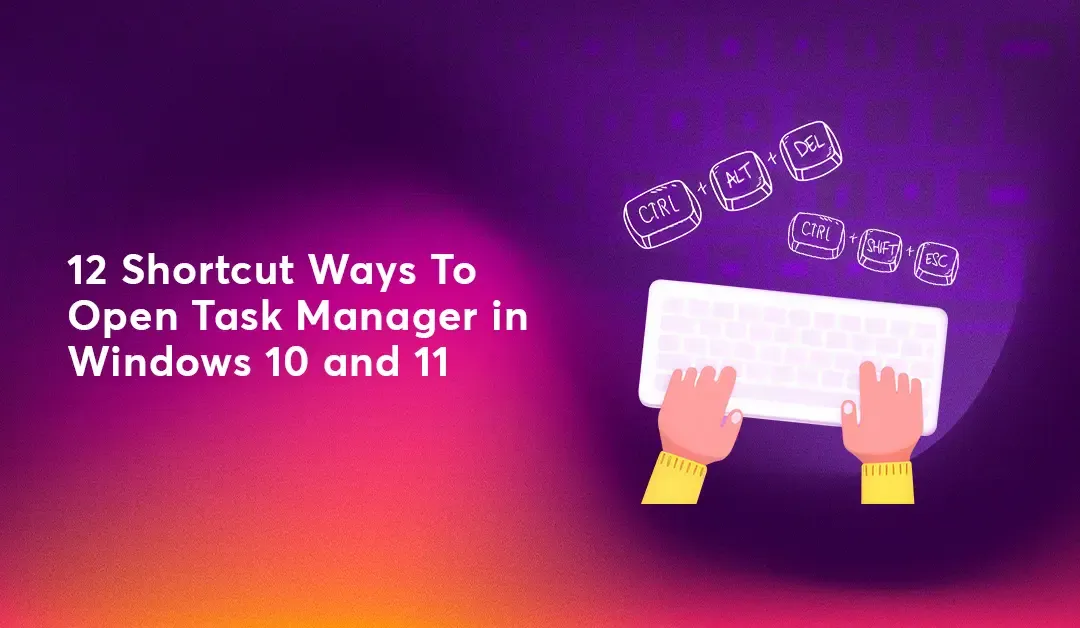
Press the Ctrl + Shift + Esc keys simultaneously to open the Task Manager window.
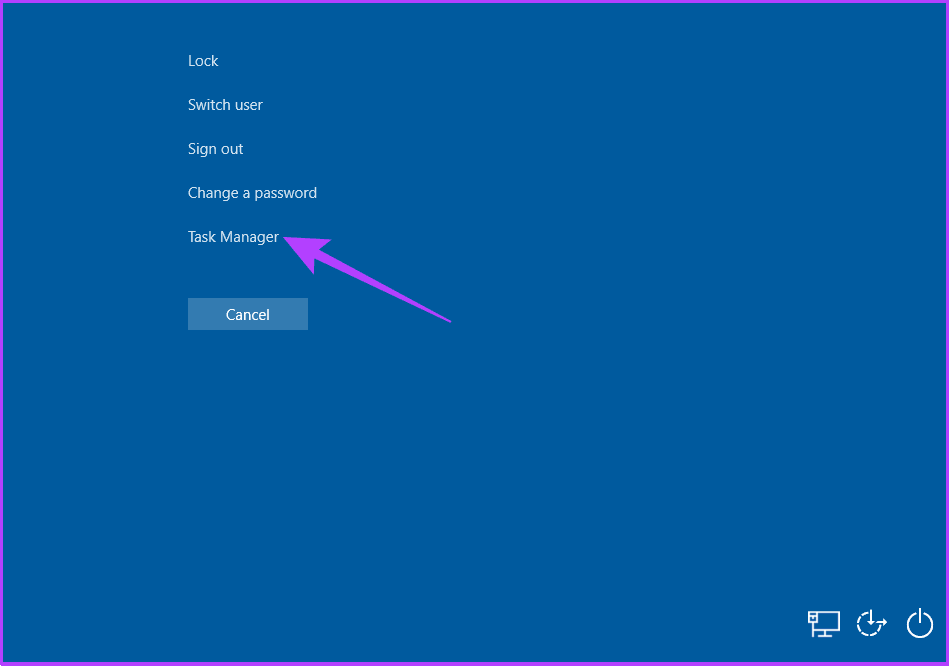
Press the Ctrl + Shift + Delete keys simultaneously to open a list of options and select Task Manager.
Method 2: Via Start Menu and Windows Search
Another way to do the same is directly using the Start menu:
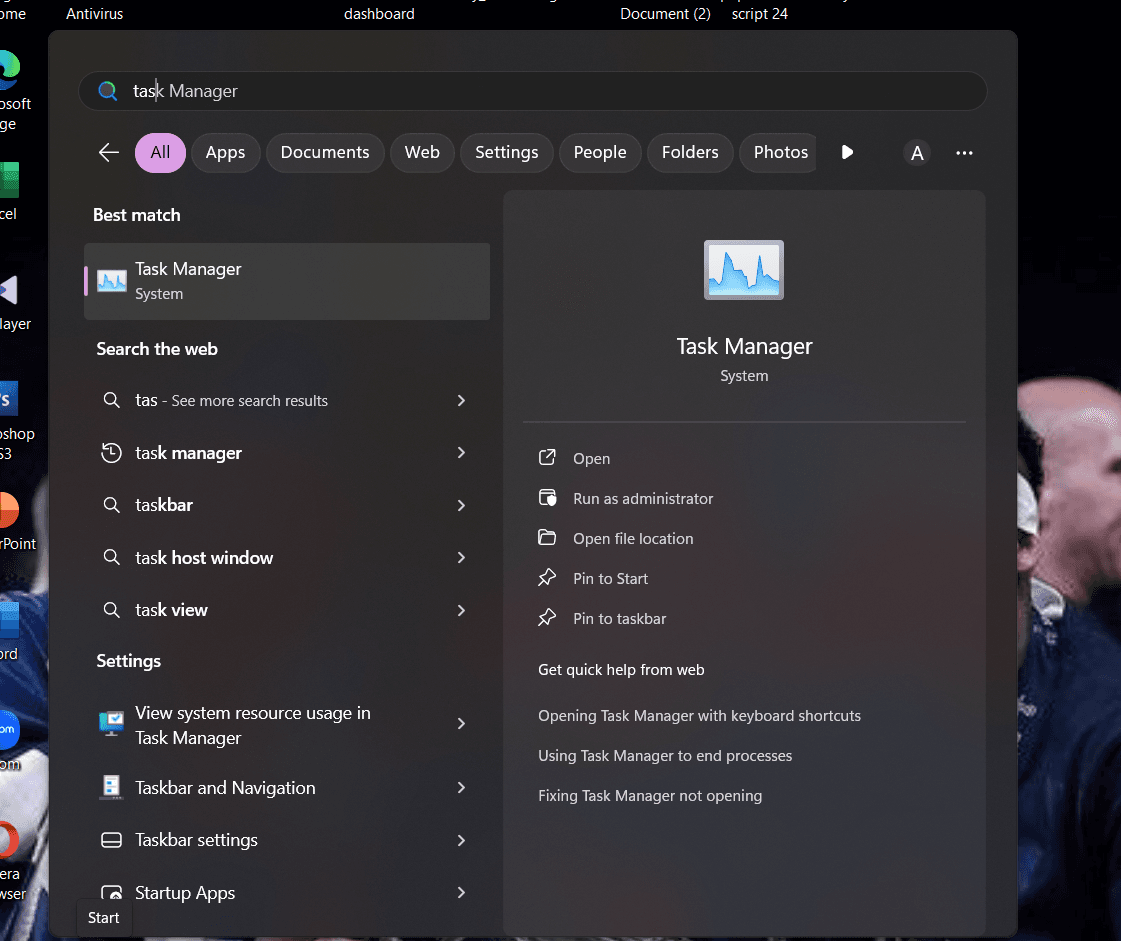
Click on the Start icon on the taskbar.
Type in Task Manager in the search bar
Now, select Open.
Method 3: Via Windows Power User Menu
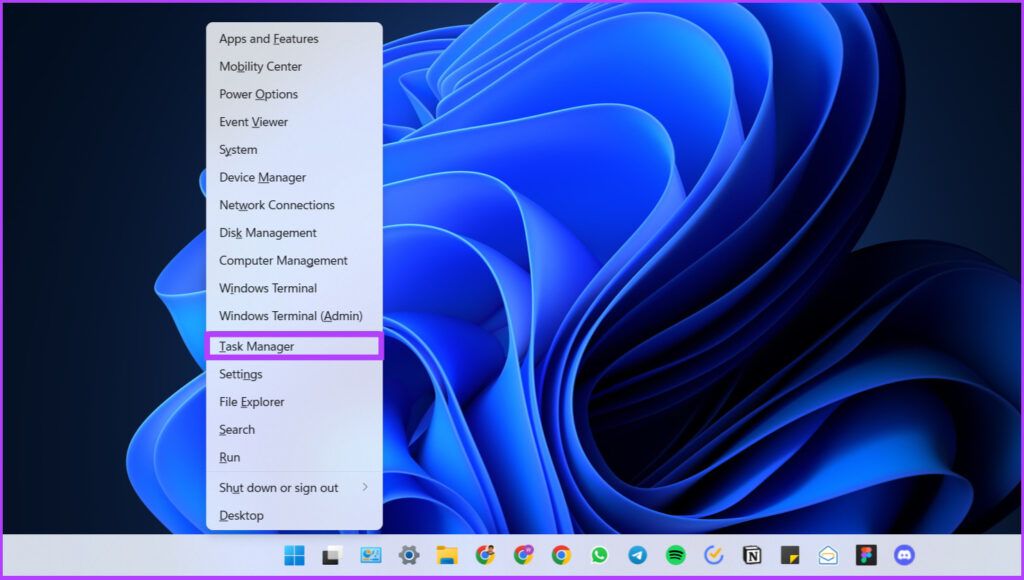
Right-click on the Start icon.
Now, select Task Manager.
Method 4: Via Taskbar
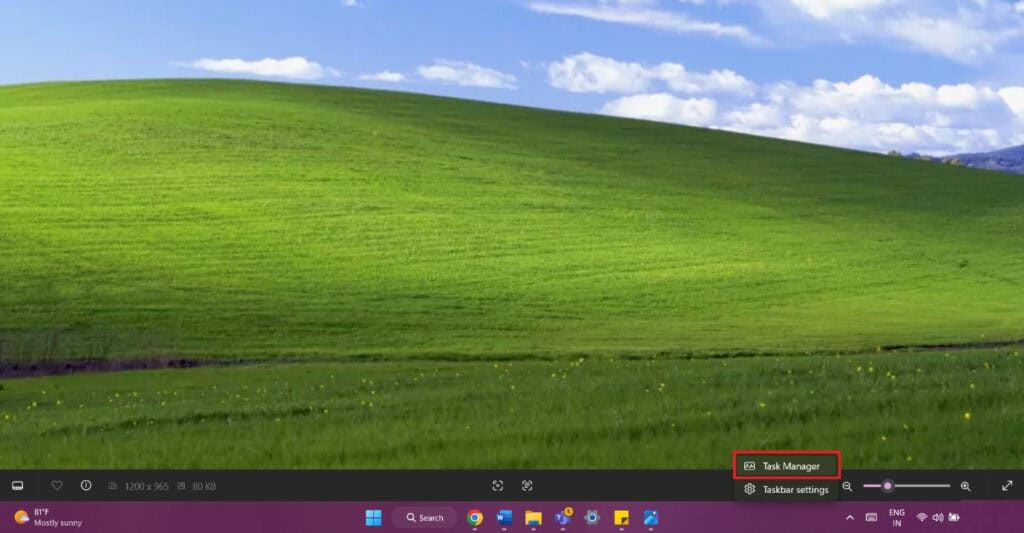
Right-click anywhere on the taskbar.
Now, select Task Manager.
Method 5: Via Run Command
Press the Windows and R keys together to open the Run window.
Type in taskmgr.
Then, click on OK or hit Enter.
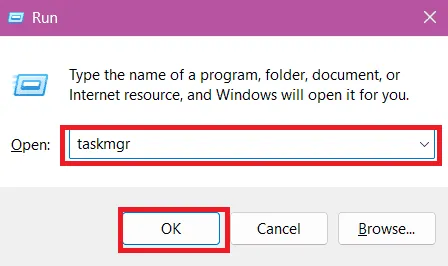
Method 6: Via Task Manager Executable in File Explorer
Open File Explorer and click on the search bar at the top right corner.
Type in Task Manager and select from the results.
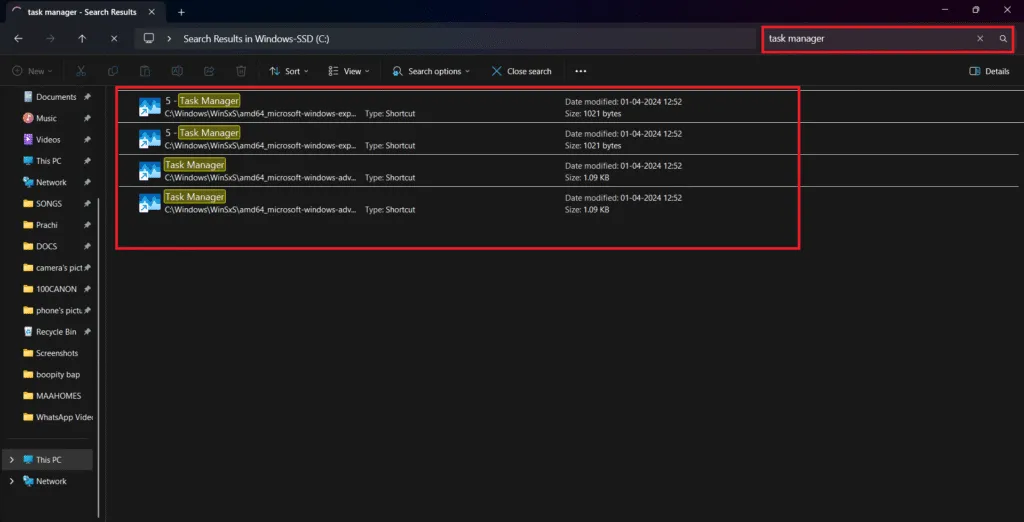
Method 7: Via Desktop Shortcut
Right-click anywhere in the home screen.
Click on New.
Select Shortcut.
Type in the path C:\Windows\System32\Taskmgr.exe and select Next.
Type in Control Panel under Type a name for this shortcut.
Then, select Finish.
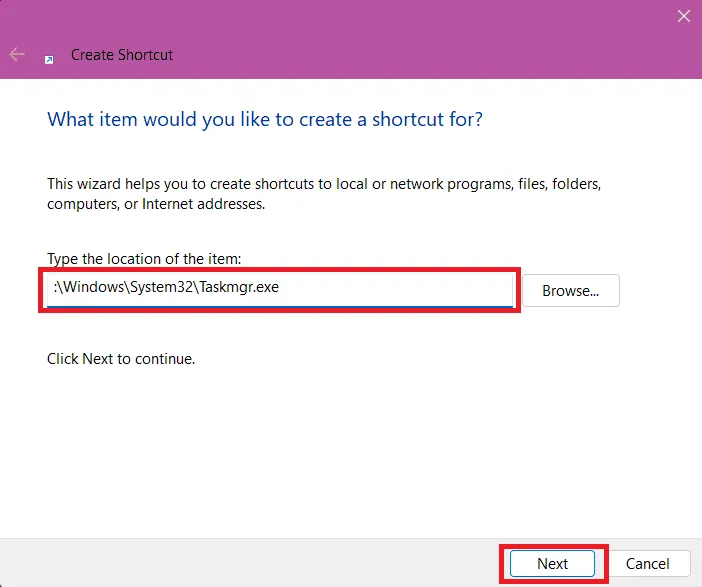
Method 8: Via Command Prompt or PowerShell Command
Click on the search bar and type in cmd.
Select Command Prompt.
Now, type in taskmgr.
Hit Enter.
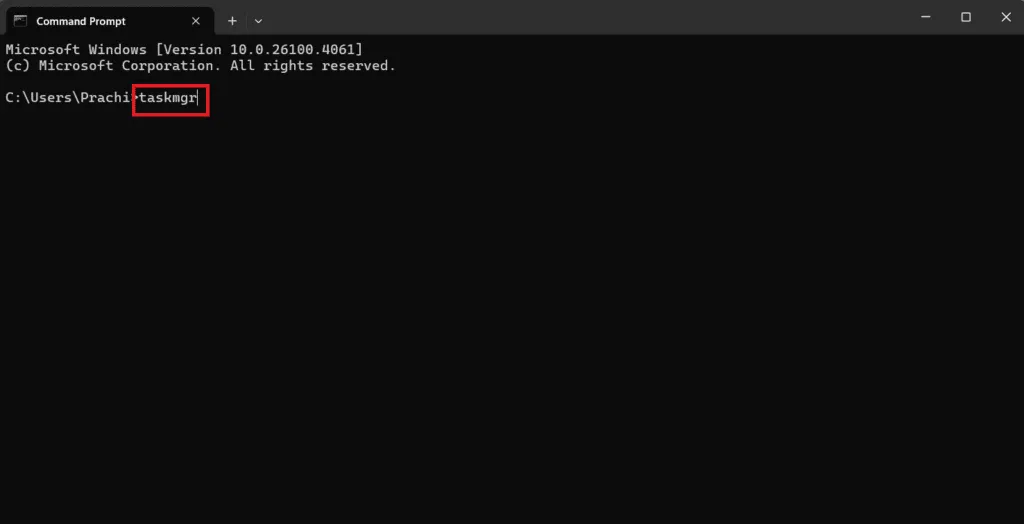
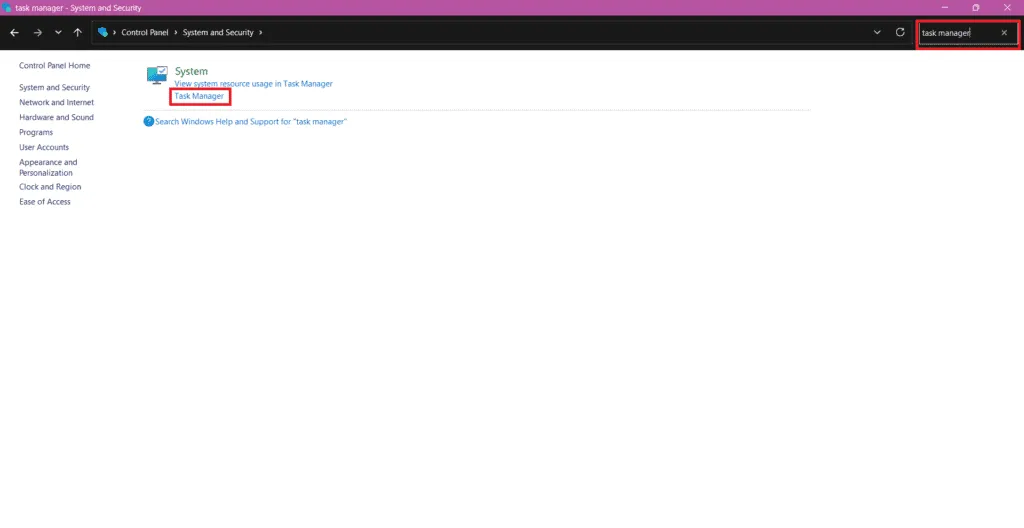
Method 9: Via Control Panel
Open Control Panel and click on the search bar at the top right corner.
Type in Task Manager and select from the results.
Method 10: Windows Tools
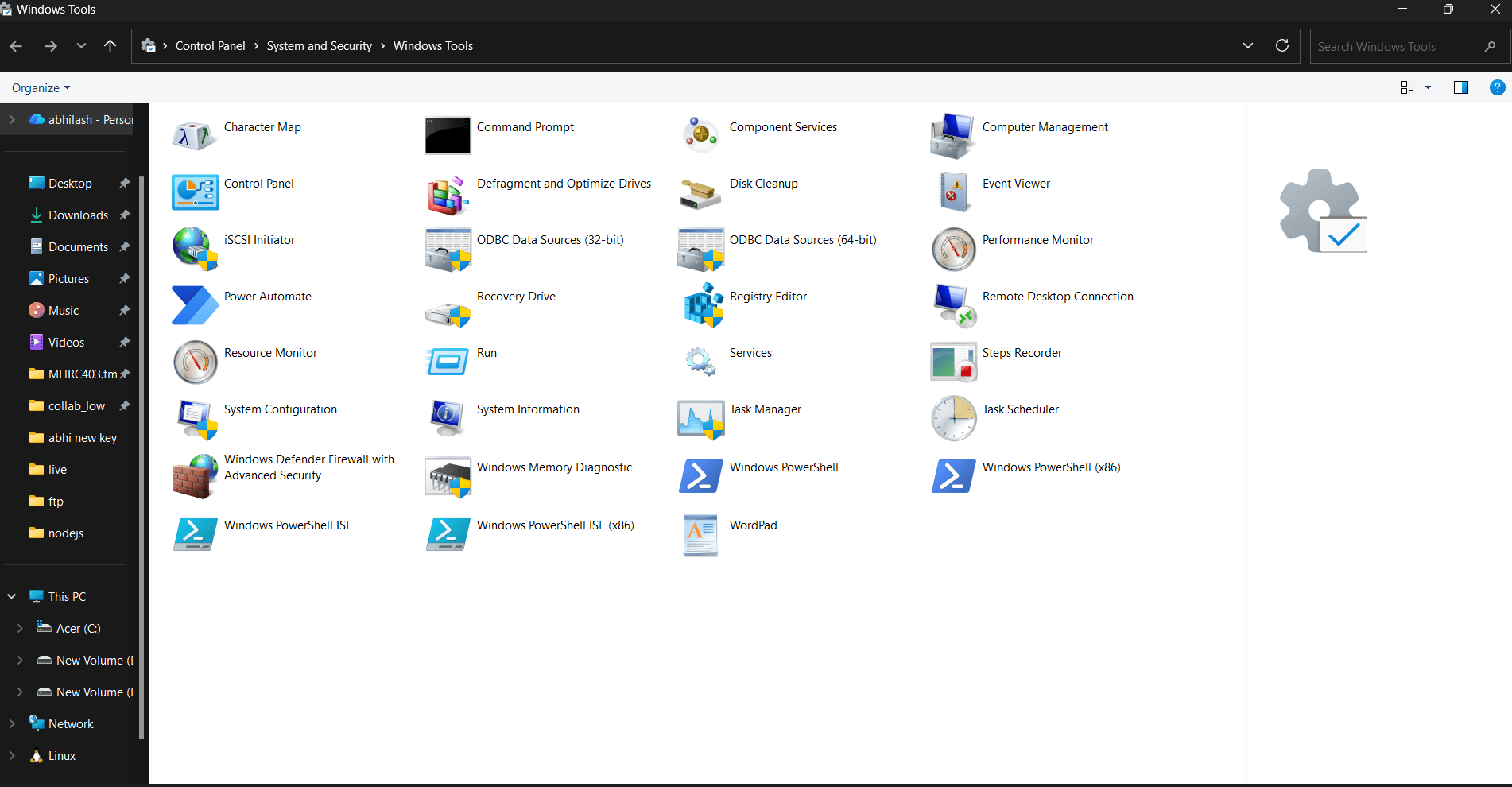
Open the Start icon and click on All apps.
Scroll down and select Windows Tools.
Now, click on Task Manager
Method 11 : Open Task Manager Using Ctrl+Alt+Del Windows Hotkey
Method 12 : Bring Up Task Manager on Windows From File Explorer
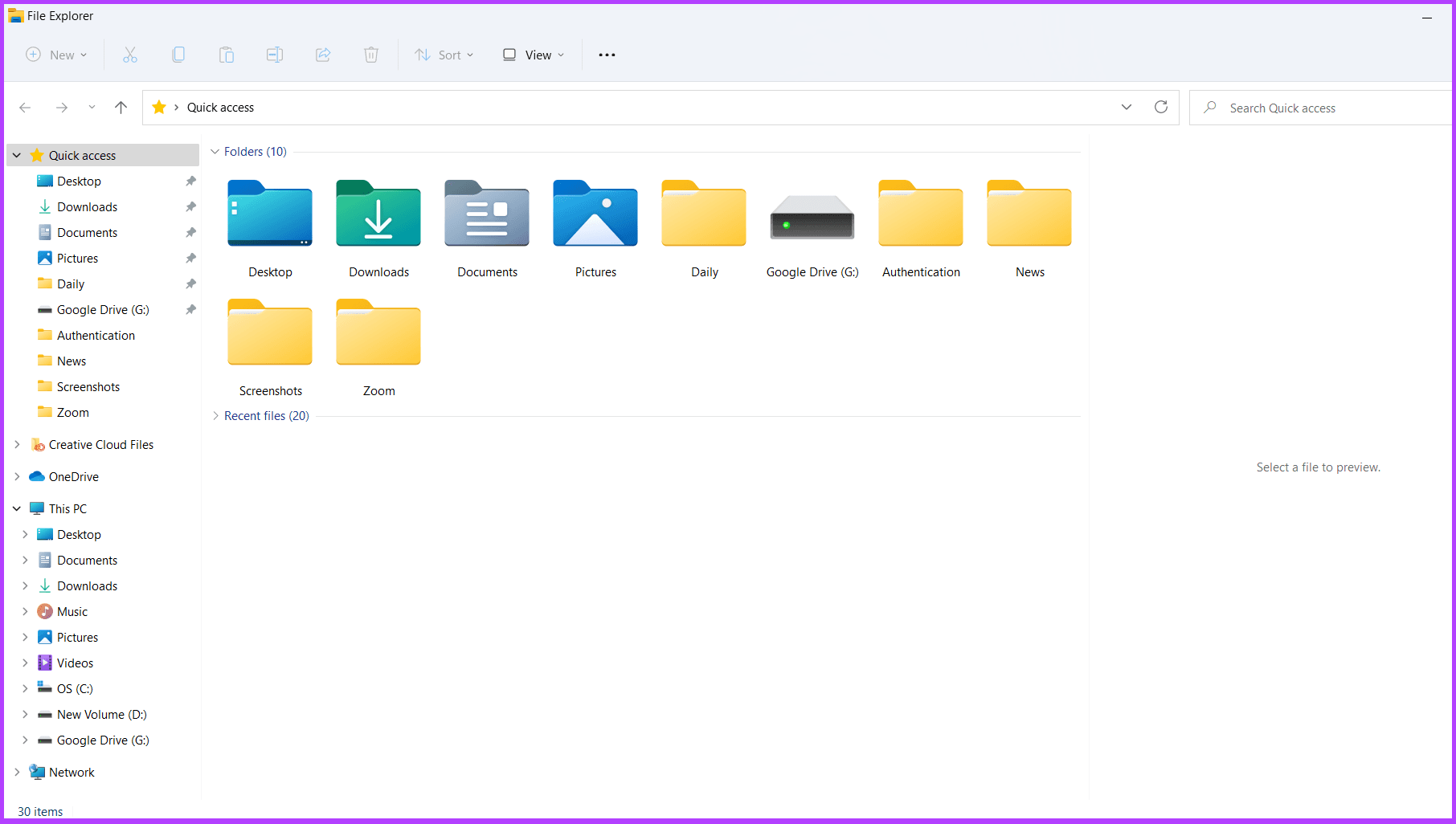
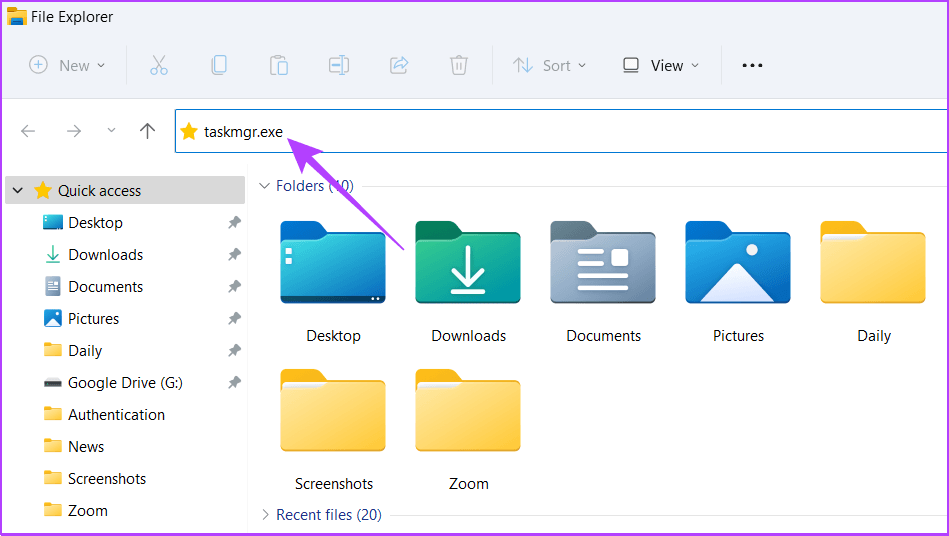
You can open Task Manager from File Explorer in just two quick steps.
Step 1:
Open File Explorer
Or press Win + E on your keyboard
Step 2:
Click the address bar
Type taskmgr.exe
Press Enter
Task Manager will open instantly
Conclusion
There are multiple ways to open Task Manager on Windows, but the above-mentioned steps are a few of the efficient ways to do it. We hope this guide helped you in opening Windows Task Manager effectively and efficiently.
Share this article
Loading comments...
© 2026 CloudHouse Technologies Pvt.Ltd. All rights reserved.